Waze uses a geo-matching algorithm to pair the correct road segments with closures shared by partners. Occasionally, the system can’t find a matching segment due to incompatible data. When this happens, a “Map problem” (MP) is created instead of an automatic closure.
You need to manually review map problems to decide whether to create or reject the closure. On the map, a pink polyline indicates the Feed’s intended closure from point A to point B, with the Map problem icon

located at its center.
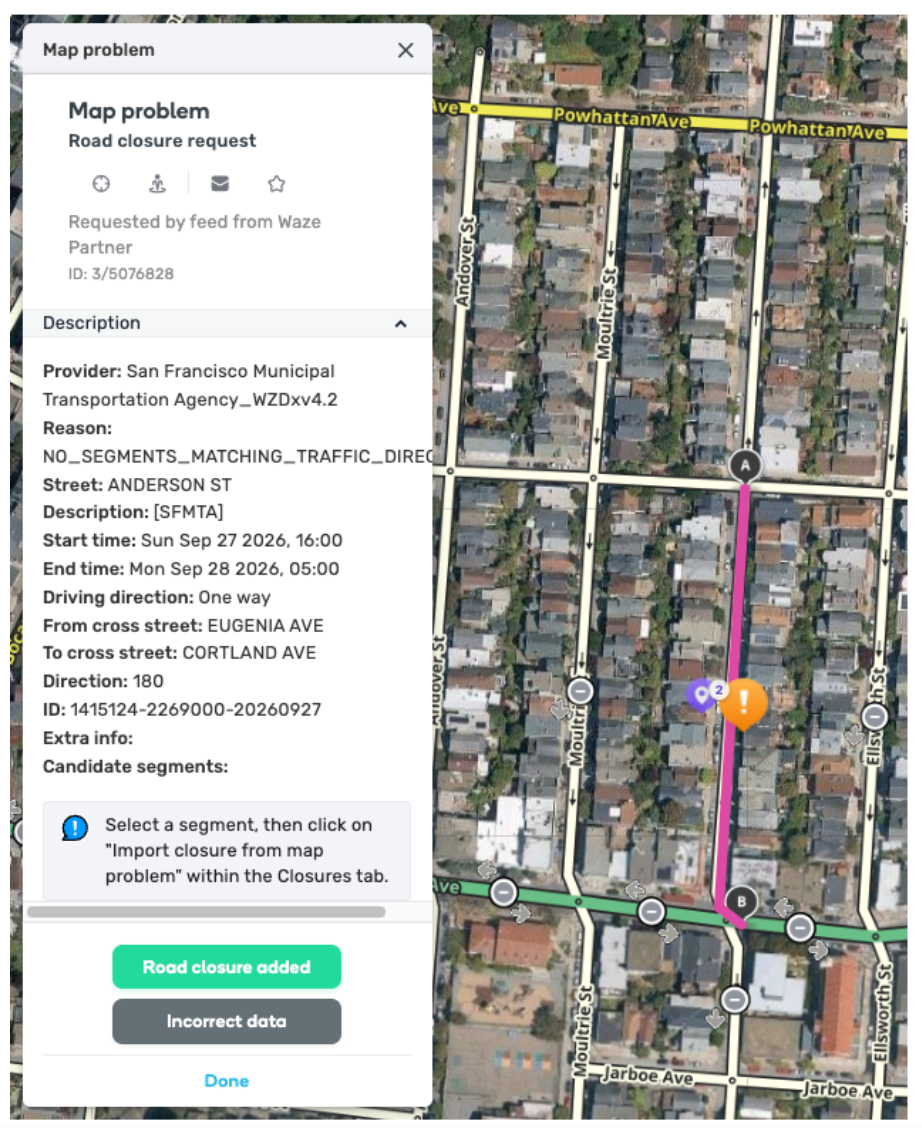
Note: A map problem doesn’t always indicate “bad” data. For example, a name mismatch between a Partner Feed and the Waze map may trigger an MP. If you confirm a closure is required, after reviewing the street name and description, do not reject it as "incorrect data”.
Handle map problems
-
Log in to the Waze Map Editor
-
Click
-
Turn on the “Issues” layer
-
Zoom in to the area you are managing
-
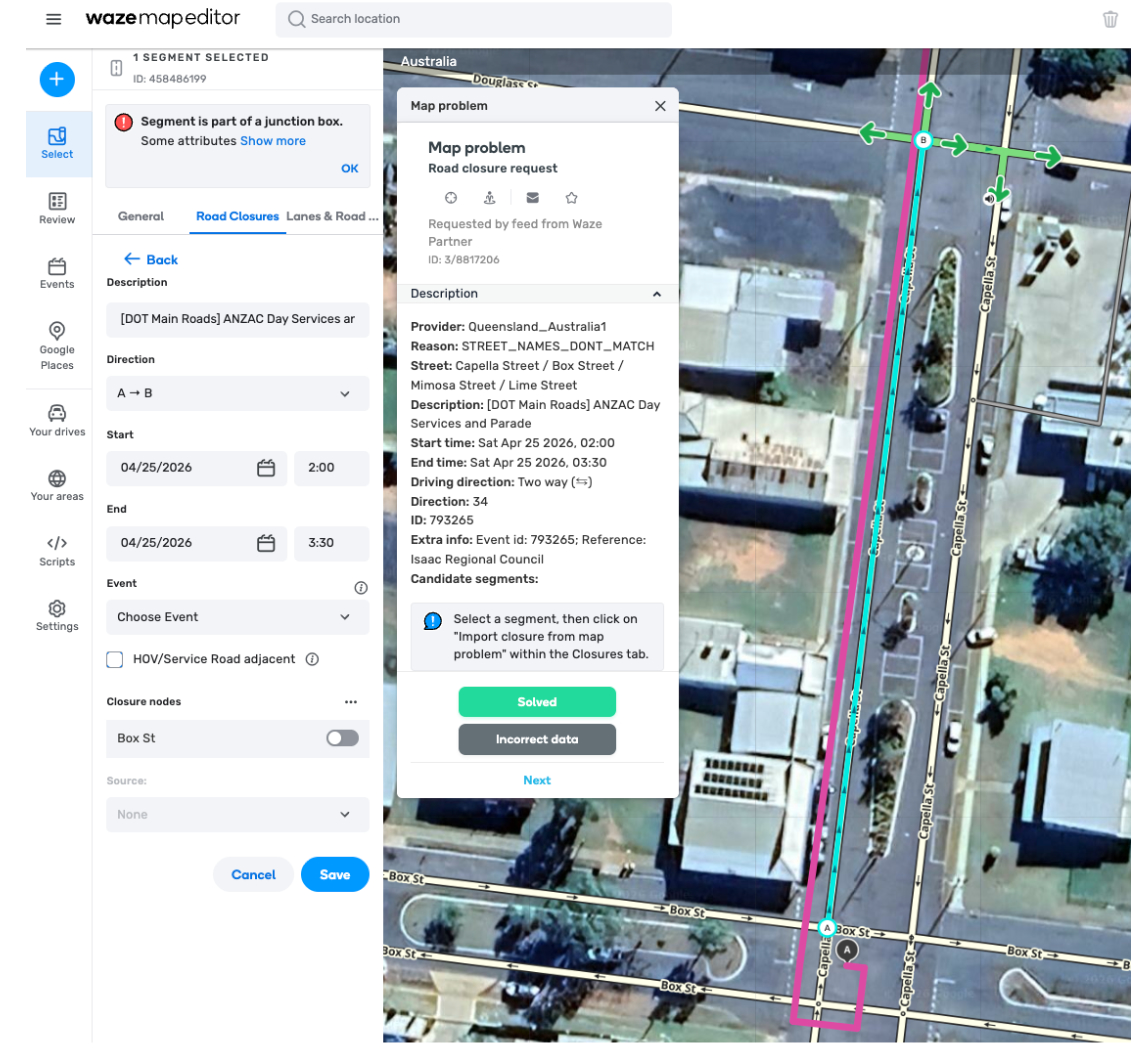
Click [image] on the relevant segment. A panel with the map problem details will appear.
-
Select the relevant segment(s) to be closed. The segment’s Road Closure details will appear.
-
Click Import closure from map problem
-
Review the imported closure information for accuracy
-
Click Save
-
In the “Map problem” details panel, click the relevant option based on how you handled the MP:
- Solved: Select this if you applied the closure
- Incorrect data: Select this if the information is inaccurate and you didn’t create the closure
Map problem error reasons
To understand why a closure wasn’t applied automatically, check the “Reason” field in the “Map problem” details panel.
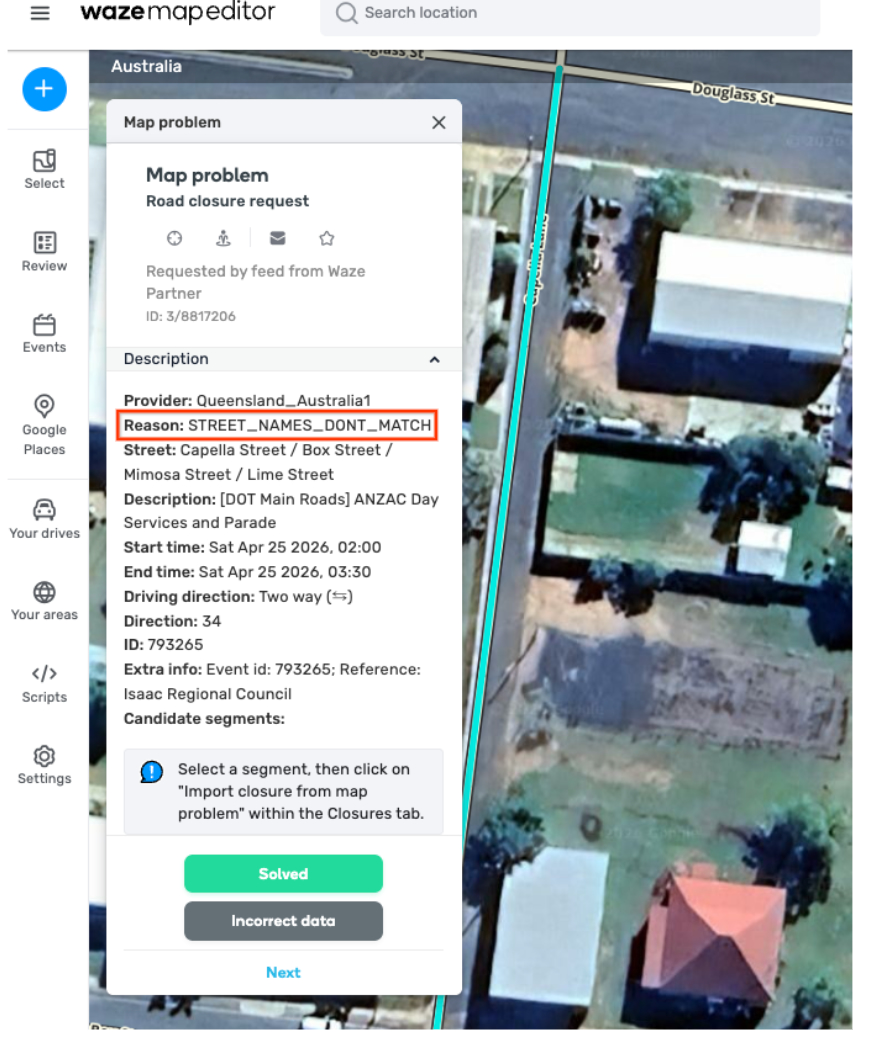
Refer to the table below for an explanation of each error.
| Error reason | Explanation |
| NO_SEGMENTS_NEAR_POINT | Waze can’t find a matching road segment within 50 meters of the coordinates provided. This happens for one of the following reasons: There’s a street or direction mismatch The segment is missing from the map The coordinates are too far from the nearest segment |
| NO_SEGMENTS_MATCHING_TRAFFIC_DIRECTION | Waze can’t find segments due to a direction mismatch. For example, the polyline direction heads west, but the nearby segments head north. |
| CIRCULAR_POLYLINE | Waze doesn’t support events with circular polylines. A circular polyline has 3 or more pairs of coordinates where the first and last pairs are similar, creating a circular shape. |
| CANT_DETERMINE_TRAFFIC_DIRECTION | This happens when a single point is placed on a two-way road and the direction provided is “ONE_DIRECTION”. Our systems can’t determine which side of traffic is impacted based on the provided info. |
| FAILED_TO_FIND_ROUTE | Waze can’t find a route that matches the polyline. This is usually due to a street or direction mismatch, or an invalid polyline shape that spans multiple streets. |
| STREET_NAMES_DONT_MATCH | Closures can only affect one street or road on the Waze map. The closure’s start and end coordinates must have the same street name. |
| NO_ROUTE_BETWEEN_CANDIDATES | Waze can’t find a route that matches the polyline. This happens for one of the following reasons: There is no drivable path between the start and end points The polyline goes over a different street in the middle The route includes a roundabout |
| END_SEGMENT_FOUND_WITH_OPPOSITE_DIRECTION | The traffic direction at the end of the polyline is opposite to the road’s direction. This means the start and end of the closure have different traffic directions. |
| ROUTE_FOUND_BUT_DOES_NOT_MATCH_POLYLINE | The shared polyline doesn’t match any available routes because the geometry is too far apart. This occurs if any part of the polyline is more than 50 meters away from a nearby segment. |
| ROUTE_CONTAINS_UNSUPPORTED_SEGMENT_TYPE | The segment type isn’t supported for Feed closures. For example, Partner Feeds can’t share closures on a “Non-Routable Pedestrian Path.” |
| PARTNER_POLYLINE_EXCEEDS_MAX_DISTANCE | The polyline exceeds 20 km. Break this into several events with shorter polylines. |
| TOO_MANY_CLOSURES | The time range for a closure exceeds the limit of 150. If you exceed this, break the event into several events with different schedules. Closure time range limitation For example, a single closure event from Saturday, June 14, 9 AM to Sunday, June 22, 9 PM with the schedule below counts as 6 separate time ranges: Schedule: • Saturdays: 9 AM – 6 PM • Sundays: 9 AM – 11 AM & 5 PM – 9 PM Resulting time ranges (6 total): • Sat, June 14: 9 AM – 6 PM • Sun, June 15: 9 AM – 11 AM • Sun, June 15: 5 PM – 9 PM • Sat, June 21: 9 AM – 6 PM • Sun, June 22: 9 AM – 11 AM • Sun, June 22: 5 PM – 9 PM |
| MISSING_START_TIME | The start time is missing. |
| FEED_CONFIGURATION | The Feed is configured to generate map problems for review instead of applying closures directly to the map. |
| BACKEND_ERROR | We’re still investigating this error. |