Enhances the native Waze Chat experience across the Waze Map Editor (WME), Waze Discuss, and the Editor Profile with powerful new tools and quality-of-life improvements.
Key Features
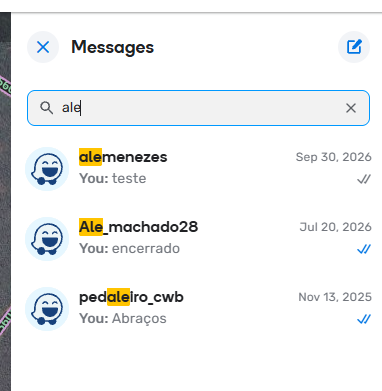
Global Conversation Search: Easily search through all your messages and conversations by nickname (minimum 3 characters).
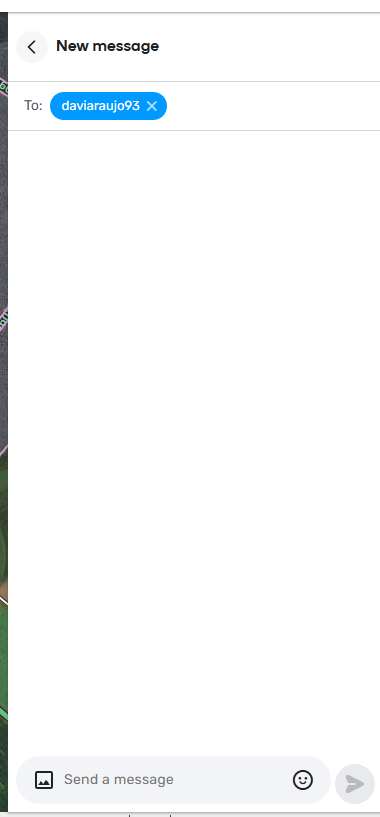
New Message via Nickname: Start a new chat instantly by typing a user’s nickname. The script verifies if the user exists before opening the conversation.
Image Support: Send and receive images directly in the chat!
Attach images via the new attach button, drag-and-drop, or copy-paste.
Includes a full-screen image viewer with options to zoom, save, copy, and open in a new tab.
Images are automatically compressed to save space, with optional support for external hosts (ImgBB, Freeimage.host) via your own API keys.
Quick Keyboard Shortcuts: Press the Esc key to easily go back to the conversation list, cancel replies, close menus, or exit the image viewer.
Advanced Context Menus (Right-Click):
Conversation List: Right-click on any chat to quickly Mark as Read, Clear History, Block/Unblock, or Mute/Unmute without opening the conversation.
Messages: Right-click on any message to quickly access the Reply/Copy menu right at your mouse cursor.
Quick Reply: Double-click the space next to a message bubble to reply instantly.
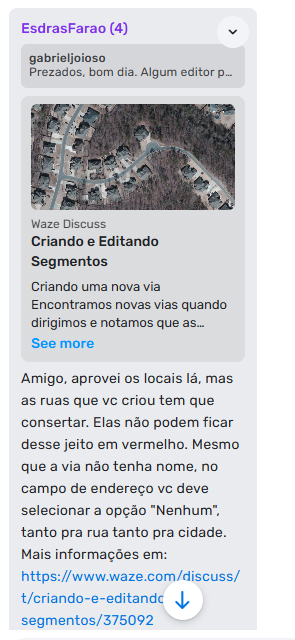
Smart Long Messages: Automatically collapses very long messages (over 12 lines) with a “See more” / “See less” button to keep your chat clean and readable.
Compatibility
Works seamlessly on WME, Waze Discuss, and the Waze Editor Profile pages. Supports 47 different languages!
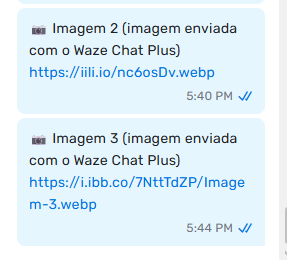
Everyone will receive the images, but only those using the script will see the rendered images.
The only forms that are rendered are those from the three options below, selected in the script panel.
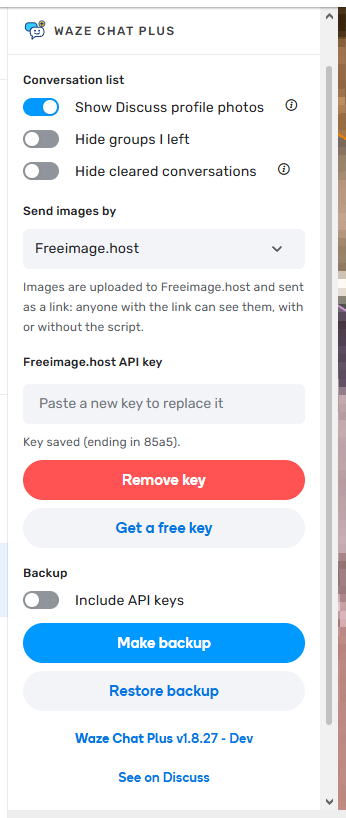
In the Waze Chat Plus script settings panel (which can only be accessed via WME), you can choose your preferred method for sending images; there are currently three options:
Base64 (default)
ImgBB (free image hosting site)
FreImage.host (free image hosting site)
The Base64 method is the only one where the image is not stored externally, remaining solely on Waze’s own chat server. The other options use public, free image hosting sites. You simply need to obtain a free API key for your preferred service.
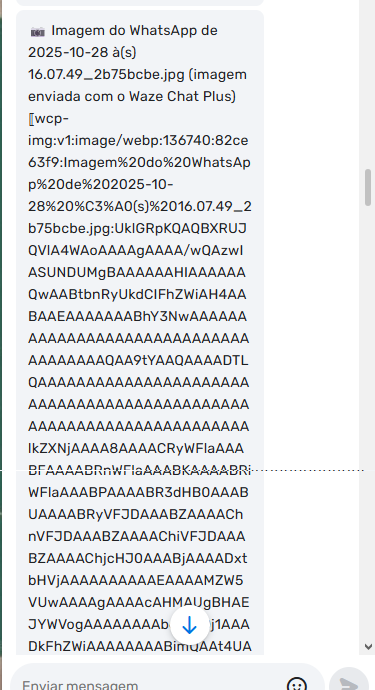
Base64 is ideal when you need greater privacy for an image, as it never leaves Waze’s servers. However, the downside is that anyone not using the script—or viewing the chat via the mobile app—will see a long message filled with countless “random” characters.
With the other two options, uploads are public, meaning anyone with the link can view them. The trade-off here is that users who don’t have the script installed—or who are viewing the chat on the mobile app—will see a user-friendly link to the image.
Below are examples of what the images look like for those who don’t have the script: Base64:
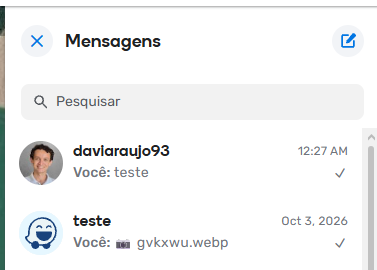
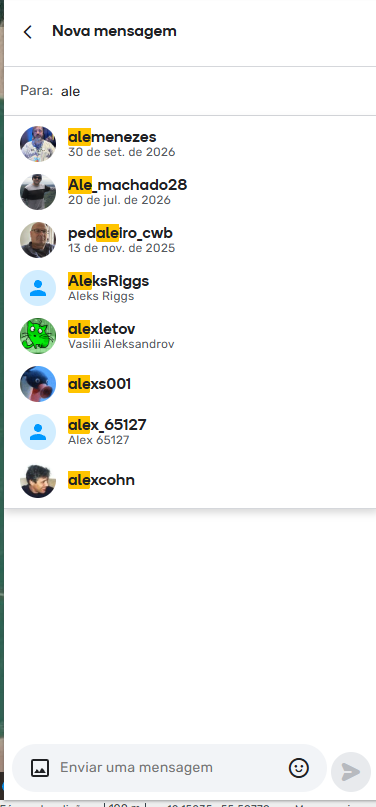
Nickname suggestions: In New message, typing 2 letters of a nickname now lists matching people: first those you already talk to, then Waze Discuss users (with their photo when photos are on); pick one with the arrow keys and Enter, or with a click;
Profile photos: The conversation list, the search results and the open conversation now show the Waze Discuss photo of each person who has one, instead of the generic icon (can be turned off in the script tab); clicking the photo at the top of an open conversation shows it larger in the image viewer;
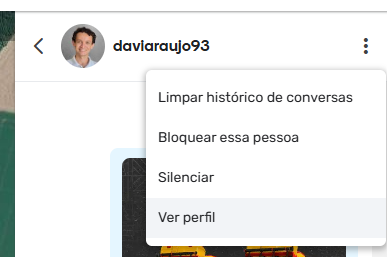
View profile: A new option in the 3-dot menu of an open conversation and in the right-click menu of the conversation list opens the person’s Waze editor profile in a new tab;
Image options in the message menu: The arrow menu of an image message now also has View image, Open in new tab, Copy image and Save image, like the right-click menu (the plain Copy, which copied the image’s code, is hidden).
Fixes and Improvements:
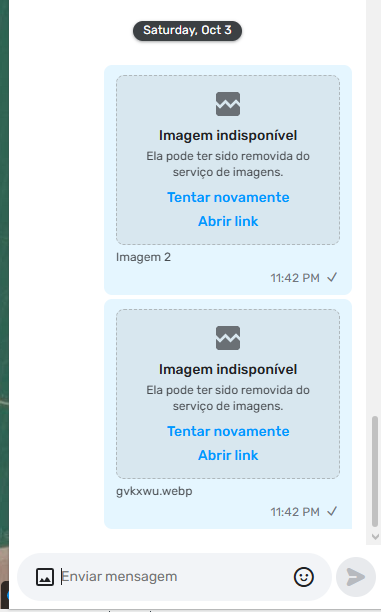
Images: An image that can’t be shown (a link removed from the image service, or one the browser can’t draw) now shows a clear “Image unavailable” card with Try again (and Open link) instead of turning back into a link; images in a conversation now only load as you scroll near them, so conversations with many images open faster, and the image’s code no longer flashes on screen for a moment when a conversation opens;
Image service keys: The API key is now saved while you type, so it is no longer lost when you reload the page or switch services; each service keeps its own key, and switching services leaves the field empty for the new one;
Menus: A right click while a native chat menu (the message arrow or the 3 dots) is open now closes it before showing ours, so two menus are no longer open at once;
Search: Now starts from 2 letters instead of 3; much faster for people with many conversations: it starts reading them as soon as you click the field, shows results while it reads, and then only reads what changed; the “could not load your conversations” error some people saw is fixed (it no longer depends on the computer clock being right and always uses the same messaging server as the chat);
New message: Once the recipient is added, the “To” field no longer accepts typing until you remove them (only one person fits), and the cursor moves straight to the message;
Closing the chat: Closing the chat (not just a conversation) now clears the search, so the full conversation list is shown the next time you open it;
Muted and blocked conversations: The search results no longer show the muted icon on every conversation: muted conversations show it, and blocked ones show “Blocked” instead of the last message, like in the list; the right-click menu now offers Mute or Unmute and Block or Unblock correctly without opening the conversation first.
BUG/ISSUE: Chrome password-manager prompts in WME caused by the API key field (Waze Chat Plus 1.1.3)
Hi,
Thanks for Waze Chat Plus. I found a side effect of the image service API key field in the settings tab.
Problem
The field is created as a password input: <wz-text-input id="wcp-image-service-key" type="password" autocomplete="off" spellcheck="false"></wz-text-input>
The settings pane stays in the DOM for the whole WME session, so the page permanently contains a password field. WME has no <form> elements, which means Chrome groups all form-less inputs into one implicit form. It then takes the text input right before the password field as the “username”. In WME that input is the location search box at the top of the editor (wz-text-input-0; the key field is wz-text-input-1).
As a result:
Chrome autofills the user’s saved Waze username into the WME search box;
Chrome keeps offering to “Save username” or “Update password” while editors use the search box;
autocomplete="off" has no effect here, because Chrome deliberately ignores it on password fields.
Suggested fix
Create the field as a normal text input and mask the characters with CSS instead. A text input never triggers Chrome’s password manager. One detail: wz-text-input only applies type when it is first rendered (changing it later does nothing; I tested this), so the field has to be created as text from the start.
Then mask the characters on the inner input once the component has rendered, for example where the listeners are attached:
let keyInput = tabPane.querySelector('#wcp-image-service-key');

// Mask the key without making it a password field (avoids Chrome's password manager)
customElements.whenDefined('wz-text-input').then(() => {
    requestAnimationFrame(() => {
        let inner = keyInput?.shadowRoot?.querySelector('input');

        if (inner) {
            inner.style.webkitTextSecurity = 'disc';
            inner.setAttribute('autocomplete', 'off');
        }
    });
});
Notes:
-webkit-text-security works in Chrome, Edge and Safari. In browsers that don’t support it, the key would be visible only while it is being typed. Your code already clears the field on blur, Enter and service change, and never shows a saved key back, so the exposure is minimal.
The data-lpignore, data-1p-ignore and data-form-type attributes also stop LastPass, 1Password and Dashlane from treating the field as a login.
An alternative, if you prefer to keep type="password", is to add the key input to the DOM only while the “Images” settings section is being edited and remove it afterwards. But the text-plus-mask approach is simpler and needs no other changes.
Yes, something like this wanted to create myself, but busy with other scripts meanwhile which I am still developing.
Here are some things I think they will prove useful:
Filters:
being able to show unread conversations
being able to group conversations - either create lists or to start simple with a „Favorites" groups and mark conversations as favorites.
Add a state indicator to show if the editor is connected or not (can be grabbed from Connected Editors).
Toolbar with shortcuts - this is something I have already done:
Insert current GPS coordinates
Insert permalink
Insert City and State
Insert Segment Name
Insert Segment City and State Name
Insert Full Address of the selected Place
Insert Welcome Message (saved in Settings) - a predefined message that welcomes new editors - I am sending to every new editor/user that I catch on the maps (including those that send a Map Suggestion).
I haven’t gotten that far to publish my WME Chat Toolbar script yet.
Thanks for the great ideas! I’ll review all of these suggestions carefully and keep them in mind for my future roadmap. I really appreciate your feedback and help.
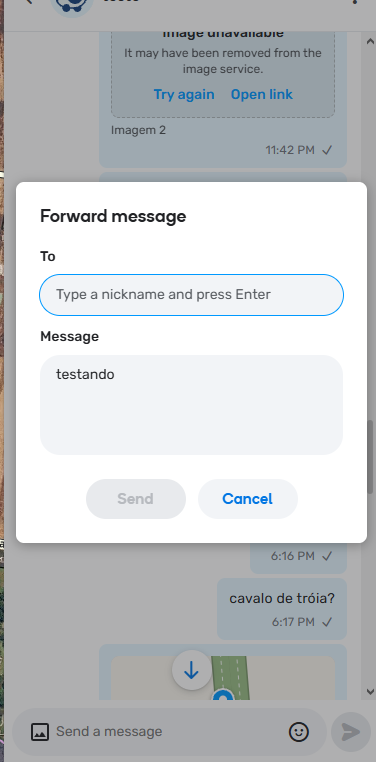
Forward: The arrow menu and the right-click menu of a message now have “Forward”: choose who gets it (with the same nickname suggestions as “New message”), edit the text if you want and send; the conversation opens with the message already sent;
Share location in the chat: In the WME, the “Share location” window now has a share button beside each copy button: it opens the chat with “Forward” filled with the permalink or the coordinates, so you choose who gets it and can add more text before sending;
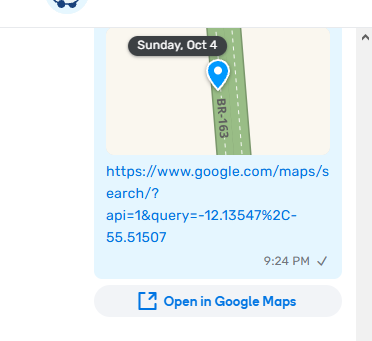
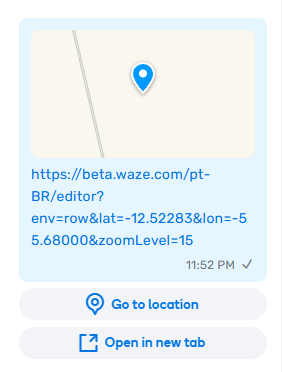
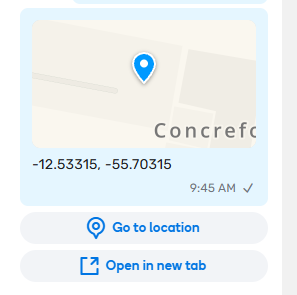
Locations in messages: A message with a WME permalink, coordinates or a Google Maps, OpenStreetMap or Waze Live Map link now shows a small map with a pin above the text;
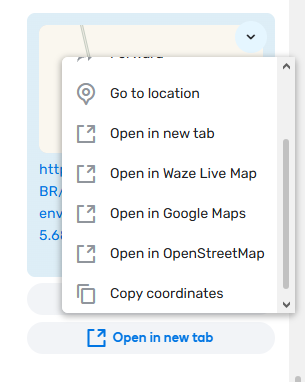
Go to location: In the WME, the button below the message moves the map of the current tab to the place, marks the exact point with a red pin and selects the segments or places of the permalink, without reloading the page; “Open in new tab” (or “Open in Google Maps” and so on) opens it in a new tab;
Message menu: The arrow menu and the right-click menu of these messages also open the place in the other map sites and copy its coordinates (or, for coordinates, copy them as a WME permalink);
Conversation list: A message that is only a location is shown as “ Location”;
Date while scrolling: When you scroll an open conversation, the date of the messages you are looking at now appears at the top, like the day labels of the chat; it changes as you pass from one day to another and fades away 2 seconds after you stop scrolling;
Search with the keyboard: In the conversation search, the up and down arrows choose a result and Enter opens it;
Fixes and Improvements:
Password manager: The API key field in the settings is no longer a password field, so Chrome no longer fills your username into the WME search box or offers to save a password.
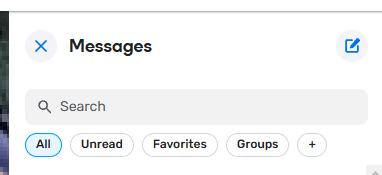
Conversation filters: Below the search field of the conversation list there are now the chips “All” and “Unread”: “Unread” shows only the conversations with unread messages, with the look of the native list, and works together with the search; the list always opens on “All”;
Faster search and filters: Your conversations are read in the background as soon as the chat opens and kept up to date whenever a message arrives, so the search and “Unread” answer right away, new conversations included;
Favorites: Right-click a conversation (or use the ⋮ menu of an open conversation) and choose “Add to favorites”; the new “Favorites” chip shows only them, together with the search. They are kept by Tampermonkey, so they are the same in the WME, Beta, Discuss and the editor profile; a short notice confirms when a conversation is added to or removed from the favorites;
Backup: In the script tab of the WME you can export your options and favorites to a file and import them back; API keys are only included if you tick the box;
Groups: Group conversations now appear in the search and the filters, with the group picture and “sender: text” preview; right-clicking a group offers “Mark as read”, “Copy group link”, “Mute”/“Unmute” and “Leave group” (in red, like in the chat’s own menu). “Leave group” asks for confirmation like the chat does and leaves without opening the group. The new “Groups” chip, after “Favorites”, shows only them; the chips stay on one line and scroll sideways when they don’t fit. Opening a group with unread messages now marks it as read (the chat itself didn’t);
Hide conversations: Two new options in the script tab of the WME, off by default: “Hide groups I left” (the chat keeps them in the list forever) and “Hide cleared conversations”. Hidden conversations disappear from the list, the search and the filters until a new message arrives or you join the group again;
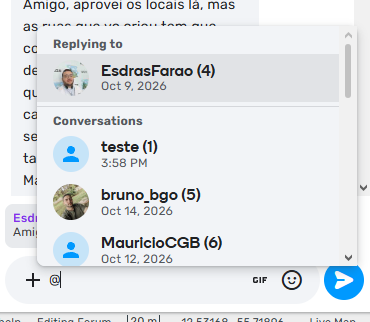
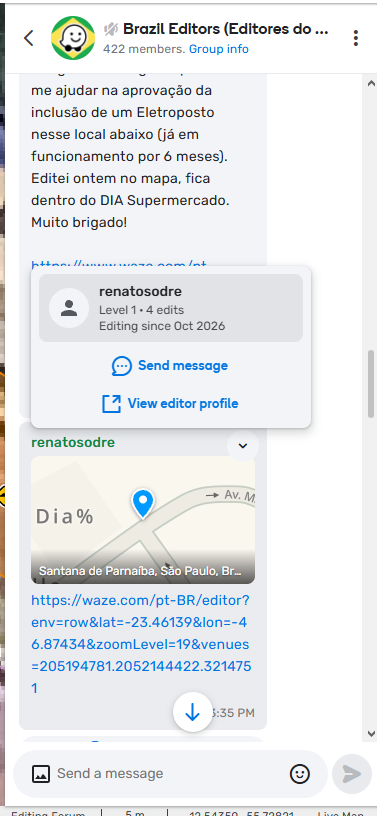
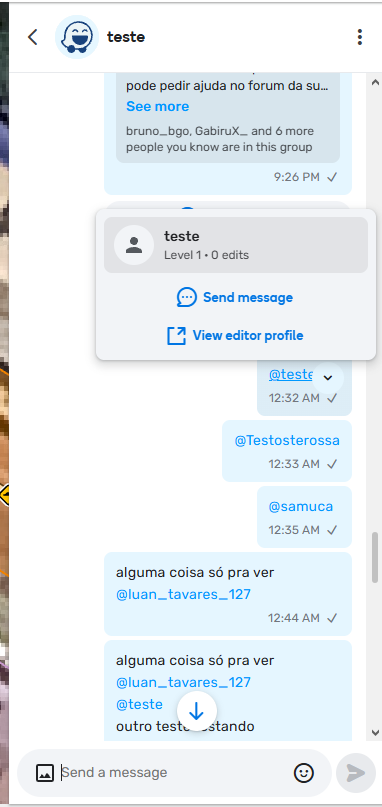
Mentions: Type @ in any message box (a conversation, “New message” or “Forward”) to get a list of people, like on Discuss: your conversations first, then Discuss users as you type; ↑/↓ and Enter or Tab pick one, Space or Esc close the list, and Enter never sends while it’s open. In the messages, an @nickname of someone who exists is shown in color: click it to send them a message, view their profile or copy the nickname;
Discuss profile: People who have a Waze Discuss account now get “View Discuss profile” right after “View editor profile”: when you right-click a conversation, in the ⋮ menu of an open conversation and when you click a mention. It opens their Discuss profile in a new tab. “View profile” is now called “View editor profile”, so the two aren’t confused;
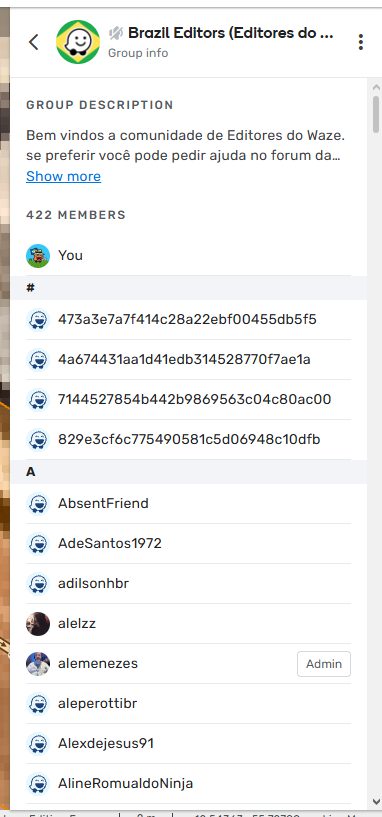
Group members: The member list of the group info screen now shows each person’s Discuss profile photo (click it to see it larger) and a letter before the first member of each initial, which stays at the top while you scroll, so you always know where you are in a long list;
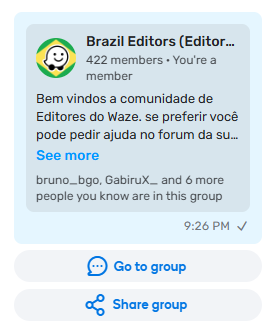
Group invites and profile links: A group invite link in a message now becomes a card with the group picture, name, number of members, description (with “See more”) and the people you know in it; below the message, “Go to group” when you are in it, “Join group” (after a confirmation; the button shows “Joining…” with a spinner while it works) when you aren’t, “Join again” when you left it (“View group”, to read its history, is in the message menu; “Join again” is also in the right-click menu of a group you left), and “Share group”, which opens “Forward” with the link. Clicking the link itself does the same instead of opening Discuss. “Share group” is also in the right-click menu of a group and in the ⋮ menu of an open group. In the list, such messages show “ group name” or “ nickname”;
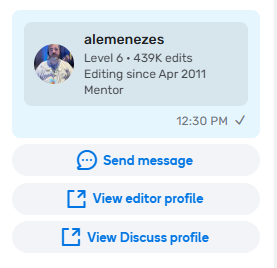
Profile cards: A link to an editor profile or to a Waze Discuss profile now becomes a card with the Discuss photo, the editor’s level, number of edits, since when they edit and their mentor, with the buttons “Send message”, “View editor profile” and “View Discuss profile”. Resting the mouse on an @nickname in a message, or on the sender’s name in a group, shows the same card; clicking it still opens the menu;
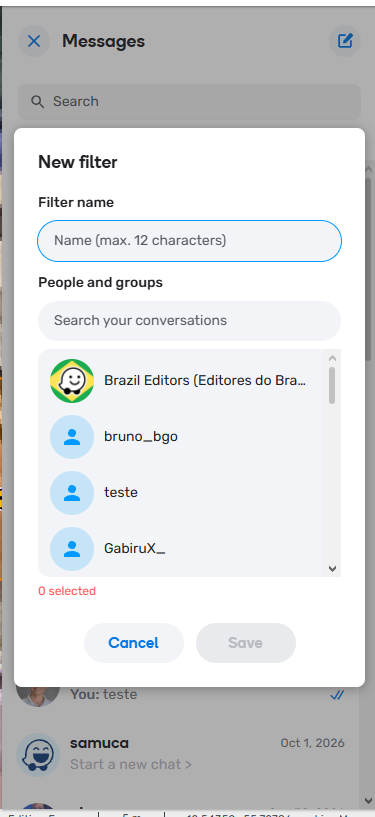
Custom filters: Under the search field, a new “+” button after the filter buttons lets you create your own filter: type a name (up to 12 characters) and choose which people and groups from your conversation list belong to it. Your filters are saved by Tampermonkey and work like the other buttons, together with the search; each one has an X to delete it, which asks for confirmation naming the filter. A short notice confirms when a filter is created or deleted. Other scripts can add filters of their own too.
Fixes and Improvements:
Conversation menu: The right-click menu of the conversation list now shows the name of the conversation at the top, so you know who the option applies to;
Locations: OpenStreetMap links are no longer recognized or offered as an option of the message menu, since it isn’t a map source allowed for Waze editing;
Conversation opened from a group: A private conversation opened from the group info screen now shows the profile photo, the options of the ⋮ menu and the image button;
Group results: A group in the search results and filters now looks exactly like its item in the chat’s own list, including the “ joined” preview, and opens even when it’s far down the list;
Red options: “Block this person” and “Remove from favorites” are now in red, in our menu and in the ⋮ menu of the open conversation; the confirm button of “Block” and “Leave group” is red too, like in the chat;
Editor profile: “View editor profile” now opens the profile page with your language in the address (the old address no longer loaded). Clicking a member on the group info screen, or a sender’s name in a group, now opens the menu with “Send message”, “View editor profile”, “View Discuss profile” and “Copy nickname”, instead of the chat’s own profile link, which didn’t load;
Extension tabs: A long link in the preview of an extension tab (e.g. a group invite) no longer stretches the chat sideways, pushing the header and the tabs out of place;
Mark as read: A conversation or group marked as read from the right-click menu (or a group opened with unread messages) now loses its unread badge in the chat’s list right away, not only after reloading the page;
Reads in other tabs: A conversation read in one tab with the chat open (WME, Beta, Discuss or an editor profile) now loses its unread badge in your other tabs too, and conversations read on another device (e.g. the phone) lose it when you come back to a tab;
Dialog buttons: In every dialog of the script, Cancel is now on the left and the button that completes the action on the right; some had them the other way round;
Beta permalinks: The map of a message with a WME Beta permalink now shows a “Beta” badge in its corner;
City on the map: The map of a message with a location now shows the city, state and country of the place at its bottom, read from the Waze map itself;
Long previews: When the last message of a conversation is cut in the conversation list or in the search results, resting the mouse on it now shows the whole message;
Groups you can’t join: Some groups only accept certain editors (country, region or level) or are full. When Waze refuses your entry, the invite card now says “You can’t join” and why that may be, and no longer offers “Join”; if the entry only failed because of the connection, you are told to try again;
Date while scrolling: In a day with many messages, the date at the top of the conversation now appears right away anywhere in that day, without waiting for the day’s label to load;
Group member list: Opening the member list of a group no longer freezes the chat on slower computers, and the initial letters now appear together with the list, so it doesn’t jump while it opens;
Script tab: The script’s tab in the WME has a cleaner layout: every option has a label, the explanations of the Discuss photos and of hiding conversations are now in an information icon beside the option, “Include API keys” is a switch, the buttons take the whole width, and removing an API key asks for confirmation first;
Lighter script: The release notes and the emoji list are now downloaded when needed, which makes the script smaller. The “What’s New” window now opens once its text has loaded, and the first time you open the emoji picker it may show a placeholder for a moment.
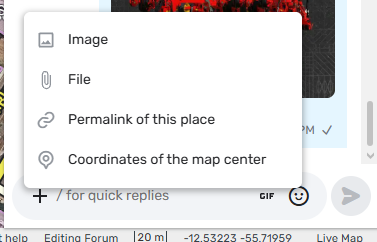
Files: in the “+” menu, choose “File” (up to 32 MB). It is only uploaded when you send the message, to Catbox (anyone with the link can download it). People with the script see a card with a “Download” button
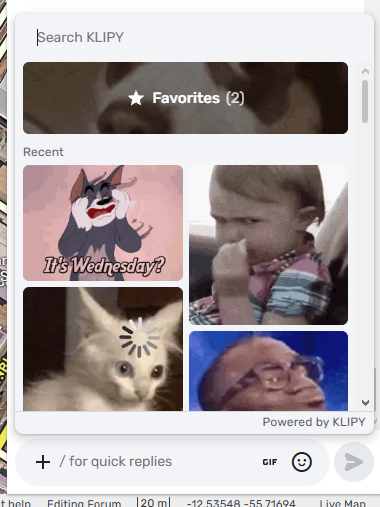
GIFs: new GIF button next to the emoji one. Search and click a GIF to send it; click the star to keep it in your favorites
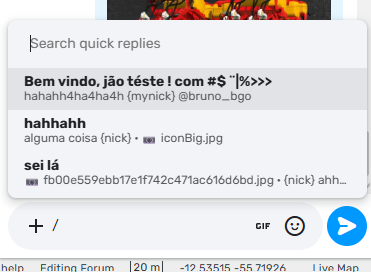
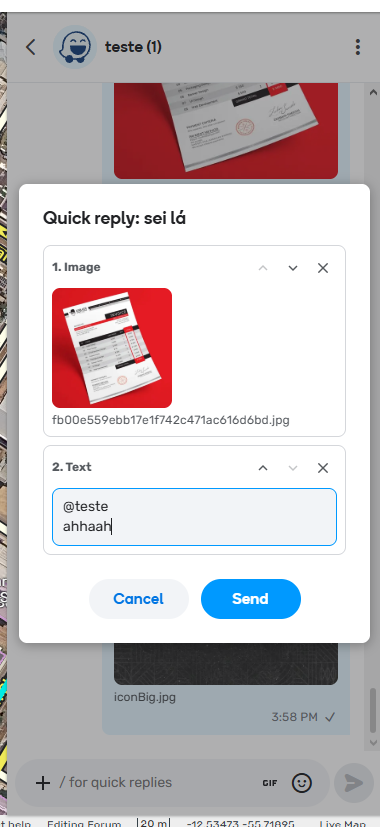
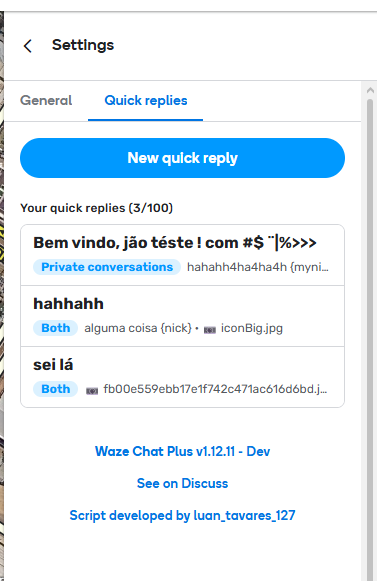
Quick replies: create them in Settings › Quick replies and use them by typing / in the message box. You can edit before sending
Forward several messages: in the conversation ⋮ menu, choose “Select messages”, mark up to 20 and click “Forward”
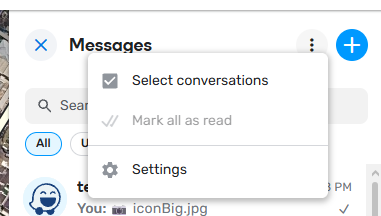
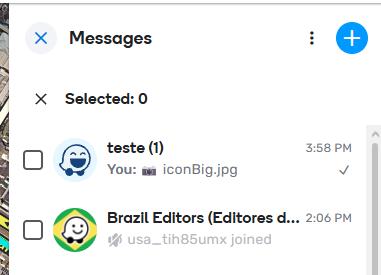
Conversation list menu: the new ⋮ at the top of the list has “Select conversations” (mark as read, mute, favorite, clear or block several at once), “Mark all as read” and “Settings”. The blue “+” opens “New message”
Settings in the chat: they now open inside the chat, on any Waze page that has it
“+” menu: the image button is now a “+” with Image, File and, in the WME, the map link and coordinates
Link previews: the first link of a message shows a card with image and title. Adjust it in Settings › In the conversation
Editor level: shown next to the nickname, like “Nick (5)”. You can turn it off in the settings
Unread in the tab: the browser tab title shows how many unread messages you have, like “(3) Waze Map Editor”
Nickname suggestions: split into “Conversations” and “Suggestions”. In groups, the person you are replying to and the members come first
Fixes and Improvements:
Profile: hovering or clicking a name or mention opens a single card with photo, level and every option
Groups: more space between messages from different people, and the nickname only shows on the first of a sequence
Conversation list: resting the mouse on a cut-off text shows it whole; the “Unread” filter shows the count on groups
Maps and images: the city shows on the map with a loading bar, and the image of a link sits above the text
Details: no empty space in the message box with long texts, aligned floating date, nothing over the emoji picker, photos in “New filter” and translated invite and profile texts


 Key Features
 Global Conversation Search: Easily search through all your messages and conversations by nickname (minimum 3 characters).
 New Message via Nickname: Start a new chat instantly by typing a user’s nickname. The script verifies if the user exists before opening the conversation.
 Image Support: Send and receive images directly in the chat!
 Quick Keyboard Shortcuts: Press the
 Advanced Context Menus (Right-Click):
 Quick Reply: Double-click the space next to a message bubble to reply instantly.
 Smart Long Messages: Automatically collapses very long messages (over 12 lines) with a “See more” / “See less” button to keep your chat clean and readable.
 Compatibility



 Location”;
 group name” or “
 nickname”;