Create and Manage Crisis Events & Road Closures
During a crisis, maintaining up-to-date road closures is critical for Wazer safety. By associating closures with a Traffic Event, you enable Waze to track the situation effectively and provide users with real-time updates.
If you are new to mapping crisis events, complete the Waze Map Editor: Road Closures and Traffic Events interactive course.
Step 1: Create a Crisis Traffic Event
If a Traffic Event already exists, proceed directly to adding and associating road closures.
- Log in to the Waze Map Editor
- Enable the following layers: Places > Road Closures and Display > Map notes.
- Search for the event’s location.
- In the sidebar, select Events and click Create event.
- Configure the following fields:
- Event category: Select Crisis.
- Impacted area: Choose the most appropriate method:
- Polygon-based (Recommended): Select Specific area, click Draw on map, and define the boundary. To edit, click the polygon and adjust the points. Note: Once submitted, a polygon-based event without closures cannot be deleted.
- Coordinate-based: Select Specific area, click Insert area coordinate, and input the GeoJSON, KML, or WKT polygon string, then click Create polygon.
- City-based: Select City, enter the city and country. If the event spans multiple cities, select None for the city. Click Apply.
- Start & End of traffic: Set the dates and times.
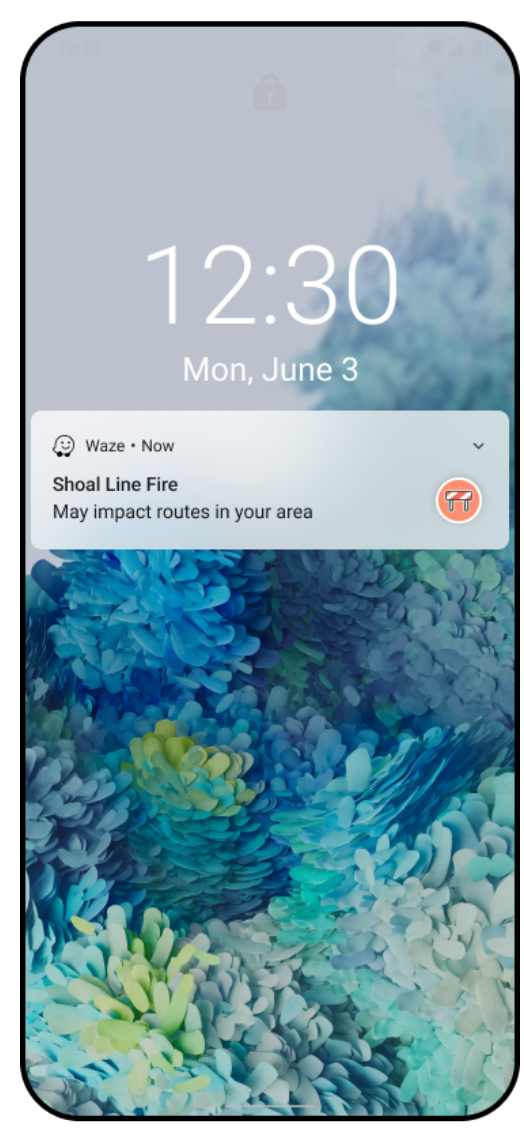
- Event name: Enter the name. This is displayed in user notifications and the Waze app. Ensure it is grammatically correct, reflects the event, and avoids special characters or links.
- Translation: Add the name in the local language.
- Event website: Provide the official agency or organization link used to verify the crisis.
- Lock: Set the restriction level. The default minimum for Crisis events is typically Level 4, subject to community preferences.
- Click Save.
Status: Saving the event creates a “Pending” status and alerts the Waze Crisis Team for review.
Step 2: Add Road Closures
This task is typically restricted to Level 4 (L4) editors.
Search for the closure location.
- Select the relevant segments and open the Road Closures tab.
- Click Add closure and provide the following:
- Description: Enter the event name.
- Direction: Specify the closure direction.
- Start & End: Define the timeframe (e.g., 00:00 - 23:59 for all-day closures).
- Event: Link the relevant Crisis event.
- HOV/Service Road adjacent: Enable only if the closure is adjacent to an HOV or service lane to prevent erroneous GPS data. Note: This stops Waze from using live traffic or real-time updates for this segment.
- Closure nodes: Use sparingly, as closing all nodes can block valid turns and hinder routing.
- Source: Leave blank (this is reserved for Waze Partners).
- Click Save.
Step 3: Submit the Event
- Navigate to Events in the sidebar.
- Select the event and click Submit.
- Confirm by clicking OK.
Status: The event transitions to “Ready,” notifying the Waze team for final review. Once validated, it will appear on the Waze Live Map and Events website. Note: Not all events qualify for push notifications; eligibility is determined by severity, location, and user impact.
Troubleshooting and Support
Checking Push Notification Status
- Log in to the Waze Map Editor.
- Search for the location and click Events in the side panel.
- View the status:
- Draft: Not saved.
- Pending: Saved but not submitted.
- Ready: Submitted, awaiting review.
- Published: Active and promoted via push notification.
Official Data Submission
If you have official data (e.g., police feeds, government spreadsheets) but cannot perform the mapping yourself, email waze-crisis@google.com and add:
- Links to official data.
- Event names (English and local language).
- Details of all closed streets, including start/end intersections.
- Closure dates and times.
- Directional closure details.