Scheduler for School Zones (Permanent Hazard)
Check out for more languages at the How To doc
Scheduler for School Zones (Permanent Hazards)
Content
How to add a Schedule for a School Zone
Setting Up Custom Community Schedules
Excluding Dates [Holiday Schedule]
March Office Hours with Alona & Tom: check out the recording!
Link to the School Zones Core Functionality Mapping Guide
Feature Summary
The Scheduler feature allows editors to set custom schedules for School Zone alerts, enhancing road safety by ensuring that alerts are triggered only during relevant times. This feature is designed to align School Zone alerts with the actual hours of school activity, providing a more dynamic and relevant user experience.
With the Scheduler, editors can:
- Set specific days and times for alerts.
- Account for holidays, weekends, and other exceptions.
- Create recurring schedules for long-term efficiency.
Lock Level
- Default lock level: 4
- Can be configured per country, separately from other PH’s. Lock level applies to creation and editing of school zones. Champs and Coordinators can reach out to their Staff Community Manager to modify the lock level.
- Editors can create or edit polygons regardless of the lock levels of the underlying segments.
- For a Community Schedule, the default lock level is 4, but it can be adjusted manually within WME for each newly saved custom schedule. For sensitive community schedules that are applied widely, we recommend setting the lock level high.
A Note Before Diving into the Mapping Guidelines
While aiming for Schedule accuracy is excellent, it’s important to remember that the primary goal is to provide helpful alerts to drivers when children are likely to be present. If achieving 100% perfect alignment with school day hours proves challenging, please don’t let that prevent you from creating a functional schedule. A schedule that generally covers the key times when children are arriving, departing, or present at the school makes a real difference for safety.
There are two approaches to mapping school zone areas:
Legal Definition: When legal boundaries are clearly defined, whether through signage or local policy, prioritize their use. If the speed limit changes within that area, be sure to include that information.
Community-Based Definition: In the absence of legal boundaries, define the area based on local knowledge of where children are likely to be present. For consistency, consider using the streets immediately surrounding the school up to the next intersection, or a 200-meter radius. If there are no speed limit changes or enforcement, the community decides the boundaries, focusing on areas where drivers should exercise extra caution.
Mapping Guidelines - How to add a schedule for a school zone polygon
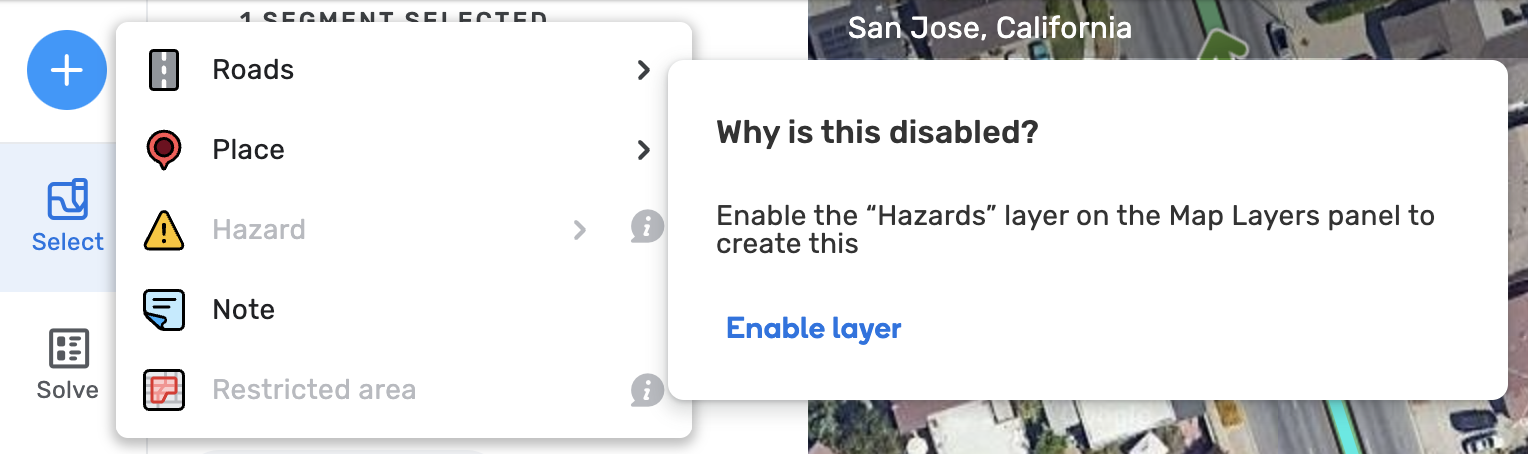
- Click on the Hazards button on the top right side of the screen and click “Enable layer”
- Now that the layer is enabled, select ״School zone״ and enable this layer as well.
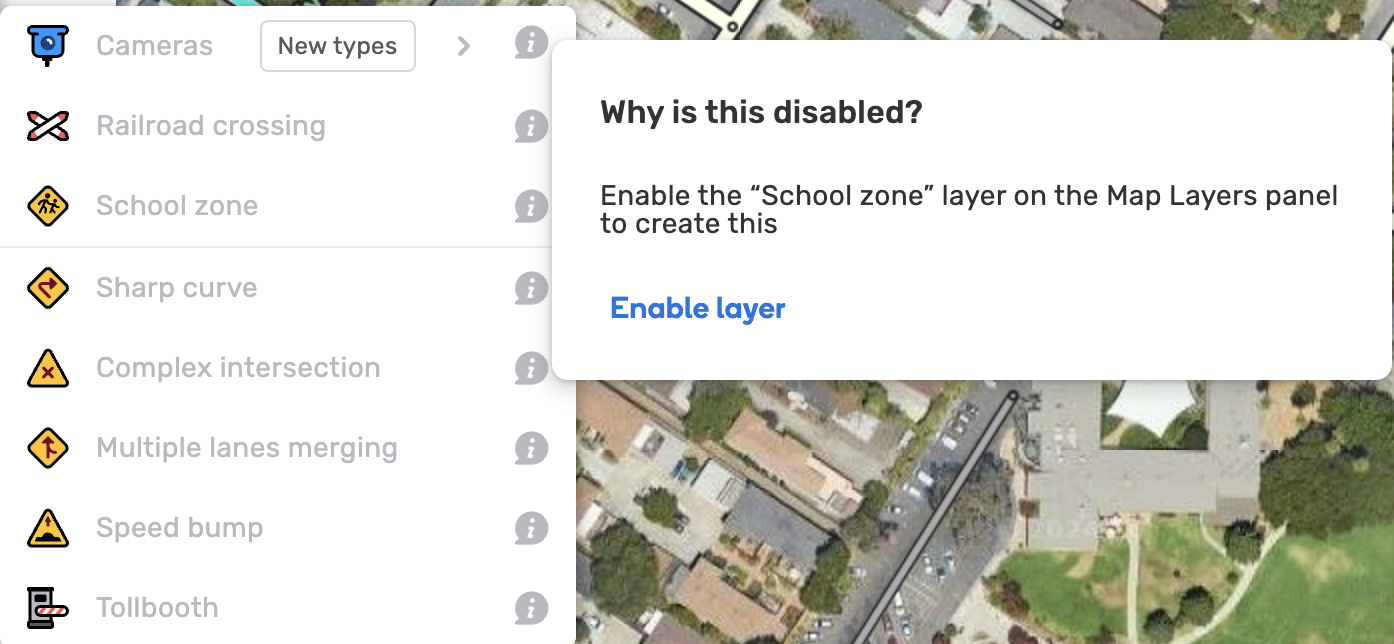
- Hover your mouse over ״School zone״ and click it to create a starting point for your polygon.
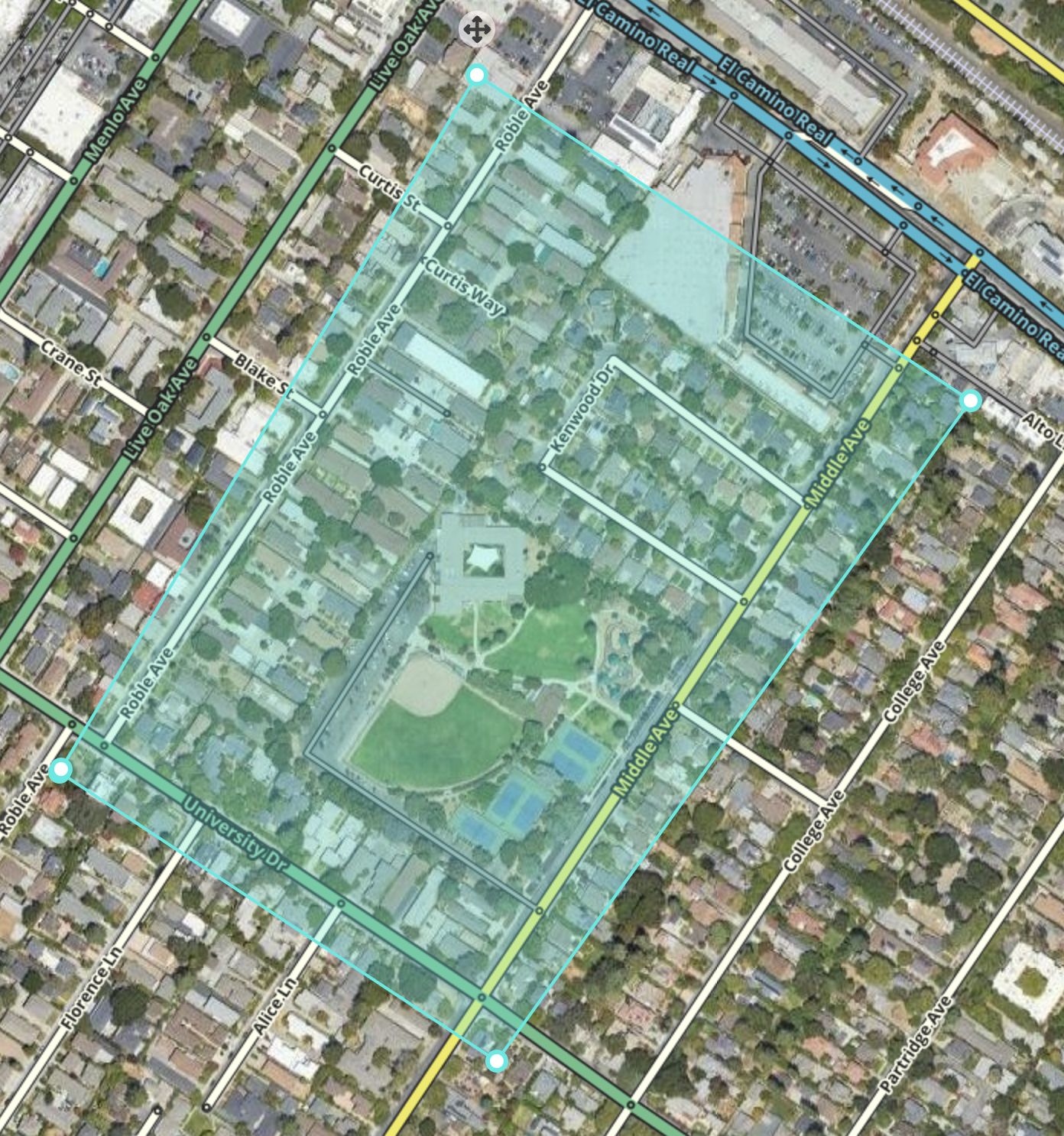
- Drag the point to the desired location on the map where the School Zone should begin.
- Continue drawing the School Zone polygon by adding multiple points. Ensure the area encompasses all segments where drivers should receive alerts upon entering or crossing the School Zone.
-
Set the Schedule:
-
Press the “Set a schedule” button to get started.
-
Step 1 out of 3 - Create Schedule: You will be able to choose a date range for which the schedule will be active. Note that you also have the option to have the schedule run continuously if checking the “No end date” checkbox and you can also decide that the chosen timeframe will be applied and activated yearly within the date range you’ve picked.
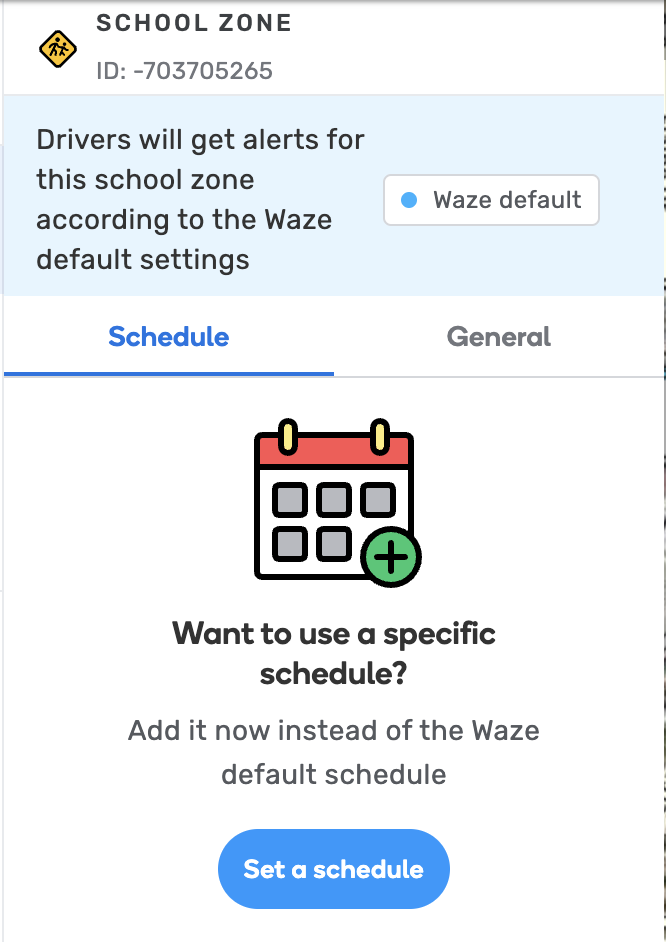
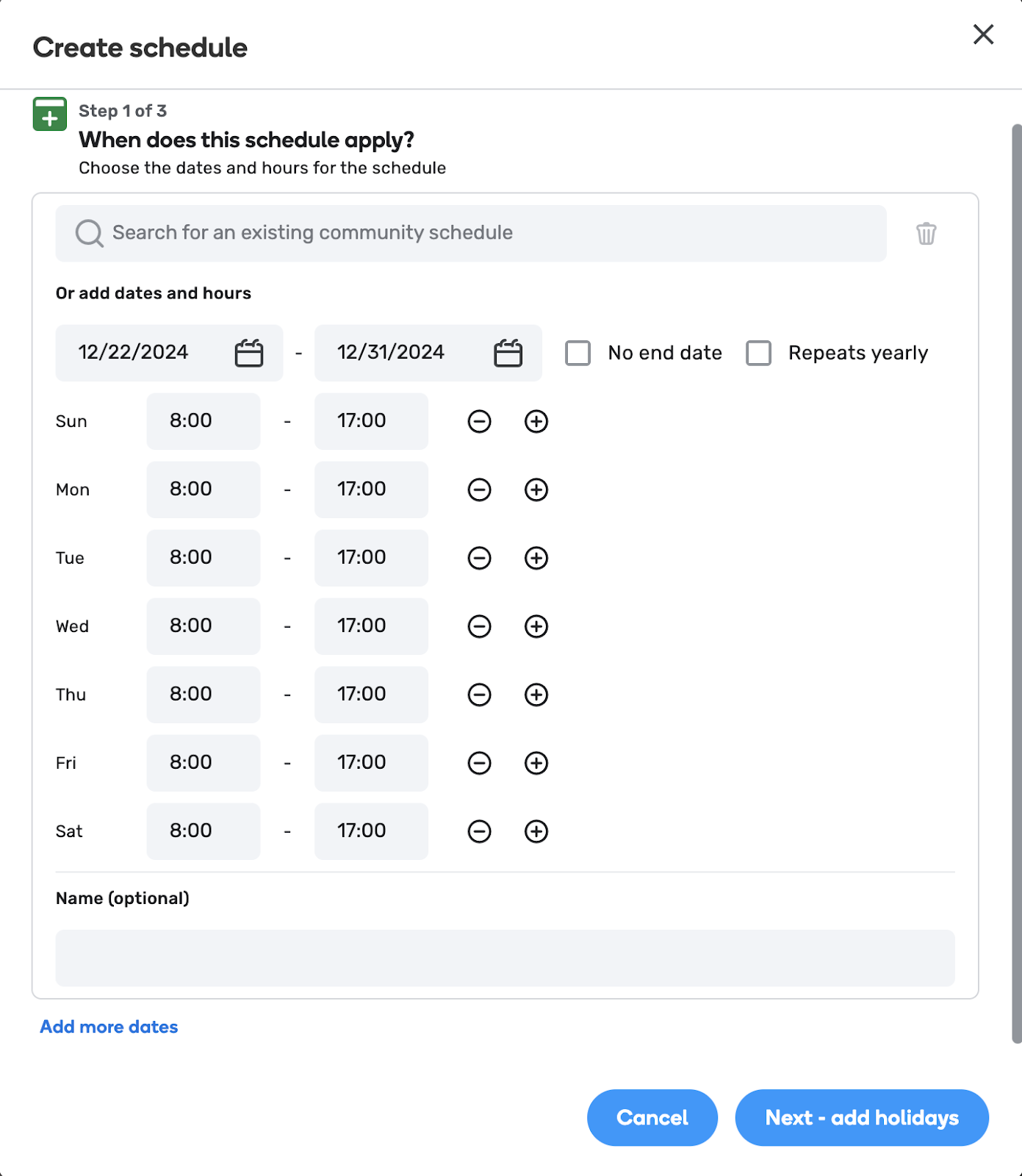
- Set Days of the Week: You will be able to set which days of the week the alerts should be active. For example, choose Monday through Friday if the school operates on weekdays only.
- Set Time Blocks: Define the start and end times for the alerts. For example, set the alert to trigger between 7:00 AM and 4:30 PM for a school operating within those hours.
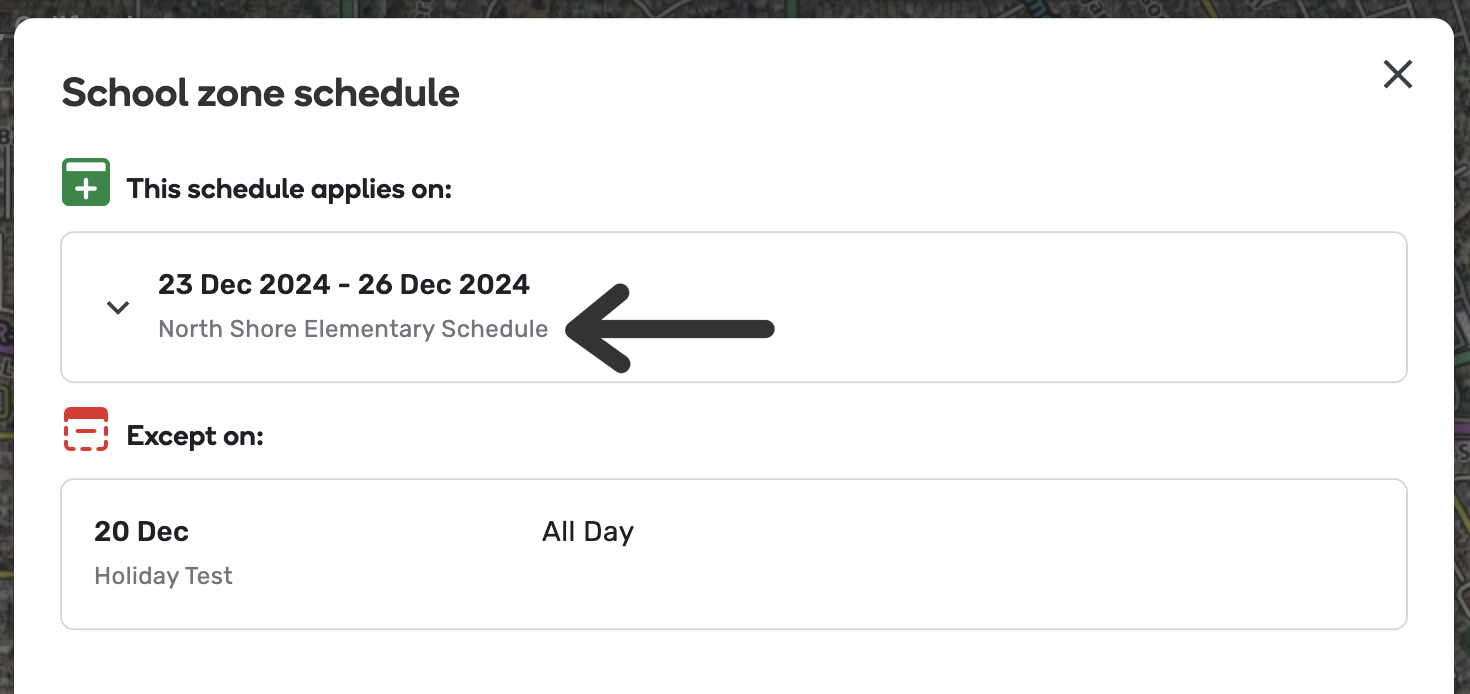
- Name the schedule (optional): You can assign a name to your schedule. If a name is provided, it will appear in a pop-up box showing the schedule details under the School Zones tab, accessible after selecting a specific school zone.
- Add more dates: apply multiple schedules if needed and press the “Next - add holidays” button to advance to the next step.
- Step 2 out of 3 - Exclude Dates: Select specific dates or date ranges to exclude from the schedule. During these excluded dates, school zone alerts will not be shown to drivers. Use this option to account for holidays, seasonal breaks, or weekends when schools are closed.
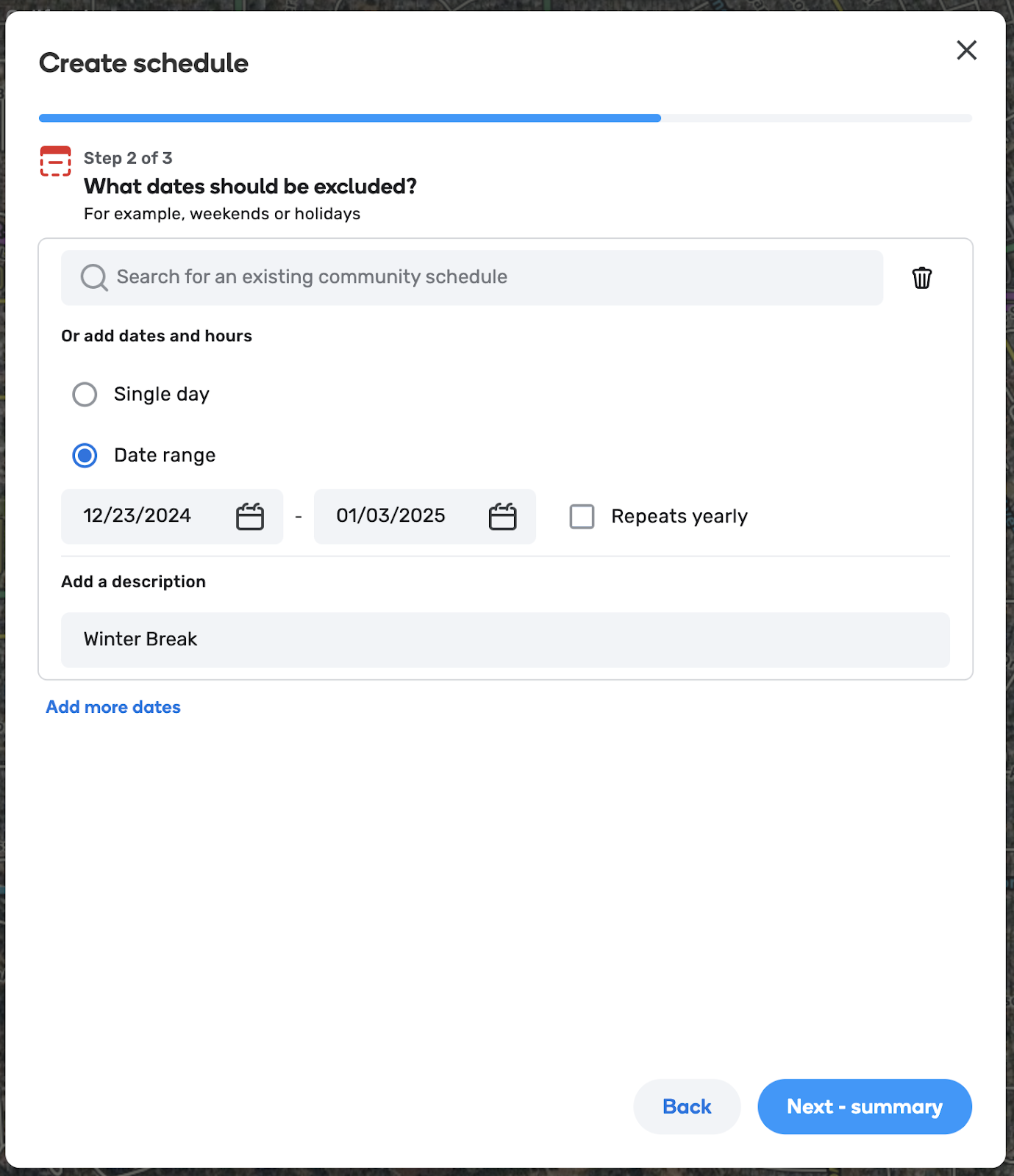
- Add a description (mandatory): Enter a description explaining why the selected dates are excluded. If needed, you can also add more dates or date ranges to the exclusions.
- Press the “Next - summary” button to review the entire schedule details.
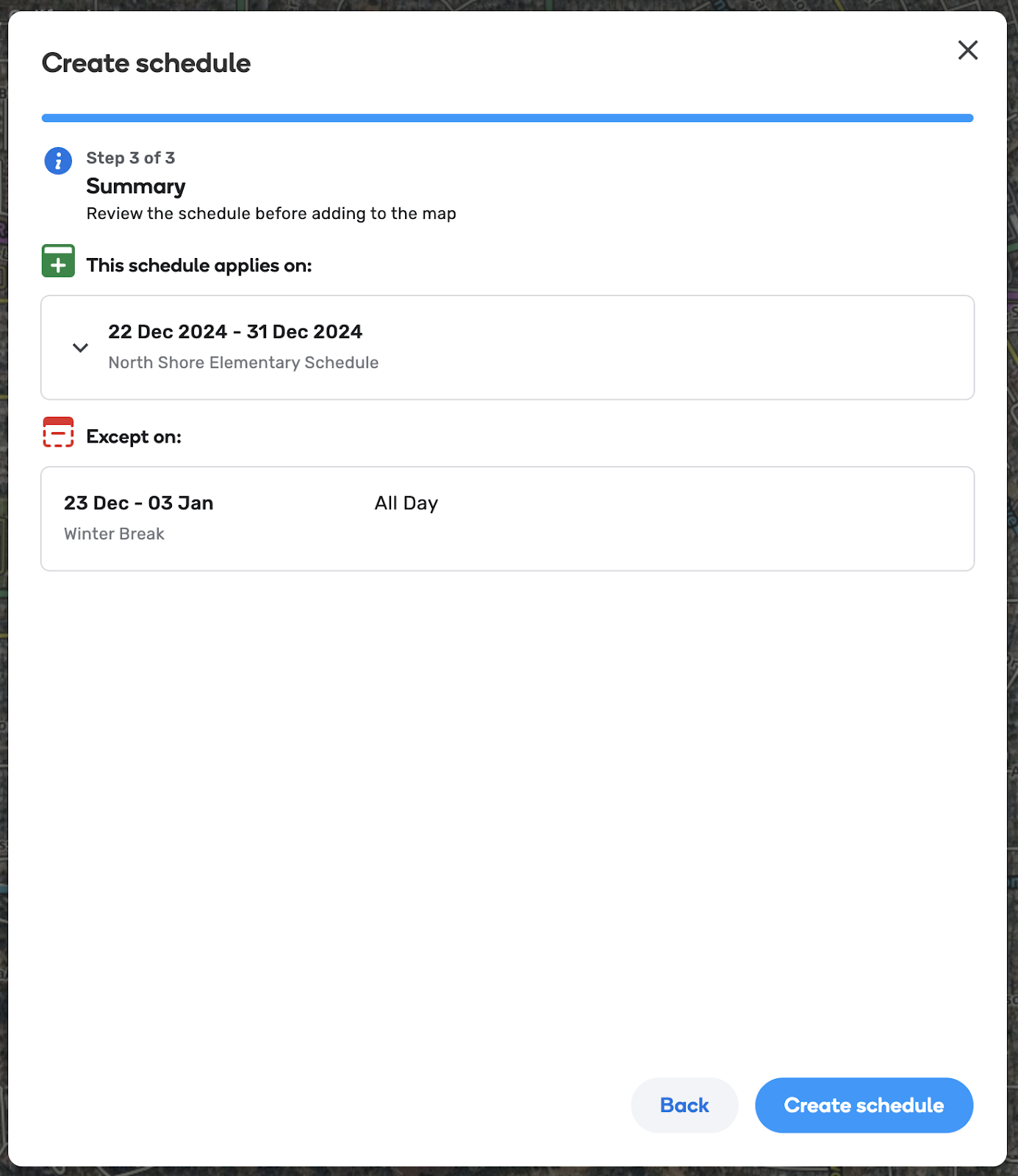
- Save by clicking the “Create schedule” button. That’s it - you now have a custom schedule applied to your school zone! To edit the schedule later, simply click the Schedule icon on the left panel when selecting the School Zone.
How do timeframes work?
A schedule can be made up of multiple, stackable timeframes. A timeframe can be applying, or excluding, and can be set individually for that school zone or derived from a community schedule.
There is no hierarchy between the timeframes, not from source (local or community schedule) and not in order.
The schedule works as follows:
Local schedule = (applying + applying + applying + applying..) - (excluding + excluding + excluding + excluding..)
So, a schedule will apply at all applying times, except all the excluded times.
Setting Up a Saved Searchable Community Schedule
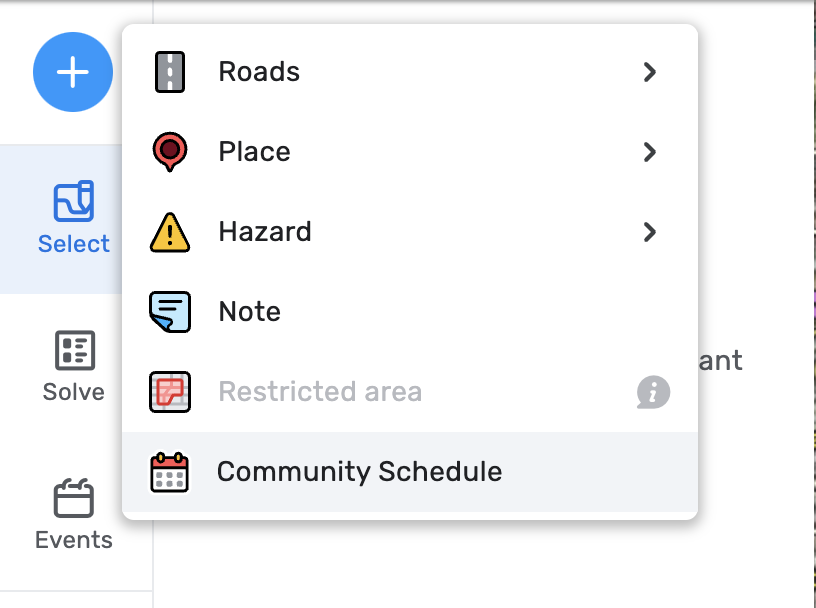
- Click on the plus icon on the left side panel and then click on the “Community Schedule" to start setting up a new saved schedule.
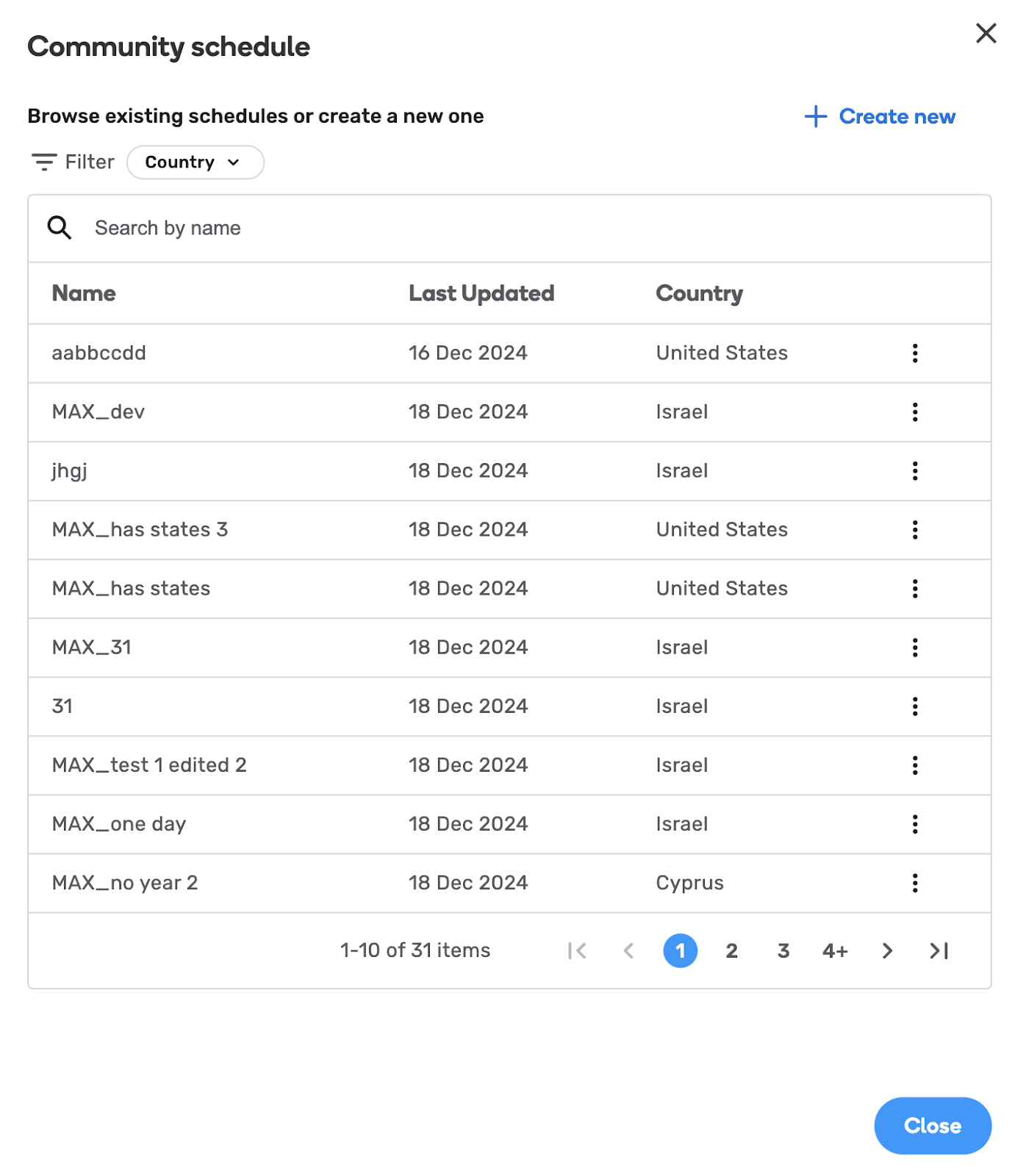
- In the pop-up window, click the “+Create new” button.
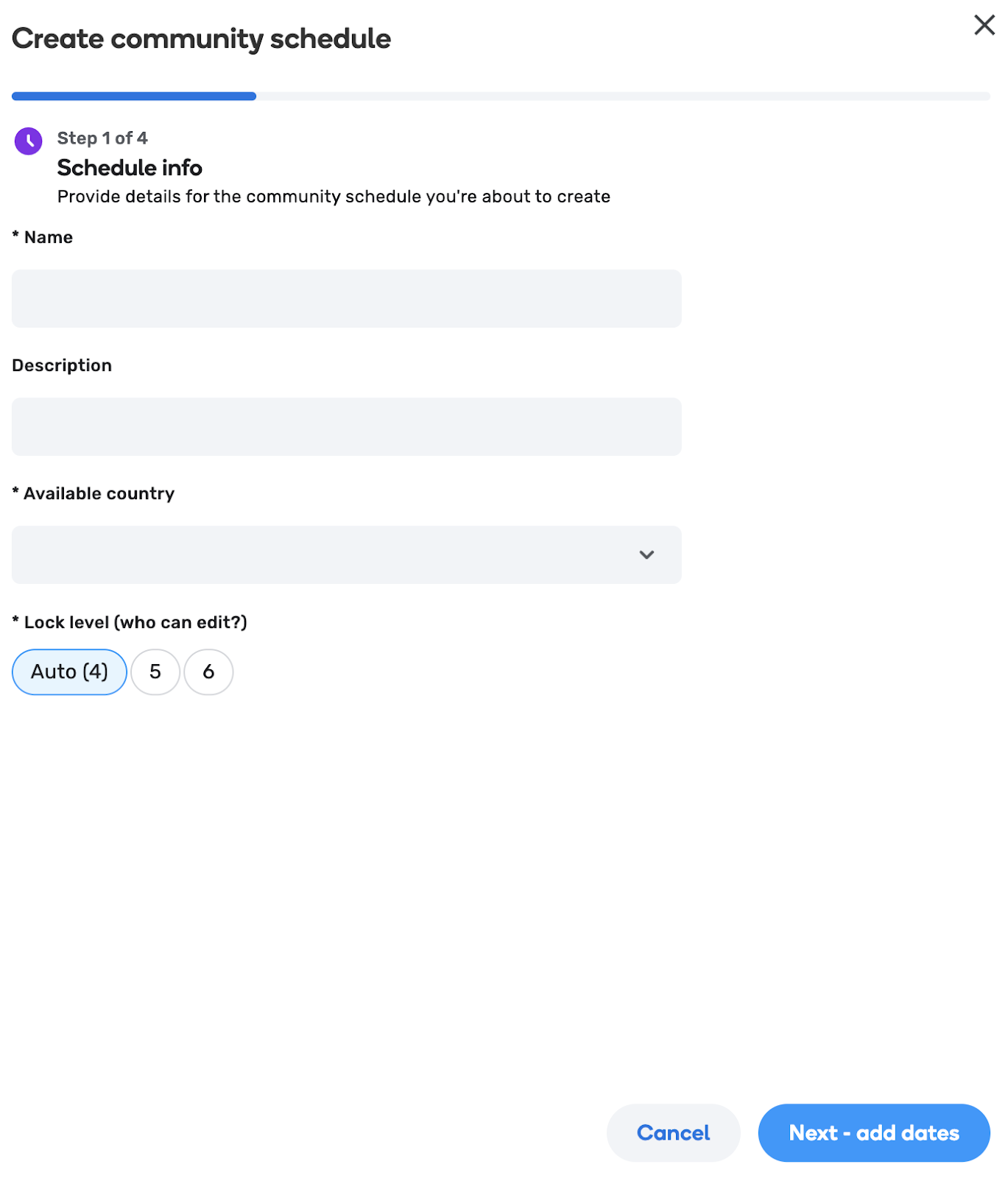
- In the next window, enter the required information: the name of the community schedule and the country where the schedule will apply. You can also select the lock level for the saved schedule (default is L4). The description field is optional.
- “Next - add dates”: follow the same process as outlined in step 6.b previous steps for setting dates and times for when the schedule should be active (“applying schedule”). In the following step, you can also add excluded times to the same schedule, specifying when the schedule should not be active and alerts should not trigger. For greater flexibility, you can also create separate applying and excluding schedules for broader use. See the “Creating an Excluded Schedule” section for more details on this use case.
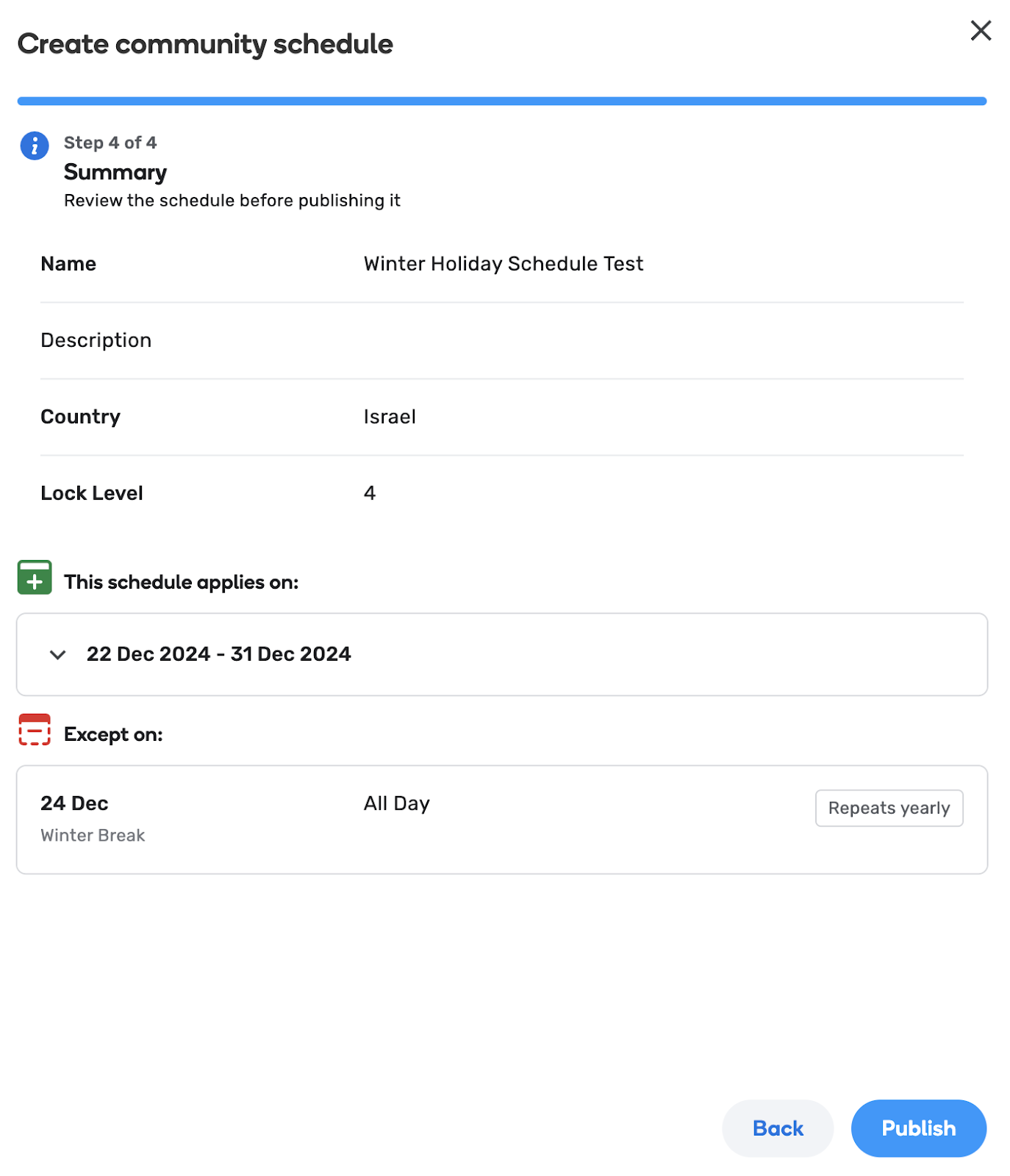
- Step 4 out of 4 - Summary: In the final step, review the summary to ensure all details are correct, then press “Publish” to save the schedule.
- Congratulations! You’re all done. Now you can share the name of your saved schedule with your community, so they can use it when setting up schedules for other school zones, quickly and easily.
You will be able to go back and edit your saved schedule, but please be mindful when doing so.

Best Practices in Setting up a School Zone Schedule
Defining a school year
There are 2 options to define a school year:
-
As start/end of the main applying timeframe. Choose this option if the school year starts and ends on specific dates, doesn’t change, and isn’t shared by other schools.
-
Define “Summer break” as an excluding time. Choose this option is the school year doesn’t have set dates (for example, starts on “First Monday of September”), changes year by year (for example because of snow days), or is shared by multiple schools.
-
Define the applying times as “ALWAYS”,
-
Add in a summer break as an excluding timeframe.
Using Community Schedules
- A community schedule should be created whenever multiple schools share the same hours, the same holidays and breaks, or both.
- The goal is to have as much of the schedule controlled through a community schedule, so a single change can apply to all schools.
- A community schedule can be edited and updated year over year.
- Remember, the schedule is modular and stackable, so you can add multiple community schedules to a school zone - and add more specific times to a specific school.
Schools that share (some) holidays: A community schedule for all (or some) holidays, shared across multiple schools
- Create a community schedule with JUST excluding times. This community schedule can be more general, to include the holidays shared across all the schools you manage.
- Create school zones, each with their unique applying times (weekdays and hours), set to ALWAYS
- Add the Holidays community schedule
- Add in more holidays or days off per school, and the specific summer break. These additional excluding times will be combined with the more general holidays schedule.
Schools that share (some) hours:
- Create a community schedule with JUST applying times - the weekdays and hours. This community schedule can be more general, to include just the hours shared across all schools you manage.
- Create school zones, adding the applying community schedule and more applying times per school.
- Add in specific holidays, and/or a community schedule of holidays.
Schools that share (some) hours:
- Create a community schedule that has both applying times (set to ALWAYS) and holidays.
- Remember, the schedule is modular and stackable, so you can add multiple community schedules to a school zone - and add more specific times to a specific school. When in doubt, the community schedule can include less times and holidays.
- Create school zones, add the community schedule.
- Add in more applying times, and more holidays as needed.
I’m not sure of all the holidays and hours, or not sure I’ll be able to keep up with changes over the year.
- We prefer to alert more often than not. However, drivers usually encounter school zones in their common route, so they will usually be used to driving with more caution around the school zone, even if the alert doesn’t appear on a specific school day.
- Every region may create a regional, basic Community Schedule, to apply in cases where full information on hours and holidays are not fully available.
- A basic schedule should include a general Mon.-Fri. Schedule (adjusted to your region), with morning and afternoon hours, and the summer break and major holidays.
Creating an "Excluded Holidays” Schedule
- When setting up schedules for school zones, it’s important to account for holidays or other specific dates when school zone alerts should not trigger. You can create an “Excluded Holidays” schedule specifically for this purpose. This schedule can be saved, searched, and applied when setting up a schedule for a specific school zone.
- Skip “Step 1 out of 4” in the “Community Schedule” Setup:
- When creating a schedule that will only serve as an excluded dates schedule (without setting times or days), you should skip Step 1 of the Community Schedule setup. To do this:
- After clicking on the “Create new” button, press the trash icon in the Step 1 section to delete this part of the schedule.
- This will remove the need to specify a date range, times, or days of the week.
- Exclude Dates:
- Select Excluded Dates: In this step, you can specify the dates or date ranges you want to exclude from the schedule. This feature allows you to remove school zone alerts for holidays, seasonal breaks, weekends, or any other dates when schools are not in session.
- Add a Description: You’ll need to add a description explaining why these dates are excluded. This helps to maintain clarity for others who might review or edit the schedule in the future.
- Optional – Add More Excluded Dates: You can continue to add more dates or date ranges as needed.
- Once the excluded dates are set, you’ll be able to save this schedule. It will then be searchable when looking to exclude specific dates from any custom school zone schedule and can be applied when setting up a new schedule for a specific school zone.
Expired Schedules
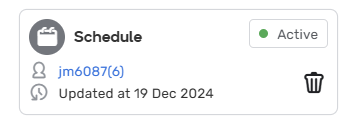
- When viewing your school zone in WME within its defined schedule date range, it will appear as “Active.” This means the schedule is currently live, and alerts will be displayed based on the set schedule, as long as it’s within the active date range (between the start and end dates).
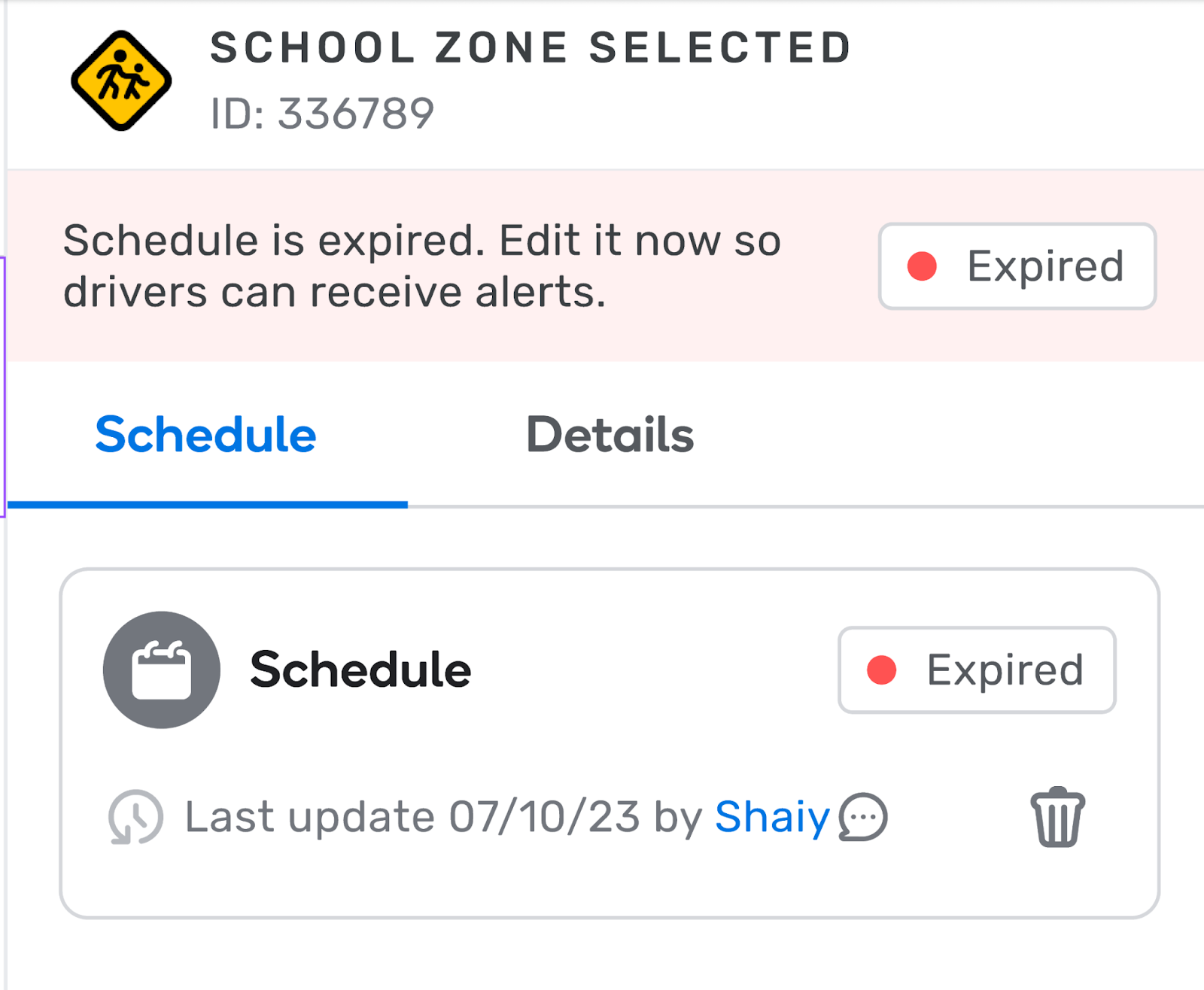
- If the schedule has expired, WME will display it as “Expired”. In this case, no alerts will be surfaced for the school zone until the schedule is edited and updated. For this reason, we recommend setting the schedule with an expiration date a few years into the future or checking the “no end date” box and updating it as needed over time.
Reminder about School Zone Properties
- School Zones are independent of the segments they cover and remain intact even if the covered segments are deleted.
- School Zone size limitations:
- Maximum size: 3 km x 3 km.
- Minimum size: No restrictions.
- Polygons can overlap.
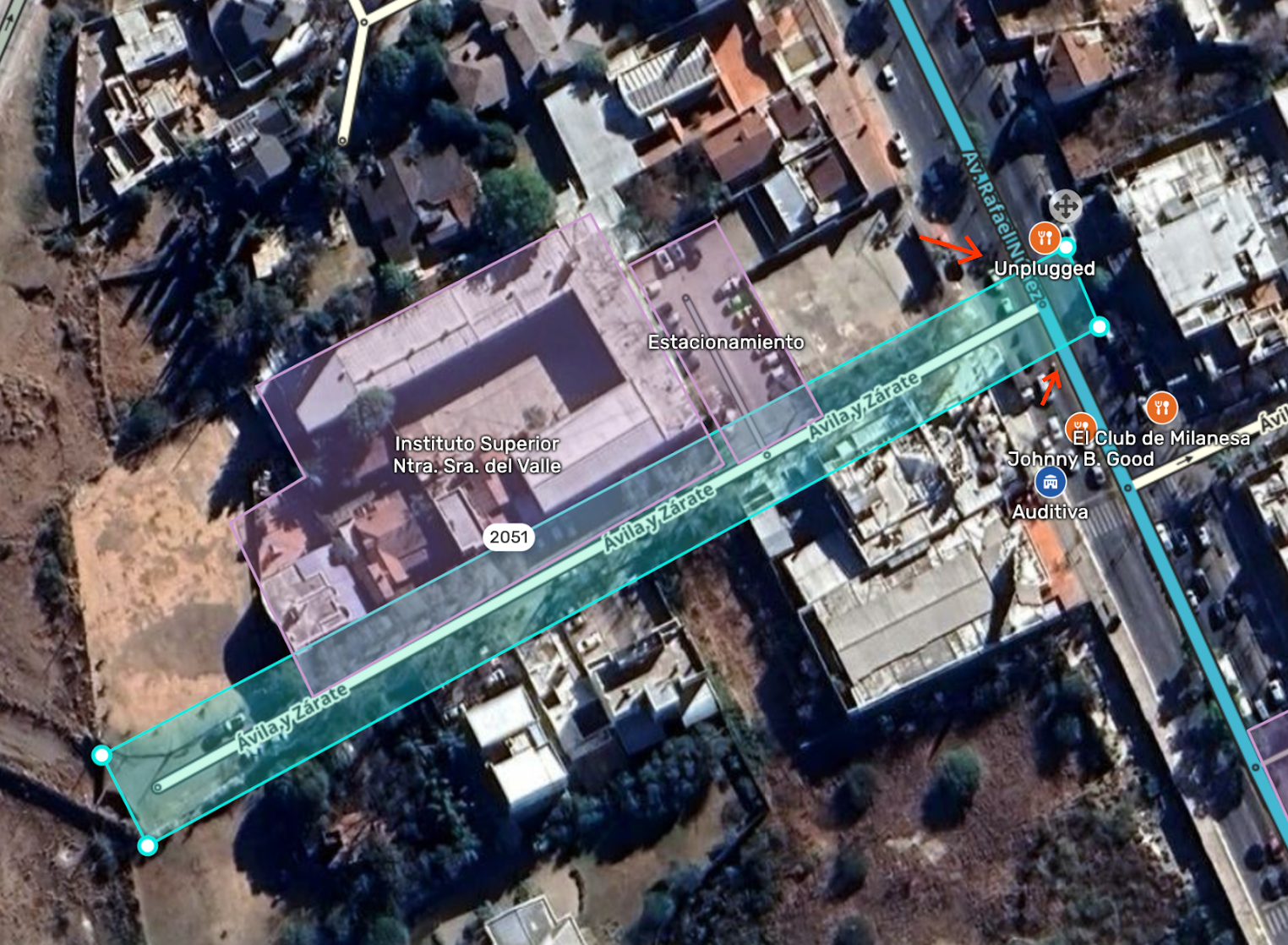
- For alerts to appear, the polygon’s boundary must intersect with at least one segment that is not excluded. If the segment is entirely inside the polygon, it won’t trigger an alert.
- See below an example for a school zone with zero segment intersections (one excluded highway and one fully contained segment):
- See below an example for a school zone with zero segment intersections (one excluded highway and one fully contained segment):
- Under the “General” tab, all information fields are optional:
- Name - Currently, the school zone on the map will not show the name you give it. You will be able to recognize school zone polygons by their orange color. We recommend that each community will come up with a naming convention to better recognize school zones and have an indication that this is different from the school point place itself.
- If you choose to exclude road types, the app will not show alerts in the selected road types around the school alert zone.
- Speed limit - Adding a speed limit is encouraged. Although it won’t appear in the client at this stage, it is planned for 2025. This limit will override the segment-level speed limits within the zone.
Alerts on Client
School zones will be surfaced as a point based alert in all points where the mapped polygon crosses entry segments to such polygon.
The School Zone applies to any part of segments within its bounds without altering the map structure. If a segment is only partially contained within the zone, the alert applies only to the included portion.
There will be no indication when leaving school zone, or when starting the drive inside of a school zone
- Grouping - Permanent Hazards of the same type that occur in close proximity (less than 500m from each other) we group them together as follows:
- If a user exits a polygon and enters the same or a different school zone within a distance of 500m (configurable), an alert will not be triggered.
- Only one alert will appear for multiple school zones within 500 meters. It will be the standard alert, as if there’s just one school zone, without any special indication of multiple zones nearby."
- Show only one pin on map in the app for the first occurrence of this PH (grouping is done by PH type and never for different types together)
- Familiarity Capping
- In production, based on the community’s feedback, we are running an experiment where a subset of users will experience School Zones without any capping and another equal subset will have traditional capping in place. With capping, drivers will receive the same alert for the same location up to twice in 21 days. After the second alert, they will not receive any further alerts or see the hazard pin on the map until the end of the 21-day period, starting from the first alert. For example, if a driver sees the alert on day 1 and again on day 7, they will not receive any additional alerts between day 8 and day 21. After 21 days, the alert resets, and the cycle begins again.
- This experiment will allow us to gather valuable data on how capping impacts driver behavior in its application to School Zones, and the results will help us determine how familiarity capping will be applied.
FAQS
Question: When will alerts be surfaced if a school zone does not have a customized schedule applied to it?
Answer: In this case, drivers will get alerts for this school zone according to the pre-defined default schedule:
- ROW: Mon-Fri, 7:30 AM - 6:00 PM
- NA: Mon-Fri, 7:00 AM - 4:30 PM
- IL: Sun-Fri, 7:30 AM - 2:00 PM
Question: What happens when a set schedule expires?
Answer: When a schedule expires, no schedule will be applied, and alerts for the connected School Zones will no longer be surfaced. We recommend setting the schedule with an expiration date a few years into the future and updating it as needed over time.
Question: How many editing points will I get for adding a Community Schedule or a schedule for a School Zones?
Answer: You will earn:
- Creating / editing a school zone polygon - 1 point
- creating / editing / deleting a single school zone’s schedule (including connecting a community schedule to a schools zone) - 3 points
- Creating / editing a saved Community Schedule - 5 points
Question: Will a school zone schedule take effect in the app immediately after being added in WME?
Answer: No, the changes require a tile build, similar to other map entities, before they are applied and visible in the app.
Question: When creating a saved “Community Schedule," will it be automatically applied to school zones in my selected country?
Answer: No, these schedules are not automatically linked to any school zone and must be applied manually when editing a specific school zone.
Question:I want to map the schools in my neighborhood, but they are already mapped as “places” and not as “hazards”. What is the best practice?
Answer: Just school zone in addition to the school venue. Venues (places) are used for search, school zones are used for alerts
Question: Can I go back and edit a “Community Schedule”?
Answer: Yes, by clicking the plus icon on the left side panel and selecting “Community Schedule,” you can search, filter, and choose any saved schedules to edit or duplicate. Please note that all L4 editors can currently modify schedules outside their editing zones, so we ask that you refrain from editing schedules not created by you, as this could impact all school zones using that template.
Question: Can I delete a “Community Schedule”?
Answer: A Community Schedule can be deleted as long as it is not being used by any school zone. You can see which Community Schedules are active and the number of school zones they apply to.

Question: Can I go back and edit a school zone schedule?
Answer: Yes, by clicking on a school zone polygon and navigating to the “Schedule” tab on the left panel, you can select the applied schedule. A pop-up window will appear, allowing you to edit and save changes to the schedule.
Question: If I want my schedule to apply year-round, can I skip excluding specific dates or date ranges?
Answer: Yes, by clicking the bin icon next to the search bar in “Step 2 of 3,” you can delete this section and won’t be required to exclude dates. Please note that if you don’t click the bin, this section will appear as mandatory.
Question: Should I create separate community schedules for applying and excluding rules?
Answer: Currently, you cannot pick and choose specific parts of a community schedule. Option 1: set an applying community schedule, and a separate exclusion community schedule. in a specific school zone, you can either apply the applying times or set more specific times. Option 2: set a community schedule with limited applying times, and all exclusions. In a specific school zone, you can add more applying times as needed.
Question: For the scheduler, would it be possible to select a preset Community Schedule and then override the times on that schedule?
Answer: Editing a community schedule will impact all associated school zones. The mindset when creating a community schedule should be to design one that applies to multiple areas without requiring frequent modifications. As a workaround, you can duplicate the Community Schedule that best fits your needs, adjust it and save.
Coming Up
- Speed Limits: While we encourage you to add speed limits for school zones, at the moment, drivers won’t see the updated speed limits within school zones. In future phases, speed limits within school zones will adjust according to the schedule, ensuring they only apply when the school zone alert is active.