Schoolzone
Schoolzones are zones mapped by a polygon in the map editor that will alerts drivers when they are about to enter them.
 Area Guidelines
To decide which area to include you can use the features below as your boundary markers. It is possible you need to combine multiple features to draw the zone (for example combination of static zone 30 on small roads, but A23 or school poles on a main road)
- (dynamic) zone 30 signs
- School poles (octopus/pencil poles)
- Presence of the A23 traffic sign (children nearby)
- Any segment directly next to the school facility
This is just a guideline, if none of the above can really apply, or there are crossings less than 150m away from the school that are also heavily used for school traffic these can be included as well.
If you have schoolzones that overlap (example multiple schools right next to each other) you can combine them into 1 large schoolzone. For the name of the schoolzone please enter all school names.
An example can be found here
How to map schoolzones
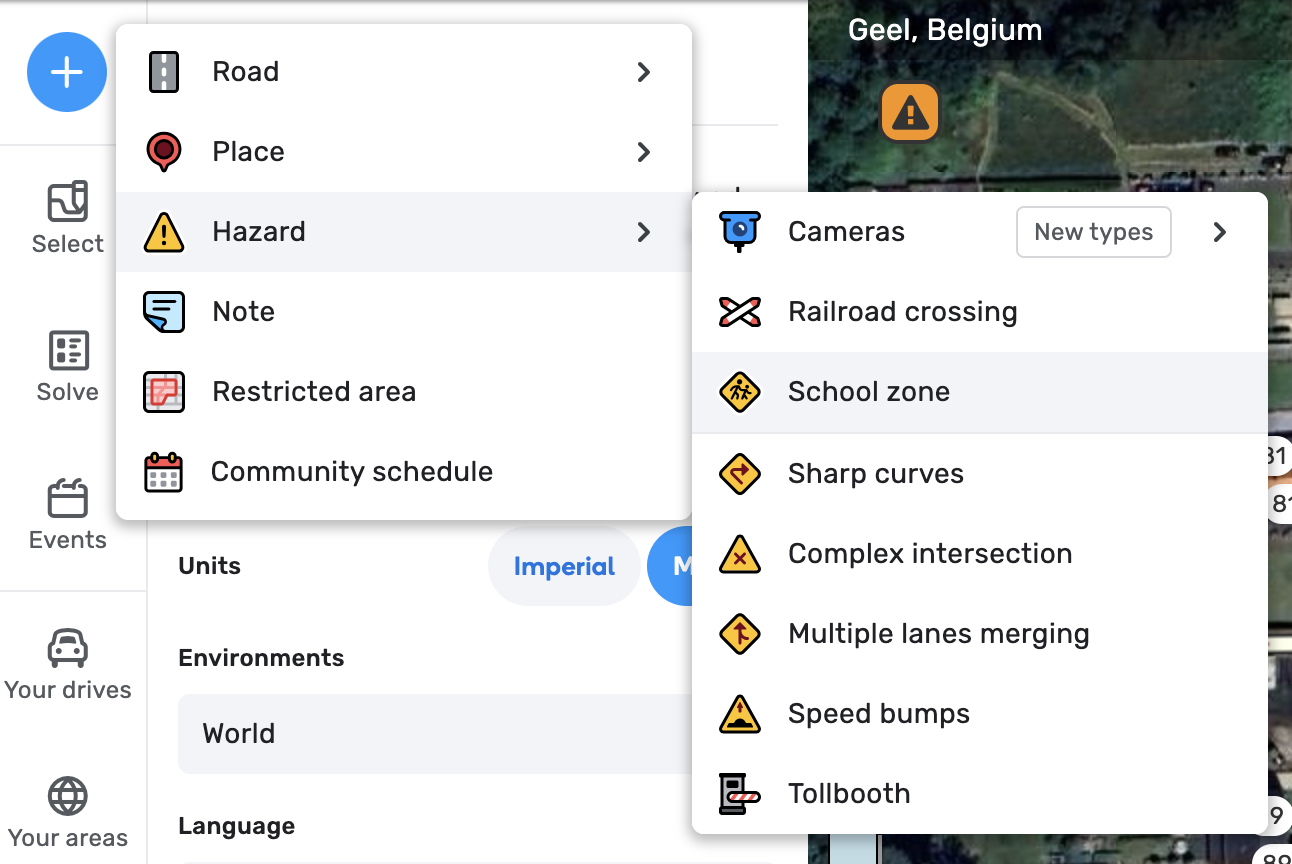
→ You can add a new Schoolzone through the create button > Hazards > School zone
→ Next draw the polygon which covers the schoolzone. See the guidelines section to see what area around the school should be covered in the polygon.
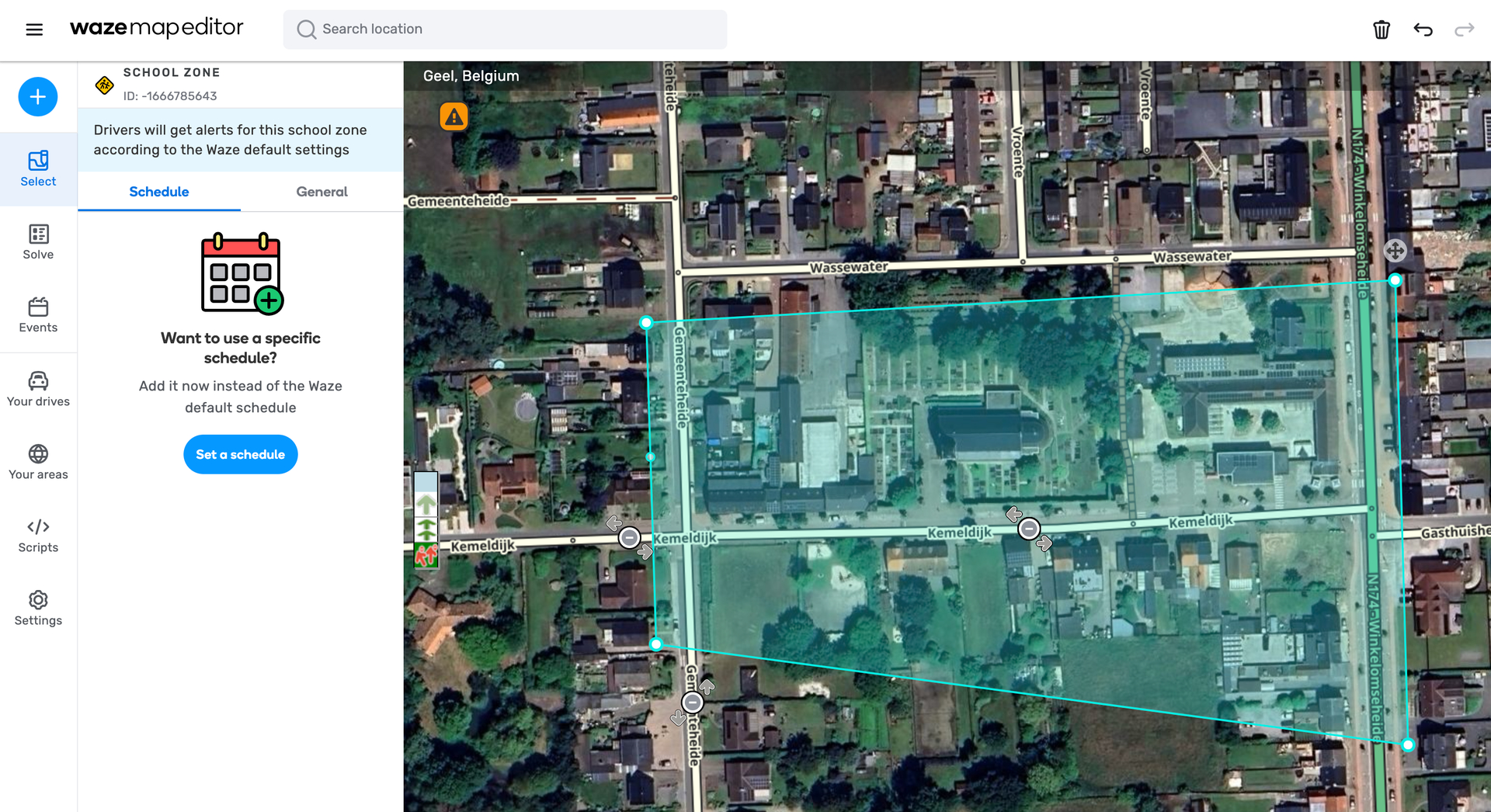
→ Once the polygon drawing is completed, add a schedule in the left menu. In the dialog search for the main region specific school hours schedule.
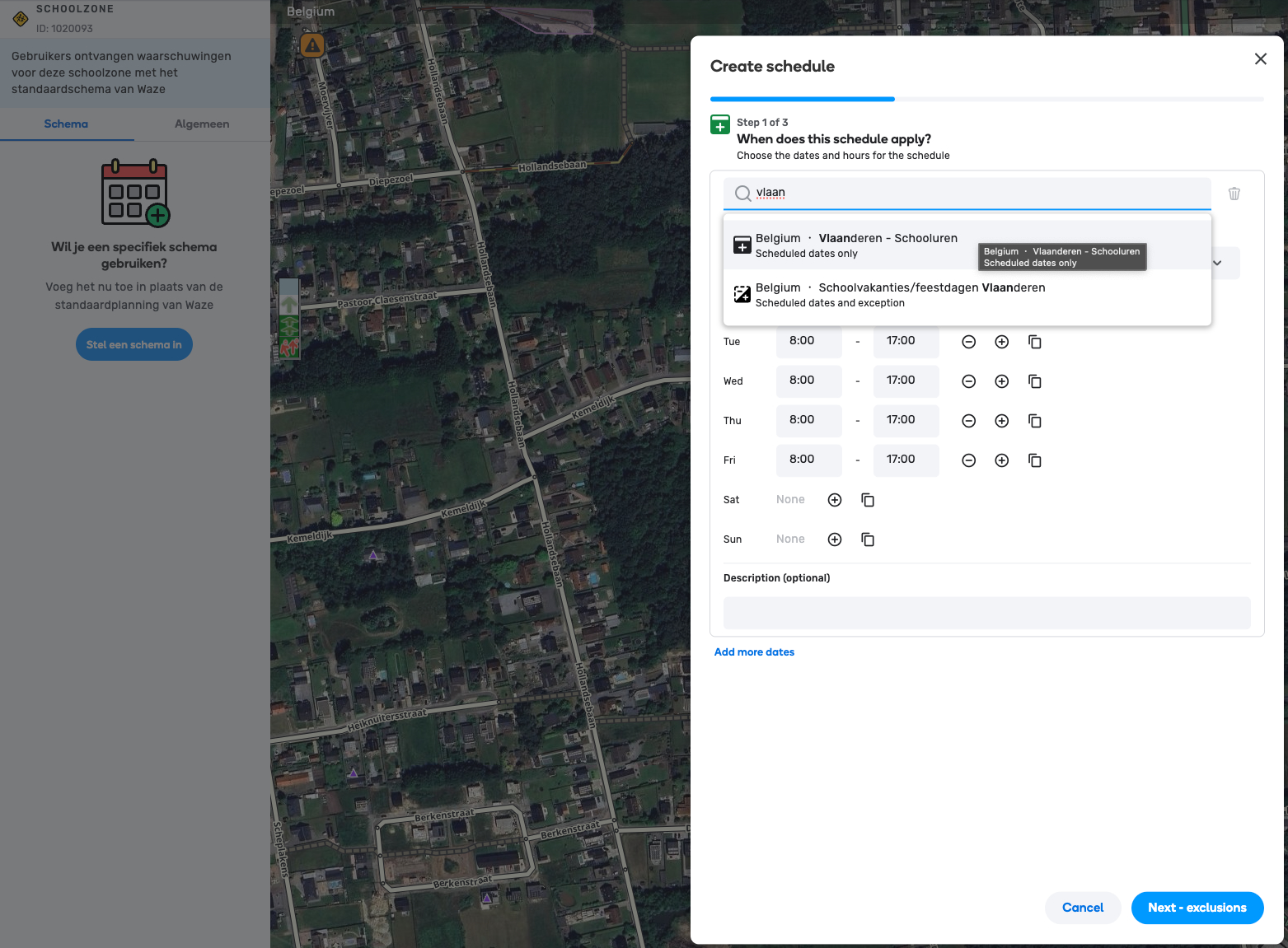
NOTE If you do know the school specific hours you can also just set these instead of using the region community schedule. Make sure to apply set the dates for when it should apply (first day of school - last day of school - repeat annually)
→ On the exclusion step select the regional school holidays schedule. Here it is important to use the community schedule so we don’t have to update each schoolzone yearly!
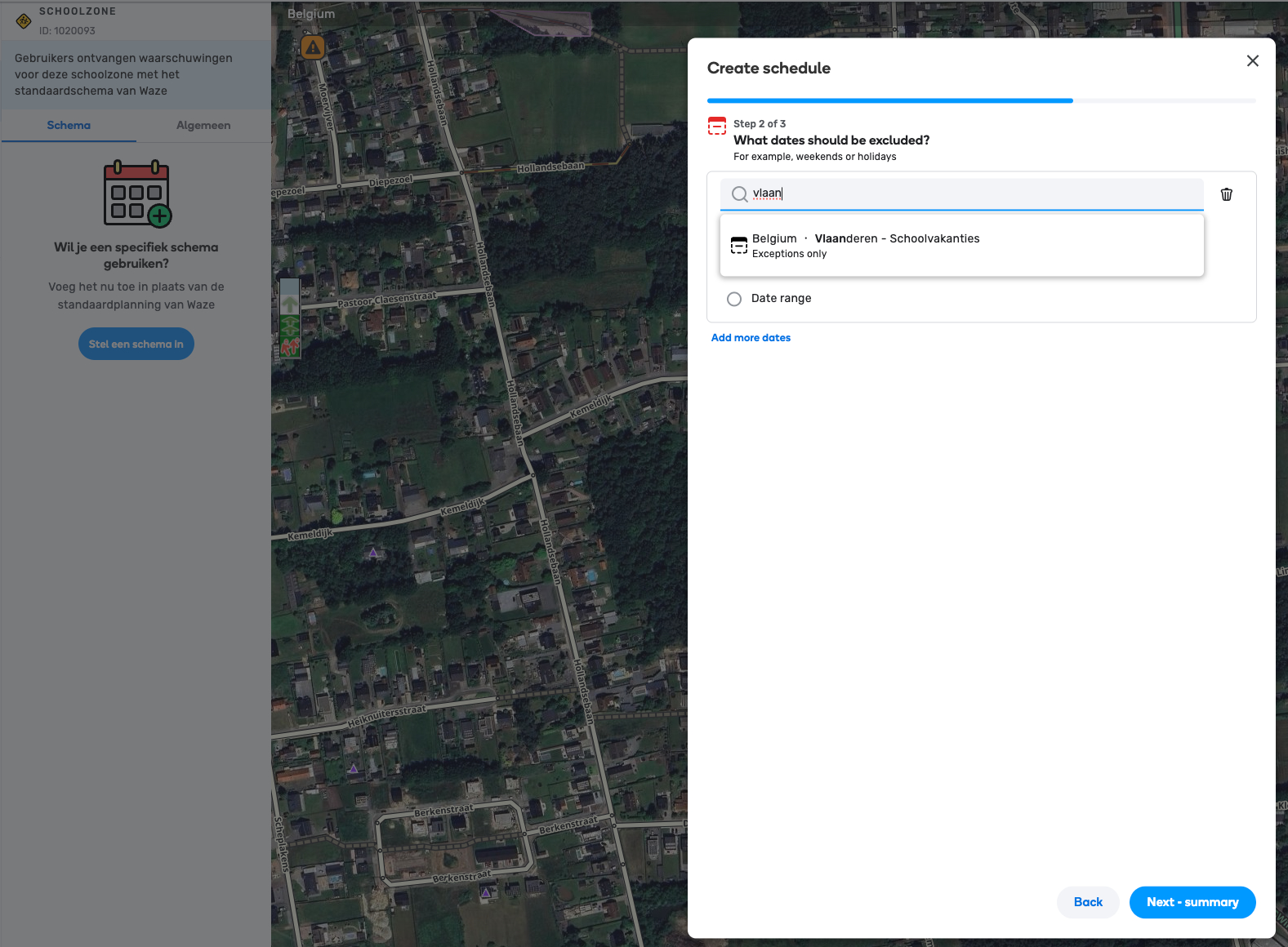
On the summary review your configuration and press the confirmation button.
School zone settings
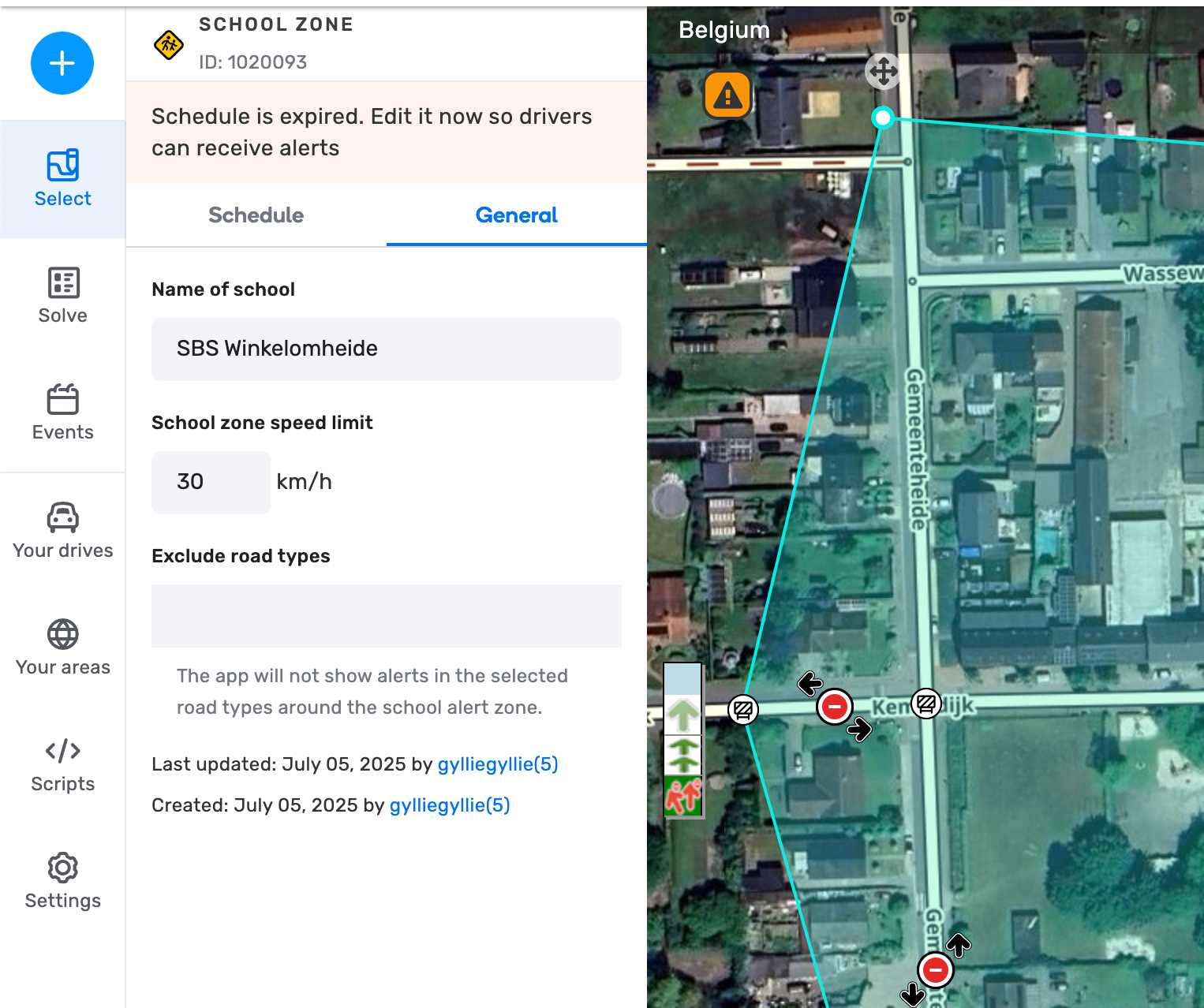
Once a school zone is made you need configure the name and the dynamic speed (if applicable).
This is done on the left side menu under the “General” tab.
Make sure to also mark the correct road types to be excluded if needed. For example when the schoolzone includes a highway tunnel, you can excluded those segments types from receiving the notification.