WME KML Area: creating places from KML polygons
Want to add a large Area type Place in WME with detail and precision?
It could be a park, a forest, a lake, a reservoir, a square…
Now you can import polygons directly into WME, without having to trace every curve of the outline.
You only need this script and a KML file obtained from a reliable and public source.
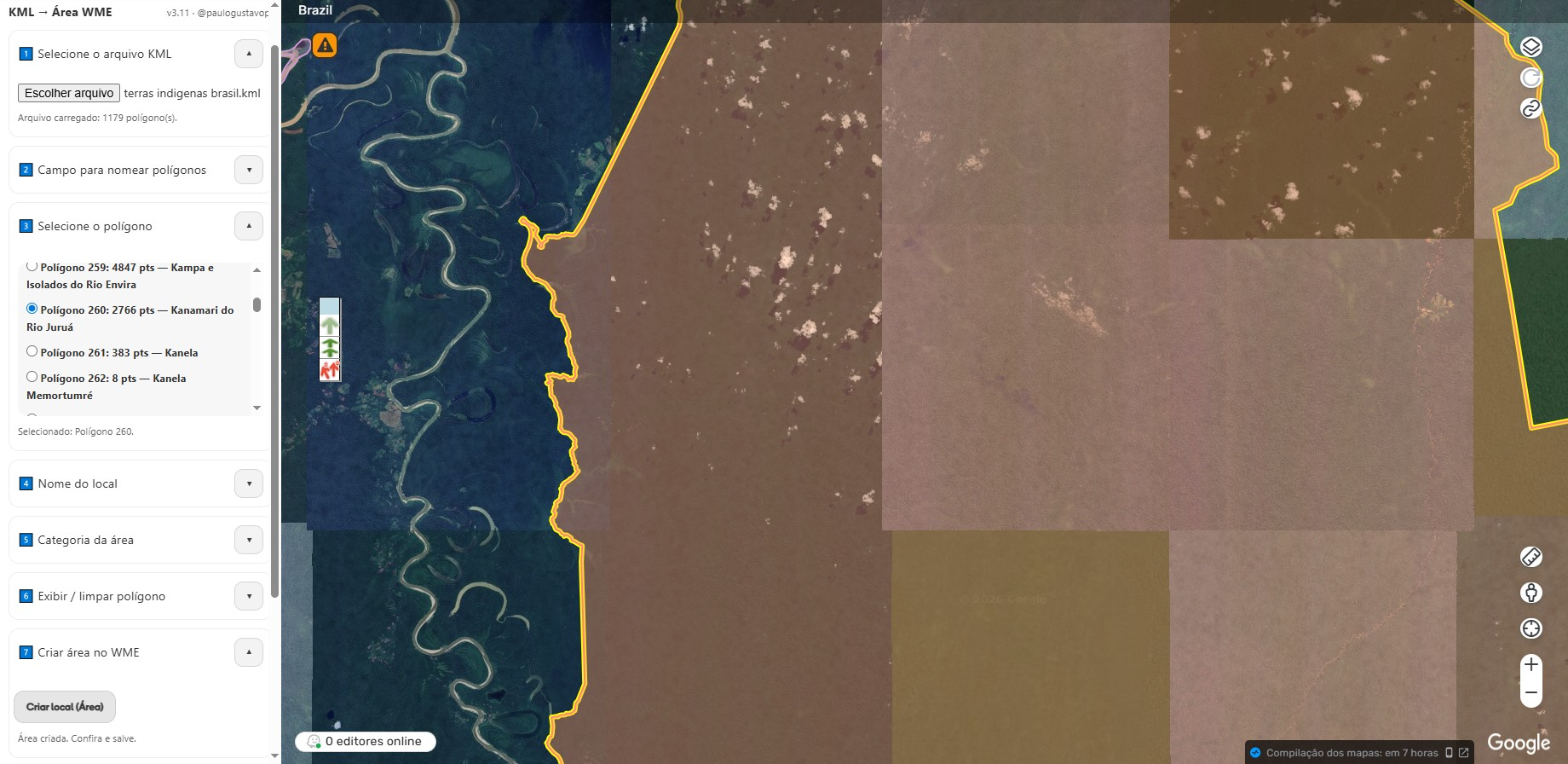
 What this script does
This script adds a tab called “KML Area” to the WME scripts panel.
From it, you can:
- Load a
.kmlfile containing one or more polygons (KML with<Polygon>). - List the found polygons and select which one you want to use.
- Choose a field to name each polygon more usefully.
- Auto-fill the place name in WME (editable).
- Select category for the area (e.g., Park, Square, etc.).
- Preview the polygon on the map (temporary overlay).
- Create the place (Venue) as an area type with one click.
- Use Advanced settings:
- Simplify polygon (reduce vertices) if it is too complex.
- Adjust position with keyboard arrows (fine movement) if the KML is offset.
Use with moderation and responsibility!
 Step-by-step Manual
 Step 1 — Load the KML
- Open WME and go to the Scripts tab.
- Click on KML Area.
- Under “Select KML file”, choose your
.kml. - Wait for it to load.
Step 2 — Choose the field that names the polygons
- Choose one of the fields extracted from the KML that contains the place names.
- Click OK.
Step 3 — Select the polygon
- Select the polygon you want to insert.
- Upon selection, the script:
- shows the preview on the map
- centers/adjusts zoom as much as possible
- auto-fills the name in Step 4
Step 4 — Review/edit name
- Adjust the name if necessary.
- Click OK.
Step 5 — Select category
- Choose the category for the area (e.g., Park).
- Click OK.
Step 6 — Show or clear polygon (optional)
- Show polygon: draws the outline on the map (overlay).
- Clear polygon: removes the overlay from the map.
Step 7 — Create area in WME
- Click on Create place (Area).
- WME creates the Venue with the polygon geometry and applies:
- Selected category
- Name (auto-filled/edited)
Now follow the normal WME workflow:
- check attributes
- adjust details if necessary
- click Save in WME
Step 8 — Create the next one
After saving in WME:
- Click on an empty space on the map to return to the KML Area tab.
- Continue:
- from Step 3 to choose another polygon, or
- from Step 1 to upload another KML.
 Advanced settings
Simplify polygon
Use if:
- The polygon has too many points, making it too “heavy”
- WME takes too long to save or rejects it due to complexity
How it works:
- A slider changes the simplification level
- The script shows the resulting point count
- Click OK to apply
Adjust position
Use if:
- The KML polygon is “offset” (e.g., a few meters to one side)
How it works:
- Click Start adjustment
- Use the keyboard arrows ← ↑ ↓ → to move with precision
- Click OK to apply
 Tips and Troubleshooting
The polygon “doesn’t match” the map (offset)
- Use Advanced settings → Adjust position
- Click Start adjustment and move with the arrows
The polygon is heavy and WME won’t save
- Use Advanced settings → Simplify polygon
- Reduce vertices until it becomes stable
The script doesn’t detect any polygons
- Check if the file actually has
<Polygon>(not just LineString/Point) - Some KMLs downloaded from websites might be “broken” (HTML instead of KML, or XML with junk before the
<kml>)
The preview appears, but the created area looks strange
- KML with degenerate geometry (repeated points, invalid ring, etc.) can generate unexpected results
- Try simplifying before creating
 Requirements
- Access to Waze Map Editor
- Userscript extension:
- Tampermonkey (recommended) or Violentmonkey
- Desktop browser (Chrome/Firefox/Edge)
 Download now


