A small update: I’ve since been able to investigate the issue, but haven’t written a solution for it yet. The issue seem so be that the Street View marker and button are no longer set as active after a save, even though the Street View panel remains open at that point. I’m going to have to adjust the code to look at both the status of that button and the state of the Street View panel. While it looks more complicated, I think this will actually allow me to simplify a bit of the logic.
is there any chance to have the location of the pegman inside the WME?
please see the picture, the location of the pegman is at the end of the red arrow

i mean there are some marker (maybe node, maybe star, or something) at the location of the pegman. so when we drag to view the streetview, we can just drag it to the pegman.
The circle with the arrow is the equivalent. It is centered on where the camera is looking from and the arrow shows the direction the camera is facing. You’re asking for the inset map that is seen in google maps when in street view?
sorry to confuse you. that is not what i meant. currently now only blue line visible inside WME (by dragging the streetview icon or by enable streetview layer). to know where the position of the pegman (the circle with arrow), you need to drag the cursor to the blue line. i need the exact position of the pegman (the circle with arrow) if possible also inside WME without dragging the cursor and wait for the circle arrow to appear.
no need to be the circle with arrow because it is too big, something like marker or like lock icon in toolbox also fine, if can do it. sorry and thanks.
Hmm, I’m afraid I’ll have to consider that feature outside the scope of this userscript. I’ve tried to keep this script simple in terms of what it does, without needing any configuration, and I prefer to keep it that way.
If you just want to make the bubble and the arrow smaller, you could apply something like these styles on the WME with any of the several stylesheet add-ons available:
.street-view-layer .pin .crosshair {
height: 33px;
width: 33px;
font-size: 21px;
line-height: 28px;
}
thank you very much if you are willing to consider the request. hopefully we can see it in coming version (maybe as an option).
regards.
I won’t be adding that to this userscript, I’m afraid. I don’t want to add options to this script, I want to keep it simple 
With Latet Update for WME I keep getting this:
app-b1c4334e495d383c.js.gz:1window.OL is deprecated, please use window.OpenLayers instead get@app-b1c4334e495d383c.js.gz:1 init@userscript.html?name…61f-8655033ef600:63
app-b1c4334e495d383c.js.gz:1 window.OL is deprecated, please use window.OpenLayers instead get@app-b1c4334e495d383c.js.gz:1 init@userscript.html?name…61f-8655033ef600:66

I don’t think the error above is related to this script, but apparently I never got around to saying that in this thread.
More relevant: I’ve just released version 2.0.0 of the script, which now relies on the new Waze SDK for userscripts. This has greatly decreased the complexity of the script and should keep things very stable over changes to the WME. There are still some dependencies on certain UI elements, though.
3 Likes
After today’s WME prod release, the blue lines for street view availability no longer show after you make and edit and save. The arrow in a circle still lights up blue or red, but the lines no longer show on the map. You have to do a hard refresh for it to work again, but then it stops once you save.
It’s peculiar how the blue line can be restored in a few different ways. You can bring it back by pressing SHIFT+T, by selecting the Street View checkbox in the layer menu, or even by keeping the Street View window open while saving your edits. Interestingly, if you save your work with the Street View window open, the blue line remains visible. However, to actually disable it, you then need to manually toggle the Street View checkbox in the layer menu on and off. Despite this, the blue line still won’t appear when you drag the Pegman – a rather amusing glitch! 
Version 2.0.1 should fix the issue that appeared after the latest WME update. I guess I should really look into making the script more robust than the quick band-aid I’ve now slapped on that problem though 
2 Likes
WME prod release today prevents the GSV lines from showing.
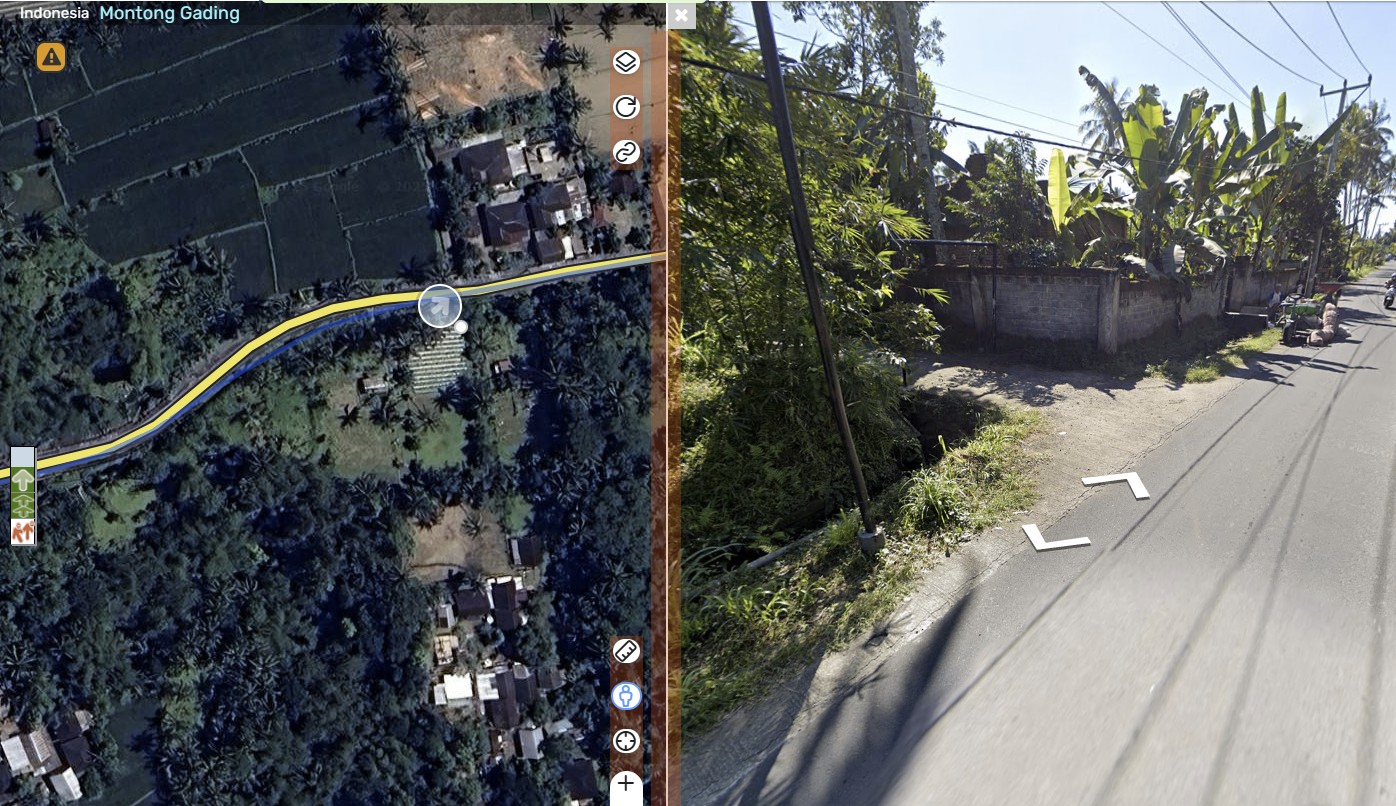
I was also having issues getting the map layer to appear, as the Street View button wasn’t necessarily already available when the page was considered “loaded”. I’ve now adjusted the code a bit to deal with this. Hopefully, version 2.0.2 will fix the issue.
1 Like
Yes - those lines were not showing for me. Version 2.0.2 has them showing for me now.
Hi @Glodenox I noticed in the latest version, the button that makes the SV lines appear is inverted.
It’s still working fine here, I’m afraid. Can you share which browser you are using so I can try to replicate and investigate the issue? I tried both Firefox and Chrome and didn’t run into that issue. I have had situations in the past where those checkboxes can act weird though, so it wouldn’t be the first time I have to change things due to them.
Hi @Glodenox I noticed this issue is happening in the beta version of WME.
Ah, indeed. I’m seeing it there as well. Something must have changed in the way these checkboxes work 
1 Like