Link to the most updated document
Suggest an Edit
How to Doc
- What’s Suggest an Edit?
- Lock levels
- Suggestions and edits shouldn’t be mixed together
- How to find your suggestion in the Issue Tracker
- Suggestions on Turns
- Suggestions on House Humbers
- How to find suggestions
- Visibility on the map
- Permissions
- Supported Elements for Phase 1
- PL Support
- Statuses
- Disabled entities
- Communication with the suggester
- Last Releases:
- Remove my own suggestion
- Edit History
- Accepted Suggestions in the Issue Tracker
- Suggest an Edit on Turns
- Suggest an Edit on House Numbers
- FAQs
- Known Issues
Help Center Resources:
Training resources (New! added on March 2025)
The Feature
Designed to allow editors to suggest edits on WME when map attributes are locked due to lack of permissions, instead of asking for a Map Unlock. This will enable those editors to improve the accuracy and completeness of the map, and contribute to the overall quality of the map.
The flow will use the existing WME but instead of saving the edits, edits will be sent to higher level editors for moderation.
General explanation
Suggest an Edit divides editors into 2 roles (an editor can have both, on a single editing session) -
- Suggestor - editors who want to edit a locked object | read more
- Moderator - editors who review edit suggestions | read more
This document will explain the flow for both roles.
Suggestor flow
Topics
- What’s Suggest an Edit?
- Lock levels
- Suggestions and edits shouldn’t be mixed together
- How to find your suggestion in the Issue Tracker
- What’s Suggest an Edit?
- As a Waze map editor, when you run into a segment you’re not allowed to edit, you can suggest edits, thanks to this new feature called Suggest an Edit.
- Your edits won’t be directly added to the map. They will first be listed in the Issue Tracker, since they require another experienced editor’s approval.
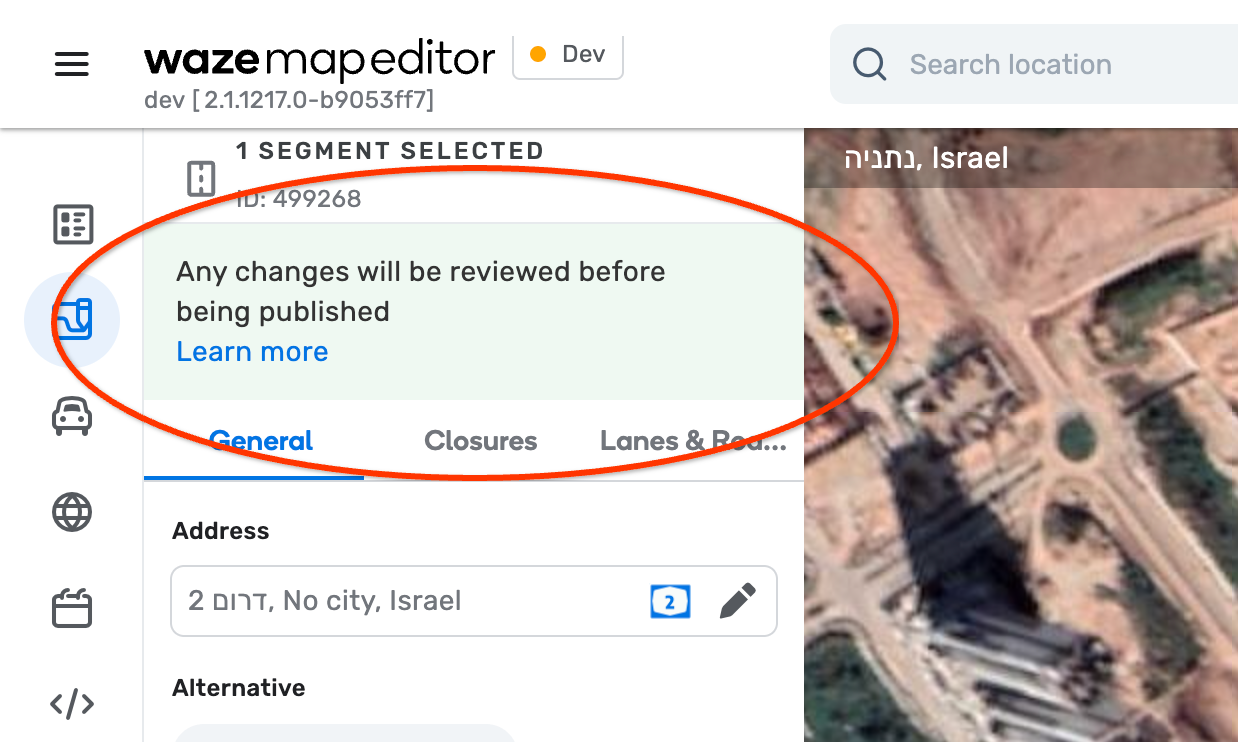
You’ll know you’re suggesting edits when you see this message on top of the left-side panel:
- Suggested an edit and waiting to hear back about it? You will get an email when an experienced editor is done reviewing your suggestion, saying if it was approved or not
- Both the suggesting and the moderating editor get points!
- When will your suggestion be reviewed? We can’t say for sure since your suggestion is being reviewed by a volunteer community member, but we can tell you they, like you, also want the map’s best interest

-
Lock level:
- With some segments, you are able to directly edit (not just suggest). It depends on the Lock Level of the segment:
- Lock level: The Waze community is made of 6 Editor levels: 1-6
- To find out your editor level:
- In WME: Click on the top right avatar → see the badge on your Avatar Wazer? That’s your editor level
- The local community in each country decides who can edit each segment:
- They can choose to leave a segment unlocked, and then anyone can edit it
- They can choose to lock a segment to any of the levels, 1-6. I.e., if a segment is locked to Level 5, only L5+ editors will be able to edit it
- While in WME, you will notice that you have permission to edit some segments, and don’t have permission to edit others. When you’re done editing, please save your edits and don’t suggest edits until you’ve saved your editors: Suggestions and edits shouldn’t be mixed together:
- When you’re done editing, you should first hit Save and only then start suggesting
-
Suggestions and edits shouldn’t be mixed together
While in WME, you will notice that you have permissions to edit some segments, and don’t have permission to edit others.
You can edit wherever your permissions allow it, and suggest edits in locations where your permissions are limited.
Please keep one rule in mind, for sessions where you both edit and suggest edits:
When you’re done editing, please save your edits and don’t suggest edits until you’ve saved your edits, and vice versa:
Suggestions and edits shouldn’t be mixed together.
- How to find your suggestion in the Issue Tracker
Once you submit your edit suggestions, they will be added to the Issue Tracker. To find them there:
- Enable the Issues layer, from the right-side panel
- Click to open the Issue Tracker from the top of the left side panel
- Go to the Edit Suggestions (ES) tab of the Issue Tracker
- Use the filters to find your view your suggestion
Once an experienced editor approves / rejects your suggestion, you will be notified about the resolution.
You’ll be able to see the suggestion and comment history in the Issue Tracker for a while.
Suggestions on Turns
How will it work?
For Editors Suggesting Turn Edits:
- If you encounter a turn that you believe needs a change (e.g., a wrong restriction, incorrect instruction) but you lack the necessary permissions to edit it directly, you will now be able to suggest an edit.
- When you interact with a turn arrow, and you don’t have permission to edit it, the option to “Suggest an Edit” will be available.
- You will be able to modify the turn attributes (e.g., allowing or disallowing the turn)
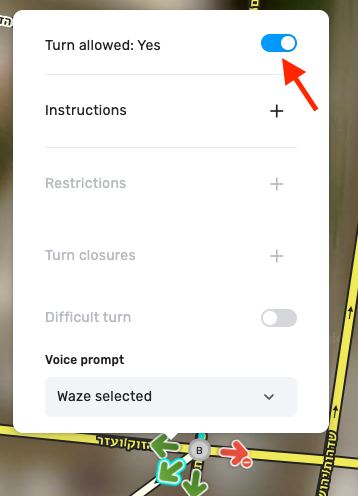
Toggle to disallow the turn
- Instead of a “Save” button, you will see a “Send for review” button. Clicking this will submit your proposed change as a suggestion to higher-level editors for review.
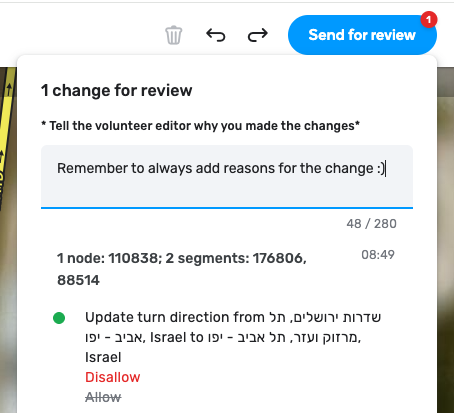
- After submitting your suggestion, a map marker will be displayed at the center of the affected segment. The turn visualization will revert to its original state until the suggestion is approved.
- You can track the status of your submitted suggestions in the Issue Tracker. These will be clearly marked as “Suggestions” and will not be anonymous, including your username.
Suggestions on House Humbers
As a suggester, you can easily add, edit, or delete house numbers to improve map accuracy where your permissions might be limited.
- Initiate a House Number Edit:
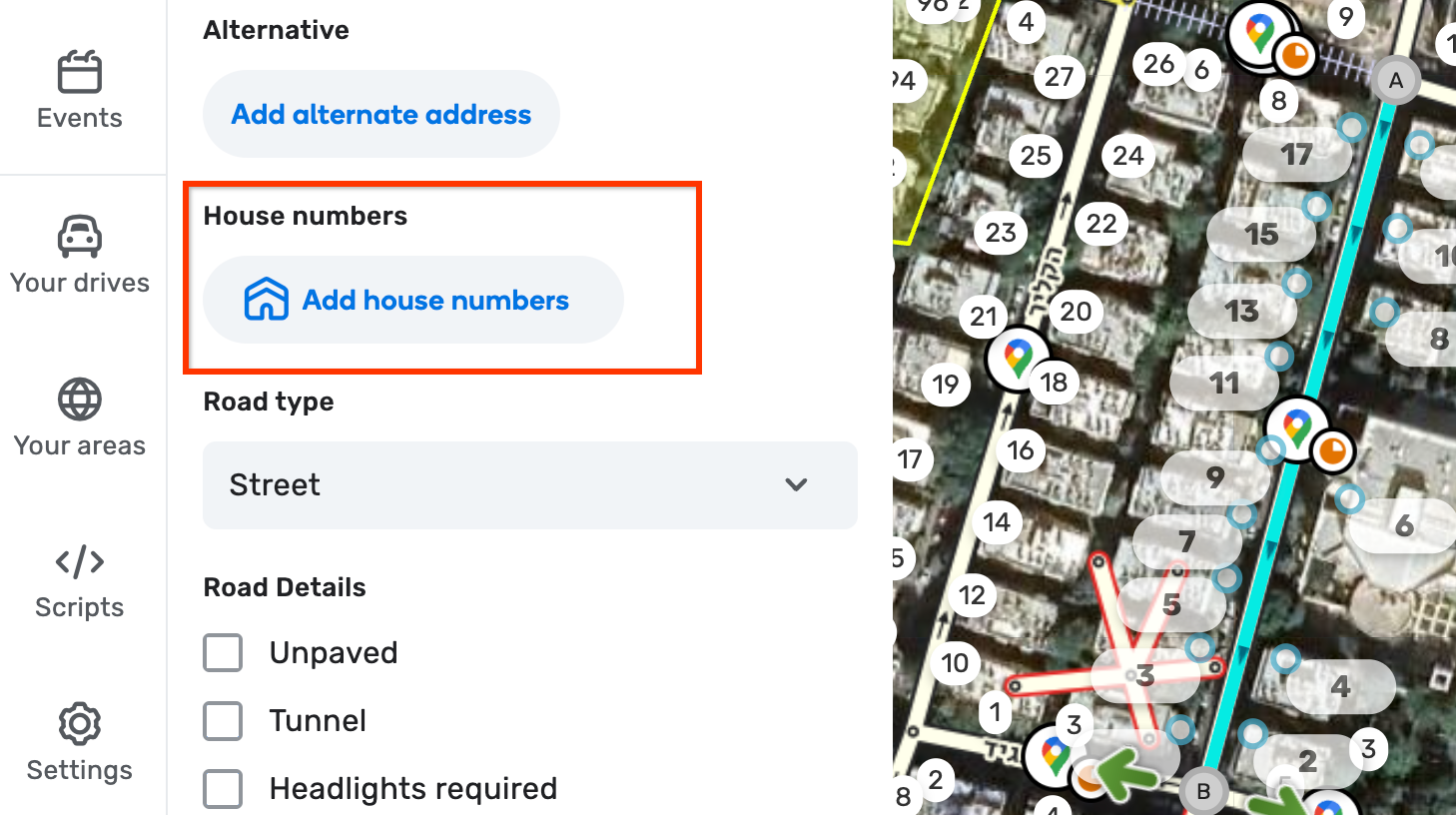
- You can start by clicking “Add House Number” from the main menu.
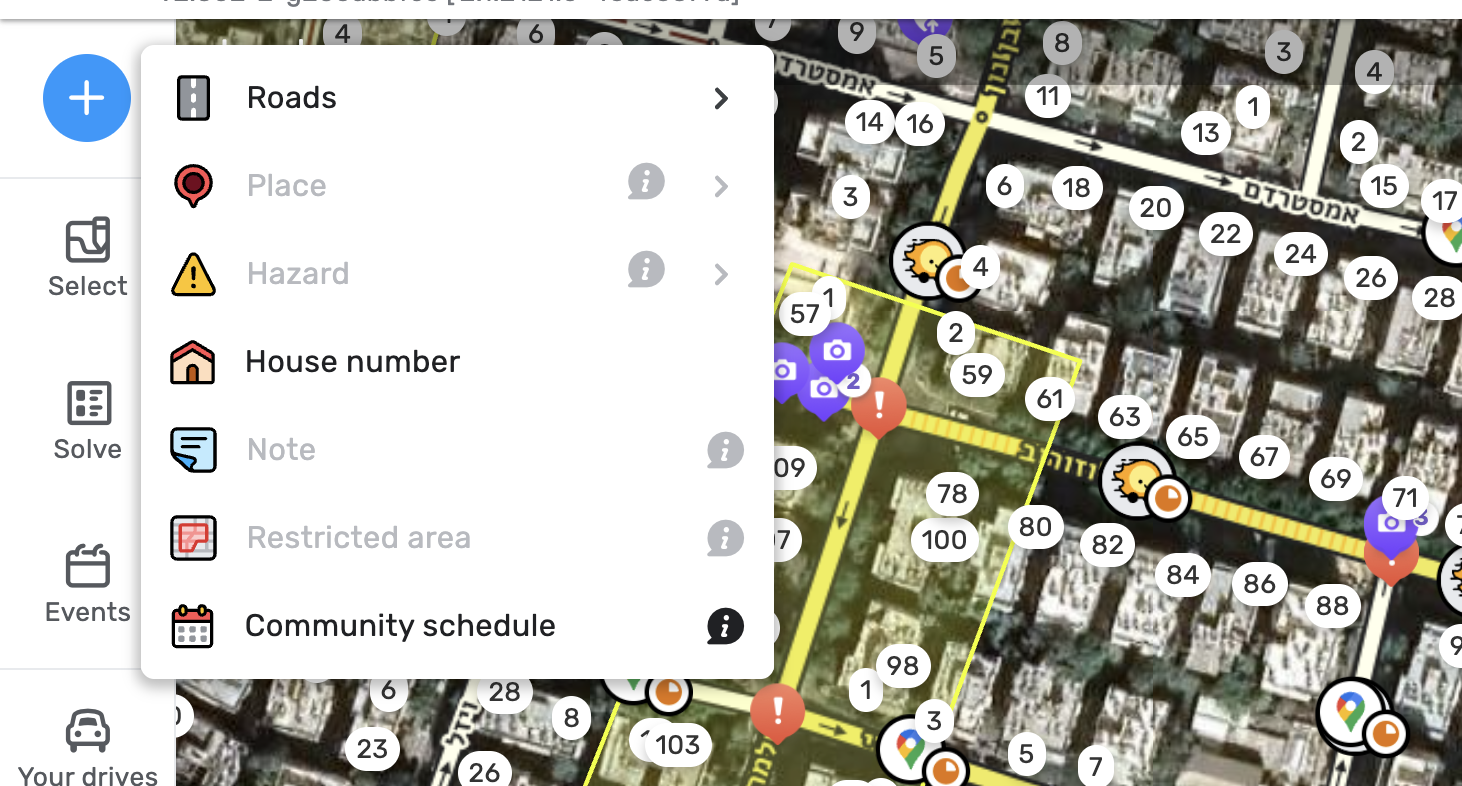
- Alternatively, if you’ve selected a segment, click the “Add house numbers” button located in the left panel of the segment’s details.
- Select Location on the Map:
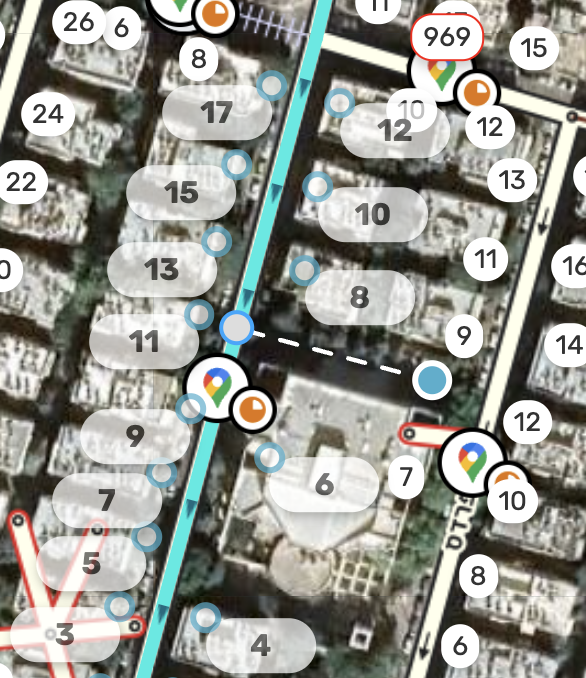
- Click on the desired location on the map where the house number should be. The system will automatically snap the point to the nearest segment.
- Enter the House Number (for new additions):
- Enter the house number in the designated field. Click enter.
- Edit an Existing House Number:
- To modify an existing HN, pick it directly from the map, and then edit its value for review.
- Edit House Number Location:
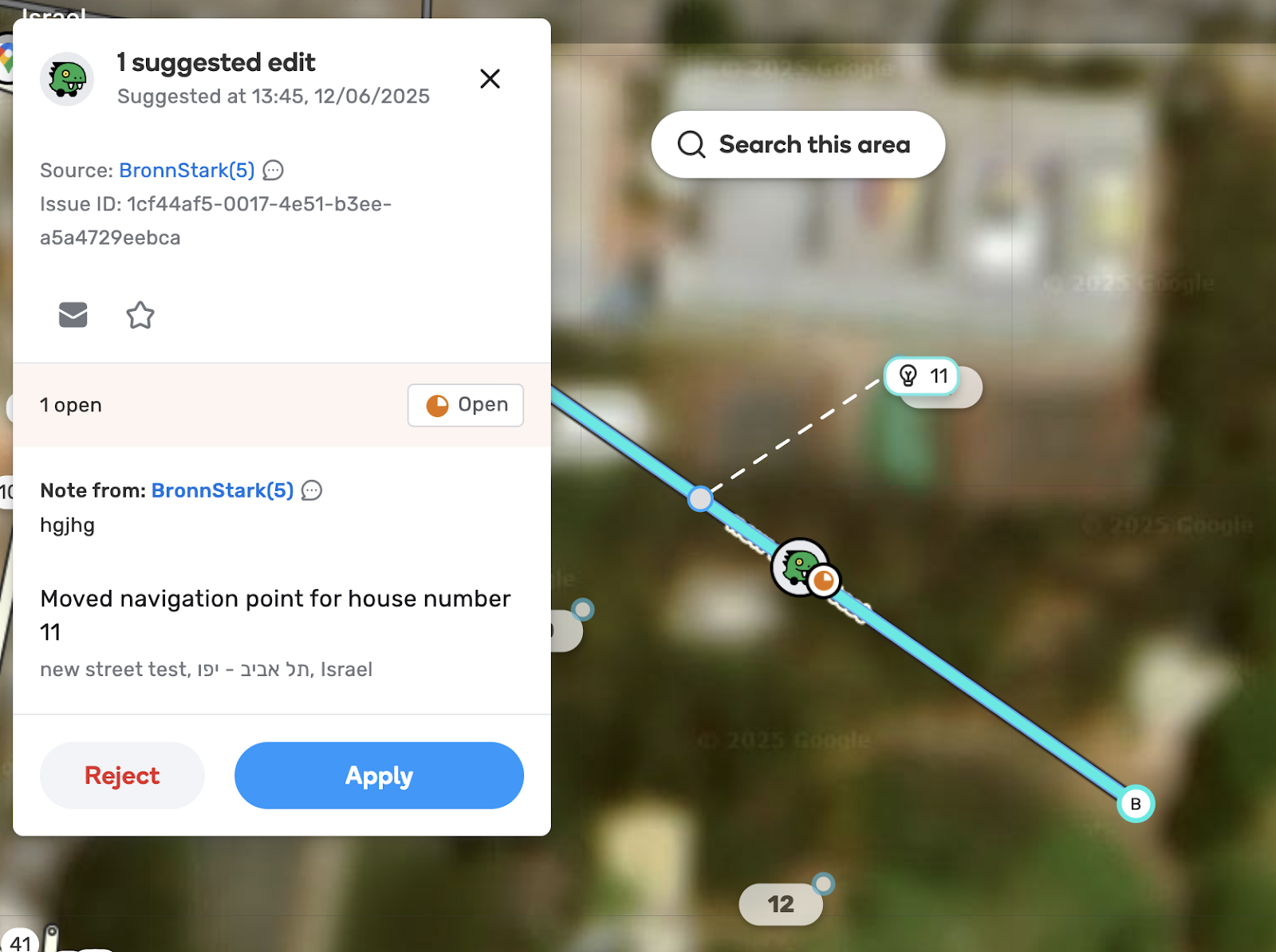
- If you need to reposition a house number on a segment, drag the point to the new location. A dotted line will indicate the suggested new location on the map; this line is only visible when you hover over the suggestion card.
- Similarly, if you reposition the house’s rooftop location, a dotted white line will indicate the new suggested location on the map when you hover over the suggestion card, and the HN marker will be placed next to it.
- Delete a House Number:
- Click the ‘X’ icon next to the HN chip on the map.
- Add your explanation to the suggestion and click send for review:
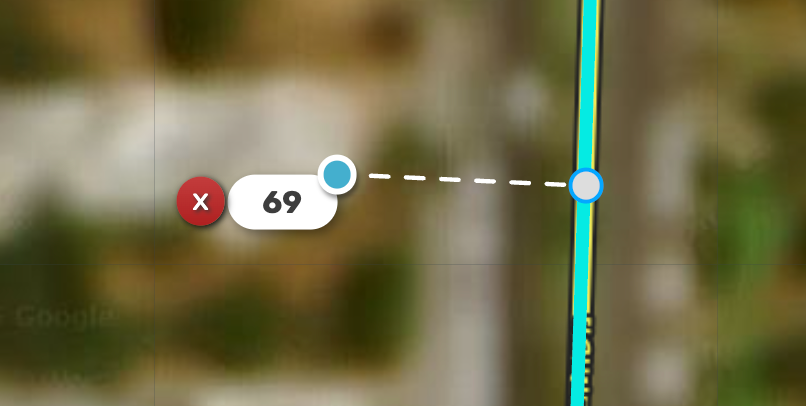
- The removed HN will have a lightbulb icon next to it:
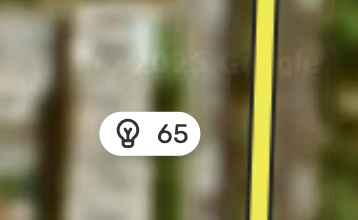
- Submit Your Suggestion:
- Once you’ve made your changes, click the “Send for review” button.

- A visual pin indicator will appear on the segment, and an alert message stating “your edits are pending” will appear in the left panel to confirm your submission.
Important Reminders for Suggesters:
- Do not mix suggestions and direct edits: When you are done with direct edits, save them first before starting to suggest, and vice versa.
- Limitations: You cannot add house numbers to segments that do not have a street name. If you try to edit a House Number where your editor level is too low (e.g., below Level 3), a tooltip will appear stating: “You need to be level 3 or higher to edit House Numbers”.
- Notifications: You will receive an email and a push notification about the status (approved/rejected) of your suggestion, including any messages from the reviewer and links to relevant information.
- Points: Both the suggester and the moderator receive map edit points for approved suggestions. If a suggestion is rejected, both will receive one map edit point.
Moderator flow
Interested in reviewing suggestions? Great, thank you!
Before you start, please remember:
- Empathy is key: The suggesting editor might be new to the platform and eager to contribute. Be kind, patient, and helpful in your communication.
- Timely Response: Prioritize responding to suggestions promptly. This ensures that editors with limited editing capabilities receive timely feedback.
- Communication Tools: Utilize Waze chat to continue the conversation and invite new editors to your local chat groups. This can create opportunities for collaboration and learning.
Providing Constructive Feedback:
When reviewing suggestions, aim to provide clear and constructive feedback, even if the suggestion isn’t approved. Here are some tips:
- Explain the Decision: Briefly explain why a suggestion was approved or rejected. This helps the editor understand the reasoning behind the decision.
- Offer Guidance: If the suggestion needs improvement, offer specific guidance on how the editor can refine it.
- Editing Guidelines: Point the editor towards relevant sections of the Wazeopedia or other local editing resources. This helps them learn and improve their future contributions.
- Common Mistakes: If the suggestion contains errors, gently highlight them and suggest ways to avoid them in the future.
Example Feedback:
- Approved: “Great suggestion! Thanks for adding the new segment. It’s now live on the map!”
- Rejected: “Thanks for the suggestion, but we couldn’t approve this change because the street name is already correct. Please double-check street names before suggesting edits.”
- Needs Improvement: “Thanks for suggesting the new road! To get this approved, we need more information about the road type and speed limit. You can find guidelines on how to add new roads in the Wazeopedia [link].”
Remember: Your feedback helps editors learn, grow, and become valuable contributors to the Waze community.
How to find suggestions
In order to review open suggestions, use the following Issue Tracker Filters:
- Toggle edit suggestions> on
- Source: editors> pick levels. By default L1 will be checked. This refers to the suggester’s level
- Please note that you can select one of the sources: either Google (KoiFish suggestions) or Editors (Suggest an edit) and not both at the same time.
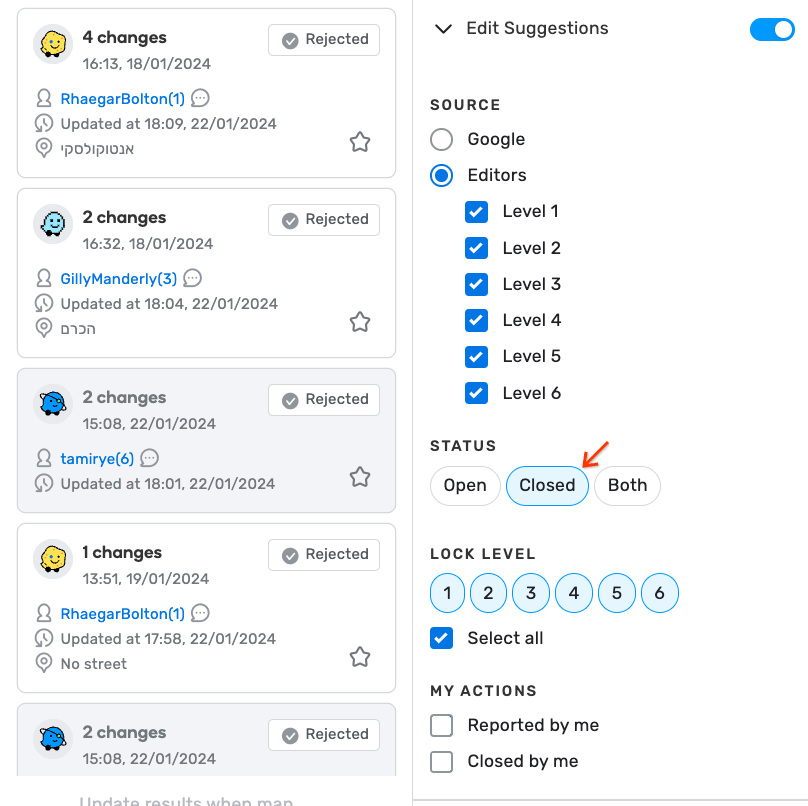
- Status> open. Please note that “closed status” refers to suggestions that have been rejected.
- Segment types> you can choose all types or specific types
- Lock level: this refers to the lock level of the segment. By default, all levels will be selected
- Don’t forget to click apply
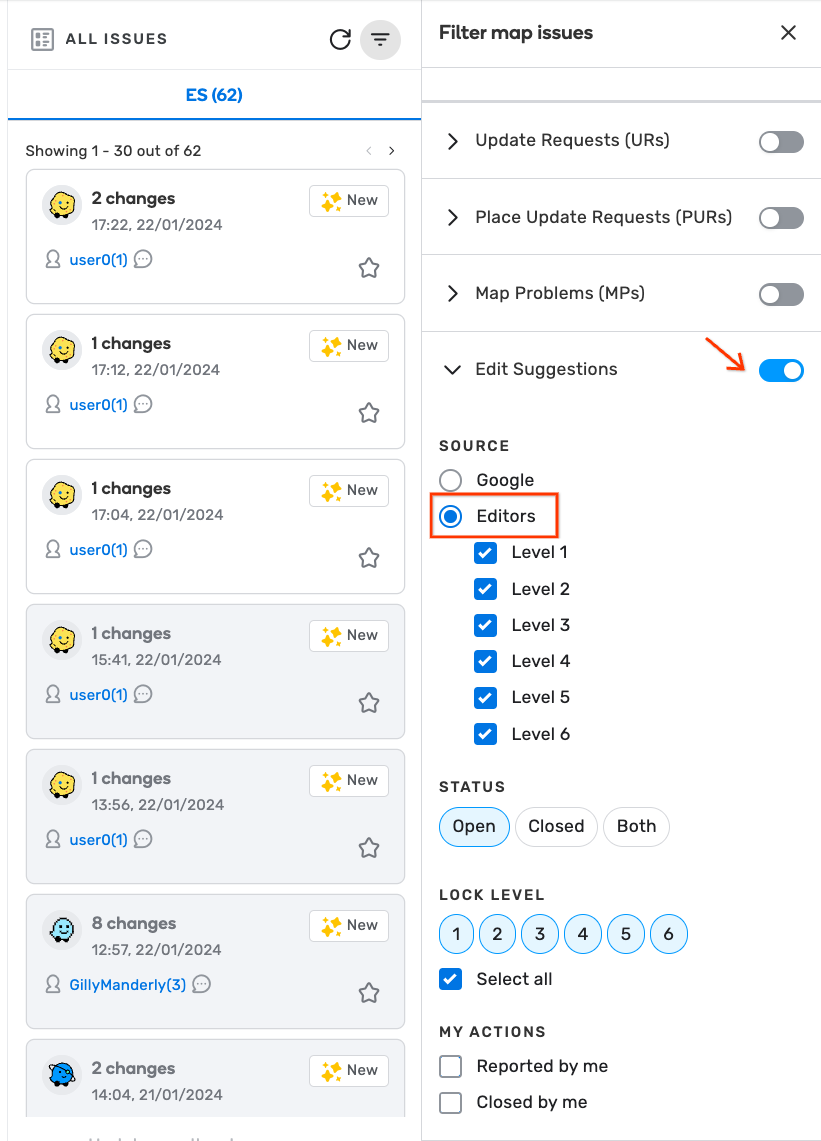
*In the future, the Google and Editor source filters will be merged together.
Visibility on the map
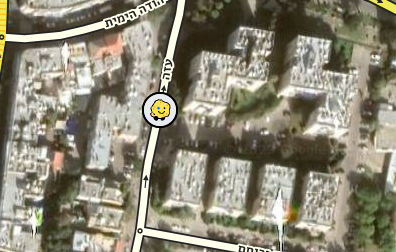
Suggestions that contain a suggestion on the segment´s attributes will be displayed with the icon that corresponds to the level of the suggester editor, on the map.
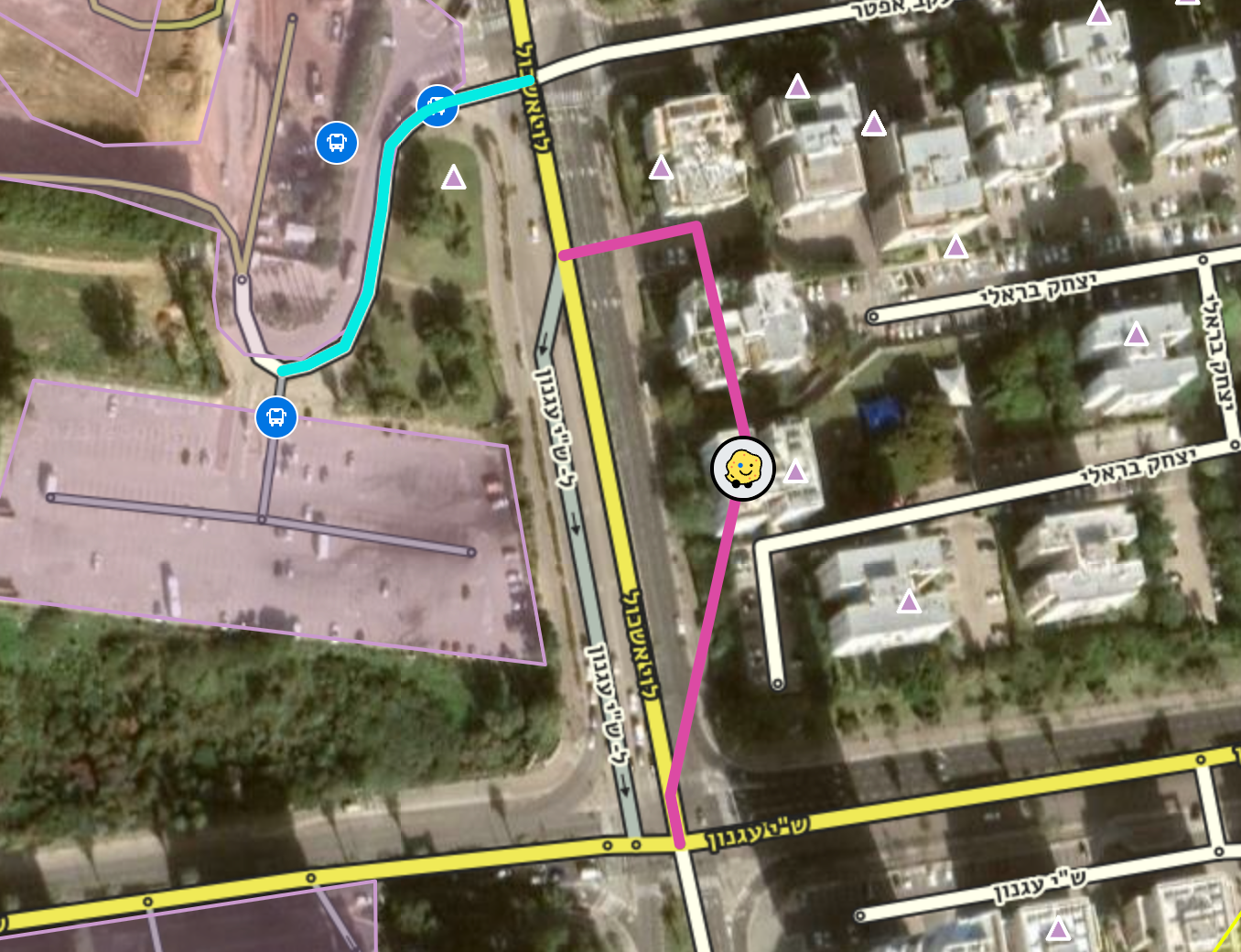
Suggestions that contain a change in the segment´s geometry, will also be displayed as a pink highlight on the segment, together with the icon of the suggester’s level.
Existent segment, change of attribute:
Existent segment, change of geometry:
Permissions
You can moderate suggestions within your editing area and anything up to your level.
Meaning, if you are an L4 editor, you will be able to moderate suggestions from editors L1, L2 and L3, in the areas for which you have permissions to edit. You can also moderate suggestions from L4 editors that suggested in areas for which they don’t have editing permissions.
Editors can suggest edits all over the world.
Supported Elements for Phase 1
Note that suggesting edits to different map entities will be released gradually. For the first phase, here are the elements that will be supported:
- Edit Segment
-
Update address
-
Street, City
-
Suggest from an existent state and/or country.
-
Update attributes on the “general tab” - speed limit, directions, etc (not including lanes and closures, house numbers and restrictions)
-
Change geometry
-
- Please note that deleting segments is currently not supported.
- Merging and splitting segments won’t be supported during the first phase as well.
- Creating new segments is currently not supported.
- Moving end nodes (A or B) is not currently supported.
PL support
You can share suggestions with other fellow editors by clicking on them and copying the permalink.
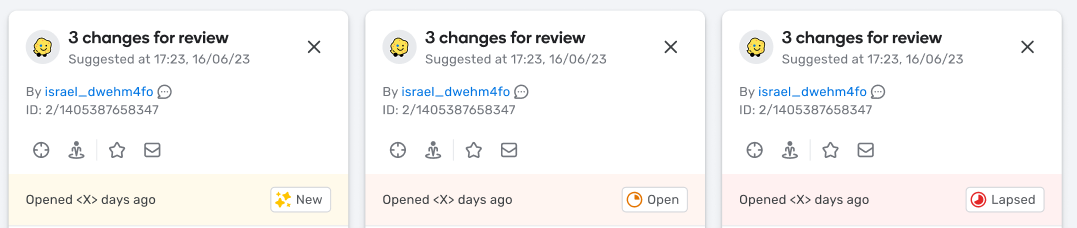
Statuses
Each open suggestion will display a status:
New: suggestions with creation date between 0-5 days ago
Open: created 6 to 14 days ago
Lapsed: created more than 15 days ago
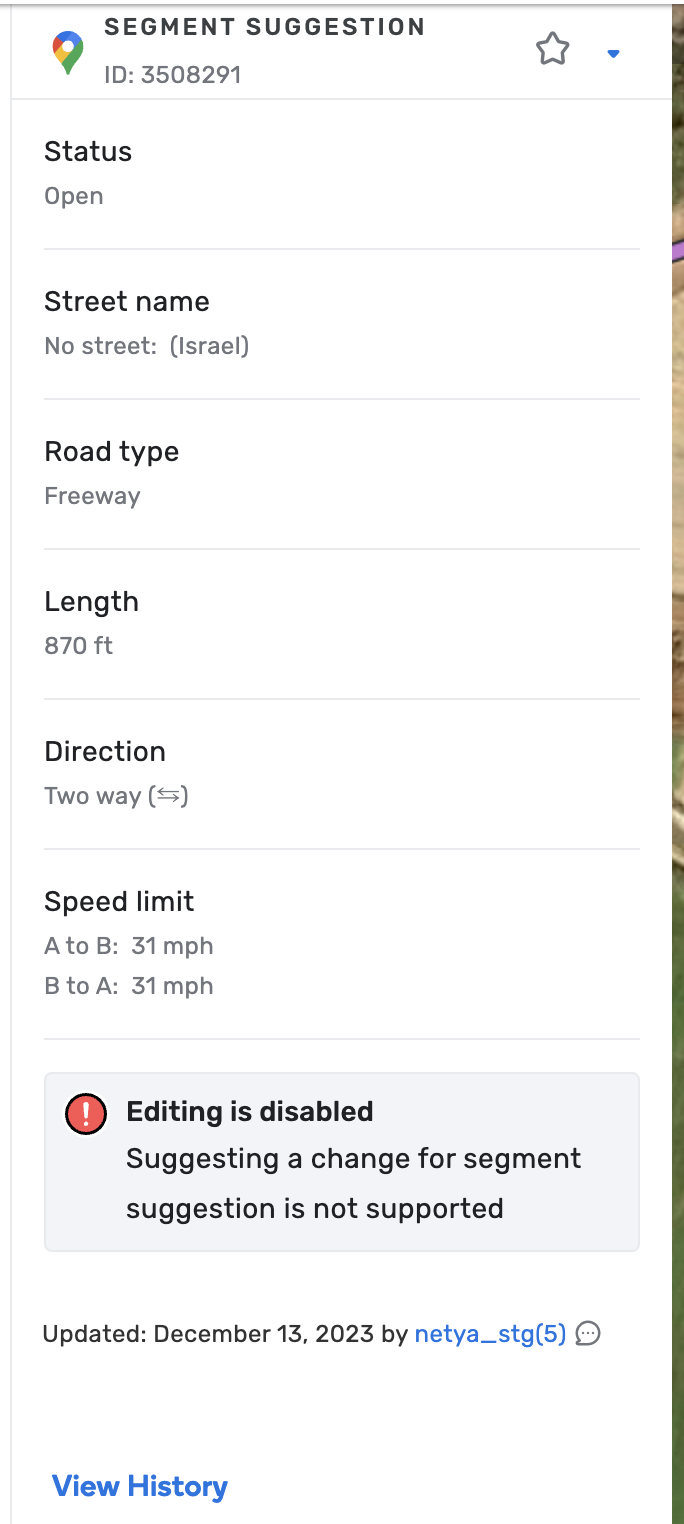
Disabled entities
For any entities currently not supported to make suggestions, we will display a warning message:
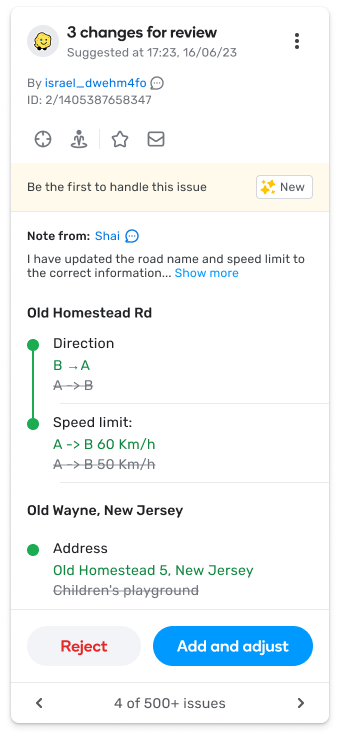
Communication with the suggester
At any time, you can start a chat conversation with the suggester by clicking the chat button in the suggestion’s card.
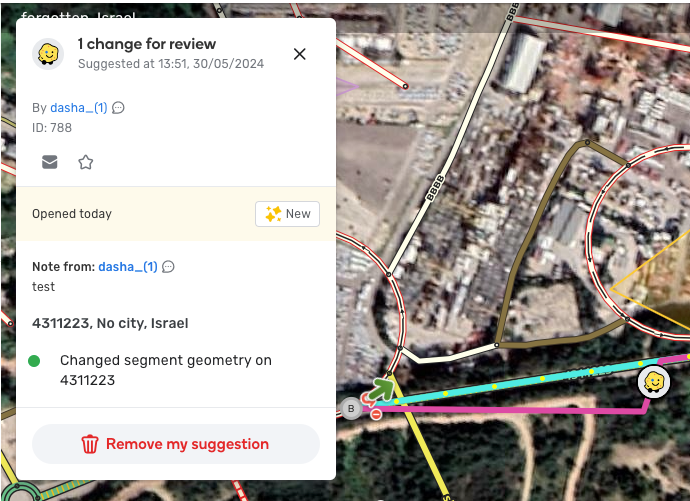
Last Releases
Remove my own Suggestion- Released on H1 2024
- When editors select “Remove,” the suggestion will be visually marked as “deleted” on the map.
- Upon saving, the suggestion is permanently removed, and the card in the Issue Tracker panel is deleted as well.
- Known issue: The status of the suggestion may temporarily display as “Awaiting Removal” after clicking the “Save” button. This can be resolved by refreshing the page.
Edit History- Released on H1 2024
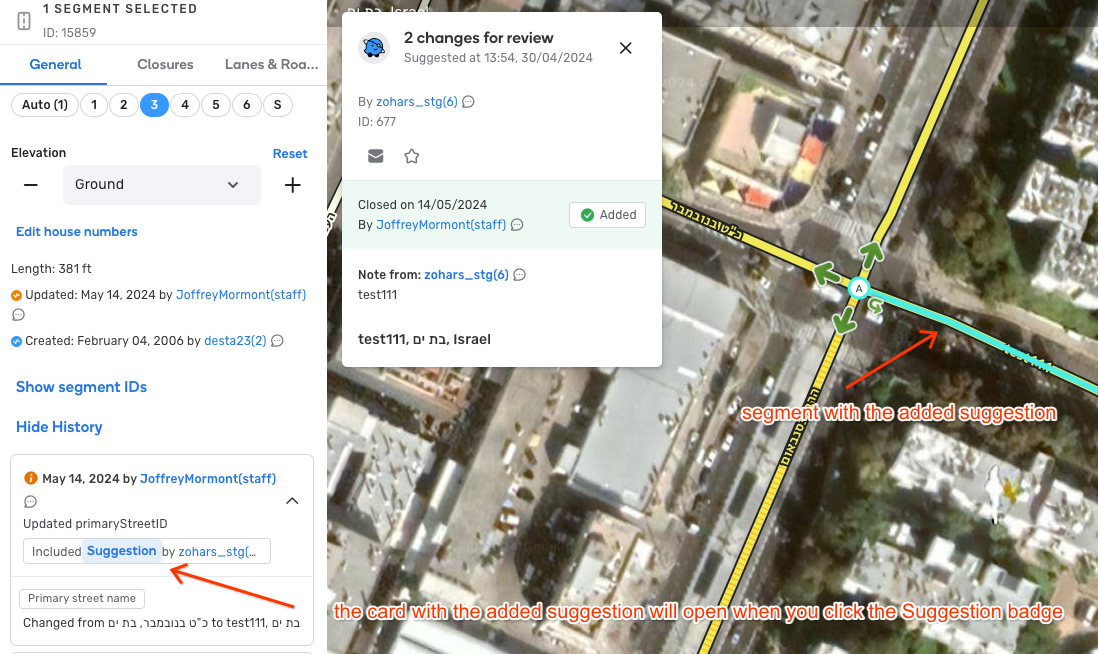
To help you understand how suggestions impact the map, we’ve enhanced the “Edit History” feature.
What’s New:
- Suggestion Badges: Now, when a suggestion is accepted and the change is applied to the map, you’ll see a “suggestion” badge in the segment’s edit history.
Benefits of Edit History:
- Transparency: See how suggestions contribute to map improvements.
- Accountability: Track changes made to the map and identify potential issues or errors.
Accepted suggestions in the Issue Tracker- Released on H1 2024
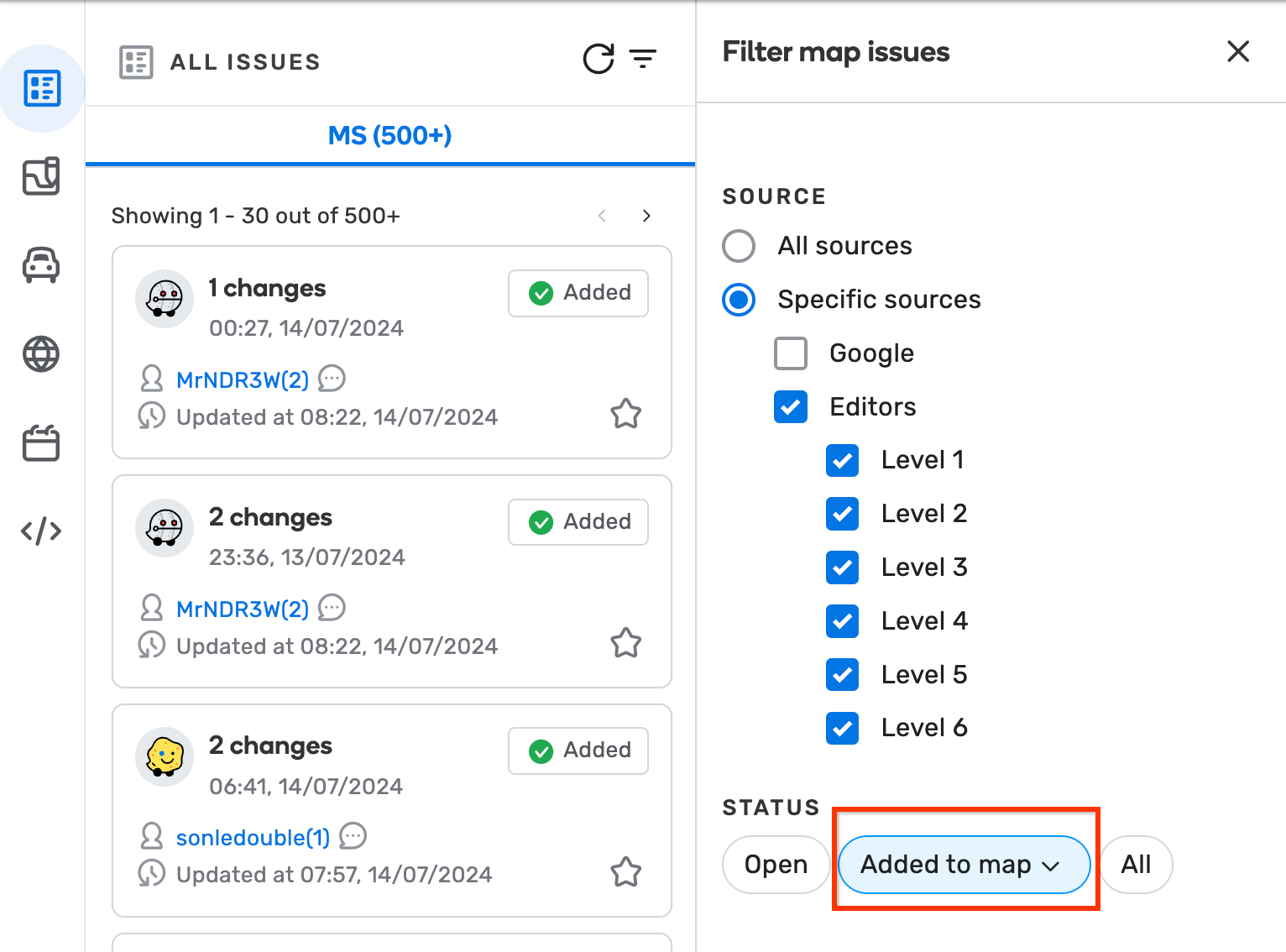
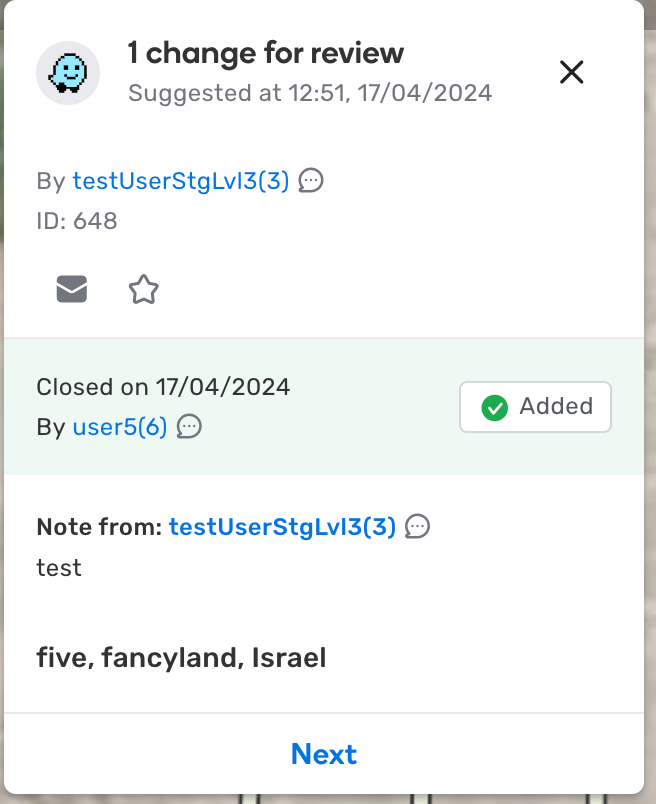
- Display on Map: Approved suggestions are now visually displayed on the map. This lets you quickly see where your contributions have made a difference.
- Filtering: You can now filter the Issue Tracker to show only approved suggestions, by using the “closed:added to the map” filter. This is helpful if you want to focus on the successful edits.
- Closed Status Filter: When filtering by “Closed” status: all, the Issue Tracker will display both accepted and rejected suggestions, giving you a complete overview of all resolved suggestions.
Suggest an edit on Turns
For Moderators:
- As a moderator, you will be able to find pending turn suggestions in the Issue Tracker. You will also see “Suggest an Edit” markers on the map indicating where suggestions have been made.
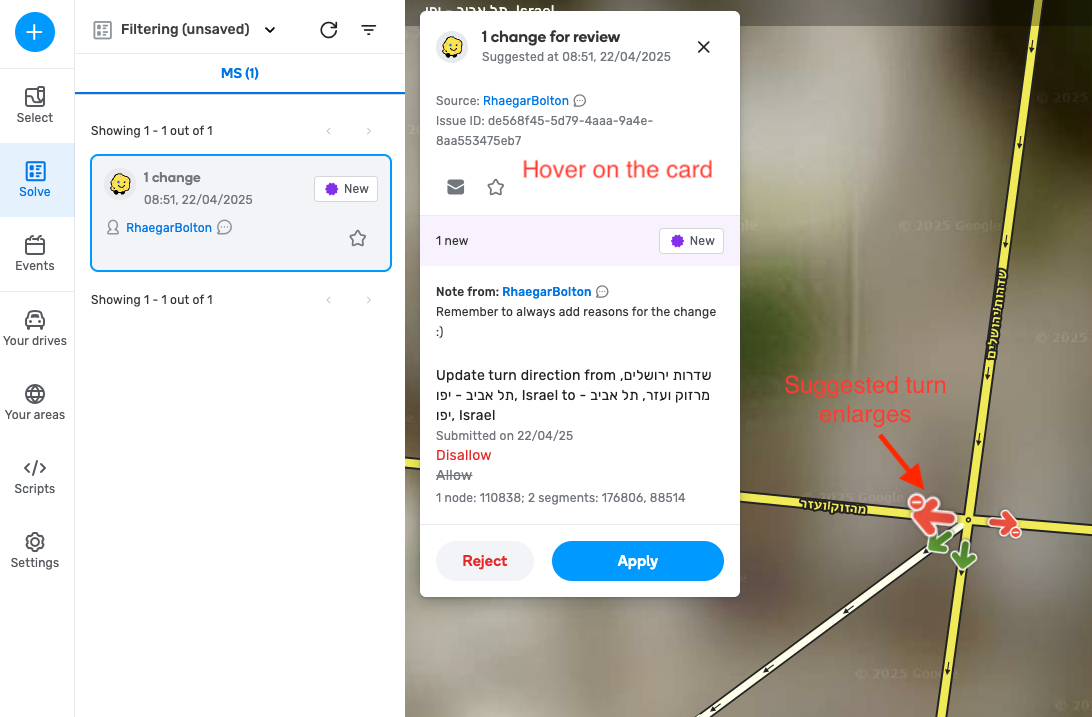
- When you interact with a turn that has a pending suggestion, or click on the “Suggest an Edit” marker, an issue card will open, detailing the proposed changes. The turn arrow on the map will visually grow to represent the new suggestion.
- The involved segments will also be highlighted in blue when hovering over the issue card.
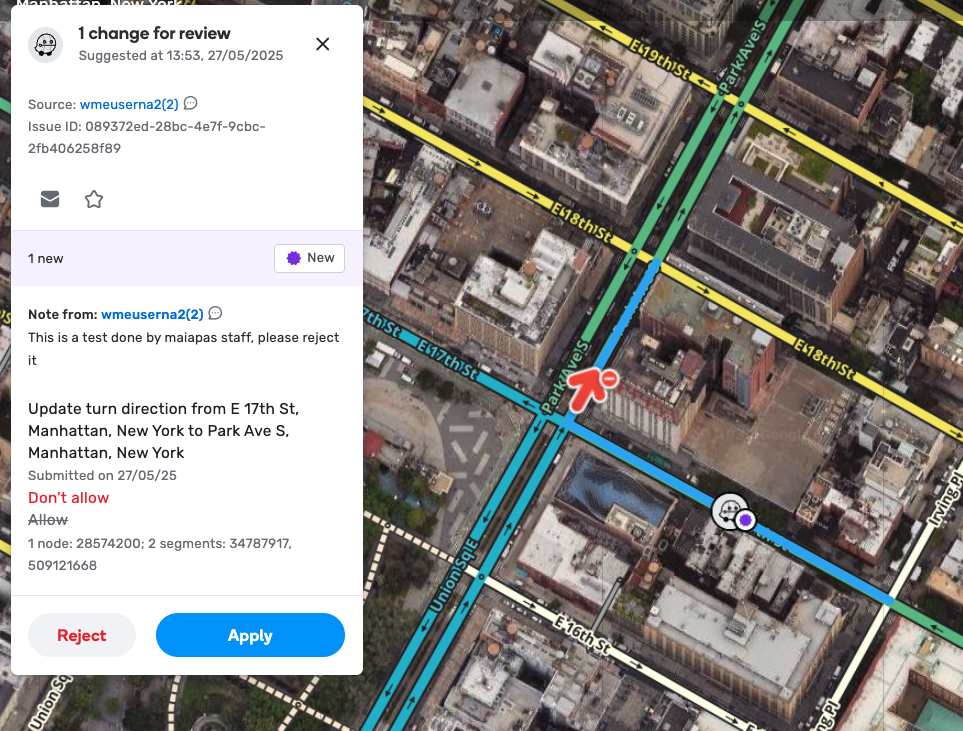
- New! Hovering over segment ID will highlight the segment in orange:
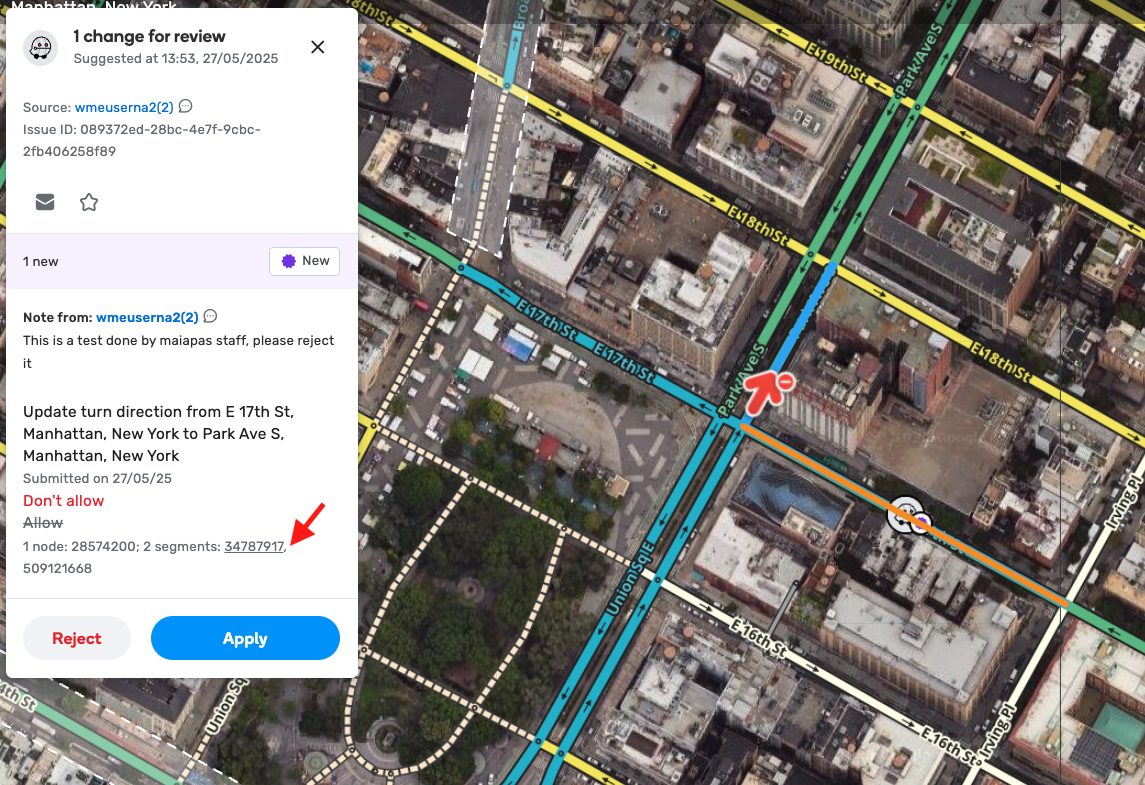
- The issue card will display the original state of the turn and the suggested changes. It will also include any notes from the suggesting editor.
- You will have the option to “Reject” or “Apply” (previously add and adjust) the suggestion.
- Rejecting will require you to select a reason for rejection and you can add a free text explanation to provide feedback to the suggester.
- “Apply” will allow you to load the suggested edit onto the map, make any necessary adjustments, and then approve the change.
- You can communicate directly with the editor who made the suggestion via Waze chat to provide guidance or ask for clarification. We encourage you to be empathetic and helpful, especially to new editors.
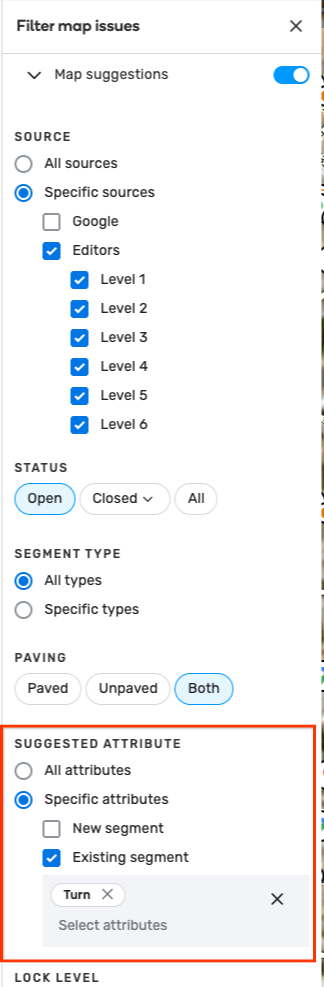
- You can filter suggestions in the Issue Tracker to specifically view those containing turn edits. In the “Suggested Attribute” filter, you will find a “Turn” option.
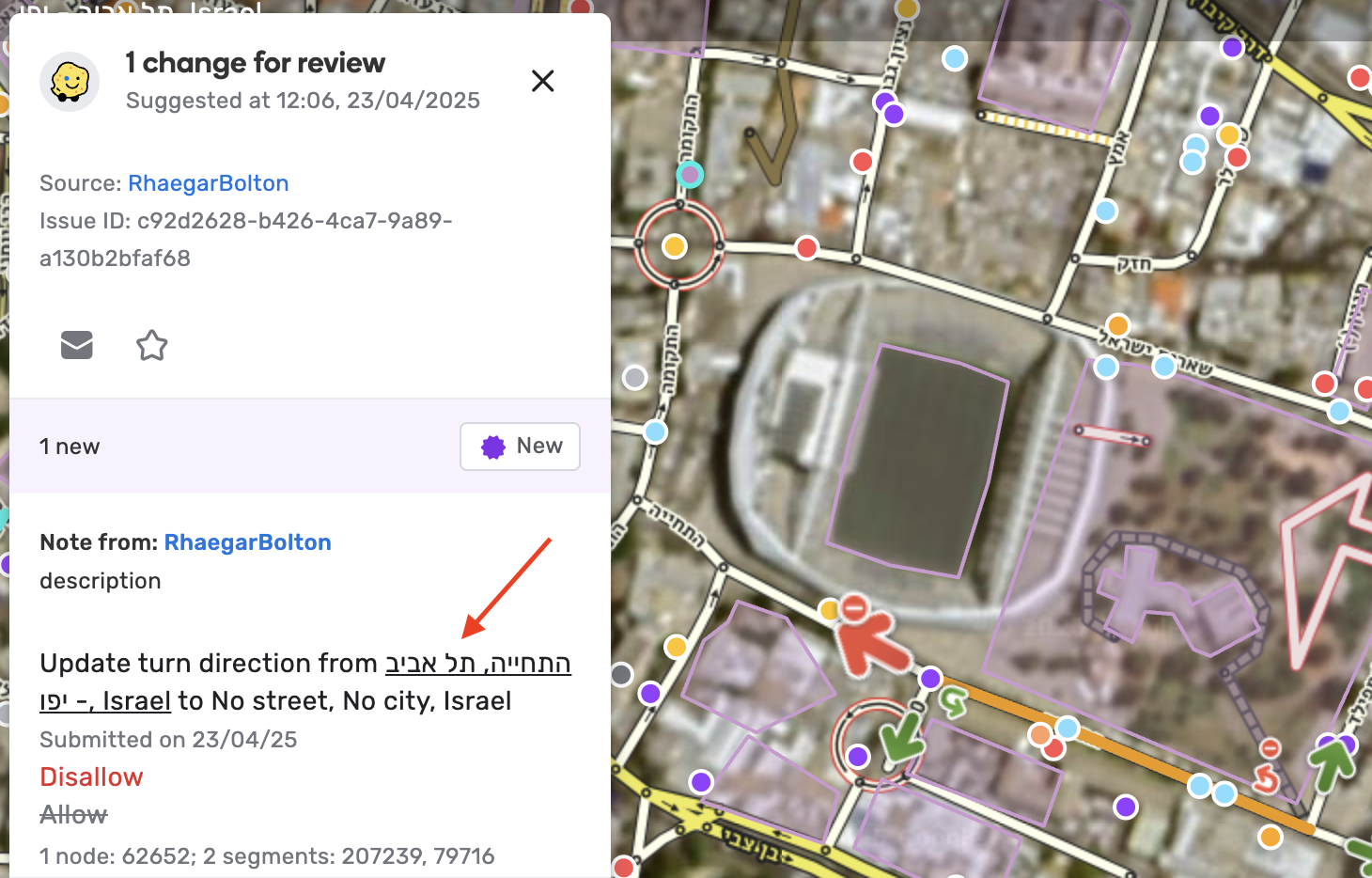
- When hovering over a street name or segment in the issue card, the specific street will be highlighted in brown, while related segments remain in blue, and the suggested turn will be emphasized with a larger arrow.
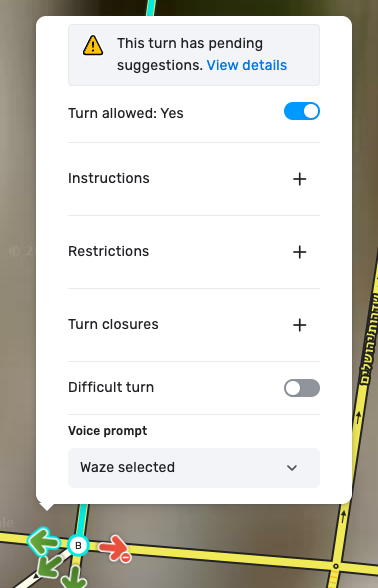
- When there is a pending suggestion on a turn, a message will appear at the upper part of the turn menu: “This turn has pending suggestions. View details”. Clicking “View details” will open the issue card. A similar message will appear in the node panel when a node has pending turn suggestions: “This node has pending suggestions. View details”.
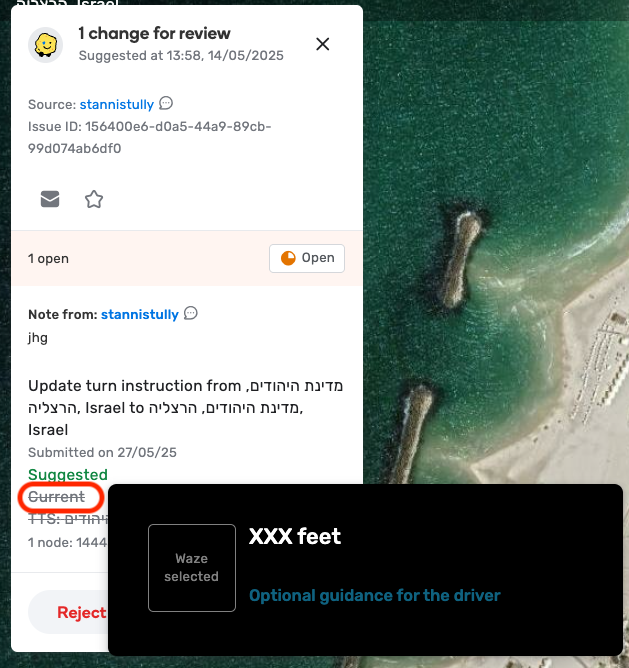
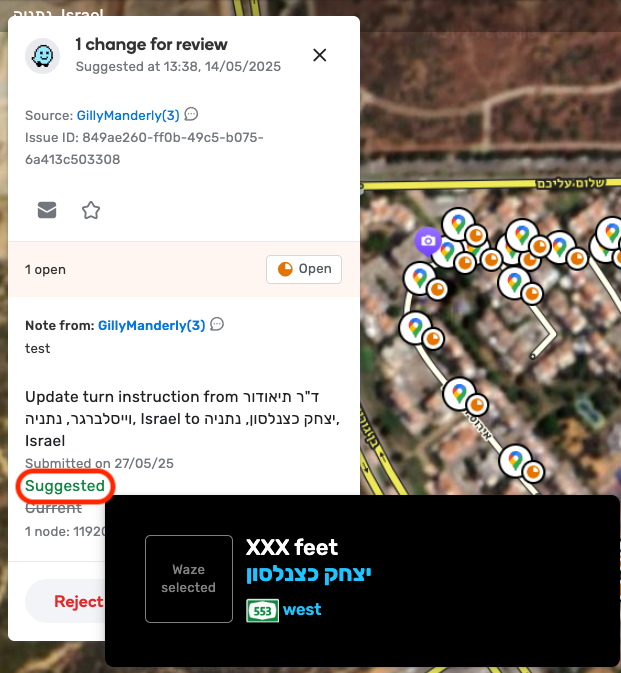
- For suggestions on turn instructions, hover the word “current” and a tooltip will be displayed with the current status. Hover the word “suggested” to see the suggested changes.
Moderating House Numbers on segments suggestions
As a moderator, your role is crucial in reviewing and approving or rejecting House Number suggestions to maintain map quality.
- Finding House Number Suggestions:
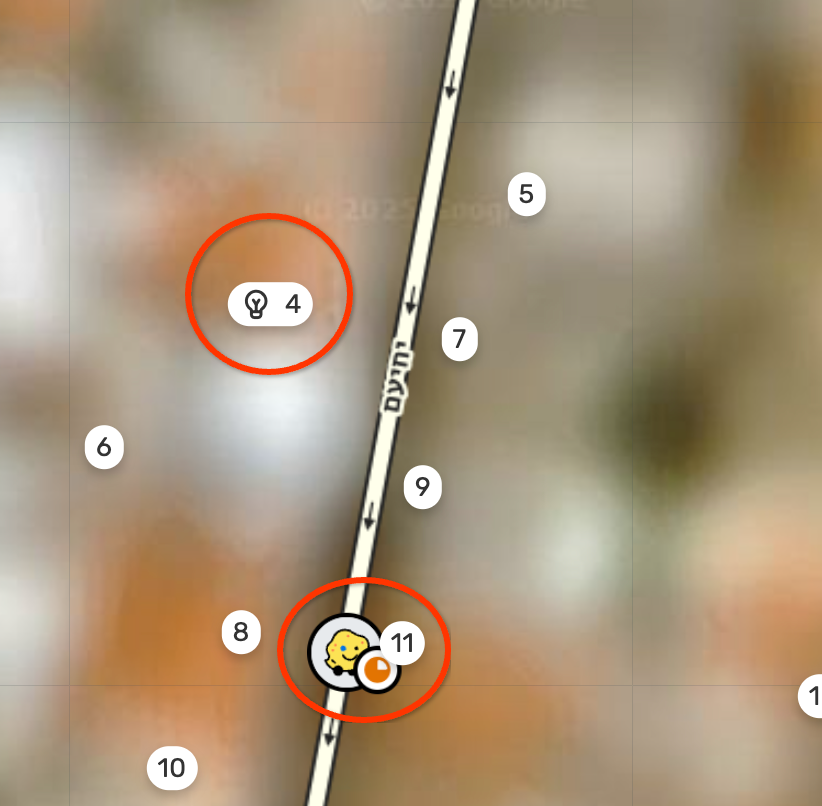
- Segments with pending HN suggestions will be visually highlighted with an indicator and a tooltip on the map.
- Open the Issue Tracker from the top of the left-side panel.
- Navigate to the Map Suggestions (MS) tab.
- Use the filters to narrow down suggestions:
- Toggle “Map suggestions” to on.
- Select “Editors” as the source and choose the relevant editor levels (L1 is checked by default).
- Under “Suggested Attribute,” select “House number” to filter specifically for HN suggestions.
- Set the status to “Open” to view pending suggestions.
Please note:
- When turning on the HN layer only current existing HNs will be displayed and not the “suggestions” that include a light bulb icon.
- When turning on the “issues” map layer, existing HN suggestions will be displayed on the map (with a lightbulb icon).
- When clicking a HN suggestion, if the HN layer is off it will be turned on automatically and you will be zoomed to zoom level 18 in order to view the suggestion, in case you are at a lower zoom level (like 17,16,15)
- Accessing Suggestion Details:
- Clicking the map pin or the corresponding card in the Issue Tracker will open a detailed view of the HN suggestion(s).
- We will most likely center the suggestion in the center of that bbox. This is a general behavior of suggestions, since most common use-case don’t involve many entities.
- Since HNs are viewable starting at zoom level 18, if you click on HN suggestion at zoom level 16 for example with the HN layer off, we will both turn on the HN layer and zoom you to 18. We will center you.
- Visual Feedback on Hover:
- Hovering over the issue card will change the relevant House Number to a light blue highlight and light bulb icons, and segment(s) on the map to a blue highlight color.
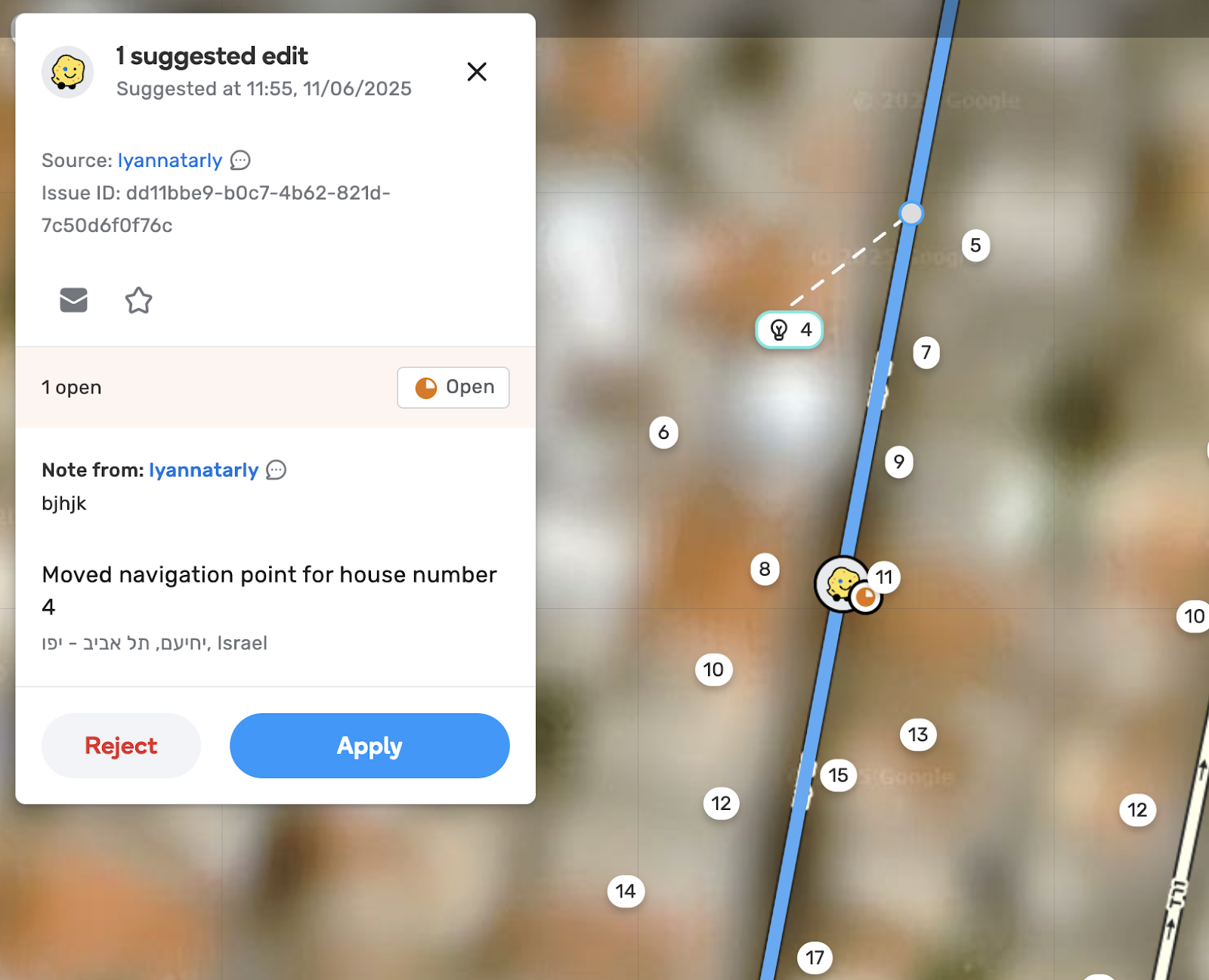
- To see the existent location of the original house number, the segment must be selected.
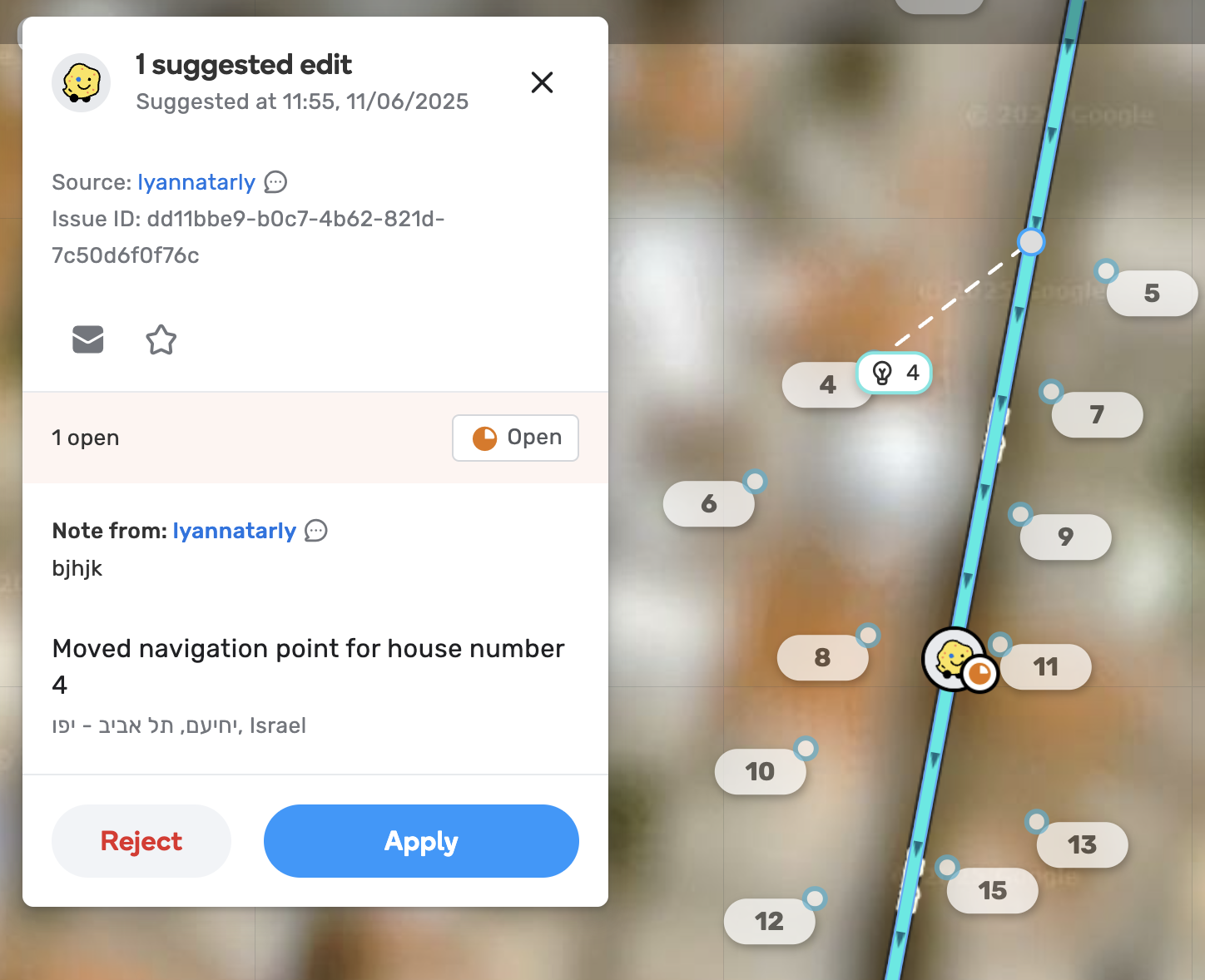
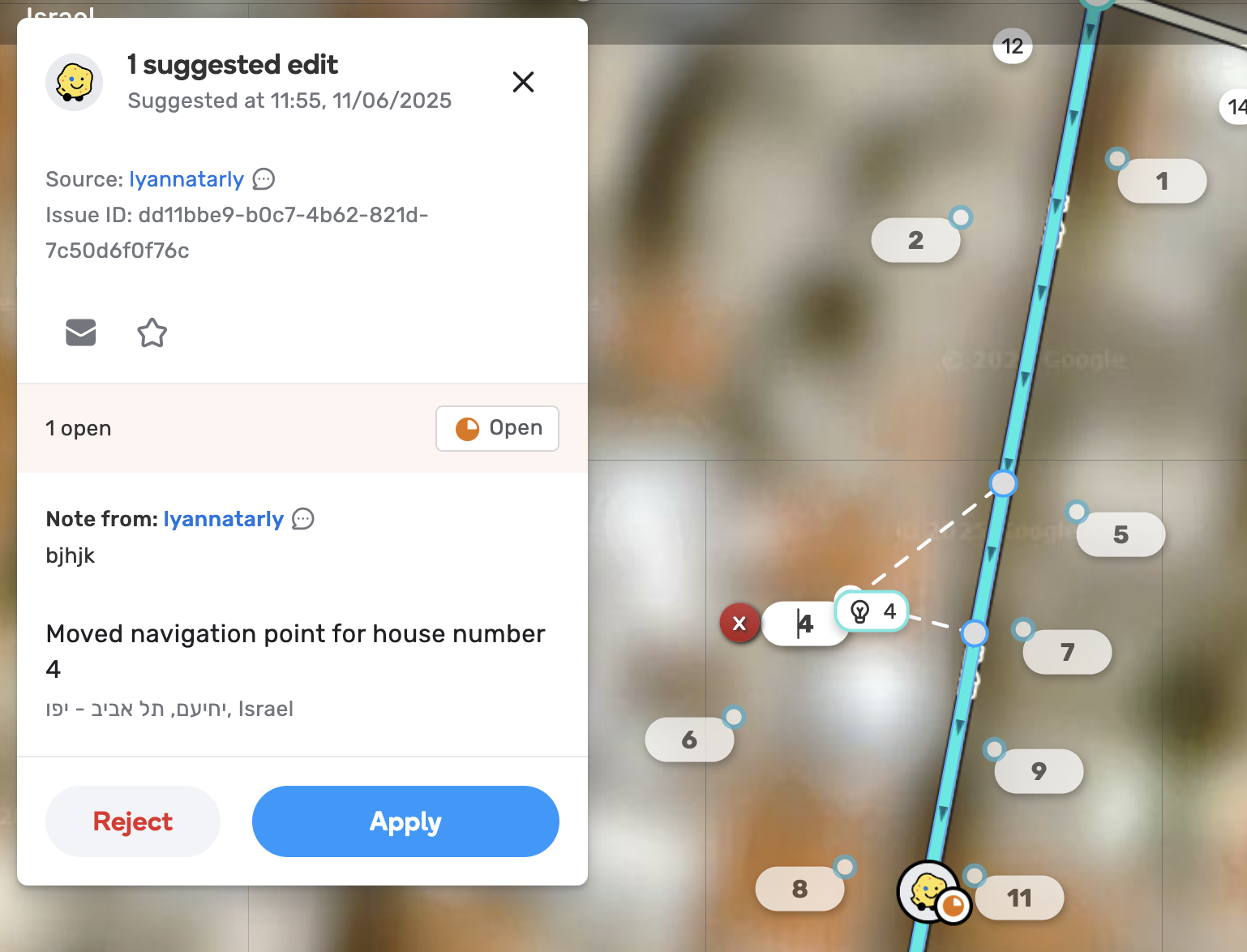
- You can click on the existent HN to better view its location:
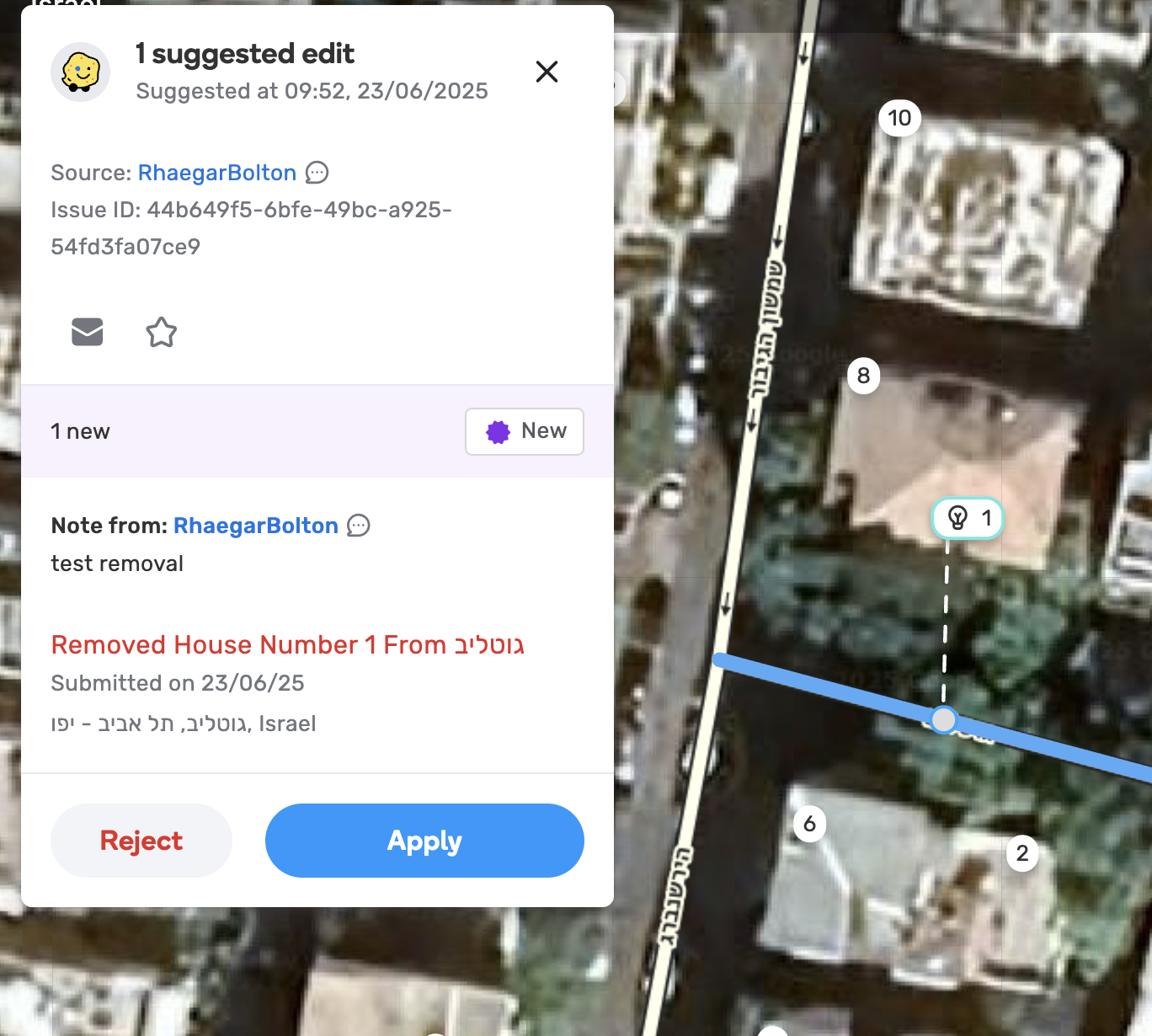
- Suggestions on HN deletions will also be displayed with a lightbulb icon and a light blue highlight. The suggestion’s card will describe that it is a removal.
- Reviewing and Approving/Rejecting Suggestions:
- Approve: Click the “Apply” button to approve the suggestion. The card status will change to “Added,” and the map indication will reflect this status. You can then edit the suggestion if needed, and click save.
- Reject: If rejecting, you must provide a rejection reason from a pre-defined list and can add free text for clarification. Rejection is currently all-or-nothing for a suggestion.
FAQS
Can there be more than one suggestion on a given segment, at the same time?
Yes. Suggestions with different geometry will be displayed as follows:
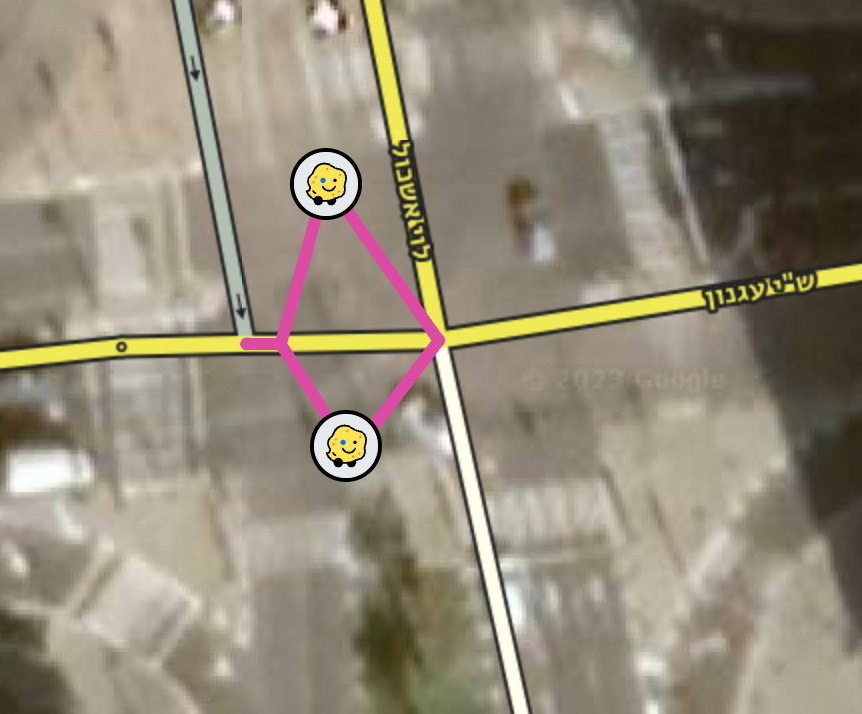
For more than one suggestion regarding attributes of the same segment , at the moment, we will show one icon per segment.
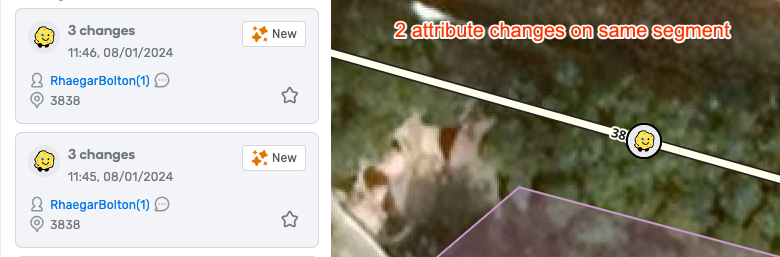
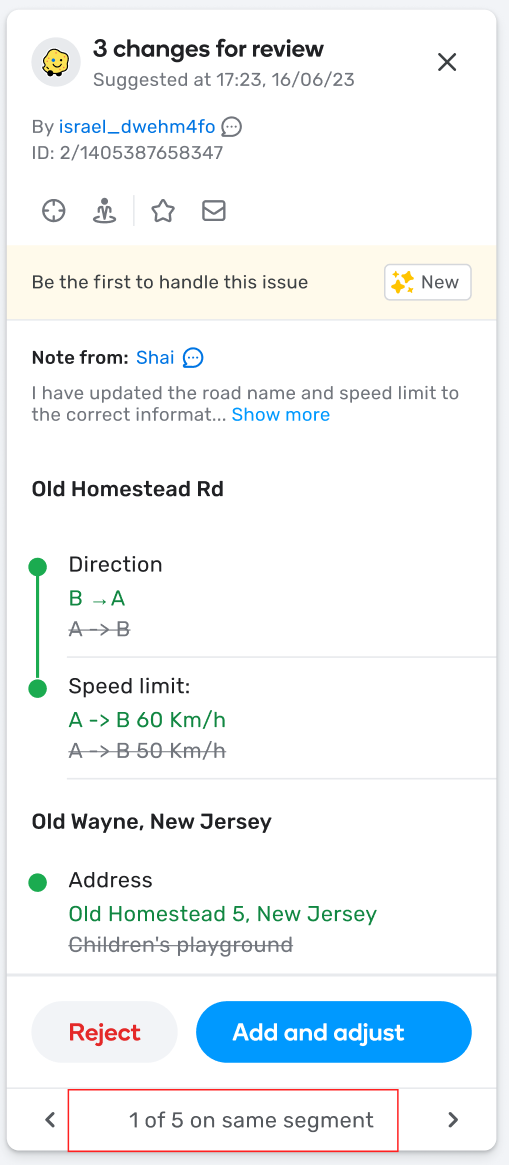
The newest suggestion will be displayed first in the Issue Tracker list.
In the future, we will also implement an indication on the map to signal more than one suggestion on a given segment, and an indication on the card. As always, the mock ups are not final.
Which mechanisms are in place to prevent abuse?
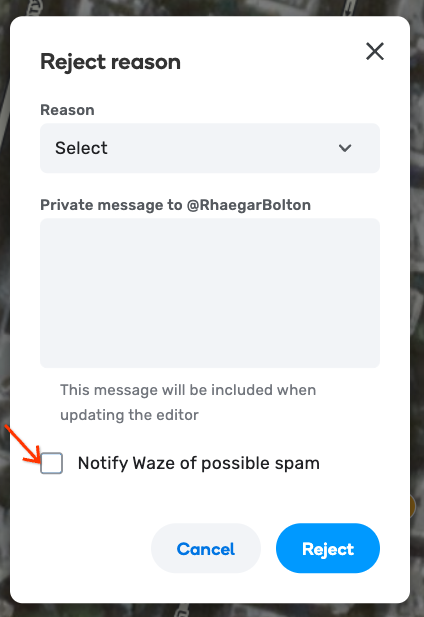
In general, we ask you to mark suggestions as spam when you notice an intention for map damage or abuse. Please use the spam checkbox in these cases.
There are 2 mechanisms in place:
- If you want to block a user due to spam, your community coordinator can submit a request via CAR to block a potential spammer from editing, which will prevent the editor from suggesting as well.
- You can use the checkbox to mark the suggestion as spam. We will check the suggestions marked as spam on a monthly basis, and manually block users from editing that have 5 suggestions marked as spam.
How many suggestions can be submitted per day, per editor?
The limit will be up to 10 suggestions per day for L1 editors. Please note that each suggestion can contain up to 10 changes.
There are currently no limits for L2 and above.
How many map edit points will be assigned to suggestions?
If a suggestion is approved, both the suggester and the moderator will receive map edit points. This will depend on how many attributes/changes were part of the suggestion.
The suggesting editor will get points for the map edits and the moderator will get points for the map edit and one map edit point for handling the suggestion.
If a suggestion is rejected, both the moderator and suggester will receive one map edit point.
How can I find rejected suggestions?
Use the closed filter to see rejections.
What type of notifications will the suggester receive?
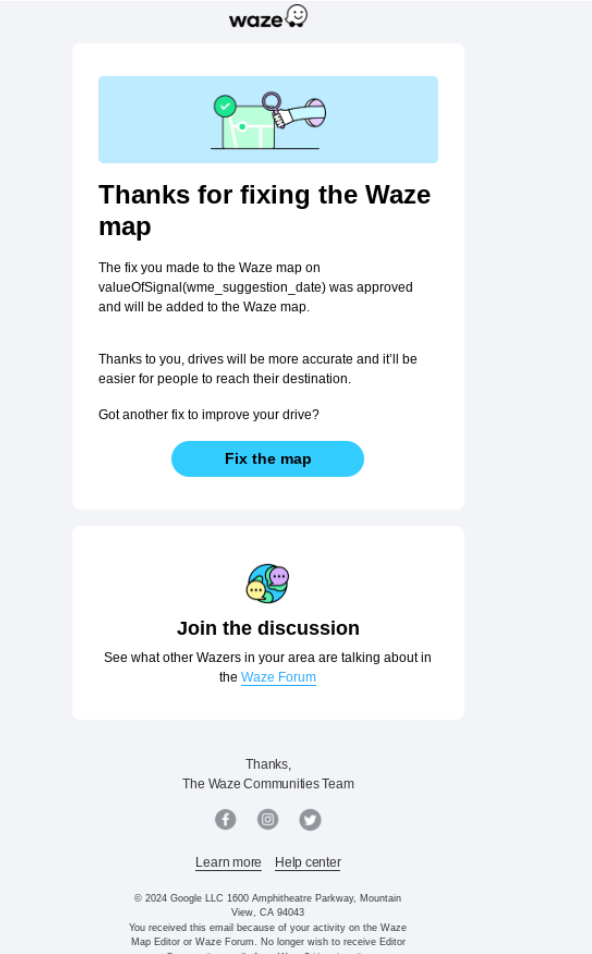
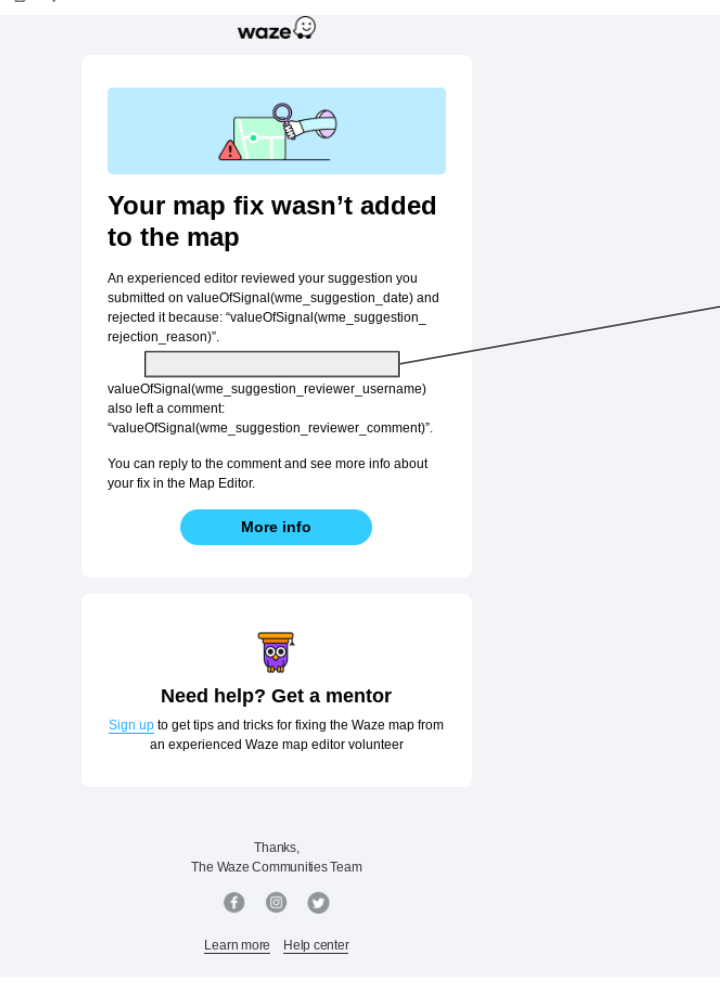
The suggester will be notified via email if their suggestion was approved or rejected. Both emails will contain a link to either the area of the suggestion (if it was approved) or if it was rejected, a link to the suggestion itself.
Please see the mock ups below. Note that the final version might change:
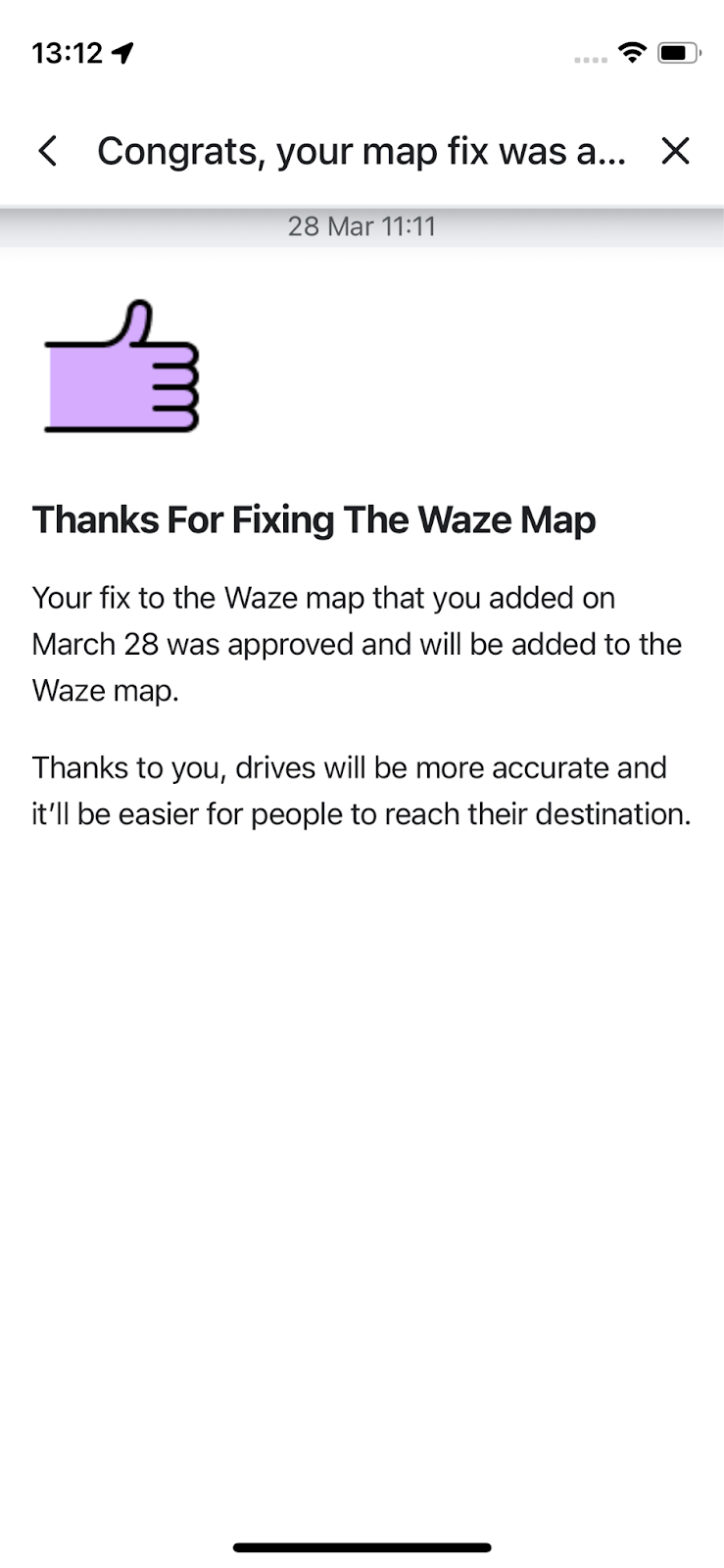
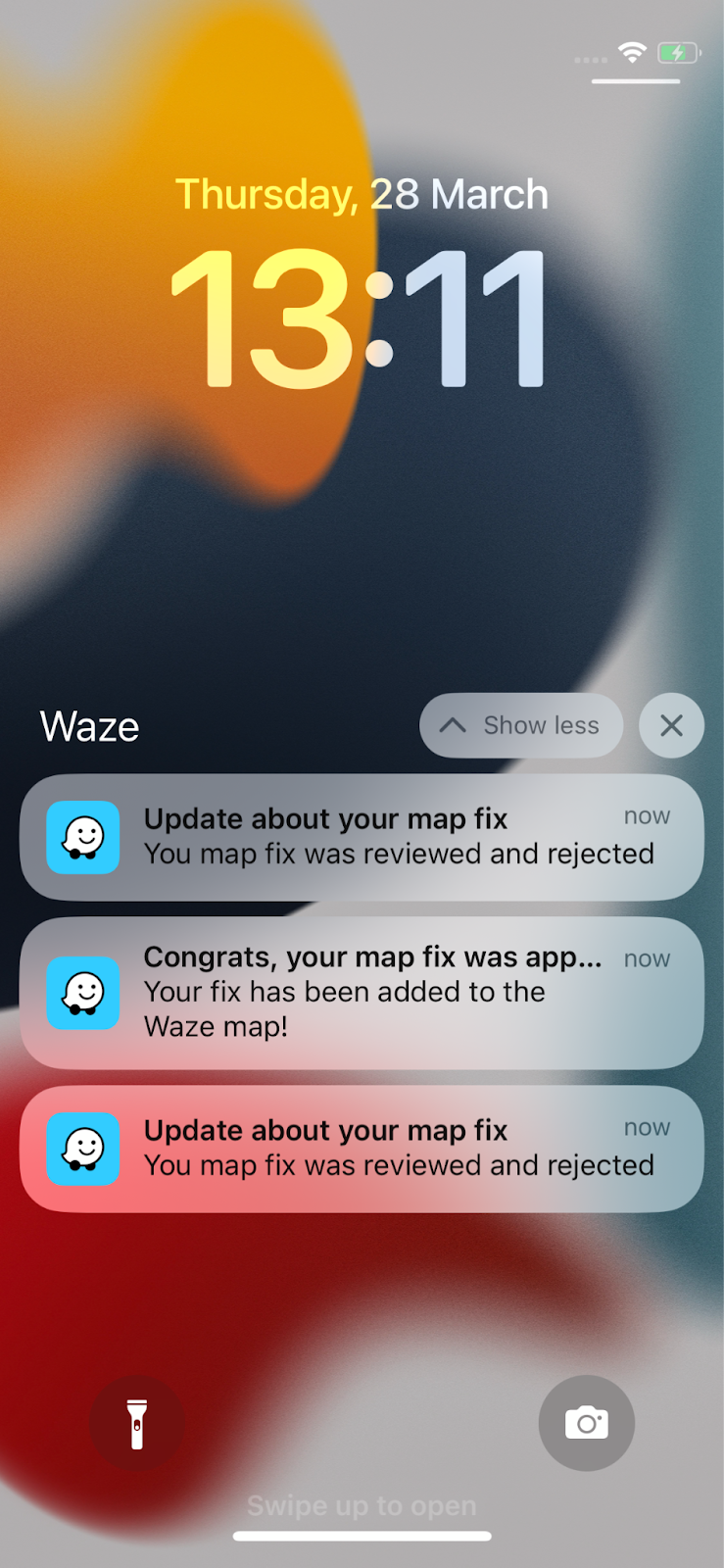
We will also send a push notification to the suggester regarding acceptance or rejection of their suggestion:
Is “Suggest an edit” available in Practice mode?
No, practice mode has been left untouched.
How many edits can one suggestion contain?
Up to 10 changes can be suggested per suggestion. Please see below what the suggester will see when doing the 11th change. We will also automatically undo the 11th change and prompt the editor to save.
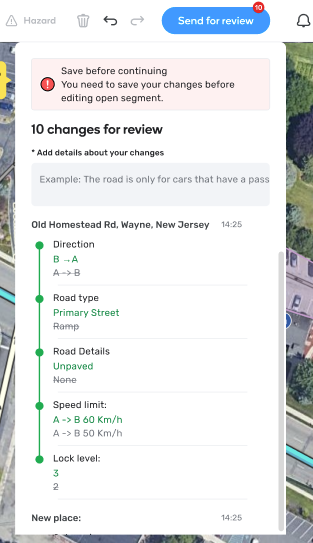
Please note that a suggestion can contain changes for several segments.
Can I suggest edits in different cities, with the same suggestion?
For one suggestion, you can only suggest edits for segments within 1.5km from each other.
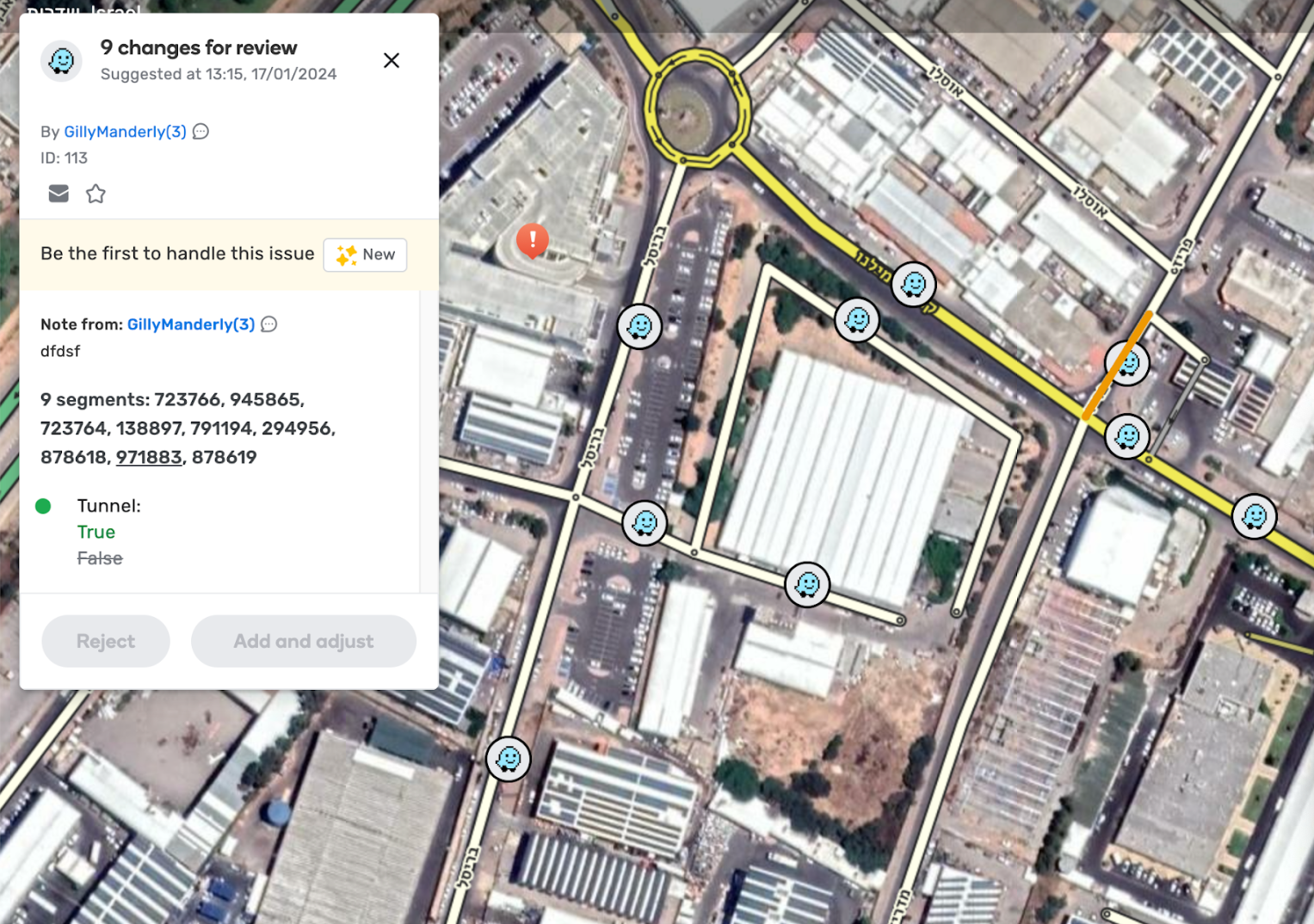
What happens when suggestions contain changes for more than one segment?
We will display one icon per segment on the map, as follows:
So for one suggestion, we can display up to 10 icons if the changes have been done on 10 different segments within 1.5km.
Can I suggest an edit for a segment for which I do have editing permissions?
Not in general.
That said, a user is able to suggest edits for a segment they have permission to, if it’s part of an existing suggestion already being made that contains a segment they do not have permissions to edit.
For how long will rejected suggestions remain in the Issue Tracker and map?
Same as URs: open suggestions will be stored for up to one year since the last update date. That said, you can always filter out suggestions that were already reviewed.
Rejected suggestions will be stored for 40 days, and accepted suggestions are removed as soon as they are accepted.
This mechanism is yet to be implemented, we’ll let you know once it does.
How will suggestions appear in the history of a segment?
For the first phase, the segment’s history will include the changes with credit to the user who approved the edit (the moderator). If the edit was rejected, it will not appear in the segment’s history.
For future phases, we are planning on adding the username of the suggester as well:
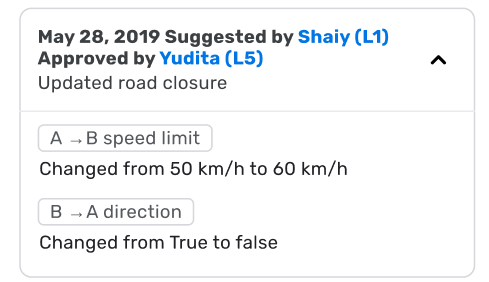
This mock up is not final and it is subject to changes
Can an editor moderate its own suggestion?
Not at the moment, since we thought this could lead to potential map abuse as the editor would be credited map points both for the suggestion itself and for approving it or rejecting it.
Can the suggester delete their suggestions?
Yes, please refer to remove my own suggestion.
Can you implement a per-item acceptance/rejection?
This is the feedback that came up the most during the Beta testing phase. It has been shared with the team to consider it as the most popular request.
Can I invite the Suggester to my local chat group?
Yes! We encourage you to add suggesters to a new editors group, if your community has one.
Known issues:
- You won’t be able to see at the moment, all the suggestions that a segment contains in the issue’s card. This is planned for future phases.
- If you split a segment that contains suggestions, then the suggestions cannot be rejected.
- Suppose we have a suggestion containing a segment with lock level 2. If another user changes that segment’s lock level to 5 after the suggestion is saved in the database, the suggestion will still show level 2 even though that’s inaccurate. This is because the suggestion’s lock level is pre-calculated and not dynamically updated based on the latest object states. This will change in the future to reflect the latest lock level.
- There might be some actions that will be locked to be suggested, to L3/L4 due to the fact that editing lanes is considered a geometry change in our code. For example:
In case you are L1 - no general rights to edit lanes → you will be able to suggest geometry changes for segment
In case you are L3-L4 - you potentially can modify lanes → is it allowed for SaE? → no → you cannot suggest geometry change (due to the fact that editing lanes is considered a geometry change in our code)
This issue will be fixed once we add editing turns to suggest an edit.