
We uses the term Discourse when referring to the 3rd party platform,
And Discuss, Waze Discuss or WD, when referring to our installation of Discourse, with its customizations and enhancements.
There’s so much to learn about Discourse!
We strongly recommend consulting with Discourse’s official site when needed.
Thank you,
Waze Communities Team
Categories on Waze Discuss
-
What are they
-
Forums / Sub-forms, i.e.: Beta Community, Editors, and their nested forums
-
Permissions: Admins and Moderators can create new categories and manage existing ones
-
How many sublevels can we have? 3, i.e: Beta → Discussions → Beta Leaders
1. We cannot create additional sub forums under the 3rd level. “Beta Leaders” in this example.
2. We can create posts in each of the levels.
-
How to create a category
-
Access the main page on Waze Discuss: https://www.waze.com/discuss/
-
Click the 3 dots button (next to New Topic) → New Category (remember that this menu has the option to “Reorder Categories)
1. General:

  1. Name your new category
  2. Slug: Optional
  3. Parent category: VERY IMPORTANT - nest your category under the right parent category. If you don’t, your category will appear on the [main page](https://www.waze.com/discuss/).
  4. Description:

    1. This is the description that appears in the category’s top banner:
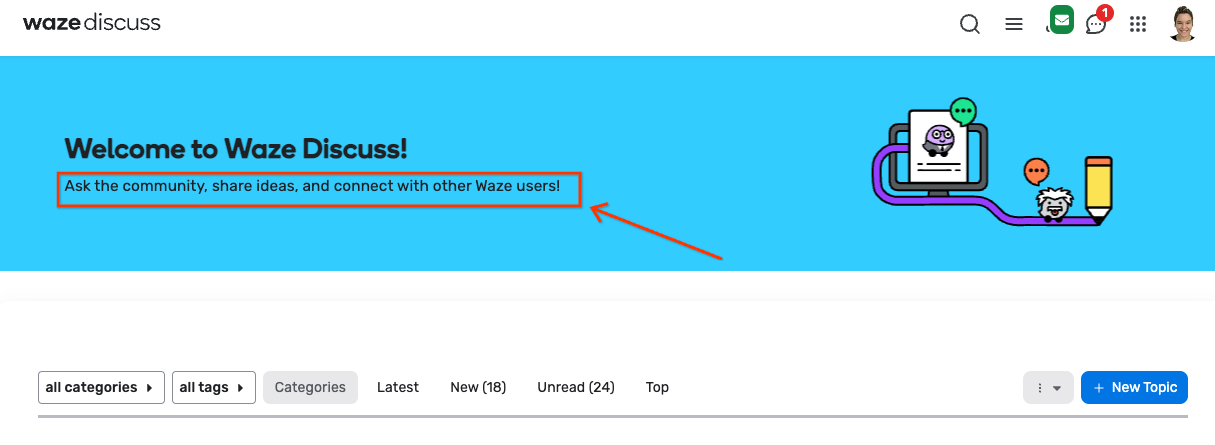
- Strange behavior you should know about:
When you update a category’s description, it only shows up in the top banner after you:
-
Update the description in the page that opens when you open the Description Editor (it looks like you’re writing a new topic).
-
Hit Save Category, in Category management.
-
Choose nice background and foreground colors for the category.
It’s good practice to keep your categories in the Waze color pallet.
HIT SAVE!
-
Security:
-
Add the user groups that need access to the forum
-
Grant them the right permissions: See / Reply / Create.
Important note: A user group needs to have access to the top-level forums, to be able to access nested forums. I.e.:
- Forum: Beta → Discussions → Beta Leaders
- User group: BLs.
The BLs User Group needs to have access to all 3 levels mentioned above, to be able to access the nested forum “Beta Leaders”.
Getting this error message?

Check the Security tab for groups that have access to your sub-forum, but do not have access to the higher-level forums (under which your forum is nested).
HIT SAVE!
-
Settings:
-
Moderation: If you’d like to grant a group of non-staffers moderators access to this category, add the group’s name in this field.
-
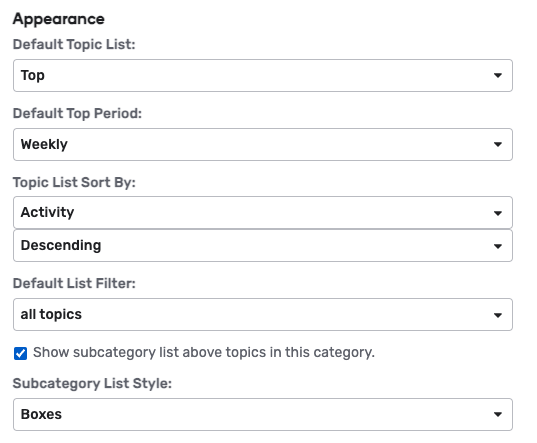
Appearance:
To have all categories aligned on appearance, please use the Boxes style:
- Check this box: Show subcategory list above topics in this category.
- Subcategory List Style: Boxes
- Solved: If you’d like to allow users to mark comments as solutions, which will make the thread close after a duration of time you choose, choose your settings in this section.
- Topic voting: If you’d like to allow users to vote on topics, check this box.
- Waze forms: Staff only - If you’d like to embed a Waze Form (like the Beta Bug form) in this category, check this box.
HIT SAVE!
-
Images:
-
Category Logo Image: The small square icon that appears in the top-level box view.
-
Category Background Image: The big rectangle image that appears on top of the category, next to the description.
Images will be provided by the Waze team.
HIT SAVE!
- Template:
Adding a template means that any new topic created in this category, will start with the template text you set for it, like so:
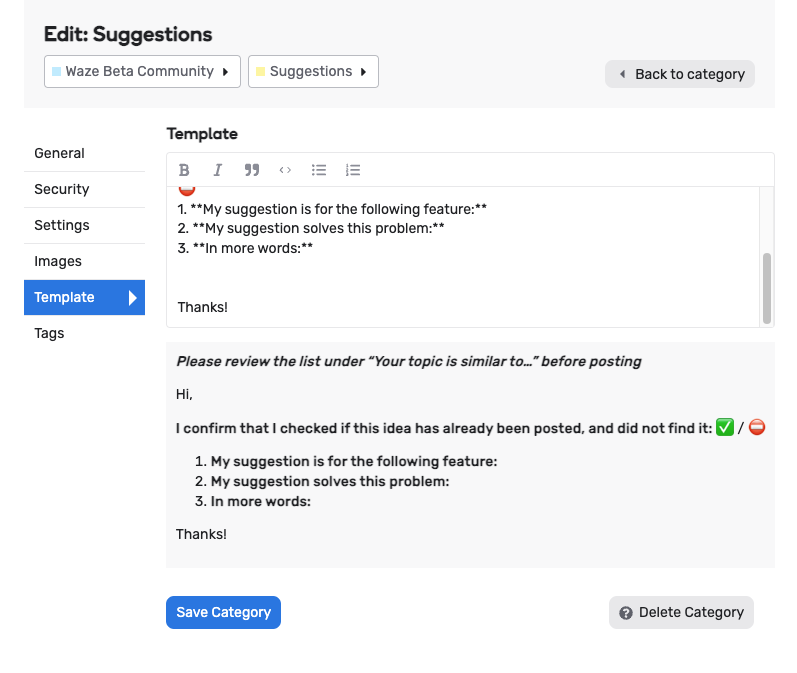
Use case examples:
- Beta bugs or topics, with required fields, example from the Routing forum
- Map Update Requests, with required fields
Users can overwrite the template / remove / edit them, when creating a topic.
Want new topics to follow a template? This is where to set it:
Category management → Template
HIT SAVE!
- Tags
Tags are great for managing content! They can be added to topics, and then filtered by. Read more about them, in the section of this document dedicated to Tags.
User Groups on Waze Discuss
What are they?
User Groups are the way we manage access to categories and more, on Discourse.
Create a new group
-
Access Discourse: https://www.waze.com/discuss/
-
Go to Groups management: Hamburger menu on top right → Groups → New Group
-
Name:
1. No spaces
2. Follow the agreed upon naming convention, which should reflect the type of community (beta / partners / editors / localization)
- Full name: Here you can use spaces
 Follow the same naming conventions
 - Add owners and members
- Access:
Staff doesn’t recommend using the following setting, since it’s hard to manage the incoming requests:
Allow users to send membership requests to group owners (Requires publicly visible group).
- Waze External Controlled Groups Settings:
Only staff should apply this setting.
This adds more options to group management, like the option to direct a user to a specific topic, like a welcome topic, after they join the group.
If you want it for your group and you’re not a staff member, please reach out to a staff member for help.
Here’s more info for staff (doc access only for corp users).
-
Access: Choose the right access type for your group.
-
Want users to be able to choose the group as their Primary and show its Flair next to their posts? (Only one flair is shown per user)
-
Mark the group as Primary: Effects → Automatically set as primary group
-
Under Visibility: Allow members to see the group and its members:
1. Who can see this group? Group owners, members and moderators
2. Who can see this group's members? Group owners, members and moderators
- Posting: Respect group members and choose Only moderators and Admins
- Who can message this group? We disabled DMs on Discuss, to enable Waze Chat, so this setting will not reflect anywhere.
- Notification: Normal is a good setting, not an aggressive one.
HIT Create
Invite / Add users to group
Once a group is created, you’ll see 2 buttons in the Members tab:
- Add Users - to add users who are already on Waze Discuss directly to the group.
- Invite - this will generate a Join link you can share with anyone.
You can use either, depending on your case.
Badges on Waze Discuss
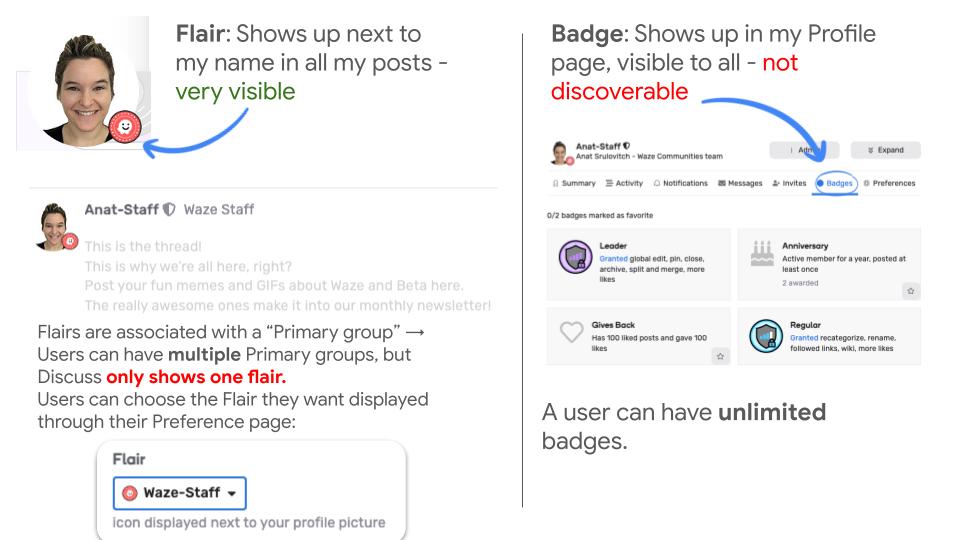
What are they?
Badges are a gamification option in Waze Discuss.
Through the Badges page, users can see the available badges, and Admins and Mods can manage them.
Where do users see Badges on Waze Discuss?
Users can see the badges they earned through the Badges page on their Discuss Profile page.
To see it, click on your top right avatar → Summary → Badges
How do users earn Badges?
Check the Badges page to see the automated badges which can be earned through activity on Waze Discuss.
Flairs on Waze Discuss
What are they?
Flairs are icons that show up next to the user’s image, on every one of their forum posts.
How can users control which Flair will be shown next to their posts on Waze Discuss?
Flairs are associated with a “Primary group” →
Users can have multiple Primary groups, but Discuss only shows one flair.
Users can choose the Flair they want displayed through their Preference page:
Top right avatar → Preferences → Choose Title, Flair and Primary Group.
If a group isn’t showing up in that list, it means the group management settings aren’t set up as:
- Membership: Primary group
- Interaction: Who can see this group’s members? Needs to allow “members”
Contact staff to change the settings of the group, so users can see it as a Flair option.
How can staff control Flairs to Waze Discuss?
Flairs are added to each group on WD individually.
Manage group → Membership → Avatar: You can choose an icon from the list or upload your own image (20px X 20px).
Opting out of a community on Waze Discuss
You can leave some groups: Top right avatar → Groups - if there’s a red Leave button, you can leave the group.
Since you can’t leave all groups, if you’d like to NOT get notified about activity in a certain groups, you can stop tracking its activity:
Top right avatar → Tracking - You can Mute Categories and Tags you’re no longer interested in hearing from.
Opting out of Waze Discuss emails
Manage your email settings through
Top right avatar → Preference → Emails. The Notifications and Tracking pages can also help.
Email Controls
Community
Manage your email settings through
Top right avatar → Preference → Emails. The Notifications and Tracking pages can also help.
Staff and Community Category Moderators
There are several ways to control which and how many emails users on Discuss get.
- To trigger an email notification for a forum post - to make your forum post send an email to users, use the “@” (mention) capability (if enabled for the group’s Interaction menu):
Tag a user group and they’ll get an email notification containing the post, if their settings allow it - if they hadn’t opted out of emails.
For example, posting this:
“Hey @beta-beta-leaders, “
Will make members of the Beta Leaders group get an email notification for the post.
The email will contain the content of the post - unlike phpBB where email notifications only contain the subject of the post and the link to it.
- Control which categories a user group will get emails for: Group management → Categories
Moderation / spam queue
What is it?
Discourse detects users and posts who seem spammy / suspicious.
Also, users can flag posts as spam / suspicious / harmful.
Also, TL0-TL2 cannot delete their own posts, so they can ask for their post to be deleted through the Flag menu on Discourse.
It’s all done through this button, which appears at the bottom of each post:

All those flagged posts and users reach the Moderation queue, for a Moderator / Admin to determine the next step -
Delete the user / post, keep them, keep and notify, etc.
Who gets notified about flagged users / posts that are pending review?
Moderators, both staff and community members, but not everyone.
Here’s the rule, based on Discourse’s article:
When posts or topics are sent to the review queue, notifications are sent to all users in the moderators group but to no particular moderator. Note that in this case notifications will be sent to all moderators, but emails will only be sent to moderators who are “watching” the “Moderators” group
What should I do if I get notified?
Flagged posts are usually easy to decide on -
You can clearly see if the post deserves to be deleted or not.
With flagged users it can get a little confusing -
Use your best judgment and try to keep the community clean of spammy users who are here to promote their agendas which aren’t relevant to Waze.
Community moderators
If you’re a moderator or a category moderator, you should review the flagged items.
If they’re relevant to your domain - country / forum / community - you can make the decision about them.
If they’re irrelevant to your domain - disregard them or ask another, more relevant, moderator to review them.
Category Moderators on Discuss
What permissions do Category moderators get?
Category moderators can do anything a moderator can do, for a specific category (forum). I.e., if we grant the “Slovakia Champs” Category Moderator permissions to the Slovakian forum (category), they’ll be able to manage that category, create / delete sub-categories, control its tags and its assigned user groups.
The only exception Cat Moderators have from universal moderators, is that Cat Mods cannot delete user groups.
How do we grant Category Moderation permissions?
- Make sure that the people who should get these permissions are in a dedicated user group.
- Go to the specific category which you’d like to assign mods to → click the 3 dots menu to manage the category → Settings → Moderation: add the group and hit save.
CATEGORY MODERATORS and link to Category
Hambuger Menu (top right)
Select Group
Add Group names and save
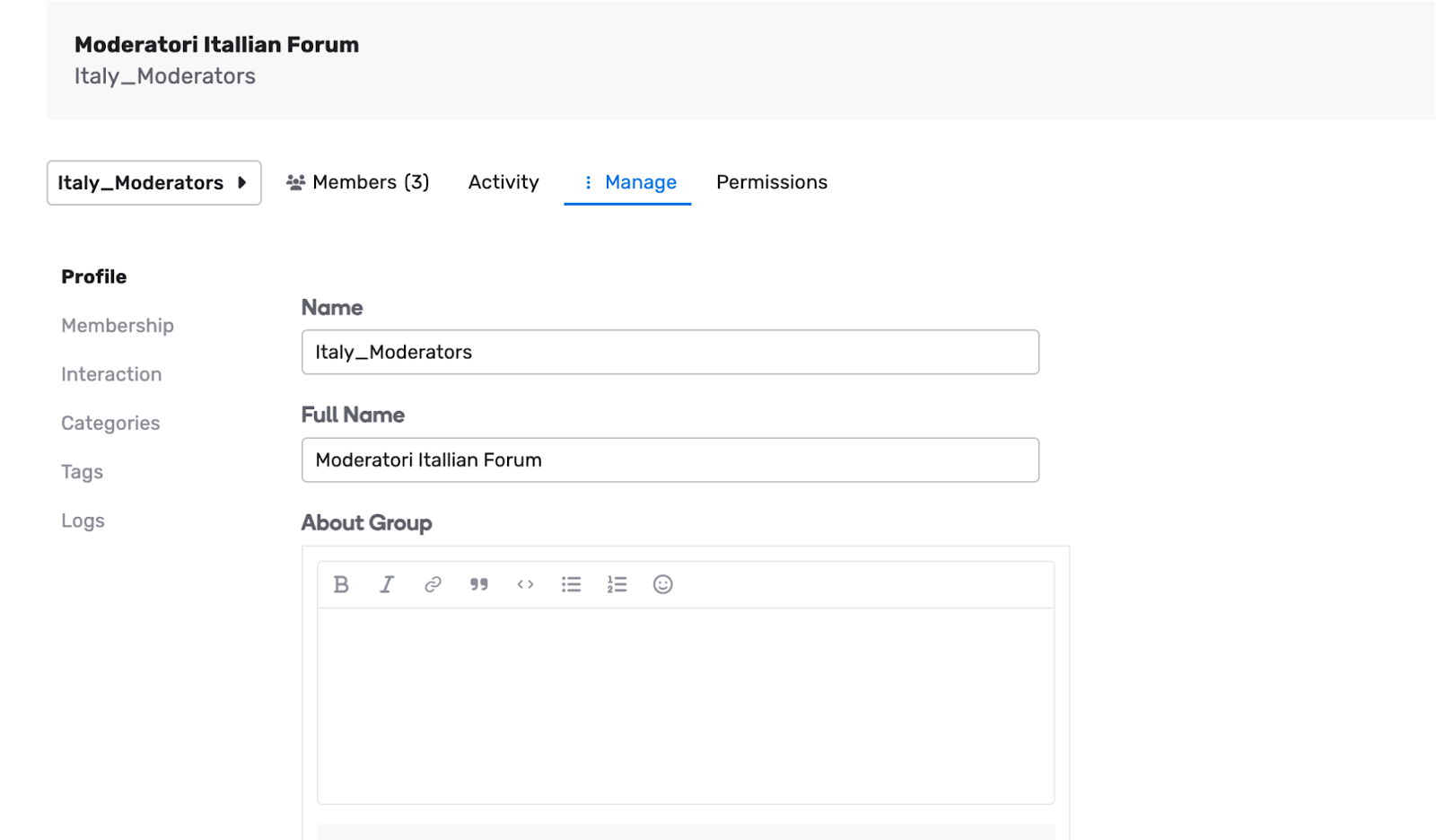
Add users that will act as Category Moderators
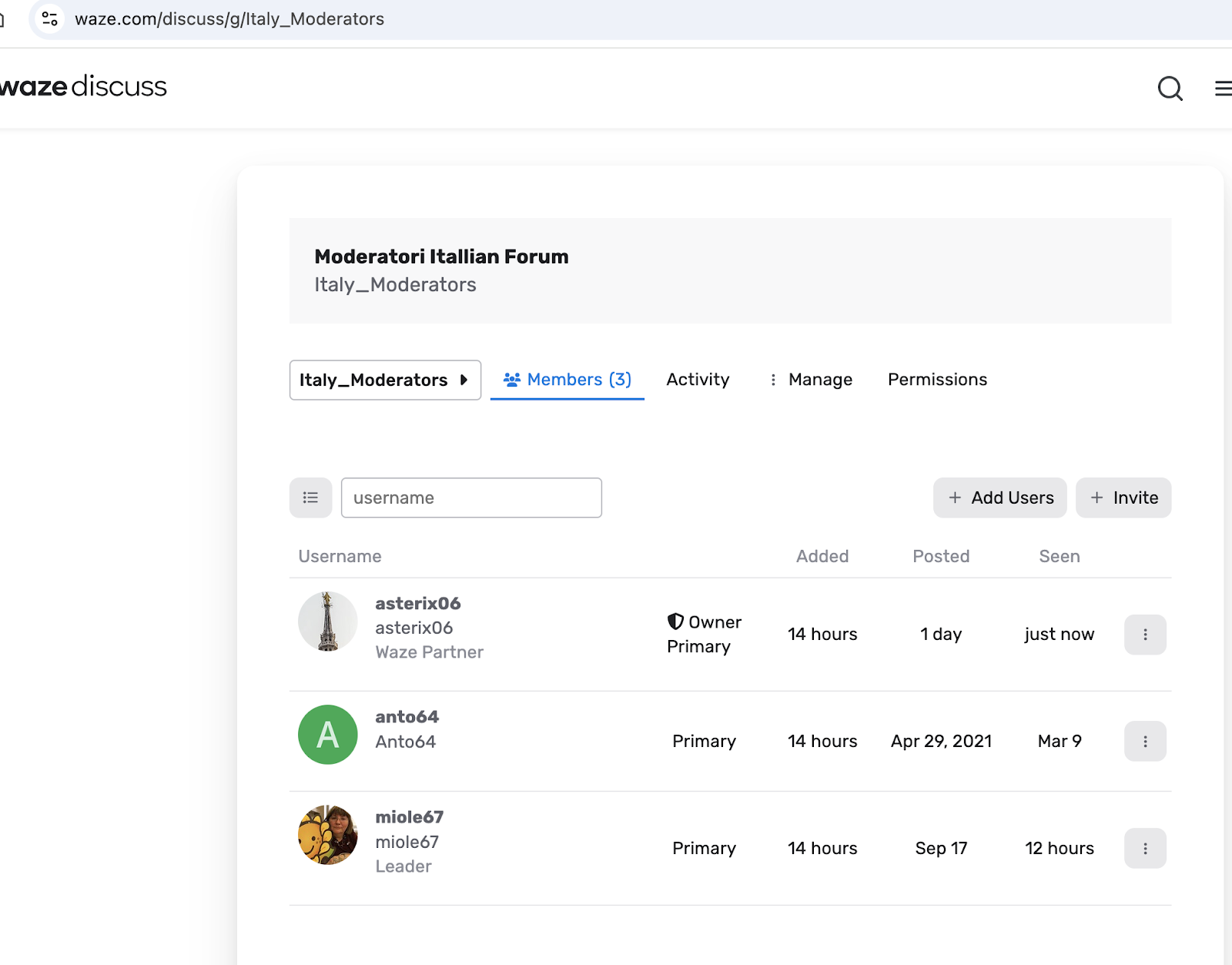
Now
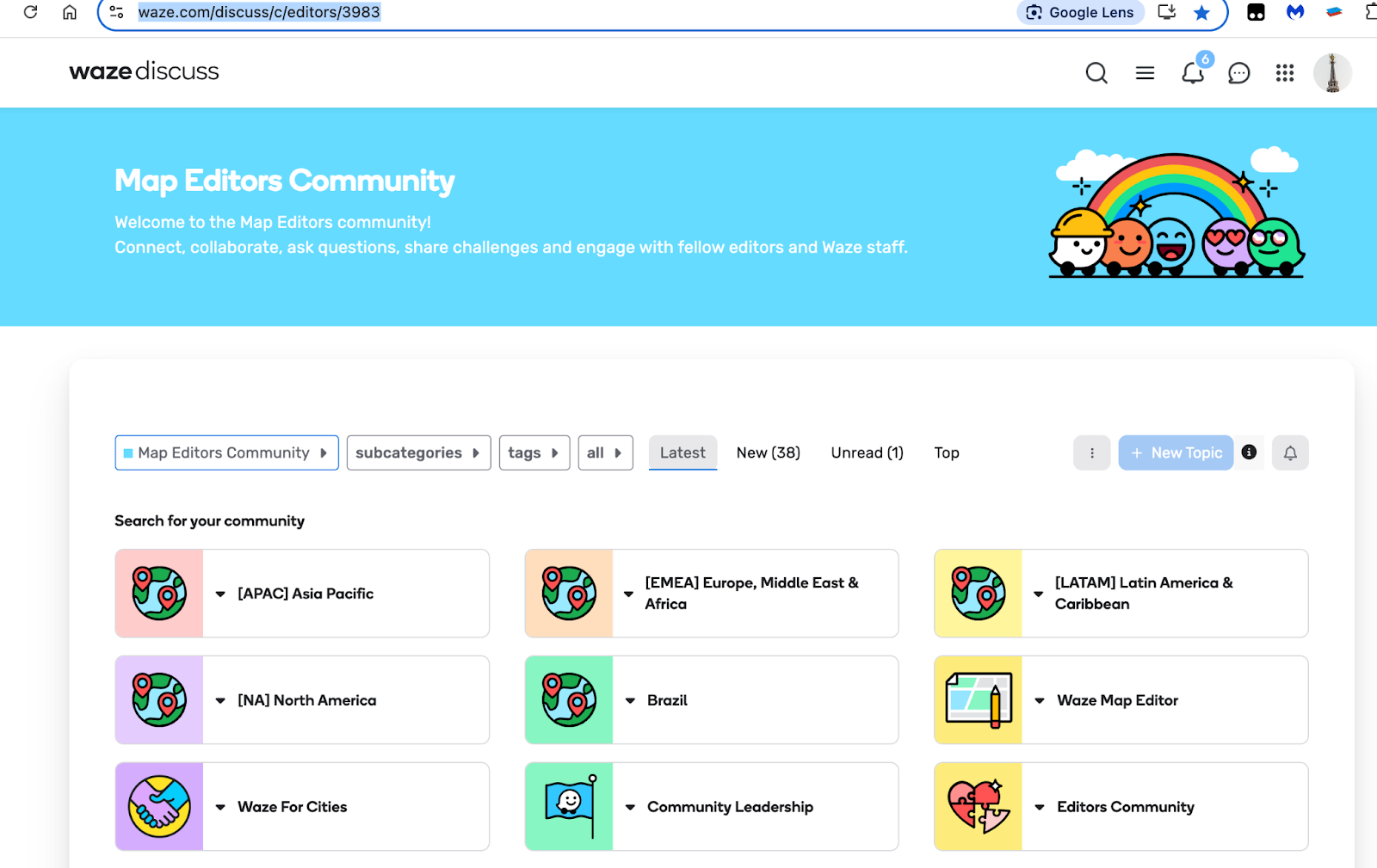
- Select your category :
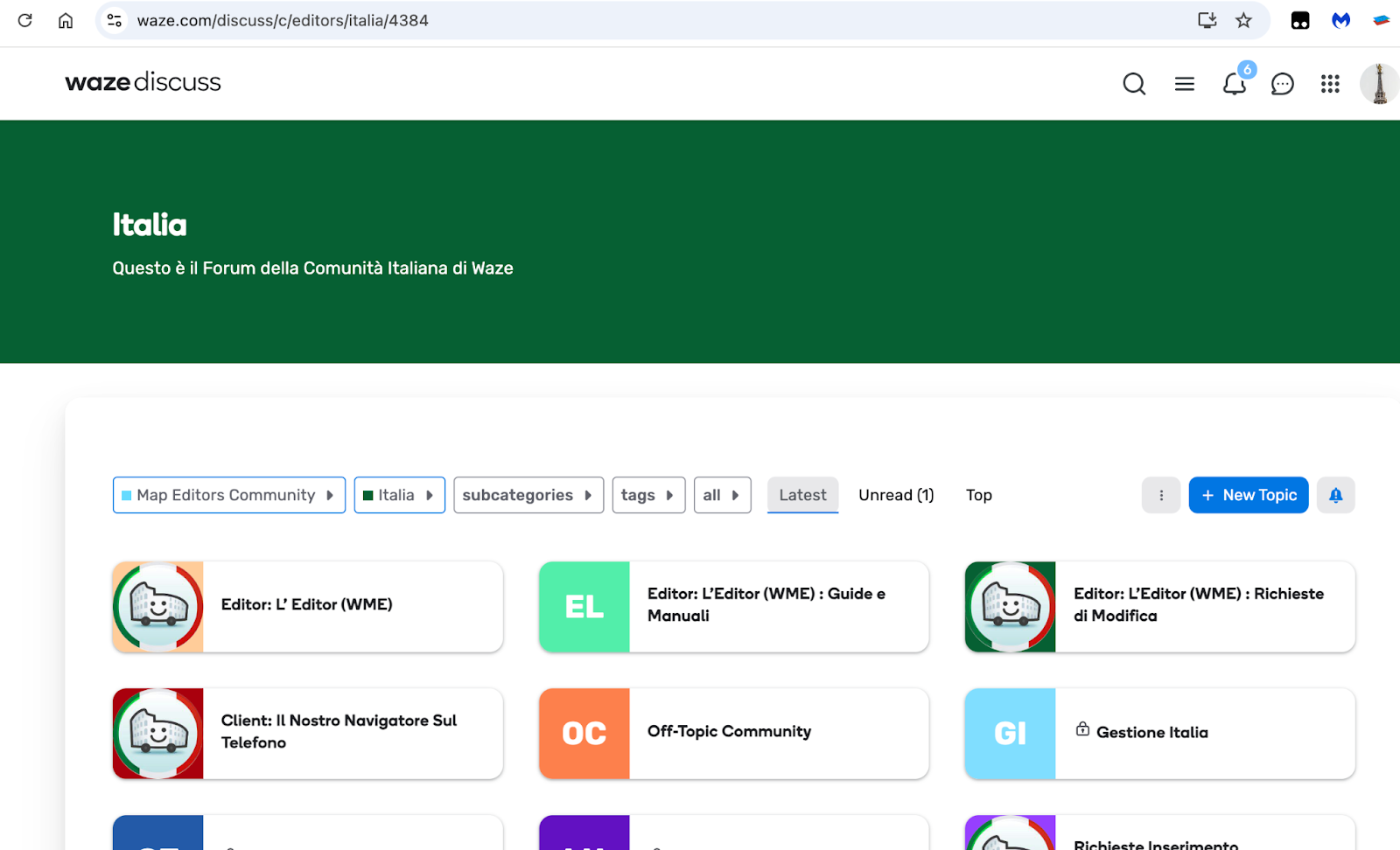
- click on 3 dots
- Security
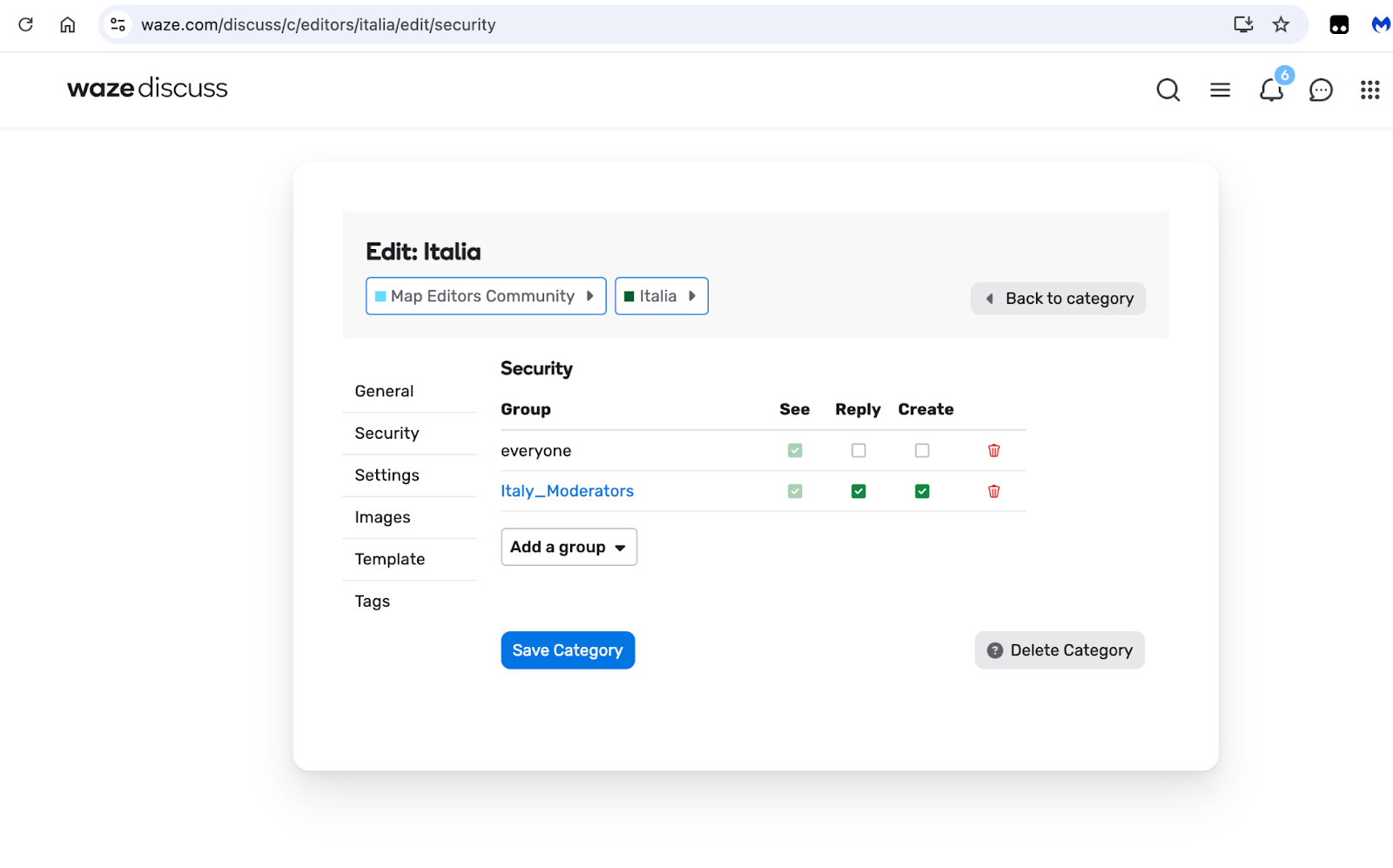
add the moderator group you created , Save
At the moment I added also L4 ( leader)

Blocking users from Discuss
When should this option be used?
Only in extreme cases, like a spammy user or a vandal.
If you hear about a vandal getting blocked on another Waze platform, like WME, it’s good practice to block them from WD as well, so that WD doesn’t get vandalized.
Who can block users?
Only Admins.
How do we block users?
Top right hamburger menu → Admin → Logs → Screened Emailed to block email addresses and Screened IPs to block IPs.
Important note
Deleting users won’t work since WD pulls the user list from WazeTool - internal Waze user lists. So as long as a user has an account on Waze, WD will allow an account to be created for them. That’s why our best bets for keeping troublesome users away are to block their IP addresses and / or email addresses.
User Profile page
Where do I find it?
Top right avatar → Any one of the first 5 options (Summary, Activity, Invites, Drafts and Preferences).
How can I see another user’s profile page?
By clicking on their user card, when you see their username next to their topics.
Who can see a user’s profile’s page?
All users on Waze Discuss.
If you’d like to hide your profile page, go to Preferences → Interface and check the box for Hide my public profile and presence features.
Cool capabilities that are good to know about
- Dark mode / light mode: Preferences → Interface → Dark Mode
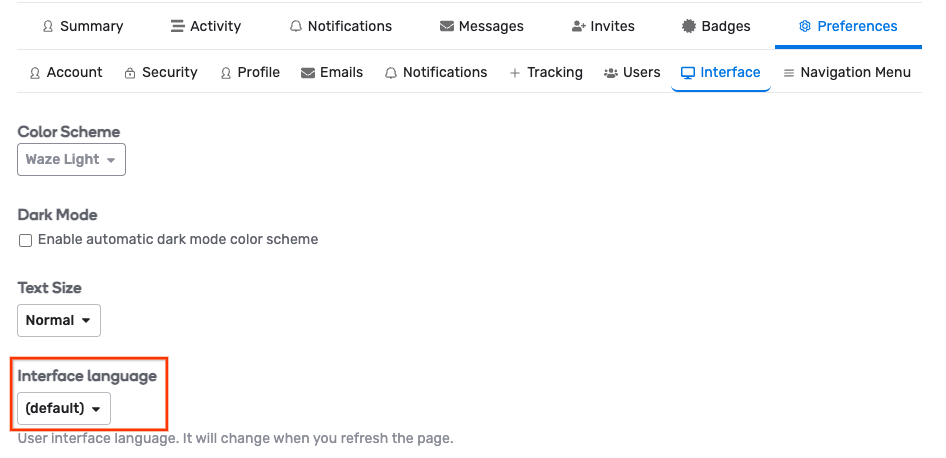
- Interface language: Preferences → Interface → Interface language
- Title / Flair to show next to your posts: Preferences → Account
- Set images for your Profile Header and card background: Preferences → Profile
Posting and Editing
“Whispers” - posts that are only visible to moderators and admins
I’m a mod, why would I post a Whisper?
Whispers are helpful for internal documentation.
In the Beta community we use Whispers to document Buganizer links (links to the internal bug reporting system).
Community mods can use them to document actions taken, which they may not want the entire community to know about. Be careful though, nothing really sensitive should be posted on Discuss
I’m a mod, how do I post a Whisper?
When using the edit text editor to write your post, click on the gear icon and Toggle Whisper:
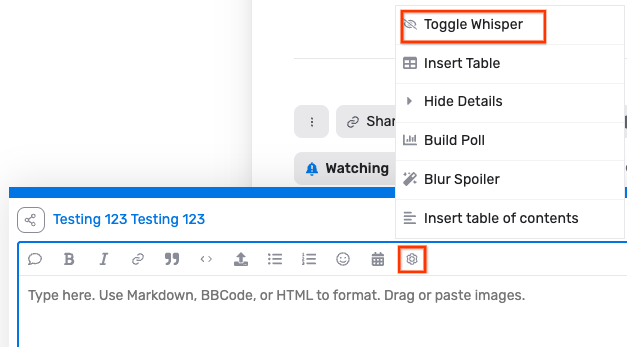
When Whisper mode is toggled on, the next post on the thread will also have Whisper mode toggled on.
What do whispers look like?
The text is gray and slanted, there’s a covered “eye” icon on top right.

“Staff Notices” - those message bars on top of posts and topics
What are Staff Notices?
They’re a visible way to add information related to a post.
What do Staff Notices look like?

How do I post a Staff Notice?
Click the 3 dots icon, under your topic / post, and choose Add Staff Notice.
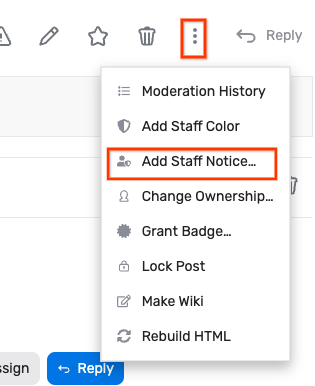
Pin a post
Moderators and Admins can pin a post, through the 3 dots icon to the right of the topic (top post).
Here are the Pinning options:
-
Pin Topic / Post - will display at the top of its category (forum)
-
Pin Globally - will display at the top of Latest view and its category
-
Make Banner topic - will display in the top of all pages - including all communities - DO NOT USE unless you want all Waze Discuss users to see your message
-
If staff enables the option, Moderators can disable auto-unpin for their categories, so that users cannot unpin topics (for their own display)
Can I set a timer to post / lock a topic?
Yes! This is by far one of the coolest posting capabilities on Discourse
You can:
- Auto close a topic
- Auto close a topic after last post (you set the time to wait after last post)
- Auto delete topic
- Auto bump topic
- Auto delete replies
- Close temporarily
- Schedule publishing
How cool is that??
Here’s how:
Click the 3 dots icon to the right of the topic (top post) → Set topic timer
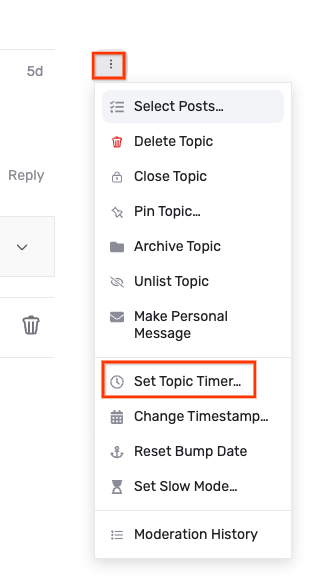
Lock a topic
Locking a topic means that standard users who aren’t mods or admins, can’t post on it.
To lock a topic, click the 3 dots icon to the right of the topic (top post) → Close topic.
A topic was posted in the wrong category. Can I move it?
Yes! This is also a great way to merge duplicates.
Moving a topic to another category
- Select a new category: Clicking the pencil icon will open a menu where you can choose a different category for the topic. Select the appropriate category from the list.

- Confirm the move: After selecting the new category (you are able to search for it) you may need to confirm the move by clicking the blue V button.
Merging 2 topics
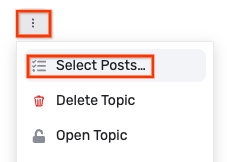
- From the 3 dots icon to the right of the topic (top post), click Select posts → Select all → Move to
- Existing Topic → Paste the URL of the topic you’d like to move this topic into (destination topic) → Move to Existing Topic
- Click the Radio box confirming that the found Topic is indeed the one to merge into
- Check preserve chronological order after merging
- Hit Move to Existing Topic
Embedding Google docs / sheets / slides in posts
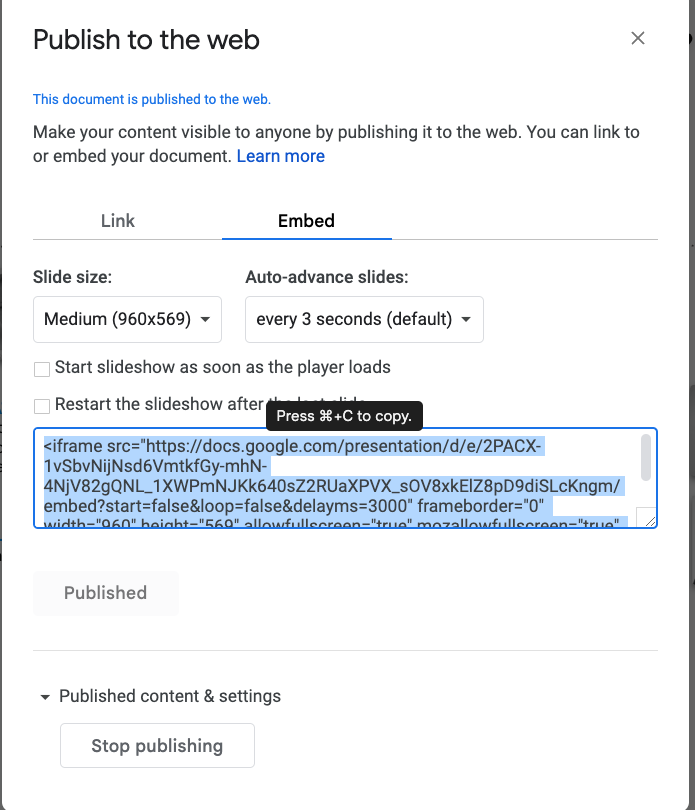
On slides: Share>Publish on Web>Embed
Level up your post formatting on Waze Discuss
Formatting posts using markdown, BBCode, and HTML
Color and Size:
- Control the size of the text: size=50
- Control the color of the text:
- Color name: color=black
- Color hex: color=#44ff77
Tags
What are they?
Tags are great for managing content! They can be added to topics, and then filtered by.
Who can add a tag to a topic and how do they do it?
Community members:
- When creating a new topic:
The person creating the topic can add a tag to it.
Click the optional tags box to add tags.

- When editing someone else’s topic:
Moderators and TL4s can edit topics created by other users.
Click the same tags box shown above to remove / add tags.
Can tags be automatically added to topics?
Yes! By an admin, in 2 ways:
- Using the Form Studio?
Use the Properties section to add tags to topics. Also, response values can be used for that, but with the eng team’s support.
- Not using the form studio?
Admins can tell Discourse to add a tag to a topic, when certain words are used!
For example, for the Beta suggestions section, we have a rule that says that if these words are used: “My suggestion”, the topic will be tagged with “beta-new-suggestion”.
Here’s how you do it:
Admin → Watched words → Tag: Add your words and phases, and the tags they should trigger.
What’s the problem with tags?
Staff sometimes find tags that were created by mistake in the tags management page (Admin only).
We see that most tags belong in tag groups, but some are under the Other title, listed at the bottom of the page.
This may result in a very cluttered list of tags →
When users want to label their topics, they’ll have to scroll through lots of tags.
What can we do to better control tags?
-
Restrict tag creation permissions so that only high-level users can create tags (currently only staff can create tags).
-
Admins can check the list of tags from time to time and delete unwanted tags (task suggestion listed in the internal version of this doc).
-
Staff should work wisely with tags: Restrict tags per category -
-
When your tags are in a tag group, you can tell a category to only show a specific set of tags - thus helping your users choose from a short list of tags!
Here’s how:
Go to the category’s management page → tags → Restrict these tag groups to this category:
Note that the tag groups you specify here will only be available in this category and other categories that also specify them. They won’t be available for use in other categories.
So you should either create dedicated tag groups for your categories, or apply this setting for all the categories that need to use this tag group.
Who can create / delete / edit tags?
- Change which tags are on an existing (someone else’s) post:
TL4s and up:
Community (category) moderators, staff moderators and admins can control tags.
Admins can change this setting through Admin → Settings → use the top-left search bar to search for edit all topic groups.
- Create new tags:
These groups: Admins, moderators, staff, waze-staff
Admins can change this setting through Admin → Settings → use the top-left search bar to search for Create tag allowed groups.
Assigning topics
What is it?
The eng team installed the “Assigned” plugin so that topics can be assigned to team members, but we can use it to assign topics to community moderators too, if we’d like.
Example post for assigning a member
How do I assign a topic to another team member?
Use the Assign button, at the bottom of the topic (top post).
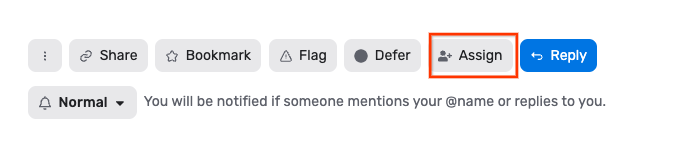
What if the Assign button isn’t there?
The Assigned plugin needs to be enabled per each category where we want to have it. It’s disabled by default.
To enable it, go to the category’s management page → Settings: Assign

Who can have topics assigned to them?
Currently (May 2024), members of the following groups:

To review and change this list, an admin should go to Admin → settings: use the search bar to search for “Assign”, and change that setting.
Who can assign topics to others?
Same as above, only members of the Assigned groups.
Where can I see my assigned topics?
Top right avatar → Activity → Assigned
Solving topics
What is it?
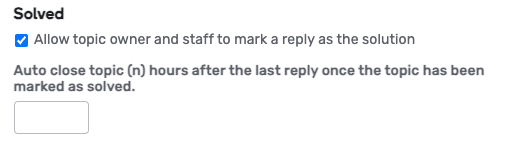
The eng team installed the “Solved” plugin so that topics can be marked as solved, and optionally, also closed for further comments. It’s controlled separately per category and disabled by default.
How do I enable it for my category?
- Go to the Category’s management page → Settings: Solved
- OPTIONAL: Choose how many hours after the last reply the topic should be closed for further comments.
Admins should also know about additional options for Solved, available in Admin → Settings → Use the top left search bar to search for Solved.
Direct Messages on Waze Discuss
DMs are an inherent part of Discourse, and can be found on your Profile Page: Top right Avatar → Summary → Messages.
However, Waze has disabled Discourse’s DMs, to make way for Waze chat, so the access to these messages isn’t straightforward and we generally don’t encourage their use.
Translating / localizing Waze Discuss
How can I see a localized version of the UI?
Change the interface language through:
Top right avatar → Preferences → Interface → Interface language
How can I fix a string that’s not translated correctly?
Some of the strings on Waze Discuss are handled through Transifex, and some use the default localization by Discourse: an open source localization tool called Crowdin.
When you find a string that’s not translated correctly, please reach out to Staff.
Staff will check if it’s sourced in Transifex or Crowdin.
- If it’s sourced in Transifex, you’ll be able to translate it as we usually do.
- If it’s sourced in Crowdin, you’re welcome to sign up as a contributor and take it from there. Do note that the Waze team has no connection with the Crowdin team or platform - we won’t be able to answer any questions about their UI or flows.
How can I Localize Discuss to my language?
First, please note that Discourse as a platform is localized to many languages.
Check the list of available languages through Top right avatar → Preferences → Interface → Interface language.
If it’s really not available in your language, you’re welcome to sign up as a contributor and take it from there. Do note that the Waze team has no connection with the Crowdin team or platform - we won’t be able to answer any questions about their UI or flows.
Signatures in Waze Discuss
Inherently, Discourse doesn’t support signatures. However, knowing how important signatures are for our community on phpBB, the eng team installed a special plugin to support signatures!
- Change / control your signature though: Top right avatar → Preferences →Profile
- The images need to be hosted and called through this tag
- The images can be resized with standard HTML tags (height=“70”/).
- The updated size shows on posts, not in the Profile Page’s preview
phpBB signatures are going to be migrated into Discourse 
- The limit is 1,000 characters
- If your signature is longer than that, it will get imported, but when you try to edit it, you’ll get an error message
Birthdays and anniversaries
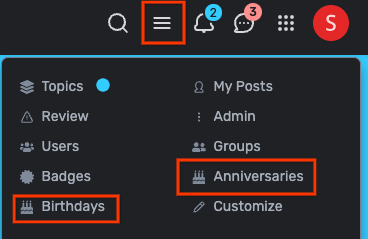
Inherently, Discourse doesn’t support birthdays and anniversaries. However, knowing how important they are for our community on phpBB, the eng team installed a special plugin to support these!
The plugin adds an entry point to the Birthdays and Anniversary pages, located in the hamburger menu (top right):
AI Summarization in WD
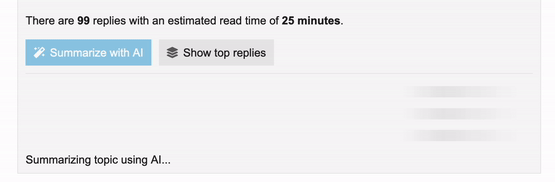
We’ve recently (May 2024) installed an official Discourse plugin that summarizes discussions on WD!
Trust Levels (TLs) in WD
What are they?
2 extensive articles on Discourse’s blog:
-
Trust Levels (TLs), are a built-in mechanism for making sure that users gain their access to various options on Discuss, and not just get it.
-
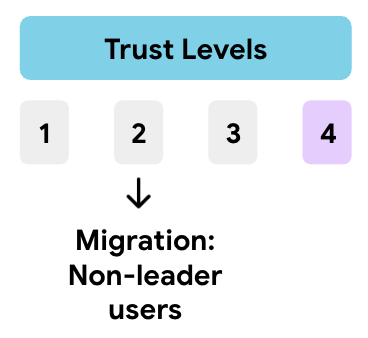
There are 4 or 5 trust levels: 0 or 1 through 4.
-
Users can move their way up from 0 to 3 based on their activity,
-
TL 4 can’t be reached without staff intervention - that’s the level we keep for leaders.
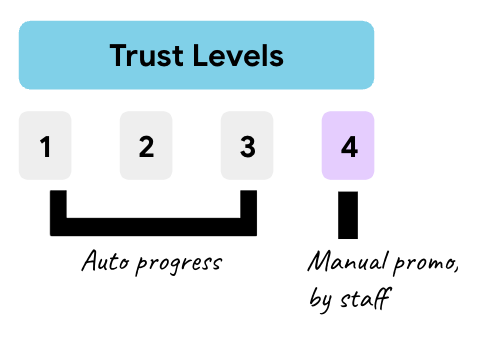
- In the beta community it’s reserved for Beta leaders, and for the editors community, we’re planning to reserve it for GCs and coordinators.
- Users at TLs 0+1 feel the cap - they can only comment and post a few times a day, to protect the system from spammers. However, they can move up the ranks very easily once they spend enough time reading posts and hit Like a few times.
- For the migration, all existing users will be migrated as TL2, so that they barely feel the cap.
How can admins and mods control TLs?
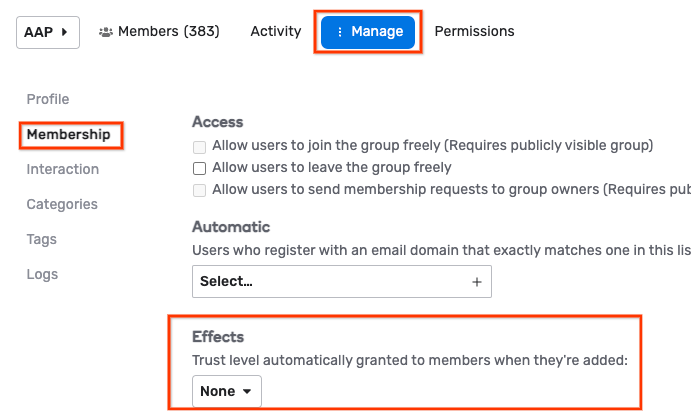
- Mods can determine that members who join a specific group, automatically get a TL.
Through the top right hamburger menu → Groups → Click into a group → Manage → Membership → Effects:
-
In general, admins can change some TL permissions, like:
-
How many posts a new user must read before promotion to trust level 1.
-
How many topics a new user must enter before promotion to trust level 1.
-
How many topics a user must enter before promotion to trust level 2.
-
Default trust level for new users
-
Groups that are allowed to invite users
And more.
To see all, go to Admin → Settings and use the search bar to search for “trust levels” / “trust”
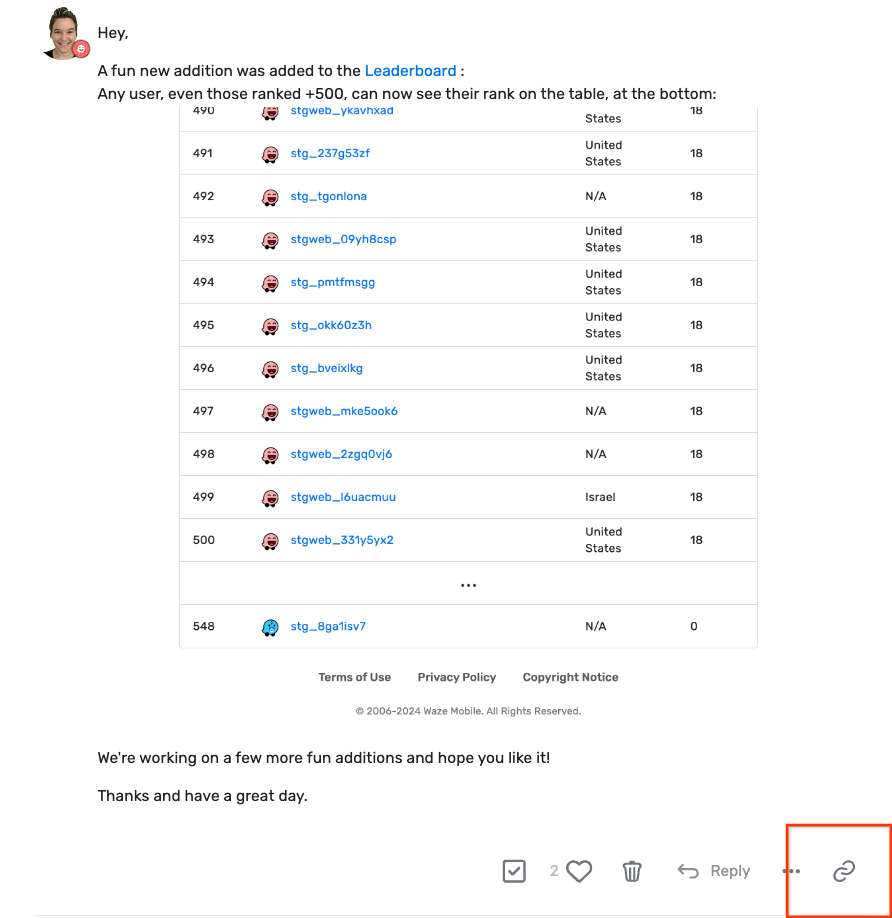
Share a post on Discuss:
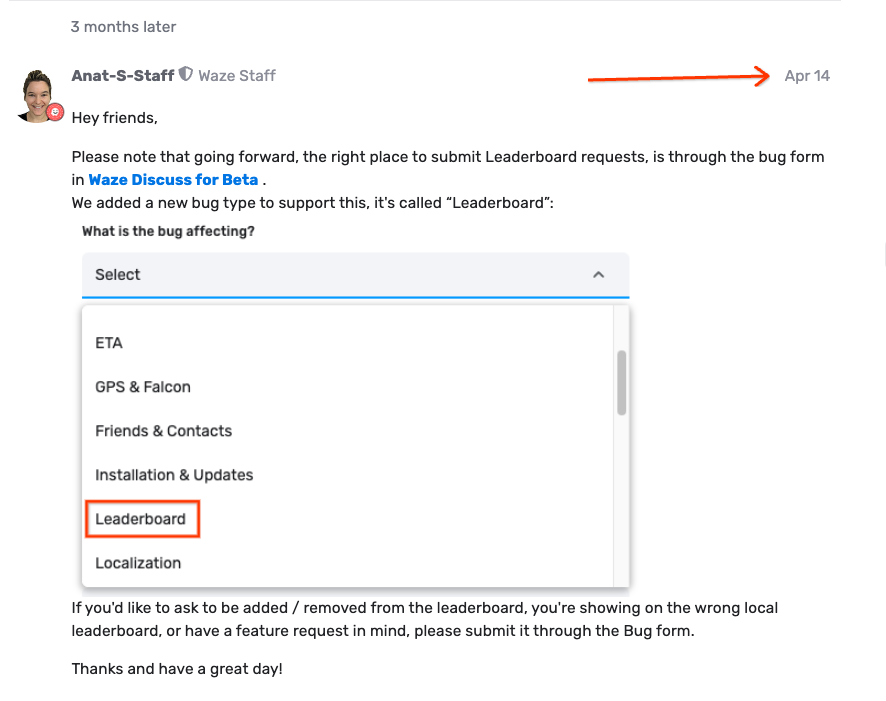
Option 1: Click on the time of the post
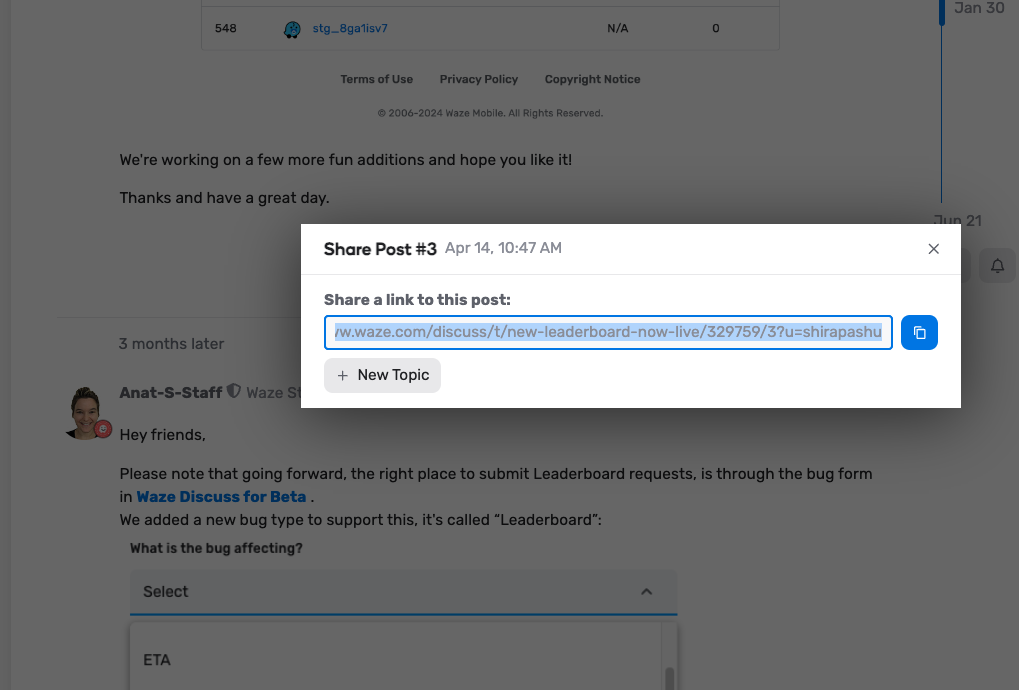
Option 2: I restored the share option in the post menu so it appears next to the 3 dots
Wazeopedia in Discuss:
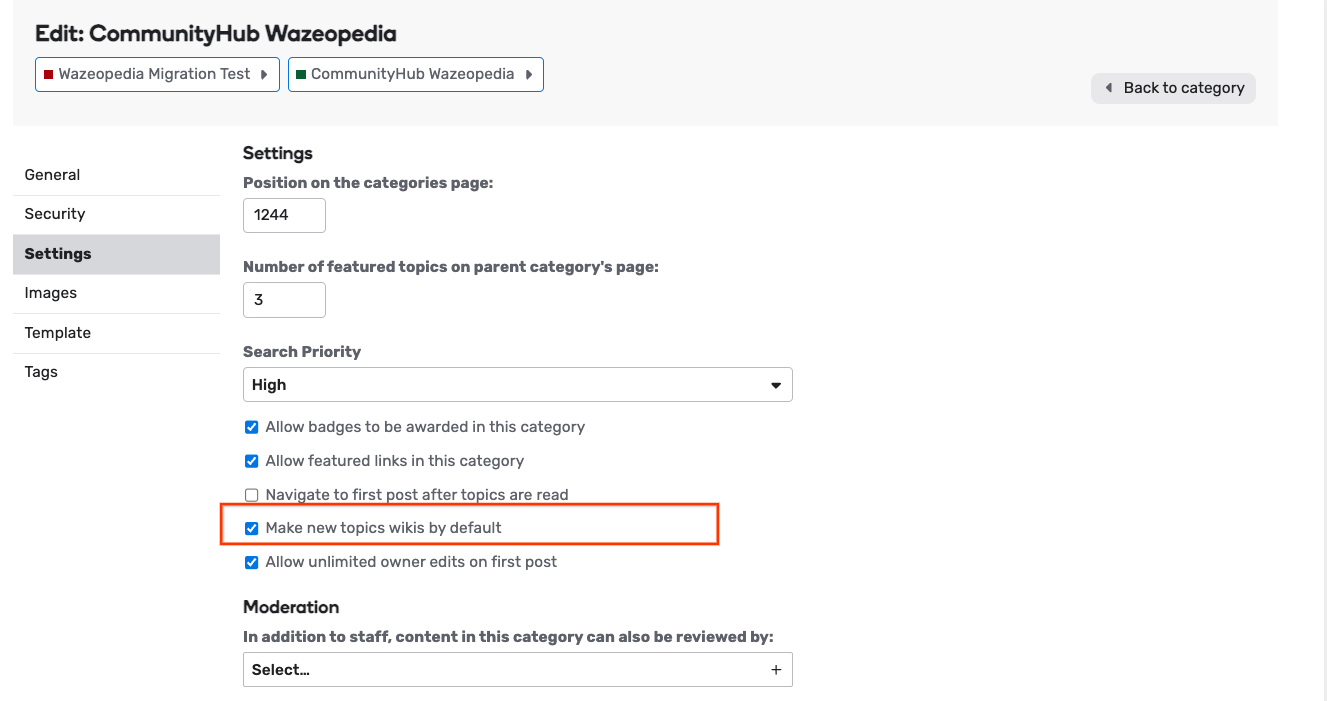
Setting new category in wiki discuss:
- Make new topics wikis by default
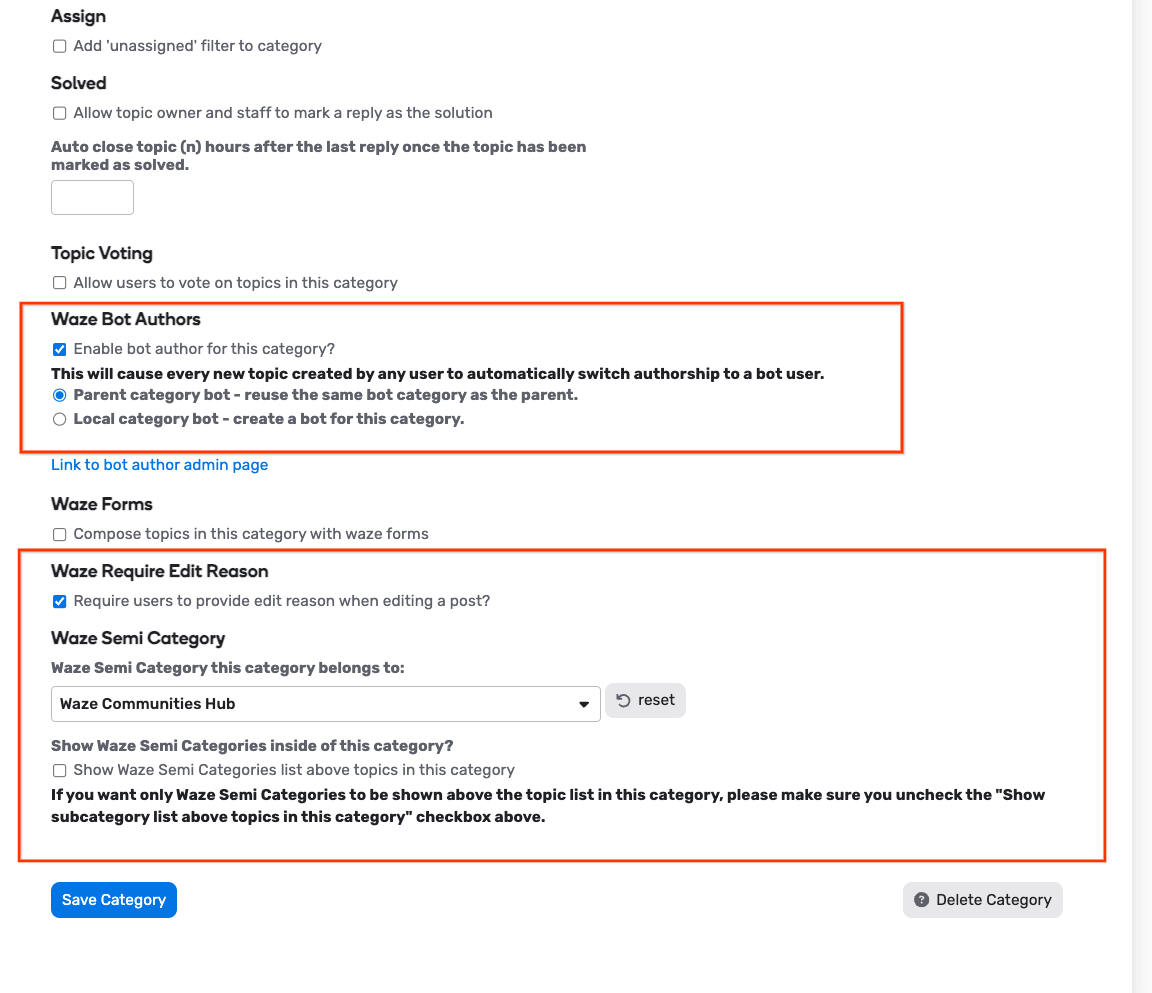
- Enable bot author for this category
- Waze Require edit reason
Templates in Wazeopdia Discuss:
There will be new template functionality available:
- wzTemplates capabilities:
- A standard Discuss post with existing capabilities (tagging, images, links, embedding), primarily for static content.
- Can reference another post containing a wzTemplate, enabling nesting.
- wzTemplates will be available on all Discuss forums.
- You are welcome to test the templates.
In order to use the new template functionality, given some post you want to use as a template, copy its’ topic id and post number in the post (first post is number 1). When you want to use the template, insert the following bbcode tag into the post:
Templates also support named parameters. In order for a post to use a named parameter in its’ content, wrap it in {{}}. For example:
This is a greeting.
Hello {{first_name}}
Parameters are provided by name, prefixed with p_. For example, in order to use that template:
Will render as
This is a greeting.
Hello Shira.
This is the option for templets in a post
