School Zones are an addition to Waze’s permanent hazard feature, designed to improve road safety near schools. These zones are marked areas where drivers must exercise extra caution, follow specific speed restrictions, and be mindful of increased pedestrian activity.
Editors add School Zones in WME as polygons. When drivers approach these zones, they will receive alerts in the Waze app, reminding them to adjust their speed and stay vigilant. These alerts enhance driver awareness, improve pedestrian safety, and help drivers avoid potential fines in restricted zones.
School Zones can be added to the map by L4 editors and above.
Mapping
- How to add a School Zone Polygon - Mapping Guidelines
- Click on the Hazards button on the top left side of the screen and click “Enable layer.”
- Now that the layer is enabled select ״School zone״ and enable this layer as well.
- Hover your mouse over ״School zone״ and click it to create a starting point for your polygon.
- Drag the point to the desired location on the map where the School Zone should begin.
- Continue drawing the School Zone polygon by adding multiple points. Ensure the area encompasses all segments where drivers should receive alerts upon entering or crossing the School Zone, consider including local bus stops and pedestrian crossings. Check if the school has any rear pedestrian or vehicle entrances that need to be included.
- Optional: Add the school name, school zone speed limit and Exclude road types. (see below for details)
- Save. That’s it! Please note that as other entities, PHs will require a map build in order to be displayed in the client.
In the UK, school zones should be mapped near schools that are placed on or near through roads. Ideally, there should be “school” signs on approach to either side of the school.
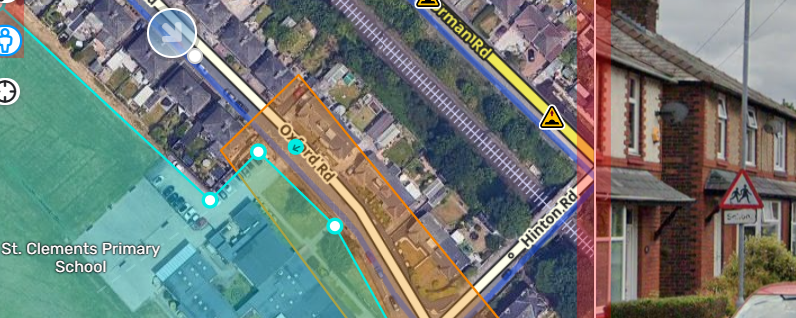
School zone speed limits
Only mandatory temporary speed limits are to be added to the School Zone’s speed limit field. A red circular speed limit sign usually identifies these with a pair of flashing amber signs and a message (“when lights flash” or something similar).
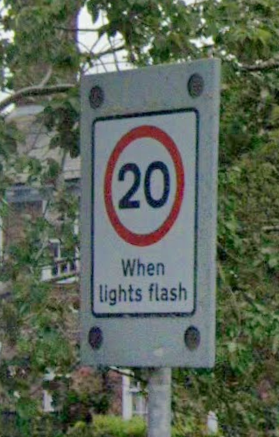
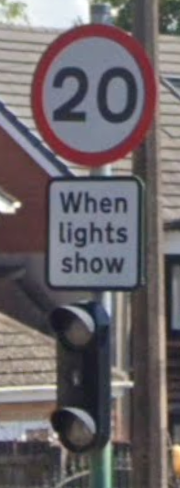
Rectangular or green/black-circled speed limit signs are advisory and should not be added. The following signs are examples of advisory speed limits:
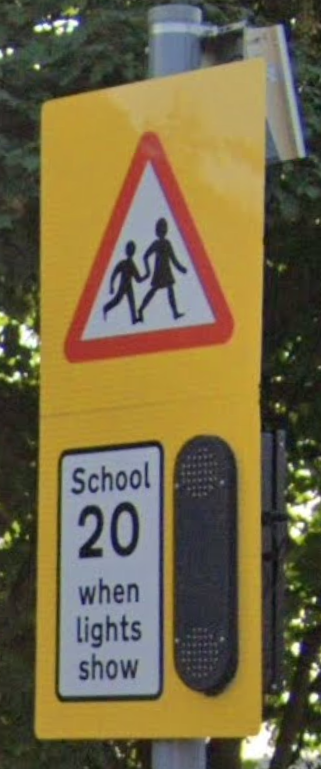

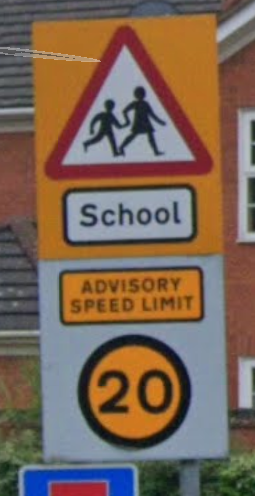
As of 28 Jan 2025, school zone speed limits are not shown in the app. This is an upcoming feature. That being said, they should still be added for future use.
Exclude Road Type
If there are road types within the school zone that don’t require alerts to be shown, list them here.
Scheduling
Each school zone can be set up with a schedule to limit when the school zone is shown on the app. If no customised schedule is set, by default, the active times are Mon-Fri, 7:30 AM - 6:00 PM.
Community schedules
Community Schedules have been set up for each Local Authority in the UK. These can automatically apply Public holidays, school holidays and school-day timings to schools. Once applied, each zone can then have additional dates or times added.
Community Schedules will be updated each academic year, any school zones using that schedule will be automatically updated. If a Community Schedule needs to be created or changed, please feel free to contact an L4+ editor.
How to use a Community Schedule
- Create a School Zone
- Click Schedule > Set a Schedule
- “Step 1 - When does the schedule apply?” Fill in the schools start and end times or click Search for an existing community schedule. All available schedules for the area will be displayed, select the one that matches the school start & finish times. Additional days or times can be added using Add more dates
- “Step 2 - What dates should be excluded?” click Search for an existing community schedule. All available schedules for the Local Authority will be displayed, select the one that matches the school type. Click Add more dates to apply additional community schedules, such as Bank Holidays, or individual dates, such as extensions to holidays or Teacher Training days. Any individual dates added will need to be reviewed each year for each school zone.
Individual zone scheduling
It is recommended to check the school’s website to see if they have a “school-day” timetable. If they do, this can be used to estimate the timing of the start and end of day times. Generally, 30 minutes before and 15 minutes after the start of school, and 15 minutes before and 30 minutes after the end of school.
Also, check the school website to see if their holiday schedule differs from the local authority schedule. If different, add the dates as needed, these will need to be reviewed each year.
Academy, Faith and Private schools typically do not align with the local authority.