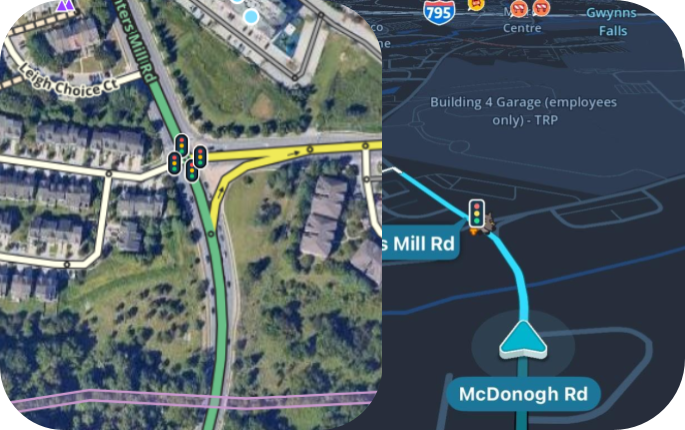
Traffic Lights are now available in WME for mapping in the USA. This feature will enhance driver guidance and driver confidence, especially at complex intersections and in dense urban environments.
Map editors should use this feature to improve turn instructions, allowing Waze to generate clearer directions like, “At the traffic light, turn left”. Mapping traffic lights helps Wazers better orient themselves, precisely identify their intended turn, and contributes to safer and more confident driving.
 | In the United States, by default, traffic lights may be added by users with editor rank 3 and above. Editors must also have sufficient rank for the road segments to which they are attaching the traffic light. For example, a Major Highway locked to level 4 requires a rank 4 editor to add a traffic light. Traffic lights are not yet part of the ‘Suggestions’ feature. |
When to add a traffic light
 Intersections with typical R-Y-G traffic lights
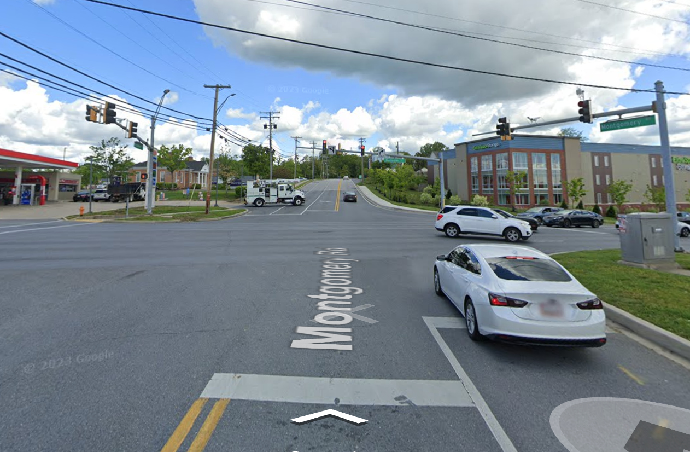
Standard: Add traffic lights on all approaches controlled by the signal. At-grade connectors (aka slip lanes) that bypass the intersection should be allowed to function with default visibility and voice instructions.
Reasoning: Traffic signal icons on the map and voice “decorations” to instructions will increase driver awareness, orientation, and contribute to safety for Waze users and other road users.
Traffic signals at firehouses, EMS stations, or rescue squads (aka a “Firehouse Signal” or “Emergency Signal”)
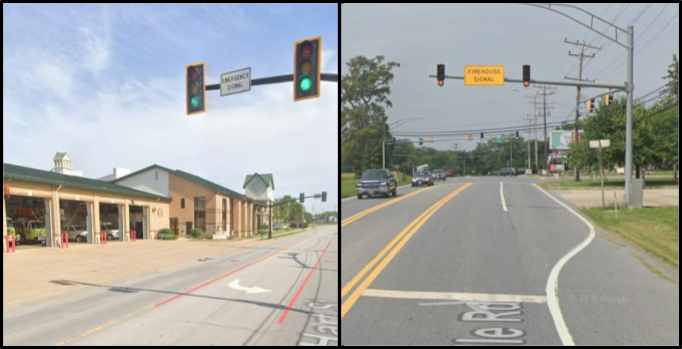
Standard: Add emergency/firehouse signals even though they are not typically active unless/until an emergency vehicle is exiting the adjacent property. You may have to add the parking lot or private road segment for the firehouse to allow for the installation of a traffic light in Waze. There will likely be no “decoration” of voice instructions due to best continuation and lack of turns or voice prompts.
Reasoning: Unlike other signals, which follow a consistent timing and flow, emergency signals can unexpectedly shift from a green or flashing yellow to solid yellow and red. A visual traffic light indicator on the map will reassure drivers, maintain consistency with other mapped signals, and enhance safety for all road users, including first responders.
Drawbridge signals
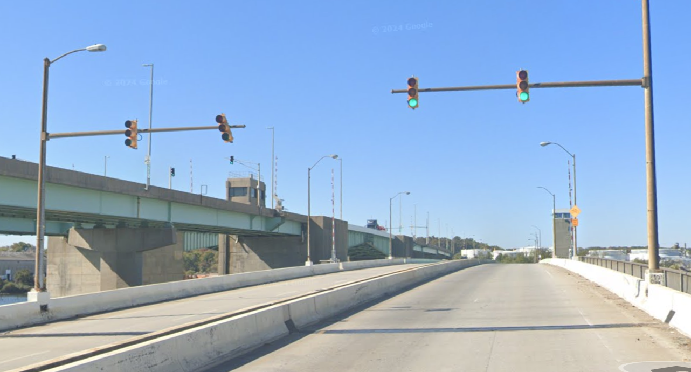
Standard: Add drawbridge signals, although typically not active unless/until the bridge is opened for marine traffic. You will likely have to cut the bridge segment(s) to allow for the installation of a traffic light in Waze. There will likely be no “decoration” of voice instructions due to best continuation and lack of turns or voice prompts.
Reasoning: Unlike other signals, which follow a consistent timing and flow, drawbridge signals can unexpectedly shift from a green to solid yellow and red. Having a visual indicator of the traffic signal on the map will reassure drivers and be consistent with other signals indicated elsewhere on the map. This will enhance the safety of Waze users, first responders, and other road users.
 |
If you think Waze should consider a bespoke Permanent Hazard for Draw Bridges, consider lending support to this suggestion: Uservoice: Draw Bridge Traffic Controls |
|---|
HAWK[1] beacons & other signal-protected pedestrian crossings
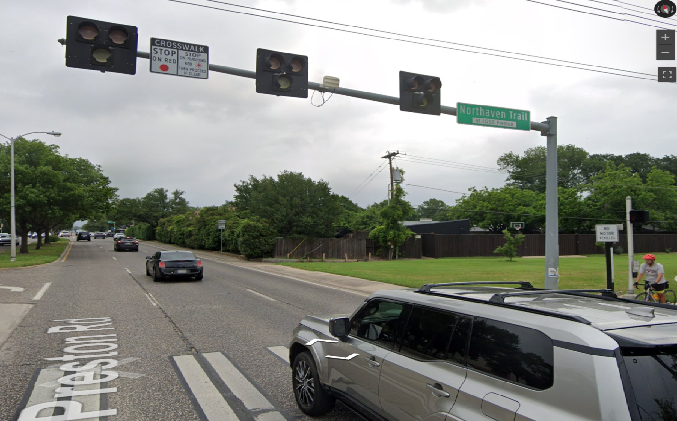
Standard: Add traffic lights at signal-protected pedestrian crossings, including mid-block. This includes overhead HAWK beacons with double-red and yellow lights, as well as standard red-yellow-green lights that are initiated by pedestrians or sensors. You may need to cut the segment in order to map the traffic light.
Reasoning: These signals have the same effect on vehicular traffic as any other traffic signal, requiring vehicles to slow and come to a stop. Unlike signals at vehicular intersections, which follow a consistent timing and flow, pedestrian crossing signals can unexpectedly shift from a green to solid yellow and red. A visual traffic light indicator on the map will reassure drivers, maintain consistency with other mapped signals, and enhance safety for all road users and pedestrians.
Narrow bridges or other roads with signals for alternating traffic
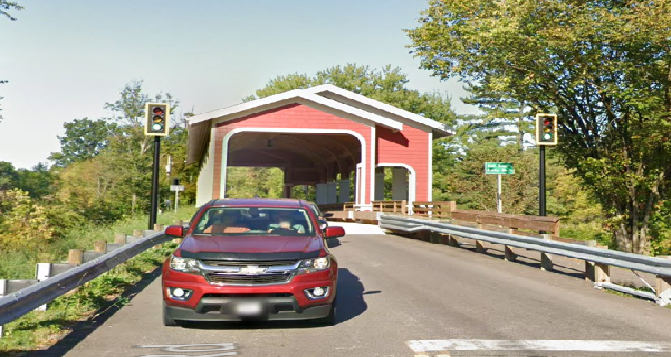
Standard: Add traffic lights used to manage traffic at the approach to narrow bridges, tunnels, or roads. If there are no junctions at the signals, the road segments(s) approaching the narrow section may have to be cut.
Reasoning: The addition of traffic signal visuals to the map approaching these situations where the roadway must be shared with opposing traffic will increase driver awareness, orientation, and contribute to safety for Waze users and other road users.
 |
If a road is artificially narrowed due to construction or slope failure (rockslide, etc), and temporary traffic signals are in use, consider adding a traffic light only if the situation is expected to be long-term (several months or more) and it can be verified independently.Always include a map note at the site describing the situation. |
|---|
When not to add a traffic light
 Intersections with intersection control beacons
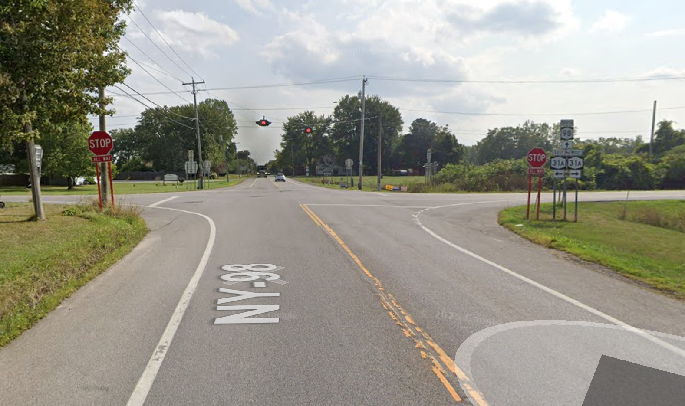
Standard: Do not map traffic lights at intersections controlled by stop signs and augmented with flashing red/yellow beacons. This includes intersections with beacons on the stop sign assemblies, or those with beacons above the road itself.
Reasoning: These types of stop-sign-controlled intersections will be mapped with a Waze stop sign permanent hazard feature expected for release in the future. The yellow beacon serves as a cautionary alert which are outside of the scope of the traffic light feature.
Mid-block pedestrian crossings with ONLY warning beacons, such as RRFB[2]
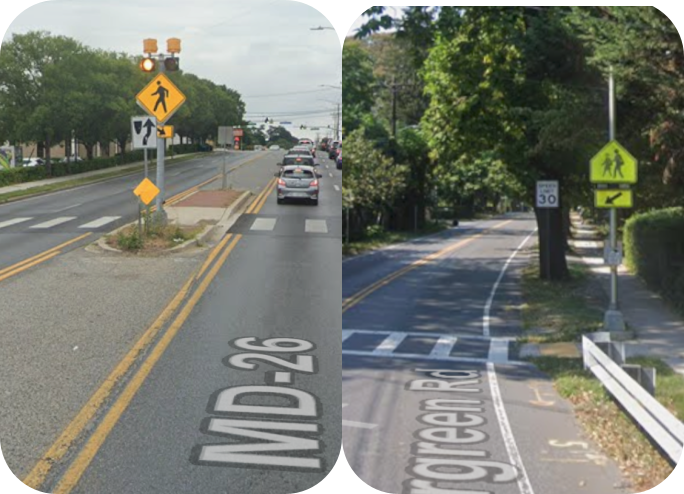
Standard: Do not map mid-block pedestrian crossings with warning beacons only. RRFB (Rectangular Rapid Flashing Beacons) and other warning beacons serve to warn vehicular traffic that pedestrians may be crossing the road.
Reasoning: Ideally, Waze HQ will re-release a Pedestrian Crossing Permanent Hazard for these cases. Warning beacons do not have the same requirements for vehicular traffic as HAWK signals or GYR traffic signals.
On-ramps with “ramp metering” traffic signals
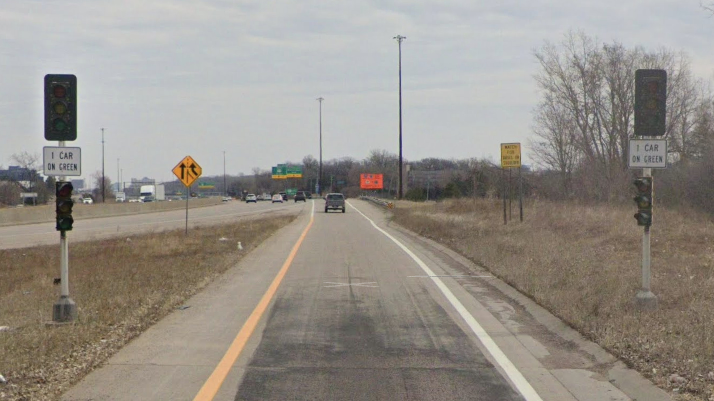
Standard: Do not map ramp metering signals. Ramp metering signals are located at on-ramps to freeways and expressways and rapidly cycle to space out traffic entering the roadway to prevent congestion backups.
Reasoning: These signals are outside of the intended scope of the traffic light feature.
How to add a traffic light
- Enable the Hazards layer: Click the Hazards button (top right) and select “Enable layer.”
- Enable Traffic Lights: Select “Traffic lights and signs” and enable this sub-layer.
- Select Traffic Light tool: In the
 “add menu” on the left panel, hover over
  ”Hazard”, then
  ”Traffic lights and signs”, and select “Traffic light”.
- Keyboard shortcut: Alternatively, use
Shift+Tto quickly activate the Traffic Light tool.
- Keyboard shortcut: Alternatively, use
- Place the traffic light:
- Single segment: Drag the icon to the end of a segment. The segment end will highlight, indicating it will snap to the endpoint. Drop the icon to place the light.
- Multiple segments (node placement): Drop the icon directly on the intersection node to create traffic lights for all segments ending at that node.
- Mid-segment: It is not possible to place a traffic light mid-segment. If a light exists mid-segment that should be mapped, you must first cut the segment at that location.
- Complete the Serial # and turn options in the left panel: See below fore more information about these fields.
|
When attempting to pan the map with your cursor, if you find yourself mistakenly grabbing traffic lights and moving them instead, consider lending your support to the following suggestion: Uservoice: Ensure that permanent hazards and cameras are selected before they can be relocated |
|---|
Serial number
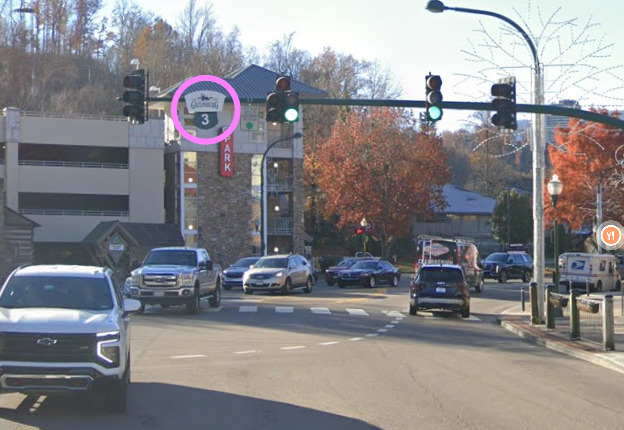
Standard: If the traffic light is identified to drivers with a prominently posted number, add the number to the Serial number field. Leave it blank otherwise. The traffic light may have a different or no number posted from different approaches. Be sure to verify and label each approach individually. In the example above from Gatlinburg, TN, the sign is easy to read and no other signage such as the street name are posted. The serial number should be added.
Reasoning: This field is currently not used by the Waze client, however Waze may use it in future versions of the app to augment the TTS instructions such as, “at light 3, turn left.” This field is not a notes field and should not be used as such.
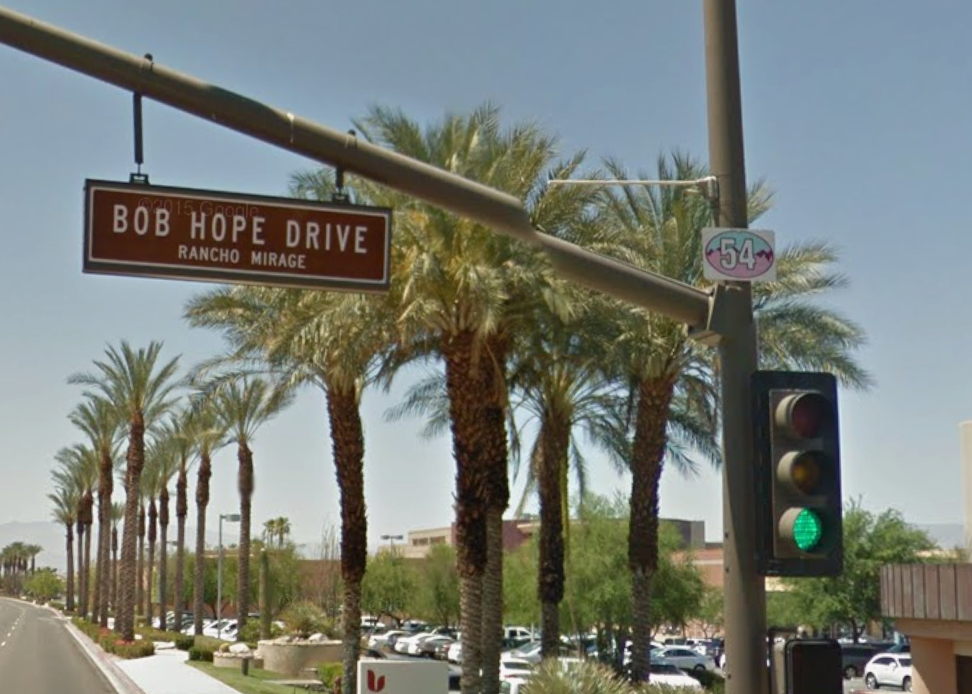
In this example, while the number for the traffic light is posted, the sign is small, to the side, and secondary to a more prominently displayed street name. The serial number should not be added to this light. If you are unsure about whether a particular serial number should be mapped, check with your local leadership.
Configuring visuals and guidance (voice instructions)
When managing turns for a selected traffic light, you can configure both its Visibility and Guidance (voice instructions).
Visibility options
- Waze default: Waze determines if the traffic light should be shown. It will always show it if it is on the driving route, and is more selective in roaming mode.
- Show Traffic lights: Forces the traffic light to always be visible, ignoring any system heuristics.
- Hide Traffic lights: Prevents the traffic light from being shown or used for any instruction. This is useful for specific junctions (e.g., those with unmapped At-Grade Connectors/AGCs) where the light might cause confusion.
Guidance options (Voice Instructions)
The voice override options (“At” / “After”) act as a strong hint to the system, which will attempt to include the traffic light decoration when the prompt length allows. Lane instructions take precedence over the traffic light decoration in early and mid-turn prompts.
- Waze default: Waze decides which voice instruction to use for the traffic light.
- Use “At” the traffic light: Decorates the voice instruction with “At the Traffic Light”.
- Use “After” the traffic light: Decorates the voice instruction with “After the Traffic Light.” This is recommended for turns that are very close to the traffic light but occur just after it.
- None: Ensures no traffic light instruction is given, though the Traffic Light icon will still be visible in the app.
 |
For more information about adding traffic lights and their function, see the staff-prepared “how-to” document: Traffic Light | How to Doc [External] - Google Documenten |
|---|
Mapping traffic lights at complex intersections
Traffic Lights at “square” intersections of divided roads are automatically handled by a “heuristic” function, which will give the default voice instruction “at the light”. The heuristic to identify these intersections is currently the same as is used for Lanes on divided roadways:
- Both left and right turns are possible at the intersection;
- The two portions of the divided roadway are essentially parallel to each other;
- The two intersecting roads are more or less perpendicular to each other;
- The median segment in question is 50 m or shorter; and
- The number of lanes entering the intersection is equal to the total number of lanes exiting the intersection (total number of lanes exiting intersection = number of lanes on the median segment + number of right-turn only lanes on the entry segment—in other words, no new lanes are added in the median).
In addition to checking the requirements above, highlighting of heuristic “candidates” by the WME LaneTools script is a good indicator that traffic lights on the entry segments will be shown and announced for turns on subsequent median segments. If it is not clear if the intersection would be identified by the heuristics, treat the intersection as if it will not.
Intersections on divided roadways supported by heuristics
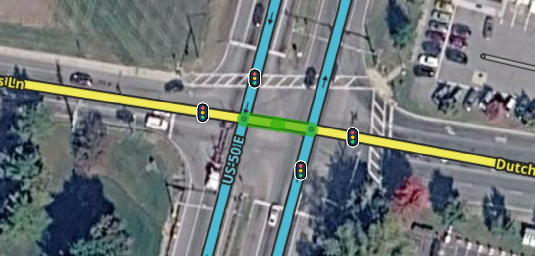
Standard: Map traffic signals at each entrance to intersections with “square” geometry that meets the expectations of the heuristic (angles, parallel divided roads, median distance, etc). In this example, the Primary Street-type cross-street meets the divided Major Highway at nearly right angles. The median segment is also less than 50 m. This is also indicated by the “likely” highlighting of the LaneTools script.
Reasoning: When an intersection is square, or nearly so, the Traffic Light heuristic will decorate left turns across the median by default, even when Traffic Lights are only installed on the entry segments. Avoiding adding Junction Boxes and Paths will simplify implementation of TLs at the intersection, and ease future maintenance. By default the instructions turning left across the median should be: “at the intersection, turn left” because of the valid #/H heuristic.
Intersections on divided roads not supported by heuristics
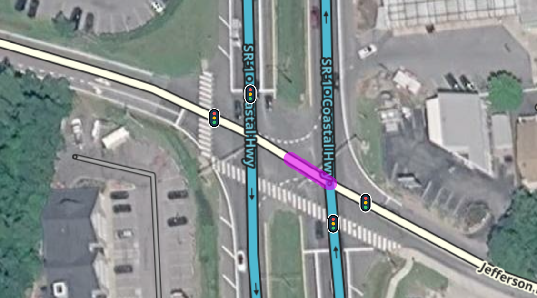
In this example, the local Street-type cross-street approaches and crosses the divided Major Highway at an angle that is NOT square. Because of the geometry of the intersection, the Traffic Lights heuristic will not decorate the TTS instructions for left turns across the median segment. This is also indicated by the “not likely” highlighting of the LaneTools script.
Standard: Add a Junction Box or Paths for the “far lanes” that cross the median segment at intersections on divided roads not supported by heuristics. Then, use the Guidance override for the “Crossing paths” at each traffic light to set the desired “Voice instruction”.
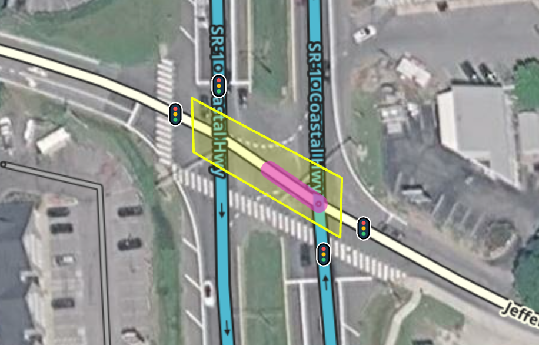
Reasoning: Adding Junction Boxes or Paths is an affirmative way to control functionality of Traffic Lights at these types of intersections. By default, the voice instruction for turns across the median may be “after the light, turn left”, which is inaccurate. By adding a JB/Paths and overriding the “Voice instruction” editors can force a “at the light, turn left” instruction.
Standard: Do not artificially adjust the natural geometry of a segment to force heuristics to recognize the Lanes or Traffic Lights for the median segment.
Reasoning: Relying on precise segment geometry and unseen heuristics to ensure the proper functioning of map features is unreliable. Editors working the area in the future may not be aware of the reasoning for the altered geometry and could unintentionally break traffic light functionality.
Divided roads with wide medians
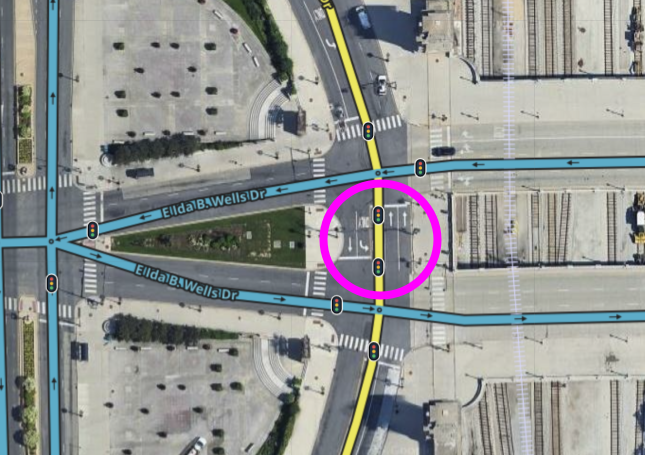
Standard: Add Traffic Lights to the median segment, where there are traffic signals and space for queuing vehicles.
Reasoning: This ensures users queuing on the wide median (highlighted in PINK) receive instructions at the appropriate time. Additionally, this will ensure there are no errant “after the light” instructions.
At-grade connectors with separate traffic signals.
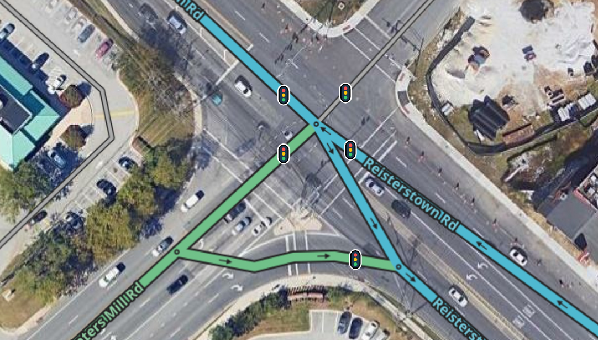
Standard: If an AGC (slip lane) has its own traffic signal, add a traffic light to that Waze road segment.
Option: Since a queue forms on the AGC segment, consider setting a “turn right” instruction override at the end of the AGC. This prevents users waiting for the light from being prematurely shown their next instruction down the route.
Reasoning: Waze automatically determines if a route across an AGC should show the traffic light at the nearby intersection and/or if the turn instruction will be “decorated” based on a complex heuristic. Adding a traffic light to the AGC segment ensures proper visual and audio cues to Waze users without relying on the invisible heuristic.
Intersections with offset cross-streets, with unified traffic signals
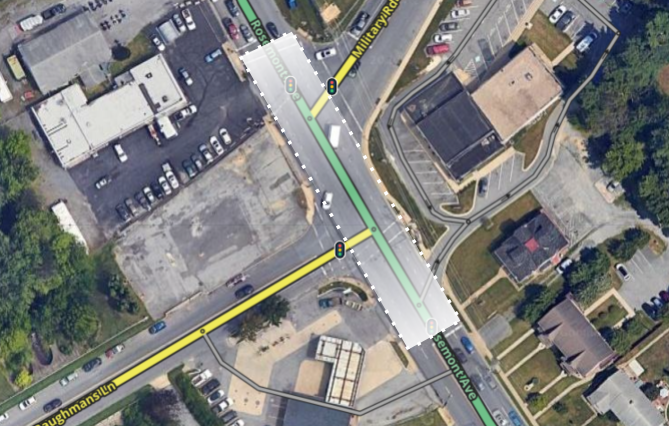
Standard: Map traffic lights on the segment at the entrance to the intersection, where the queue for vehicular traffic forms. This is usually (but not always) delineated by the intersection’s “stop bars”.
Option: If it is appropriate to override the traffic light heuristic which will announce some turns as being “after the traffic light”, add a Junction Box or Path in order to control the Traffic Light decoration of those turns.
Reasoning: A heuristic will look 100m beyond the traffic light, and apply a “after the traffic light” decoration to the first turn in either direction. If this “after the traffic light” decoration is inaccurate, it is acceptable to use a JB or Path(s) to override the default behavior.
Traffic signals at left turns across traffic, but no signal for straight traffic
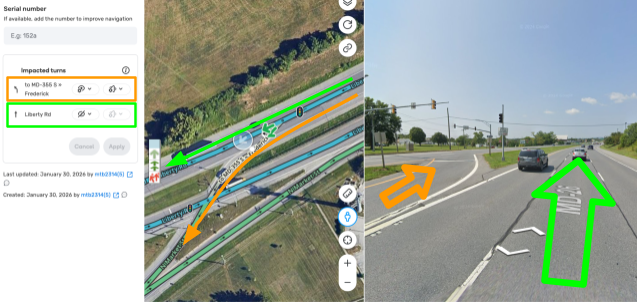
Standard: Add a traffic light to intersections where the left turn across the median is controlled by a traffic signal. However, set visibility to “Hide” for the impacted turn continuing straight, which is not controlled by a traffic signal.
Option: Consider placing the traffic light on the left-turn AGC itself. This would move the visual from the main lines of the highway to the left turn segment itself. However, you may have to override the turn instruction at the end of the left-turn AGC if you want to include traffic lights as a voice guidance “decoration”.
Reasoning: The traffic turning left (highlighted orange) at the light should see the traffic light and hear the “decoration” of the turn instruction. Traffic continuing straight (highlighted green) is not impacted by the signal, which never applies to those lanes. This mapping ensures the traffic light only appears to relevant users.
FAQ
- Are we mapping flashing yellow lights or flashing red lights?
 Flashing yellow lights should not be mapped. We have suggested additional hazard options that could be used for these in the future.
 Flashing red lights should not be added at this time as they will be handled with the addition of stop signs at a later date or with some additional iconography that we have requested from staff.
- What do we put in the Serial number field?
- Generally, leave the serial number blank unless in the rare case that there is a number prominently displayed on signage. Verify for each approach since the number may differ or may not be present for all lights. Check with local leadership if you are not sure if the serial number should be added.
- Do not use this field as a notes field. Information in this field may be displayed or spoken to drivers in a future release.
- What is ‘Waze default’ behavior for traffic lights?
- At most intersections, the traffic light icon will be shown to users making turns at the intersection, and those users will receive a “decoration” of one or more voice instructions with “at the traffic light”.
- Routes on AGCs automatically identified as being less than 30m from the intersection will also receive the same treatment by default (see previous turns).
- Routes on AGCs automatically identified as being between 30m and 50m from the intersection will show the traffic light at the intersection, but not “decorate” the voice instruction.
- Routes on AGCs further than 50m away will not be shown the traffic lights.
- Beyond the traffic light, the first turn in either direction may automatically receive an “after the light” decoration of the voice instruction, if the turn is within 100m of the traffic light at the previous intersection.
- If a road is locked above my editor level, can I Suggest an Edit to add or edit a traffic light?
- No. Traffic lights are not part of the WME ‘Suggest an Edit’ feature at this time. Reach out to your state’s leadership to request an unlock of the segments.
|
If you would like to upvote a new feature request / addition for traffic lights related to FAQ #1, you can do that here: Uservoice: Add selectable traffic light icon options & updated TTS for flashing signals |
|---|
HAWK beacon: High-intensity Activated crossWalK beacon. Learn more: HAWK beacon - Wikipedia ↩︎
RRFB: Rectangular Rapid Flashing beacon. Learn more: https://highways.dot.gov/safety/proven-safety-countermeasures/rectangular-rapid-flashing-beacons-rrfb ↩︎