Create or report a crisis event
When an ongoing or upcoming crisis occurs, Waze, our editor community, and Waze partners work together to alert people in affected areas. Our primary goal is to quickly and efficiently collect and upload information to the map, providing users with real-time updates and communication channels.
Every crisis report we receive is treated as an SOS. The support provided during a crisis depends on the available information and resources, evolving as more details emerge. That’s why Waze works closely with local communities and partners, ensuring all data and communication channels are accurate and updated in real time.
Within the app, features that support users during a crisis include real-time road closures, shelters, evacuation zones, and more. Users who may be impacted by the crisis will receive a push notification on their phones, enabling them to make safe decisions during these events.
Crisis events can include, but are not limited to, the following types:
- Bushfire
- Cyclone
- Earthquake
- Fire
- Flooding
- Hurricane
- Landslide
- Snowstorm
- Tropical Depression
- Tropical Storm
- Tsunami
- Typhoon
- Volcanic Eruption
- Wildfire
- Winter Storm
Report a crisis
To share information about an upcoming or ongoing crisis with Waze, email waze-crisis@google.com. Your email should include:
- Subject: “URGENT: Crisis Event in [Country + Type]”
- Message body: Include any relevant information or news coverage
How Waze gathers crisis information
Once a crisis is reported, Waze actively seeks real-time local information to populate the map with critical updates like road closures, shelters, and evacuation zones. To ensure accuracy and completeness, we gather data from these local channels:
-
Community First Responders: These are dedicated volunteers who serve as Waze’s first point of contact during a crisis, helping to gather accurate, on-the-ground information. If you’re interested in becoming a Community First Responder, reach out to your community leaders and fill out this form.
-
Partners: Waze works with local organizations, including government agencies and private entities, to obtain crucial, verified data. If you know of a reliable organization that could be a valuable partner during a crisis, please email their contact details to waze-crisis@google.com —either before or during an event—and we’ll reach out directly.
Support Waze & your community during a crisis
During a crisis, the Waze community plays a vital role in supporting impacted users. Your contributions, big or small, can make a significant difference. Here’s how you can help:
Add road closures & crisis events to the map
Depending on the information you have (from either official sources or your own knowledge), you can help your community by uploading closures and associating them with the relevant crisis event in the Waze Map Editor (WME):
Option 1: You know the exact location of the closures
- Add closures to impacted roads
- Associate the closures to a “Crisis” Major Traffic Event (MTE). If one doesn’t exist, you’ll need to create it first.
Option 2: You’re not sure of the exact location but you know of the surrounding areas
- Create or edit a “Crisis” Major Traffic Event (MTE)
- Define the impacted area by creating a polygon
Learn how to create an MTE, add road closures, and define an area using a polygon.
Important notes on MTEs:
- Creating a “Crisis” type event automatically sends a report to waze-crisis@google.com
- Any editor with closure permissions can create a crisis-type MTE, but not all editors have road-closure permissions. If you have active editors you’d like to grant temporary road-closure permissions to, submit your request here.
- Currently, you can’t “submit” the event. We’re working on automating this process for crisis events, but these features aren’t available yet.
Other data sources
If you can’t enter other closure data sources into the WME for any reason, send them to waze- crisis@google.com with the subject “URGENT: Data sources for crisis.”
Share information on available shelters & donation centers
During a crisis, accurate information about shelters and donation centers is vital. Waze relies on the community to help identify these crucial locations.
Once a crisis is launched, Waze will create and share a dedicated pins spreadsheet. This spreadsheet allows you and the local community to add details about available shelters. The collected data will then be displayed as pins on the map, helping users find safety and resources. Additionally, when a user enters “help” into the search bar, a list of these shelters and centers will also be displayed.
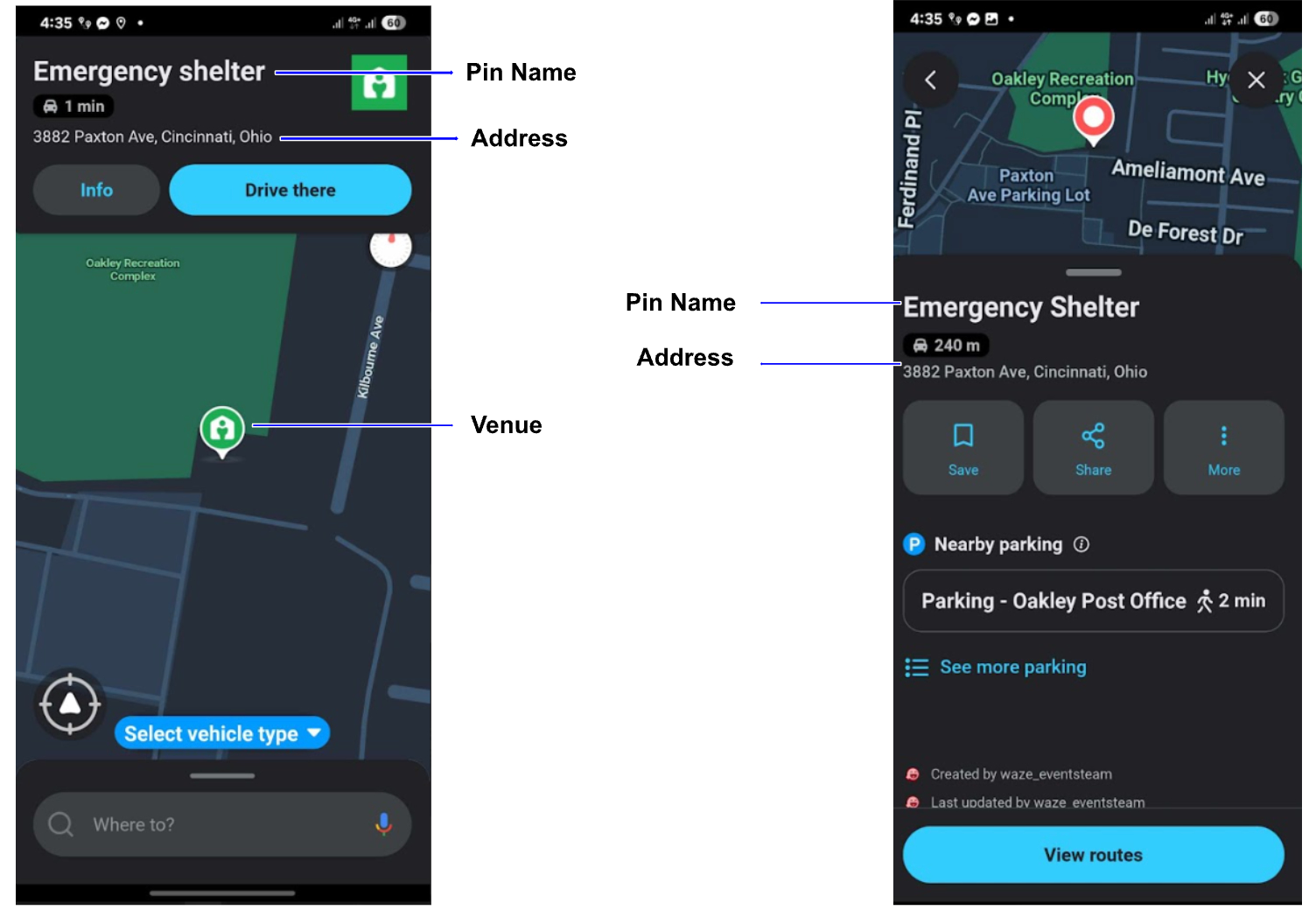
Note: Although you can select the “shelter” category for venues in the Waze Map Editor (WME), this feature doesn’t currently affect the live map. You’ll still need to add any shelters to the dedicated spreadsheet.
Pins spreadsheet guidelines
If you have information about shelters or donation centers, you can contribute by filling out the pins spreadsheet according to these guidelines:
Important: Each field has a character limit. The columns in orange are automatic character counters that turn red once you are over the limit. If what you are trying to enter is too long, shorten it in any way that will still be understandable to Waze users.
Mandatory columns A-F

-
Status: Choose the relevant status of the shelter. Did you just add it to the spreadsheet, or did you update the information? Is the shelter closed? Waze staff also updates this with what they did with the information.
- Community actions:
- New: You added a new shelter to the spreadsheet
- Updated (Community): You updated information for an existing shelter
- Disabled (Community): You notified Waze staff that a shelter is no longer active
- Uploaded (Community): You uploaded the venue to the WME
- Pending Staff to disable (Community): You reported a shelter as inactive, and Waze staff is verifying and disabling the shelter on the Waze map
- Community actions:
-
Waze Staff actions:
- Uploaded (Waze Staff): Waze staff uploaded the shelter to the Waze map
- Updated (Waze Staff): Waze staff completed all updates to the shelter’s information, replacing the “Updated (Community)” status
- Disabled (Waze Staff): Waze staff disabled the shelter
-
Comment: If you updated existing information, tell us what you updated. This helps our team make the correct changes.
-
Pin name: Enter the name that appears on the pin. It should be “Emergency Shelter” in the local language, or any other name that accurately and concisely describes the pin (evacuation center, emergency shelter, donation center).
-
Address: Enter the street name and building number of the shelter. This often goes over the character limit, so shorten it as much as you need to keep it at or under 50 characters while still being understandable. This isn’t how we locate the pin, so don’t worry if it isn’t the exact abbreviation.
-
City, State: Enter the city and state where the shelter is located. This has a 50-character limit.
Optional columns I-O

- Additional info: Enter the name of the shelter or access information. This has a 30-character limit.
- Long description: Enter any additional information about what services the shelter provides. This has an 80-character limit.
- Phone number: Enter the phone number of the shelter
- URL: Enter the website URL of the shelter or the organization in charge of the shelters (for example, the Red Cross)
- Venue ID: Enter the unique ID number that you can find at the top left corner of the venue in the WME
Mandatory columns P,Q,R: Coordinates

You can either enter a permalink, which automatically populates the latitude and longitude, or you can enter the coordinates directly in the Lat/Long columns.
Share information on evacuation zones
An evacuation zone is an area from which an official organization is ordering people to evacuate. If you’d like to share an evacuation zone with us, follow these steps:
Step 1: Gather data
Waze requires evacuation zone data from official government sources.
- Ensure the data is from a verifiable government source
- Provide a link to the source so we can verify the zone and request permission if the source is not already a Waze for Cities partner
Step 2: Prepare your file
Ensure your data meets the following file format specifications:
- One polygon per file (no multi-polygons)
- Format: KML or WKT
- Naming: Use the official name as referred to by the government
Step 3: Submit your data
Once you have all the required data, email it to waze-crisis@google.com. The Waze Crisis team will work with you to confirm successful upload of the zones.
Run a Crisis response drill with Waze
Waze conducts crisis response drills, often in collaboration with the community and/or partners, to practice its response to potential crises. These drills are crucial for identifying gaps in our processes and ultimately reducing real-time response times during an actual crisis. The process for working with Waze on a drill is as follows:
- Request a drill: Submit your crisis drill request at least two weeks in advance through the Waze Crisis Response Drill Interest Form. This gives us enough time to prepare and coordinate.
- Involve Partners: If you plan to involve Waze Partners, tell us who you have in mind. We’ll handle the outreach and coordination with them.
- Create a Major Traffic Event (MTE): Either Waze or the community will create a Major Traffic Event (MTE) with no linked road closures. This ensures the drill doesn’t impact live traffic.
- Provide shelter locations: Waze will create and share a shelter pins spreadsheet with you. Once you’ve provided the shelter locations, we’ll upload a single test pin to verify the process.
- Test push notification: Waze will send a test “crisis” push notification to specific users. Please share the usernames of these users with Waze in advance.
Manage Evacuation Zones: Waze will share an evacuation zone spreadsheet with you. Use this to alert us when zones are activated during the drill.