 |
This page forms part of UK Editing Best Practice. Editors are encouraged to follow these guidelines. |
|---|
Waze Camera Types
The UK maps the following enforcement cameras:
- Speed Cameras (Fixed and Average Speed Cameras only)
- Red Light Cameras
- Seat Belt Cameras
- Mobile Phone Cameras
- Noise Cameras
- Bus Lane Cameras
It is possible to add up to 5 different types of enforcement to each camera.
At this time, the UK does not map Stop Sign Cameras, Safe Distance Cameras, Carpool Lane Cameras and HOV Lane Camera
We do not map any of the following:
- ANPR Cameras
- CCTV cameras
- Camera Warning Signs
- Driver Feedback Signs
- Junction Box Enforcement Cameras
- Level Crossing Cameras
- Mobile Speed Cameras
- Trafficmaster Sensors
- Weather Stations
Adding To The Map
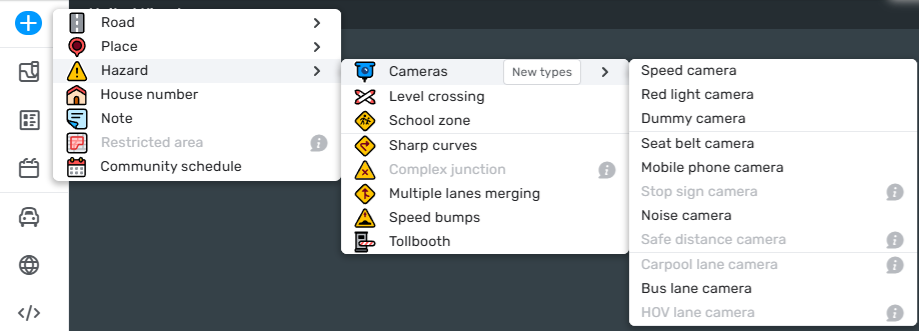
To add or edit Enforcement Cameras, editors must be rank 2 or above, and the camera’s segment must also be in your editing level and area.
To add an Enforcement Camera, ensure the Cameras layer is enabled (Map Layers > Hazards > Cameras), then select + > Hazard > Cameras > select the desired camera from the list (the camera type can be edited once on the map). If the option is not enabled for you to select, hover over the i info balloon for the reason.
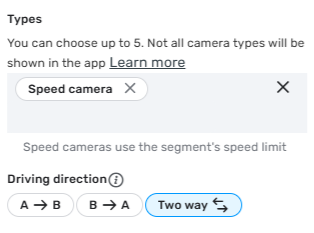
Once added, ensure the correct enforcement types and driving direction are selected. The camera will default to both ways.
Note: One-way segments will not show the Driving direction panel.
Camera Display
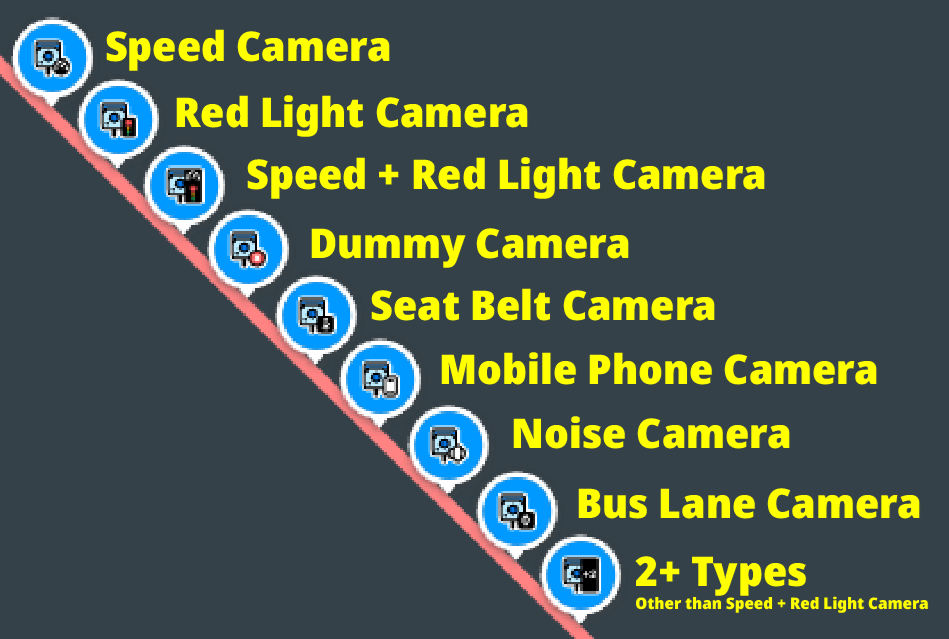
Cameras will appear in the WME Editor with a small icon representing their type. When there are 2 or more types, they will display a box labelled 2+, unless it is just Speed + Red Light, which then displays its own unique 2-type icon.

Speed Cameras
Speed cameras should be placed at the camera’s location. The camera position will “snap” to the road at that location. The speed limit shown on the user’s device will match the road segment’s speed limit.
If the camera is bi-directional, keep the direction set to both ways; set it appropriately to the camera’s enforcement direction.

When mapping a camera, examine clues on the map and in aerial photography to help position the camera correctly. You should be aware that aerial photography (including road markings) and services such as Street View are often outdated, so do not rely on them exclusively.
Note: Mobile speed cameras (e.g. camera vans) should not be mapped in Waze. Instead, they should be reported in the app using Report > Police > Mobile Camera.
Red Light Cameras
Red Light Cameras should be placed at the traffic light’s stop line regardless of the actual camera placement.

Due to limitations in the app, two (or more) alerts in a very short period are suppressed. UK policy is to never map red light cameras near Level Crossings. If you identify a Red Light Camera that has been mapped at a Level Crossing, please remove it, or request support to have it removed.

Speed + Red Light Camera
Often called “Speed On Green”, these cameras are capable of enforcing both red lights and speeding through the lights - even if the lights are on green.
Again, for just red-light cameras, these speed-on-green cameras should be mapped to the traffic light stop line, rather than the camera location.
If there are no road markings for measuring speed, assume there is no speed camera functionality (unless evidence to the contrary is provided).

Dummy Cameras
Dummy cameras are mapped only in the rarest of circumstances, and is reserved for cameras that can seem to be a camera to a driver driving at typical speeds, but are not in service. Some examples are:
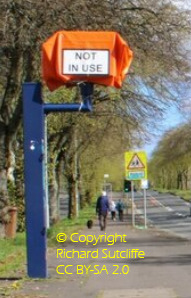
- Cameras with Yellow “Camera Not In Use” signs
- Camera bagged over
- Camera is not fully complete - for example, just the flash stand
- Camera housing is empty
- Convincing but fake devices
These are only intended to head off any reports of an unmapped camera. They offer no verbal cue to the driver, and the visual display will be of a dummy camera.



Cameras that should be mapped
Gatso Speed Cameras
Gatso speed cameras are the most common type in the UK and are rear-facing; when triggered, they flash. They may be mounted on their post (which may be reversible) or on an overhead gantry (these are being phased out in favour of HADECS3 side-mounted cameras).
These cameras use radar to measure a vehicle’s speed, and typically a series of road markings is placed in front of the camera, often on both lanes, to catch drivers overtaking or driving on the wrong side of the road. These markings may also be behind the camera. This is a good indication of a reversible camera.
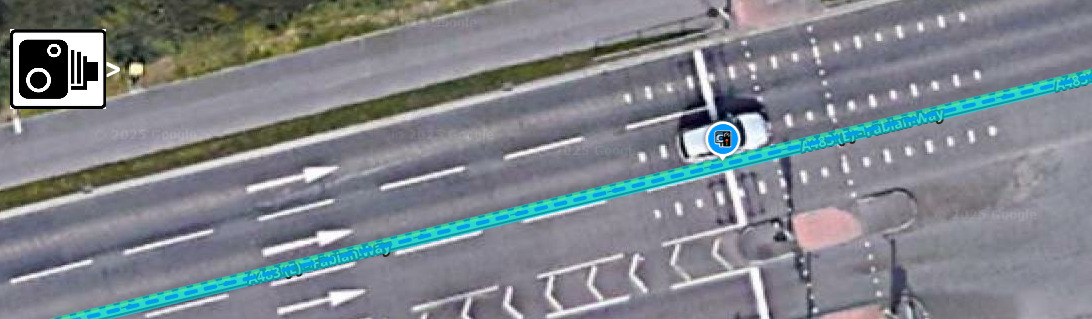
When aerial photography is of sufficient quality, it is possible to see the road markings, which aid the placement of the camera.
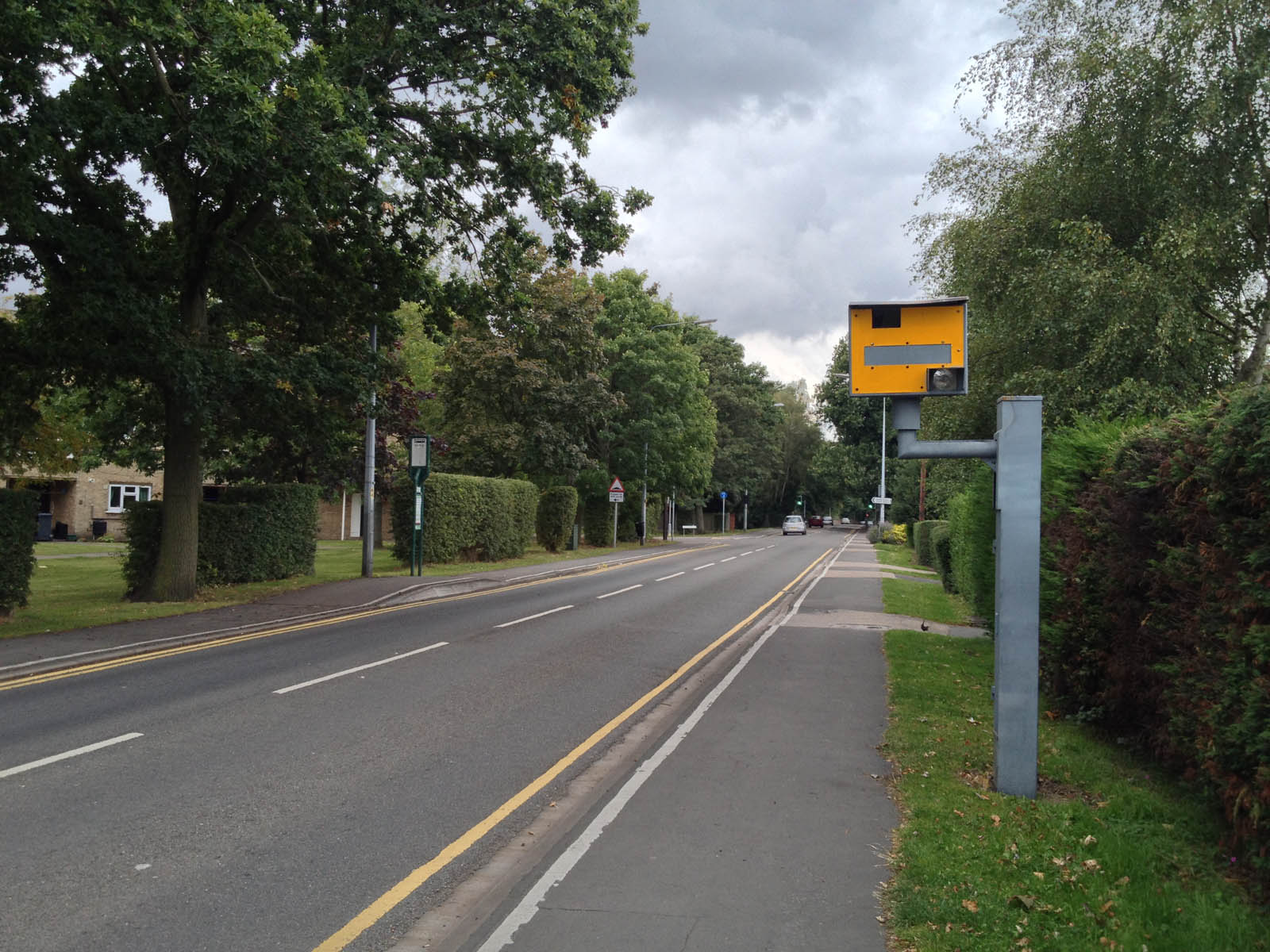
Front of Gatso camera
Credit: Dave2084
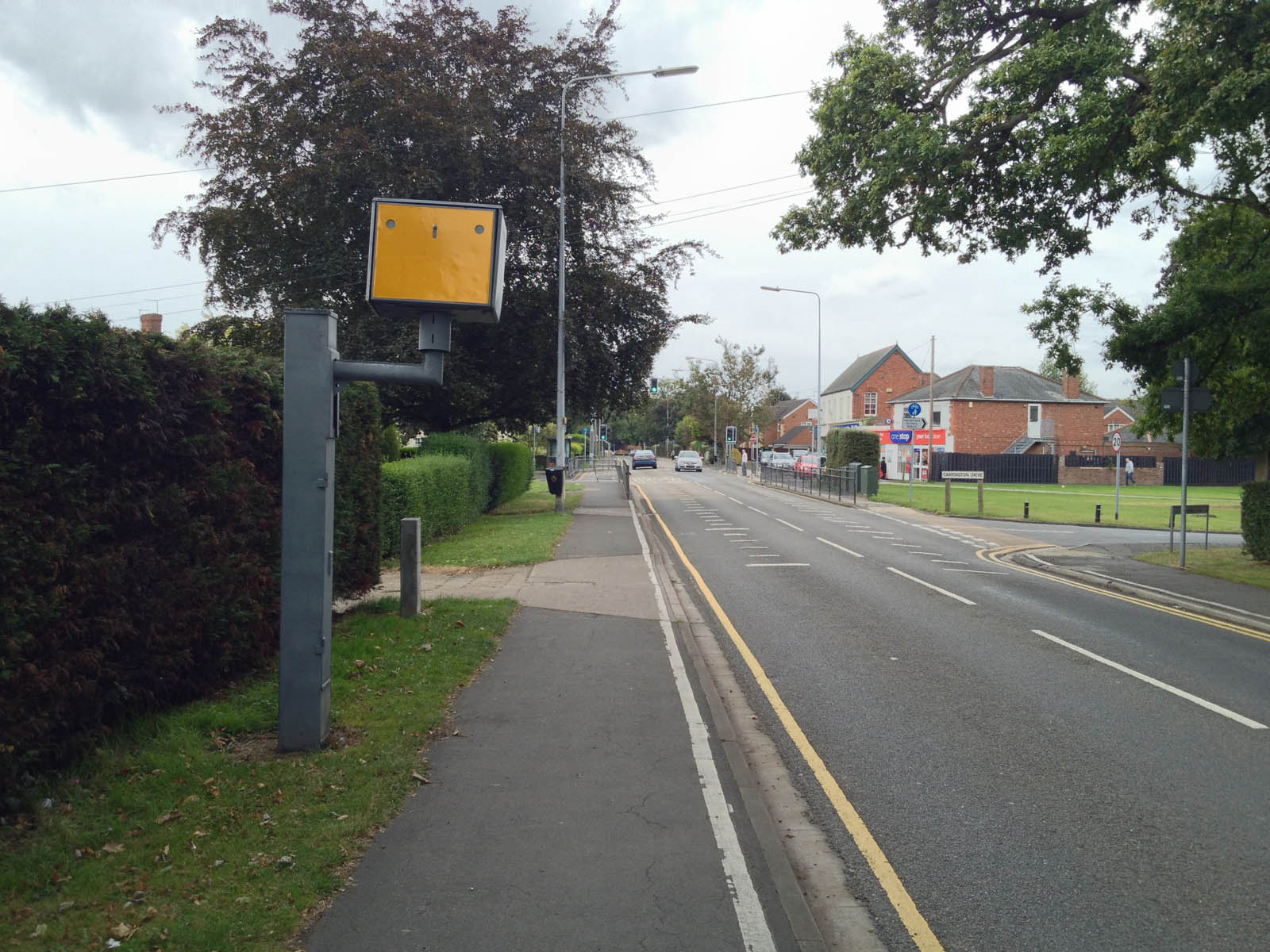
Rear of Gatso camera
Credit: Dave2084

Gatso camera close-up
Credit: Dave2084

Gatso Cameras on overhead gantry
Credit: Dave2084
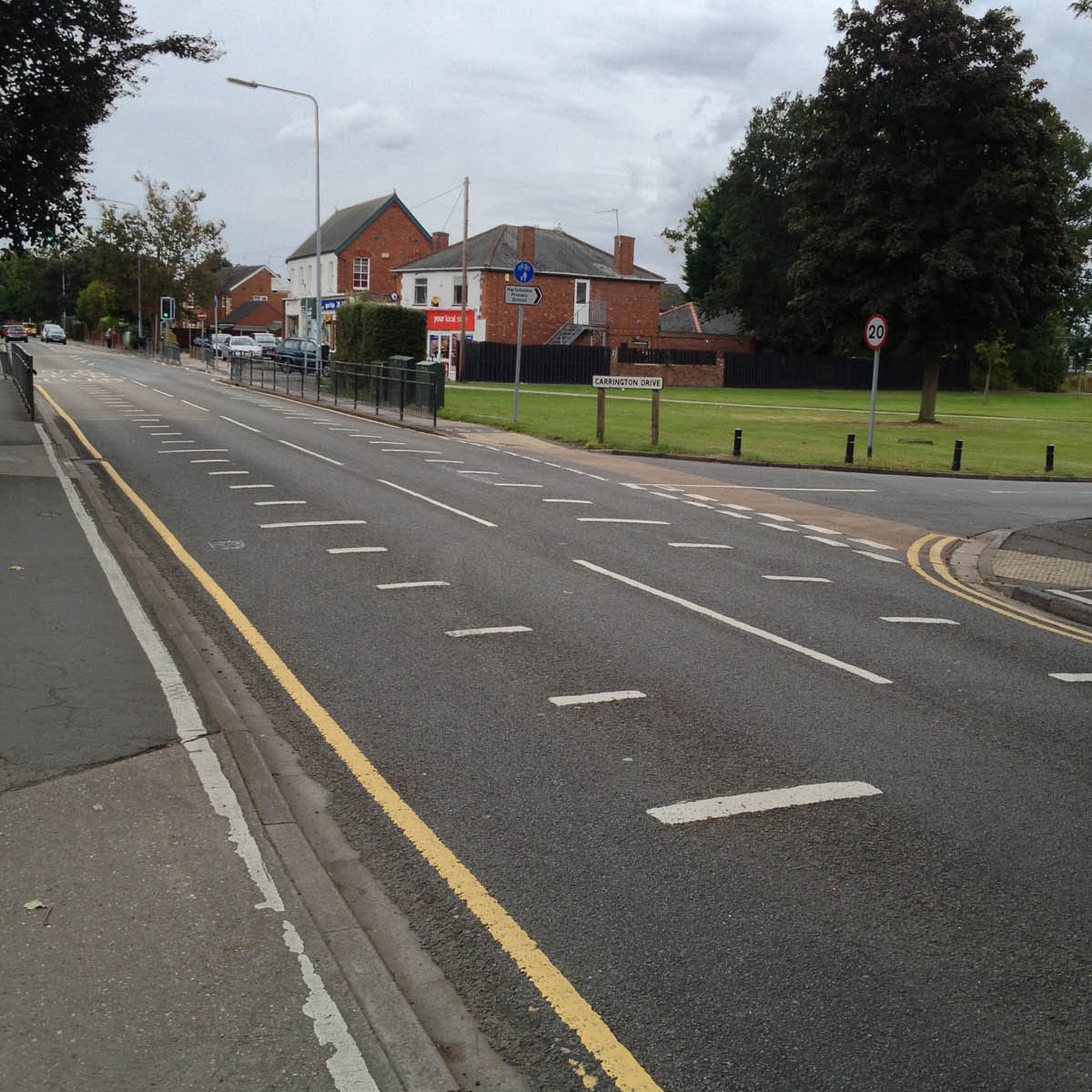
Gatso camera road markings
Credit: Dave2084
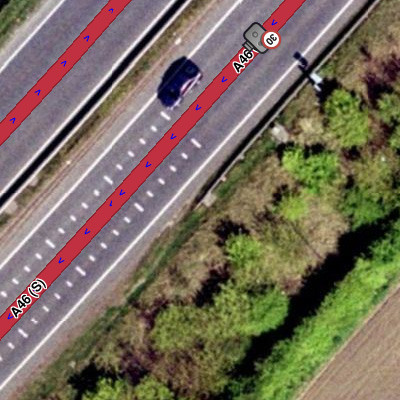
Placement in Waze Map Editor

Aerial view showing road markings
Gatso “Smart Pole” Speed Cameras
The Gatso Smart Pole is another camera variant being deployed around the UK, using the same technology as the standard digital Gatso cameras introduced in 2007, mounted on a vandal-resistant pole. As with the standard unit, it is rear-facing and will flash when triggered.
When aerial photography is of sufficient quality, it is possible to see the road markings, which aid the placement of the camera.
Take care not to confuse these cameras with Level Crossing Cameras, which appear similarly.
Front of Gatso Smart Pole camera
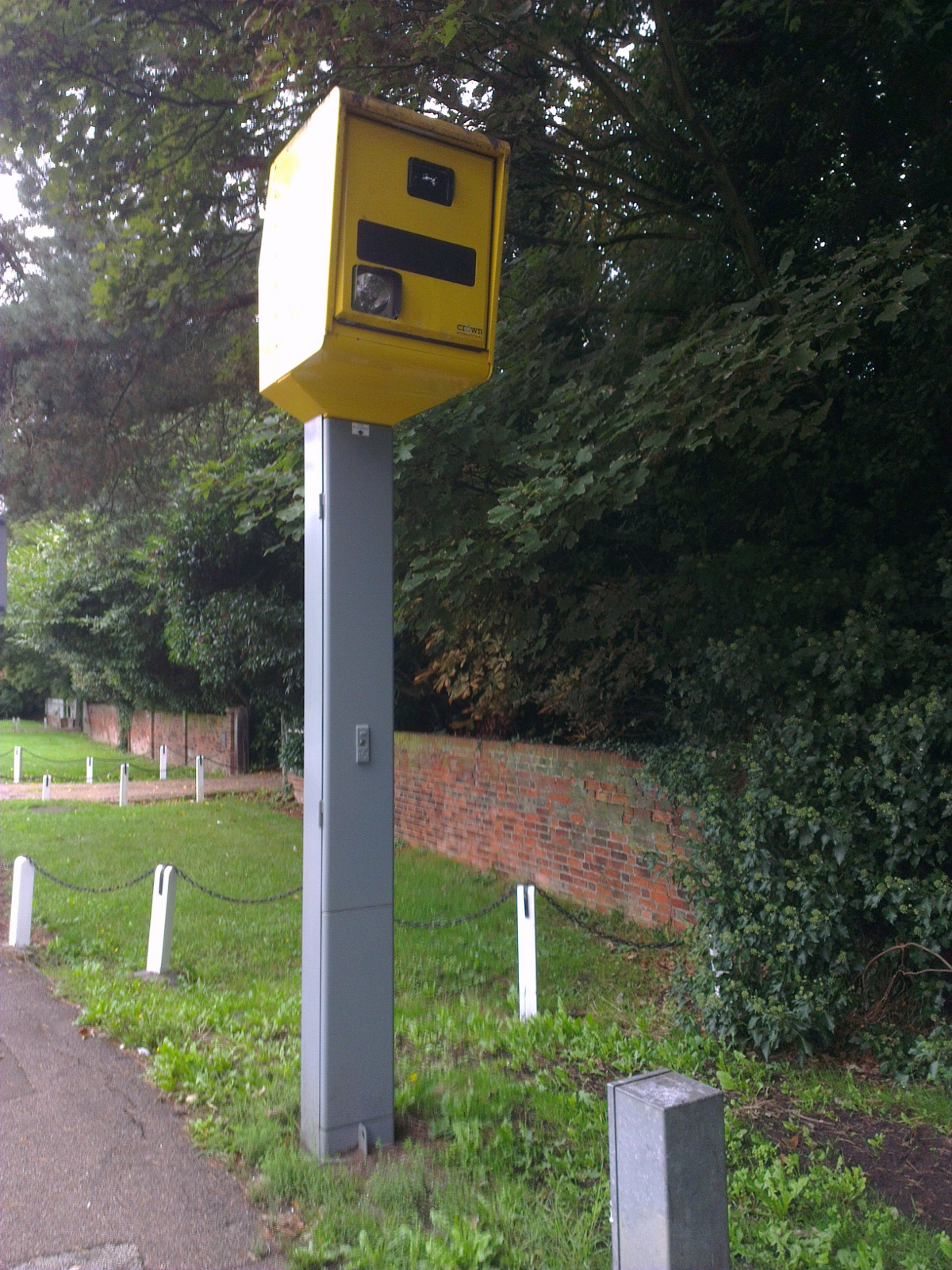
Credit: Twister-UK
Rear of Gatso Smart Pole camera

Credit: Twister-UK
Peek Speed Cameras
Peek speed cameras are similar to Gatso cameras in that they are rear-facing and, when triggered, flash.
These cameras can use radar or sensors embedded in the road to measure the speed of a vehicle, and typically, no markings are painted on the road. However, as older cameras are being upgraded to this new type of camera, legacy markings may remain in the road.
When aerial photography is of sufficient quality, it can aid in correctly placing cameras in the Waze Map Editor.
Front of a Peek camera

Credit: Dave2084
Rear of a Peek camera

Credit: Dave2084
Peek camera close up
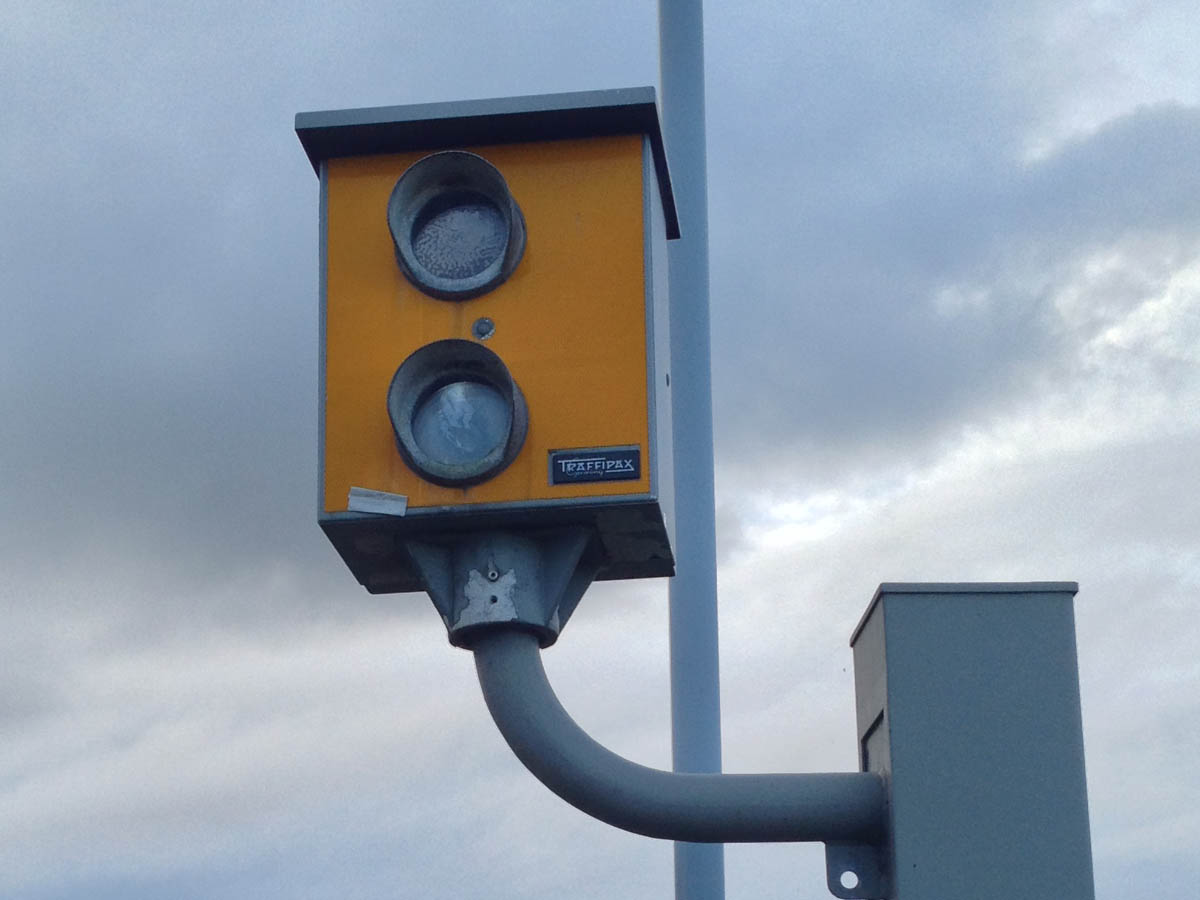
Credit: Dave2084
Truvelo Speed Cameras
Truvelo cameras differ from Gatso and Peek cameras in that they are front-facing. Since they are infrared, you will NOT see any flash. They may also be configured in a rear-facing arrangement, though this is uncommon. Truvelo has introduced VIA-Cam, aimed at private estates, but it does exist on the UK highway, such as Barley, Herfordshire.
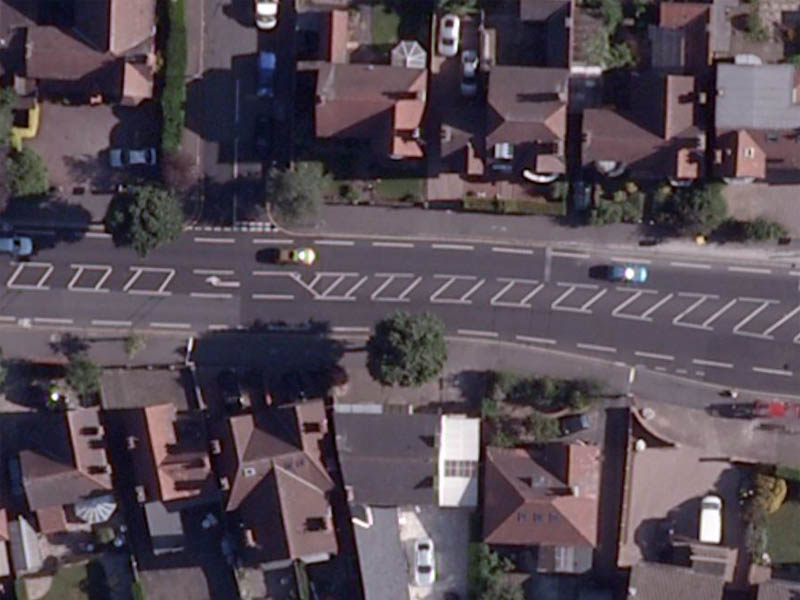
These cameras use sensors embedded in the road rather than radar to measure a vehicle’s speed, and typically, the road is marked with three white lines in front of the camera across one or both lanes. These markings may also be behind the camera. This is a good indication of a reversible camera.
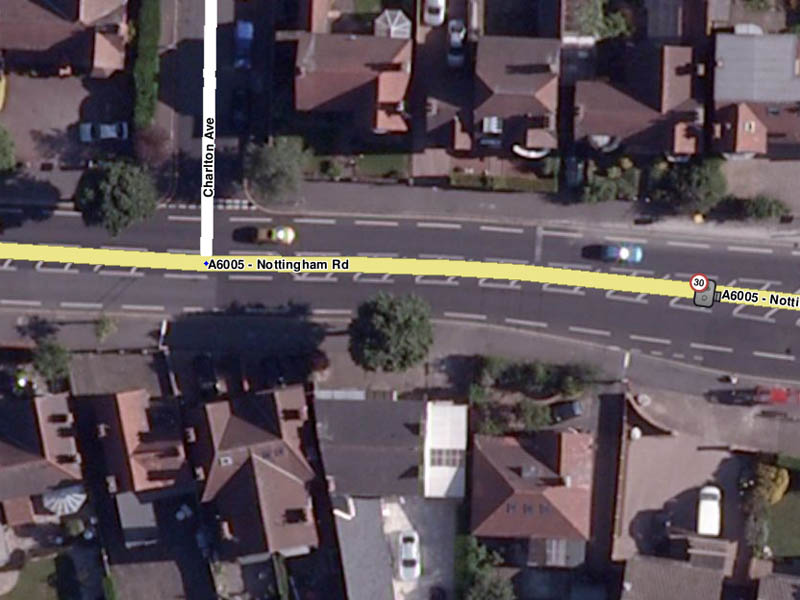
Where aerial photography is of good enough quality, it can aid in correct camera placement in Waze Map Editor.
Front of Truvelo Camera
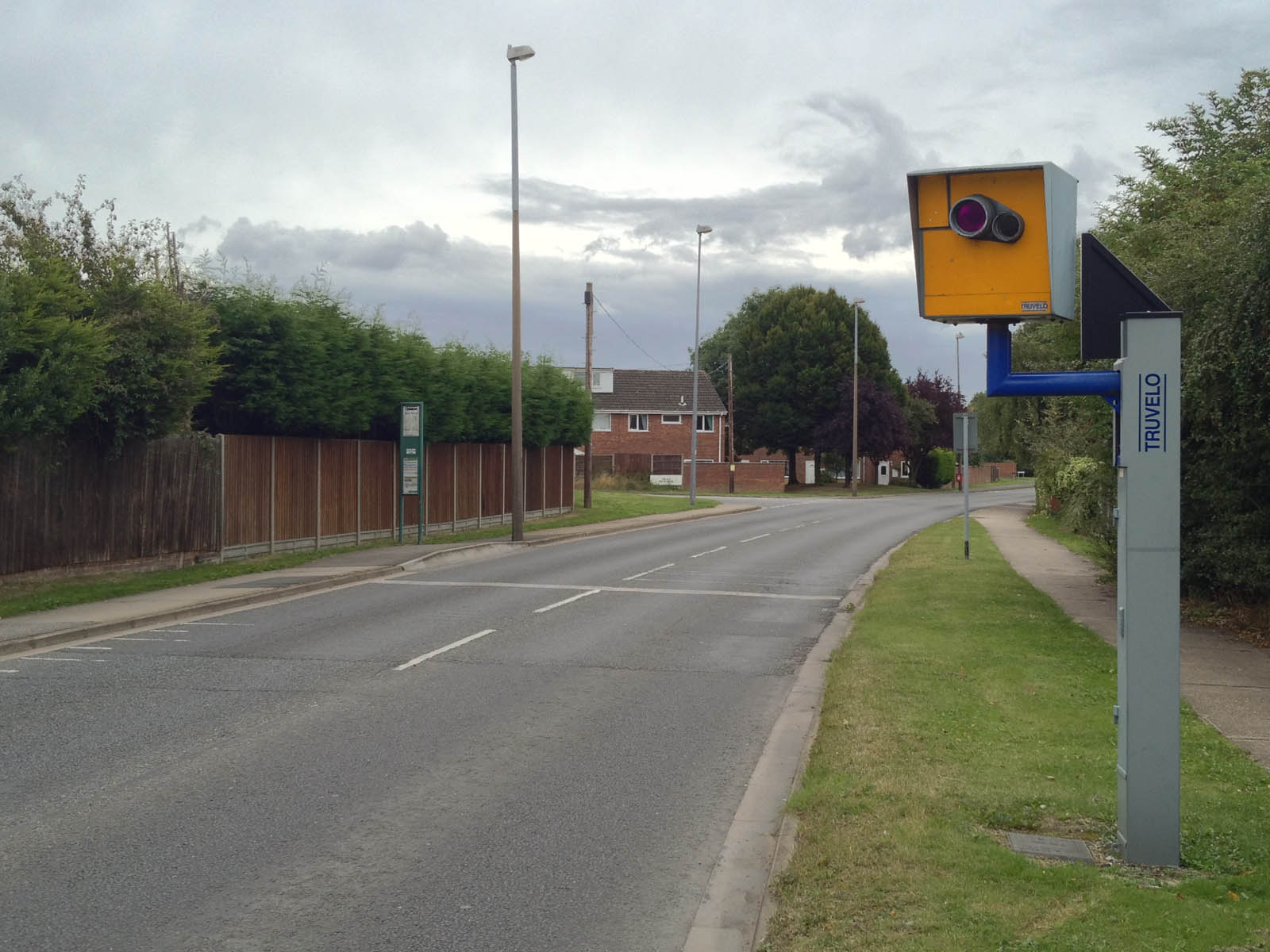
Credit: Dave2084
Rear of Truvelo Camera

Credit: Dave2084
Truvelo Camera Close-Up

Credit: Dave2084
Truvelo Camera Road Markings
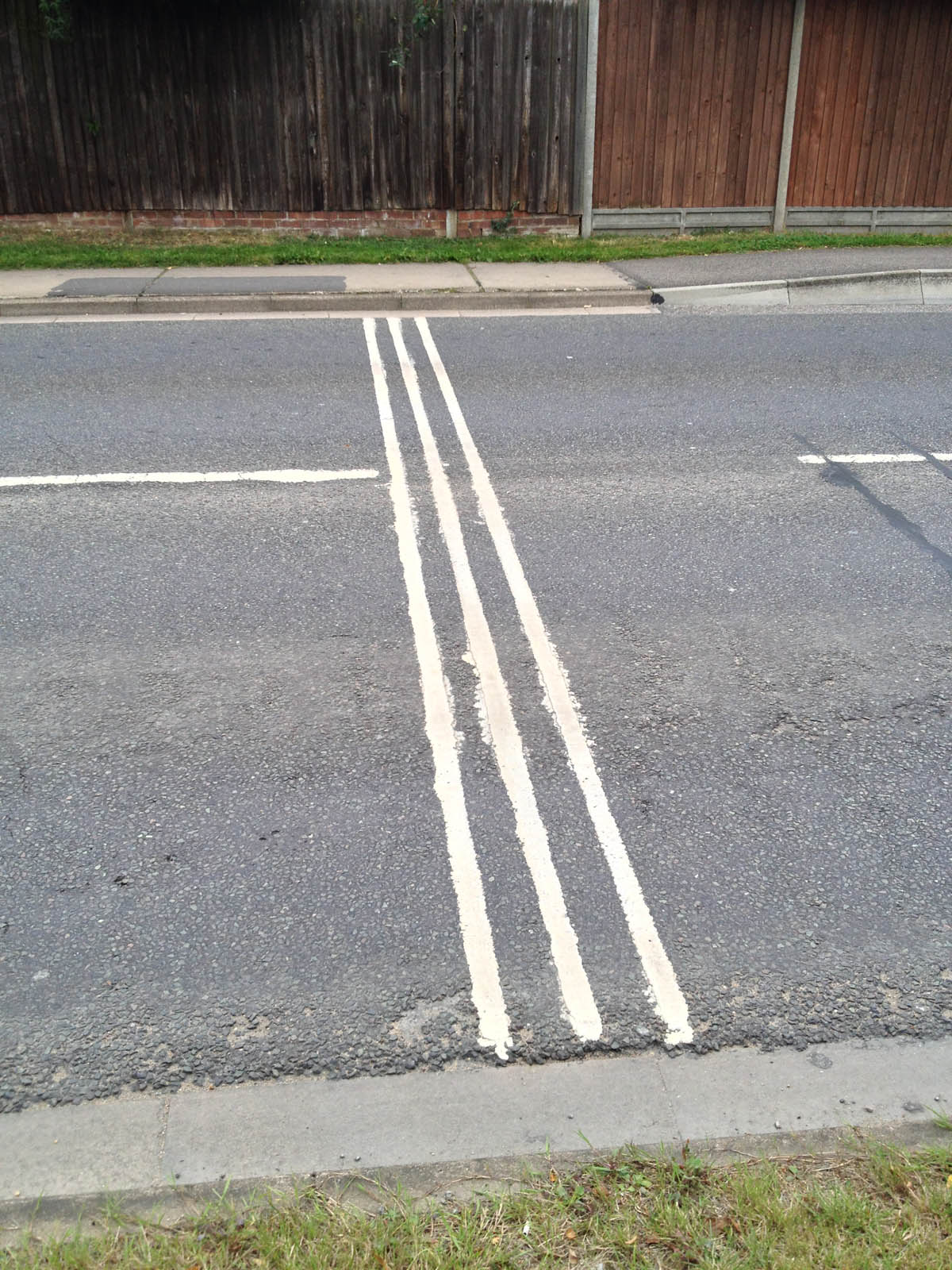
Credit: Dave2084
Aerial view showing road markings
Placement in Waze Map Editor
Watchman Speed Cameras
Watchman cameras are unique among UK safety cameras in that they are an integrated system comprising several sensors: a speed warning board and a camera, each with its own radar, as shown below. At this time, it is unclear if these cameras are approved by the Home Office (and thus able to be used for prosecution).

When aerial photography is of sufficient quality, it can aid in correctly placing cameras in the Waze Map Editor.
Watchman system viewed from the rear

Credit: Dave2084]
Watchman camera viewed from the front

Credit: Dave2084
Watchman speed warning board
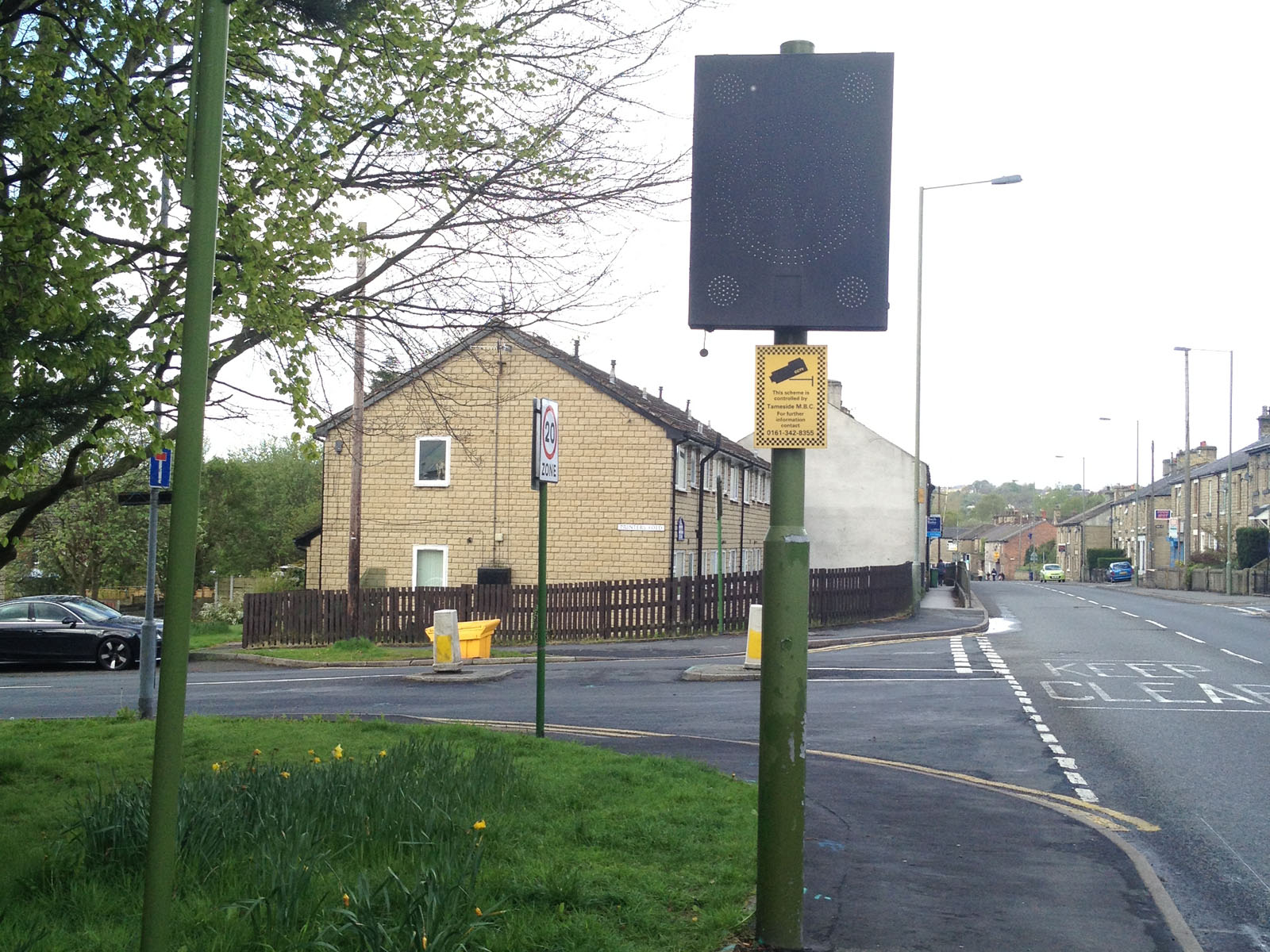
Credit: Dave2084
Close-up of a Watchman camera

Credit: Dave2084
VECTOR-SR Cameras
These devices can identify speeding drivers travelling in both directions, don’t flash when they snap, and catch motorists not wearing a seatbelt or handling a mobile phone at the wheel.
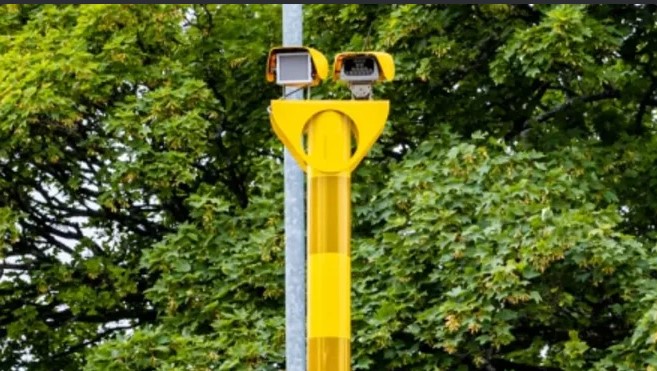
They can also act as red-light cameras when placed near traffic lights. If so, they should be mapped as red-light cameras.
Average Speed Cameras
SPECS (SPEed Check Services) and VECTOR are a system that uses number plate recognition to measure the time taken between two fixed points to monitor a driver’s average speed. There are several camera types in use, as shown in the images. However, only one camera type will be used at a given site.
This is not a standalone system; an average speed zone may consist of two or more cameras at the entry point, mid point(s) and exit point of the monitored zone. Due to the passive nature of this system, no road markings are required.
When aerial photography is of sufficient quality, it can aid in correctly placing the camera in Waze Map Editor.
 |
Average Speed Zones should be mapped according to the specific guidance. |
SPECS camera Type A

Credit: Dave2084
SPECS camera Type A close-up
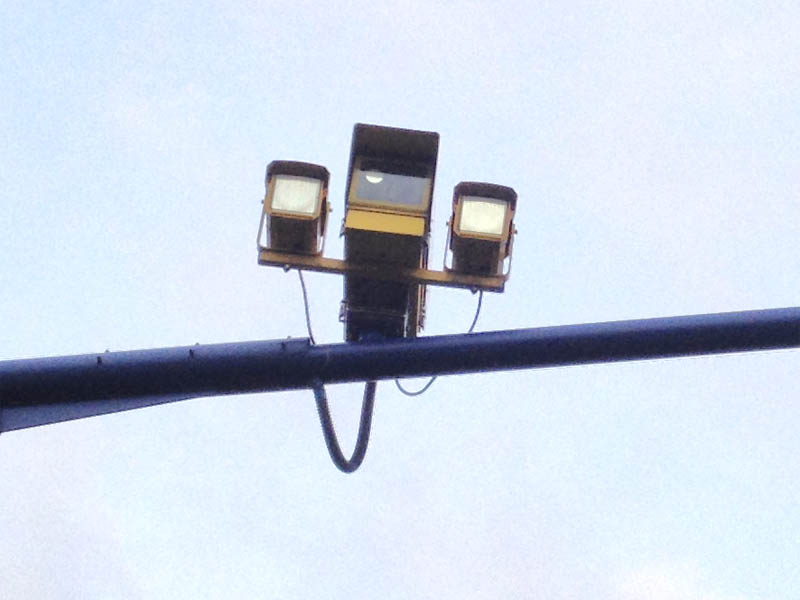
Credit: Dave2084
SPECS camera Type B

Credit: Dave2084
SPECS camera Type C
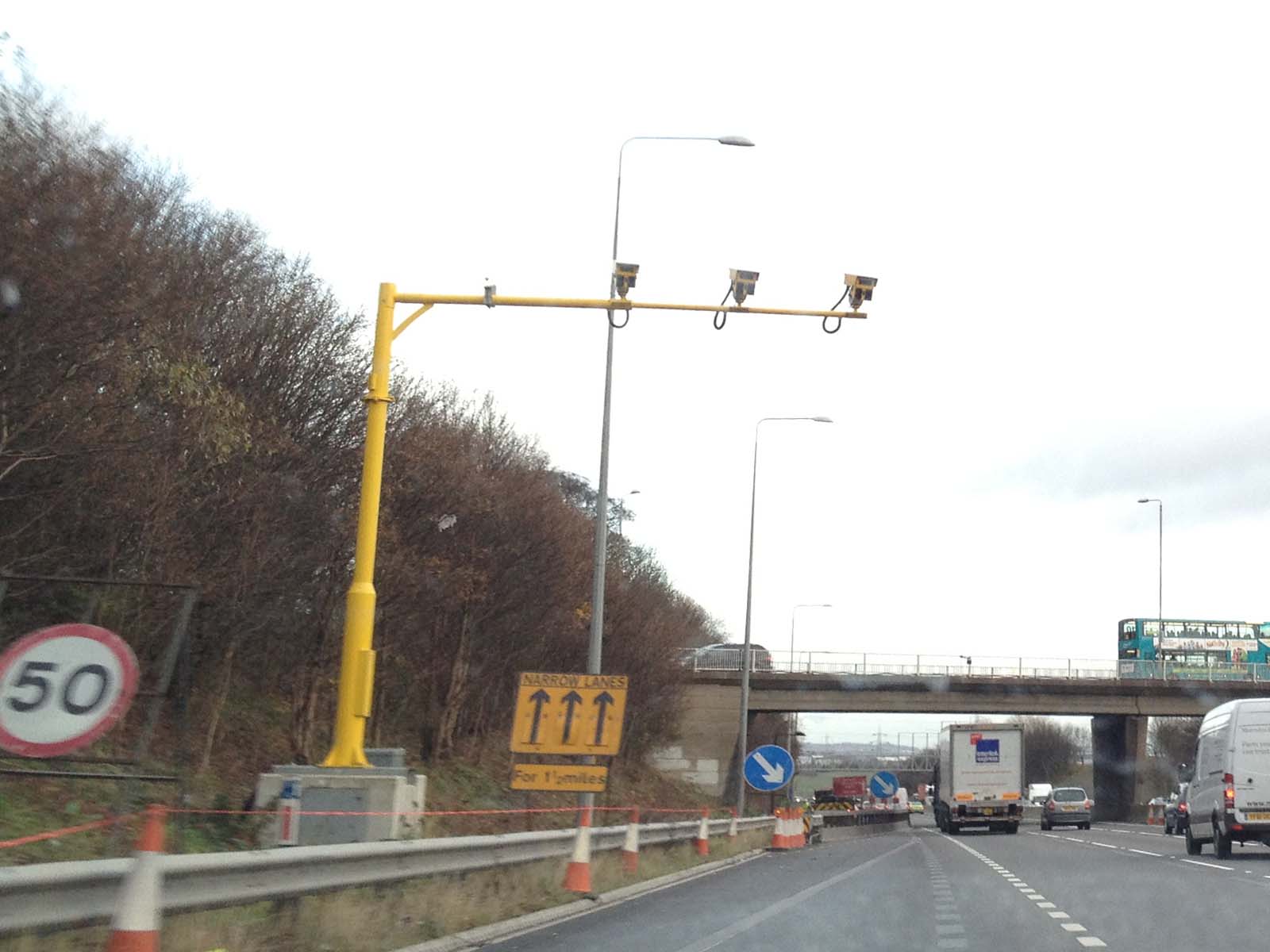
Credit: Dave2084
SPECS cameras on overhead gantry

Credit: Dave2084
VECTOR camera
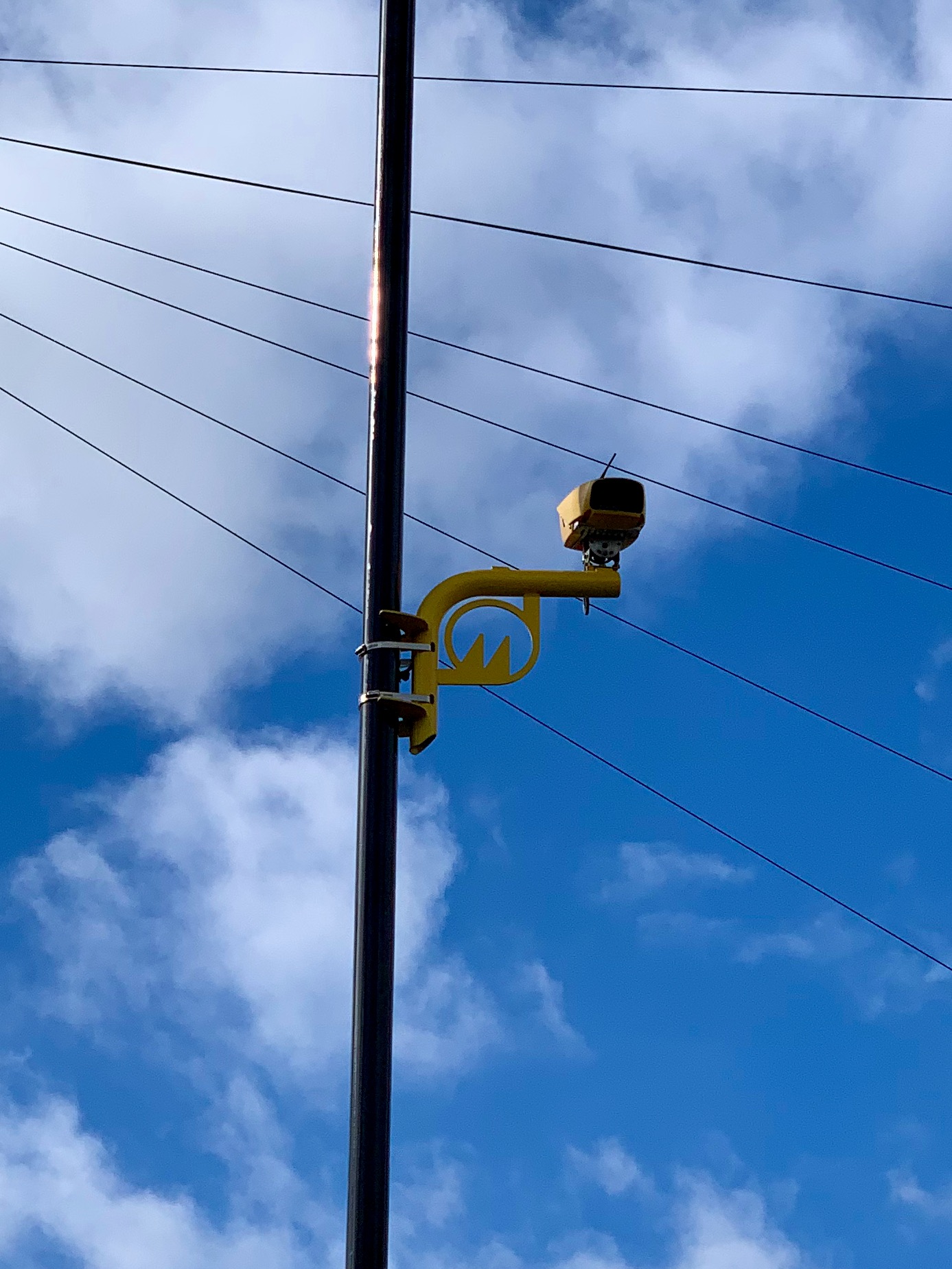
Credit: atrophicshiner
Monitron Speed and Red Light Cameras
Monitron speed cameras (sometimes called SpeedCurb) are a new generation of digital cameras configured as a speed and / or a red light camera.
These cameras use sensors embedded in the road rather than radar to measure a vehicle’s speed, and typically, no markings are painted on the road. However, as older cameras are being upgraded to this new type of camera, legacy markings may remain in the road.
When aerial photography is of sufficient quality, it can aid in correctly placing cameras in the Waze Map Editor. If the camera is a red light camera, it should be placed on the stop line in the Waze Map Editor.
Front of Monitron camera

Credit: Dave2084
Rear of Monitron camera

Credit: Dave2084
Monitron camera close-up

Credit: Dave2084
RedSpeed Speed and Red Light Cameras
These are new types of combined Speed and Red Light Cameras.
New RLC Camera Type

Credit: Dave2084
Gatso Red Light Cameras
Gatso red light cameras differ from speed detection cameras and will trigger when a driver runs a red light.
These cameras use radar to measure a vehicle’s speed, and if they are set up to also capture speed, there will be calibration road markings.
When approving a red light camera in Waze Map Editor, it should be placed on the stop line.
Front of Gatso Red Light Camera

Credit: Dave2084
Rear of Gatso Red Light Camera
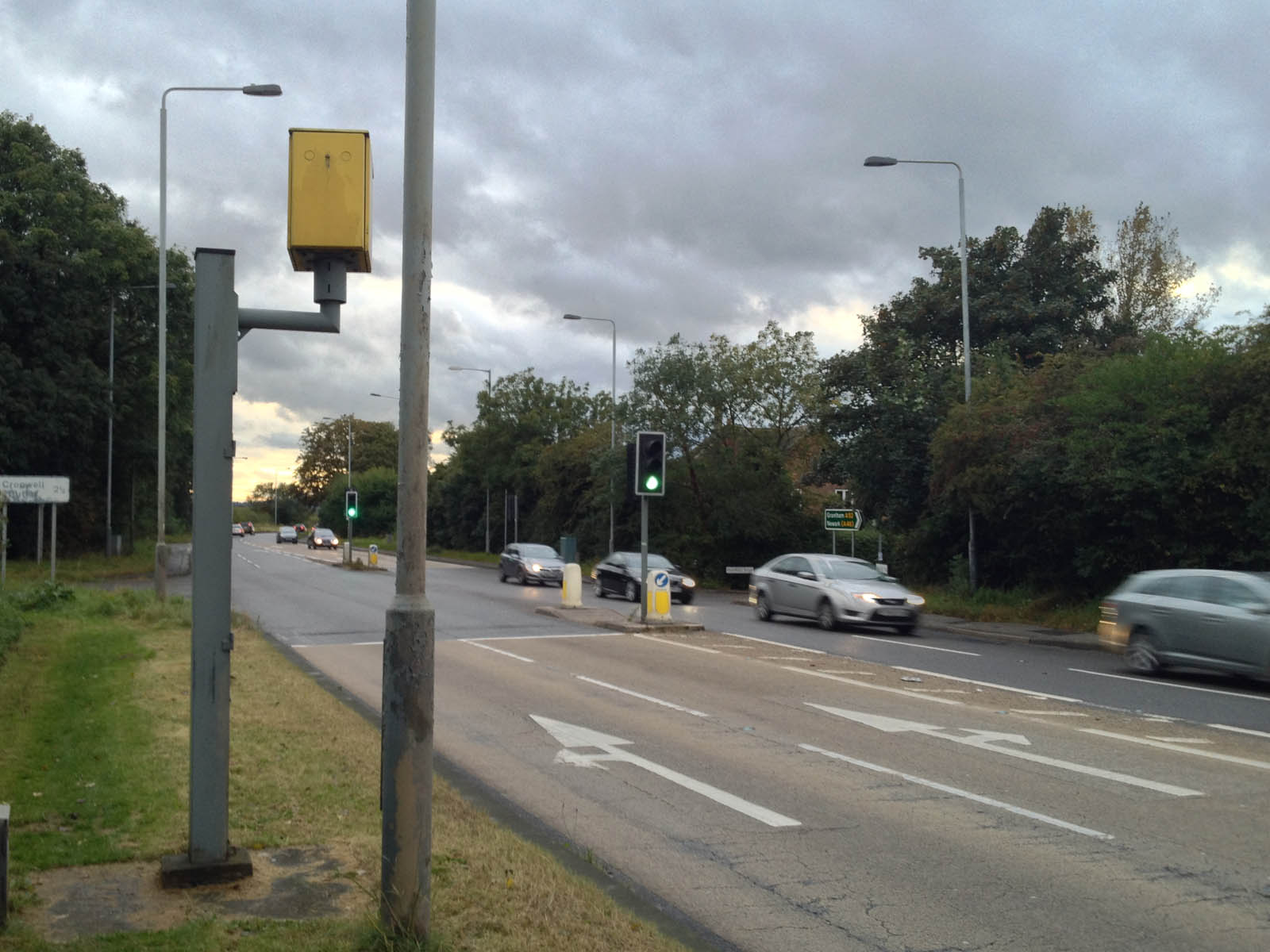
Credit: Dave2084
Gatso Red Light Camera close up

Credit: Dave2084
Cameras that should not be mapped
Level Crossing Cameras
Take care not to confuse these cameras with Gatso “Smart Pole” Cameras, which are similar in appearance. Level Crossing should be mapped with the Level (Railroad) Crossing feature, one on either side of the crossing pointing towards it.
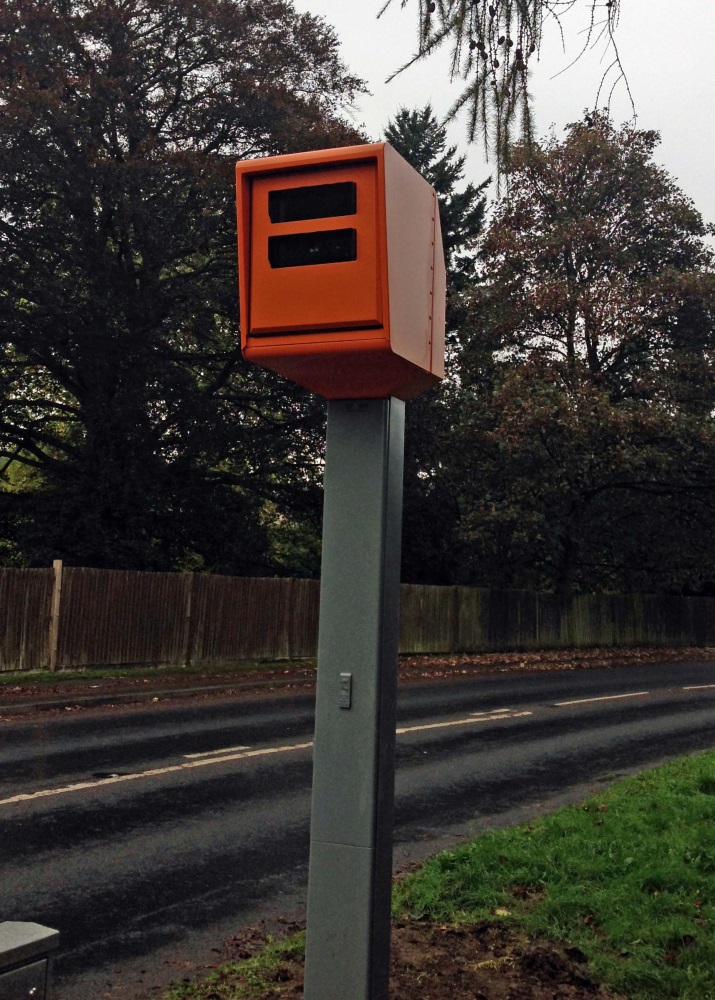
Credit: Moley_uk
RLSE camera at Black Dyke
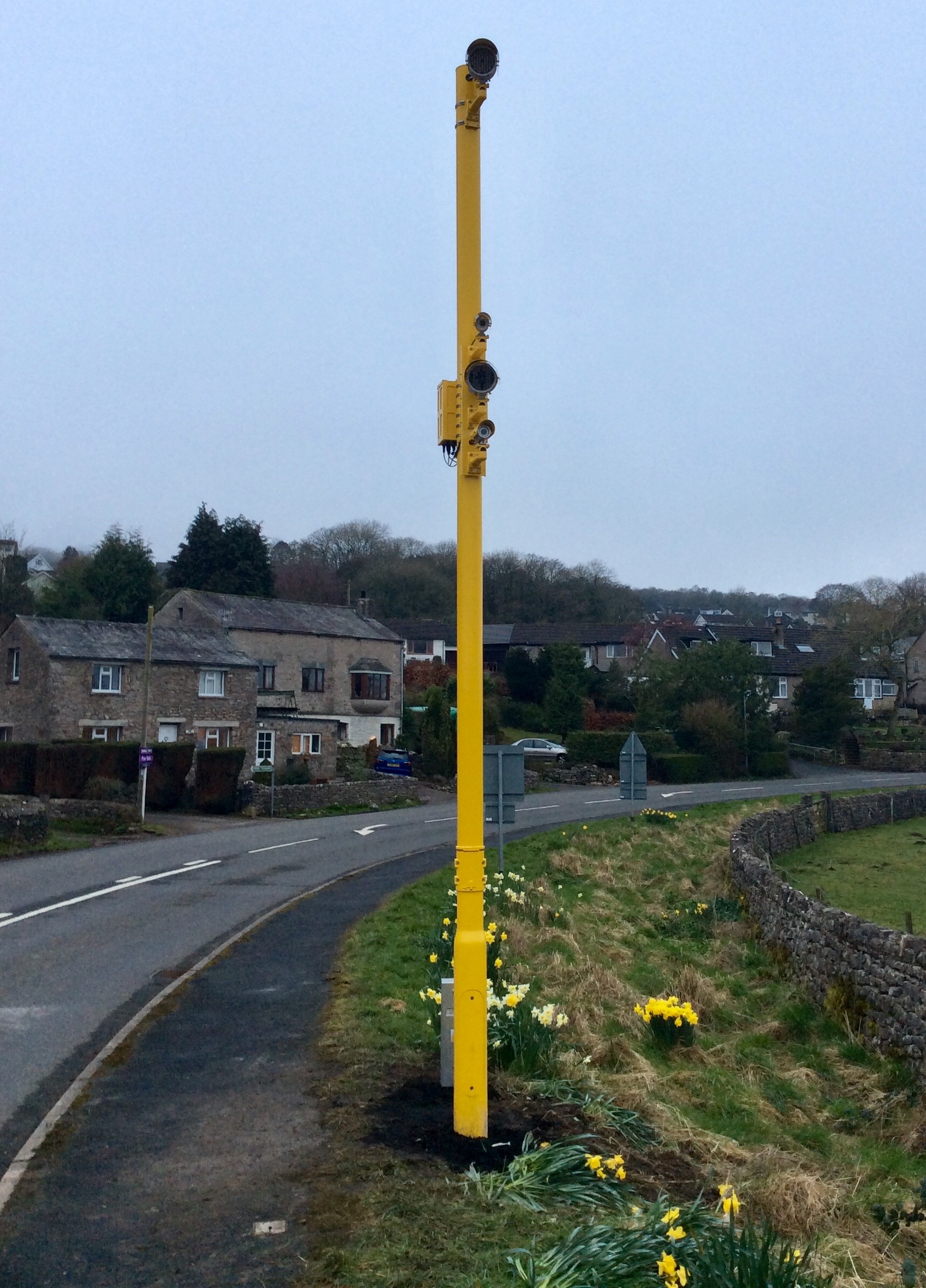
Credit: atrophicshiner
Mobile speed cameras
Van-mounted mobile enforcement camera

Credit: Dave2084
Trafficmaster cameras
Trafficmaster sensor (blue variant)

Credit: Dave2084
Trafficmaster sensor mounted on a bridge

Credit: Pauline W
CCTV/APNR cameras
Pole-mounted CCTV camera

Credit: atrophicshiner
Traffic light-mounted CCTV camera

Credit: atrophicshiner
Camera warning signs
Red Light Camera warning sign

Credit: Dave2084
Average Speed Check warning sign
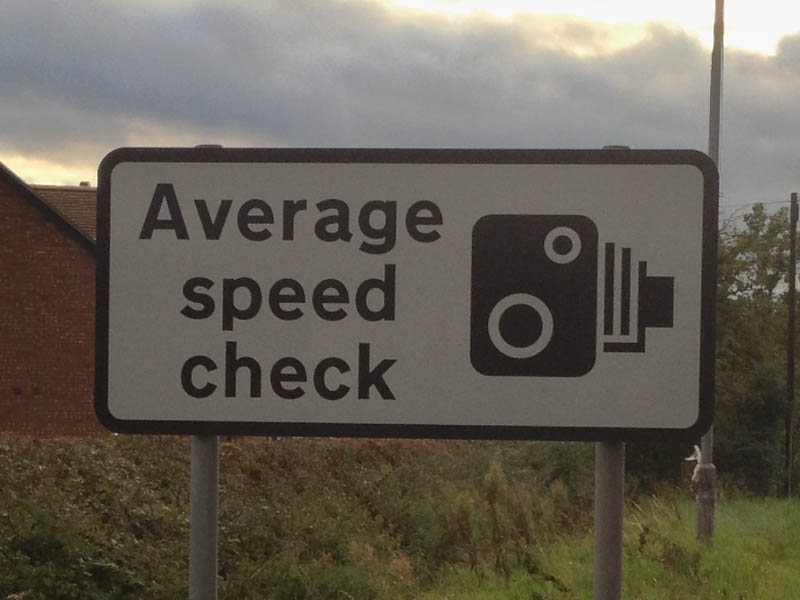
Credit: Dave2084