How-to Guide - Filter and Duplicate Past Events and Closures
Feature summary
This is a fantastic way to quickly set up repeating events or events with similar characteristics.
The new duplicate past events feature allows you to duplicate any past, current, or future traffic event and create a new event based on it. When duplicating an event, also the closures and/or polygons that were associated with the original traffic event will be duplicated and their time will “magically” shift in case and the new event has a new timeframe.
Duplicate past events: A Time-Saving Feature
*Remember, the lock levels for traffic events and closures are different in each country. If you have questions, reach out to your community manager.
Click the Events tab → select an event and hit the 3 dots button→ click “Duplicate”:
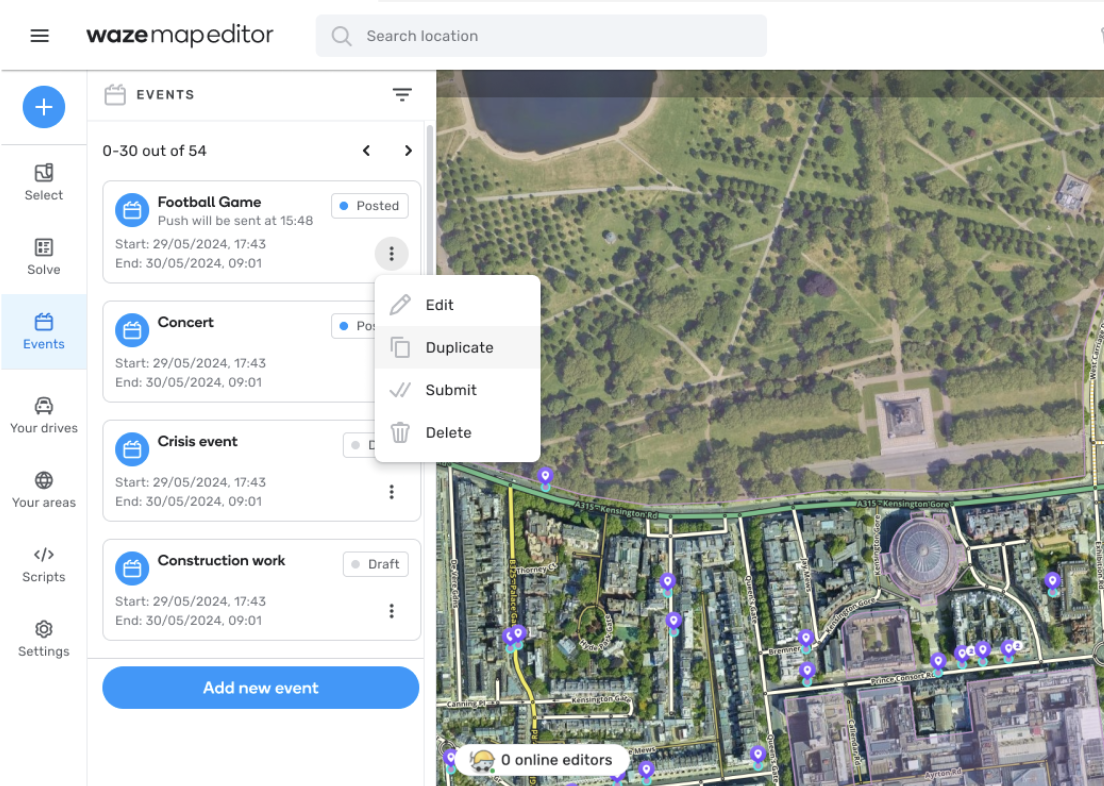
- Creating a New Event from a Duplicate: When you duplicate an event, a brand new traffic event is created. This new event will have a reference to the original event it was copied from.
- Timeframe is Cleared: When an event is duplicated, the dates of the original event are cleared in the new event. However, the times (start and end times) are retained. You will need to set the new dates for the duplicated event.
- Full Editability: You have the freedom to edit any part of the duplicated event, including the polygon.
In order to complete the duplication process:
- [Optional] Edit all required event fields
- Add start and end dates.
- Click the “Save” button
A success message will appear on the screen:
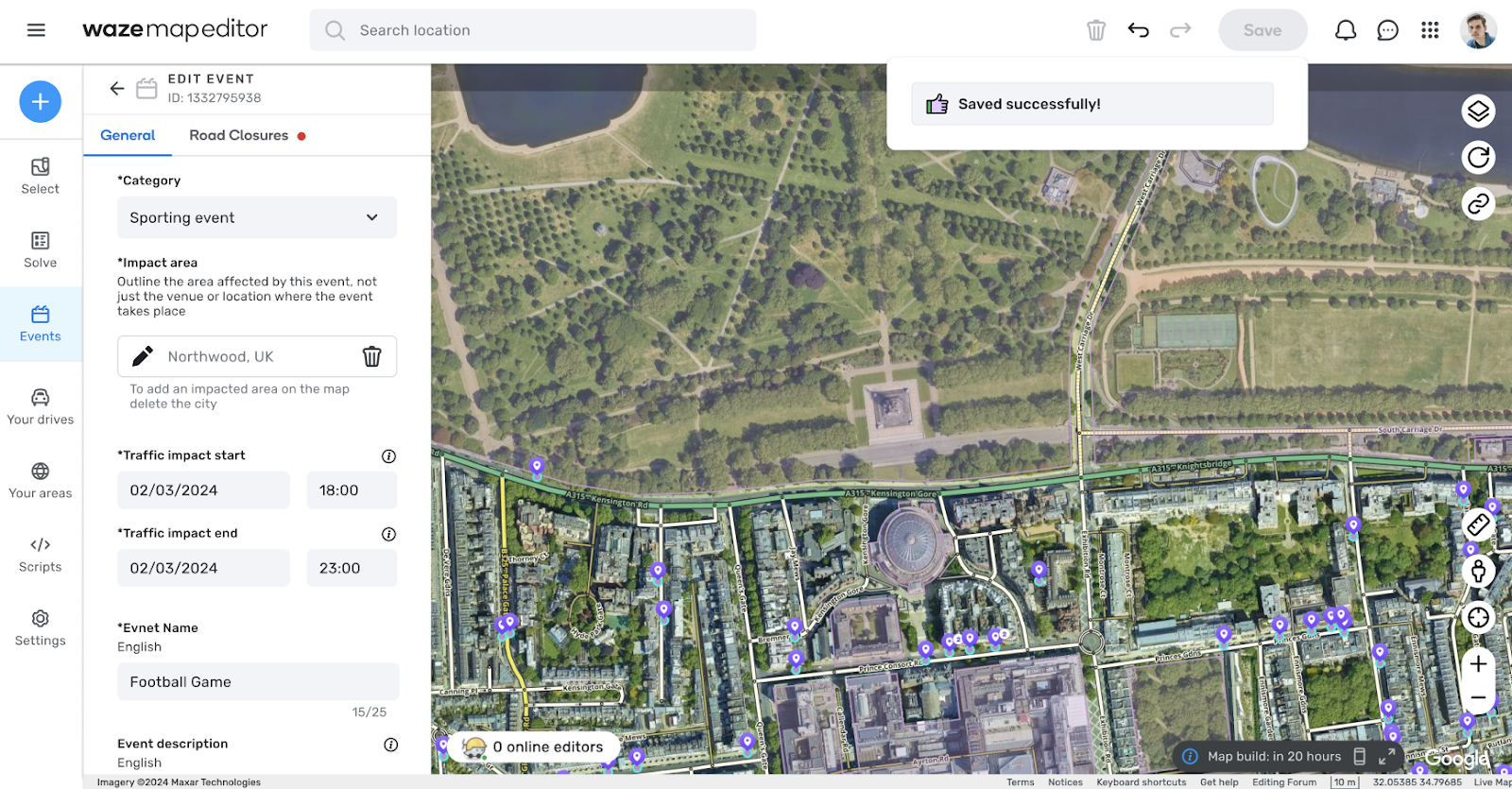
*Note that the original event will not be affected by the duplication.
Verifying duplicated closures
When an event is duplicated, any associated closures will also be copied and appear in the closure tab. These newly copied closures should be marked as “unverified” in the event’s closure list.
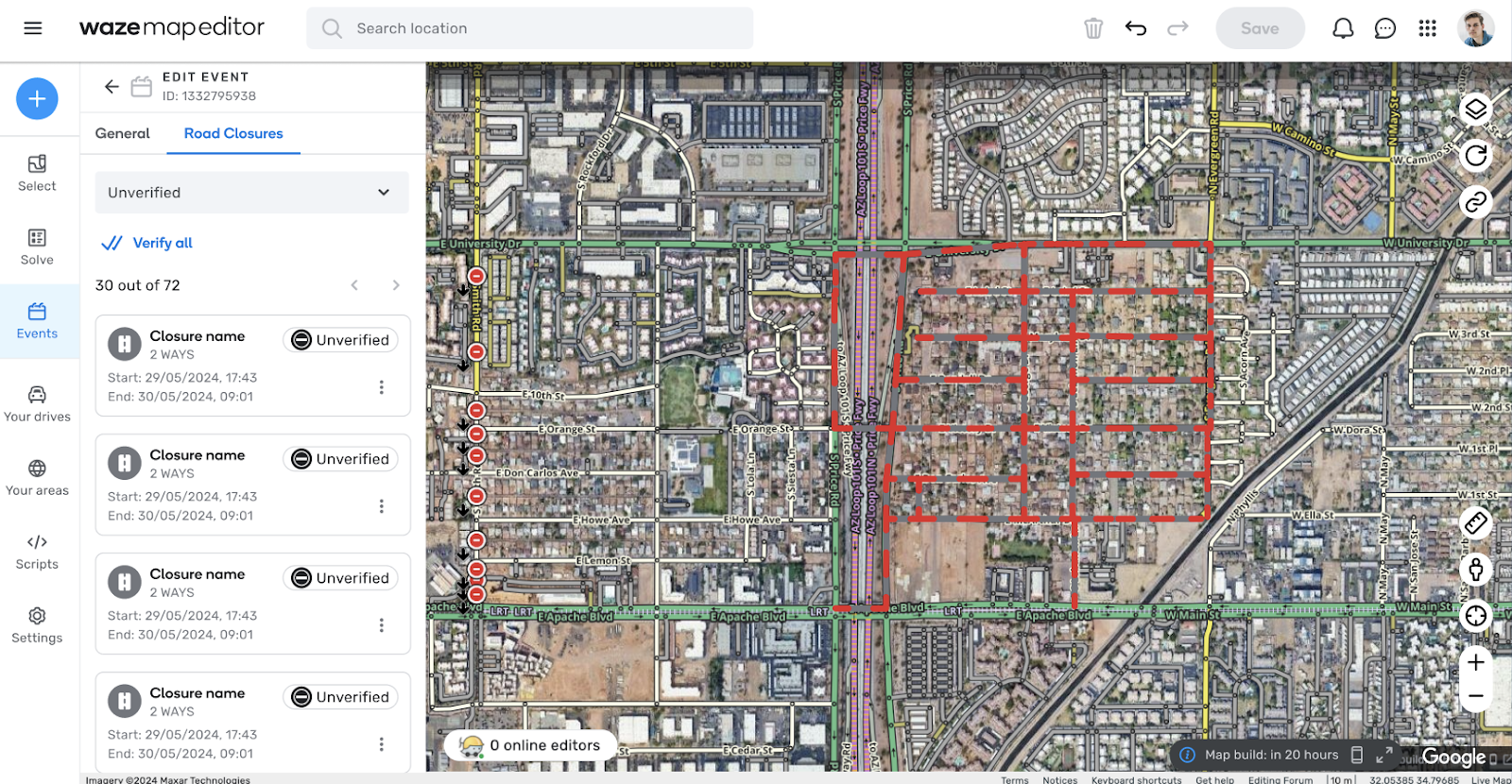
Closure Adjustment Strategies: You can select from different closure adjustment strategies:
- Keep closure times as-is, only move the dates: This option simply shifts the closure dates to align with the new event dates while maintaining the original start and end times.
- Magic shifter: This more intelligent option attempts to retain the offset of the closure start and end times from the event’s start and end times.
- For example, if a closure starts 1 hour before the event and ends 30 minutes before the event, the “magic shifter” will attempt to maintain this relationship in the duplicated event.
How to verify closures?
Single closure validation: In order to verify a closure, you can click on locate (if necessary) and then after revving the start and end date, click on verify.
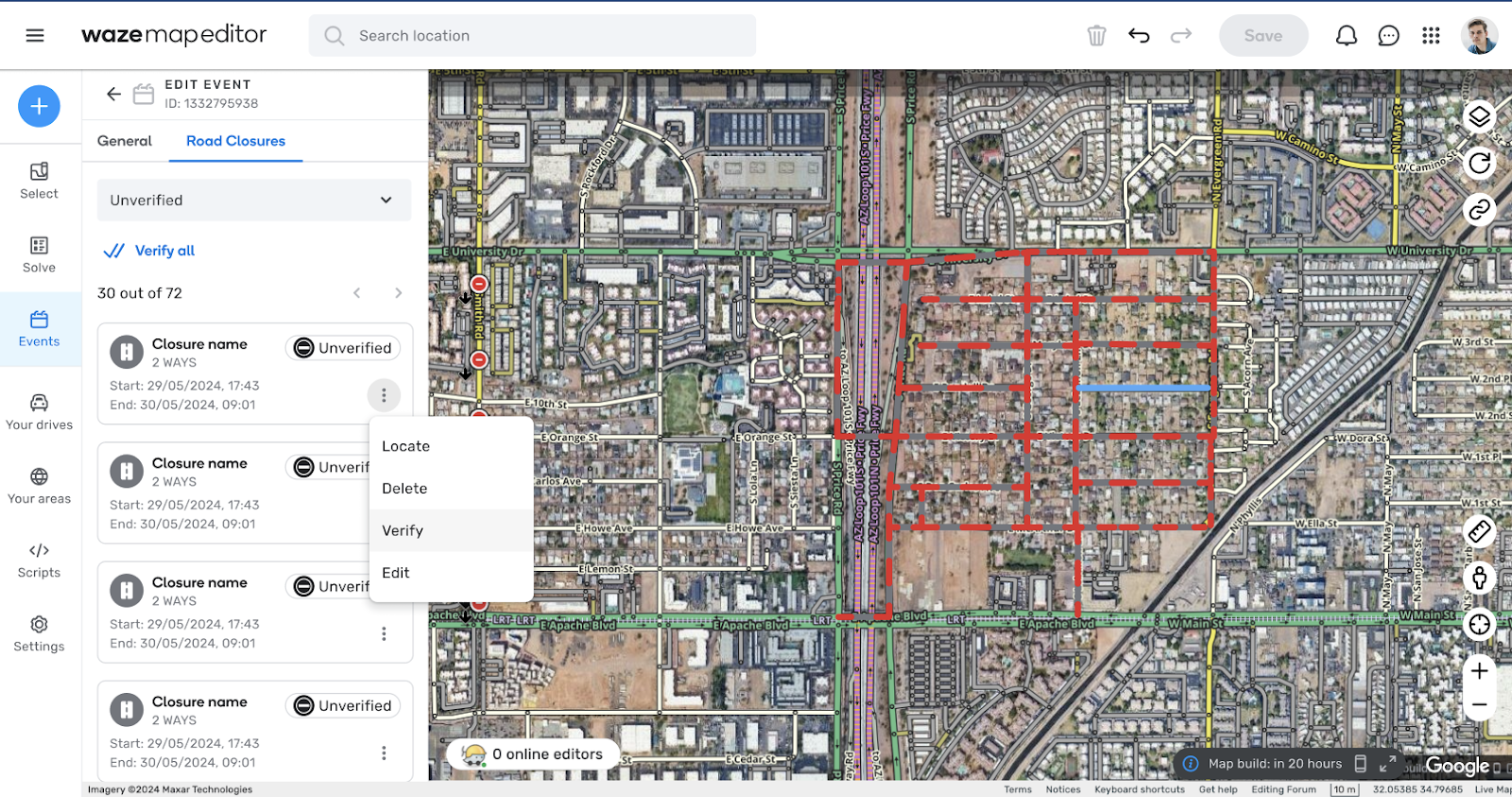
After a closure is verified, it’s removed from the “unverified” closure list.
Verify all closures
You can click the verify all button in case all closure info is correct:
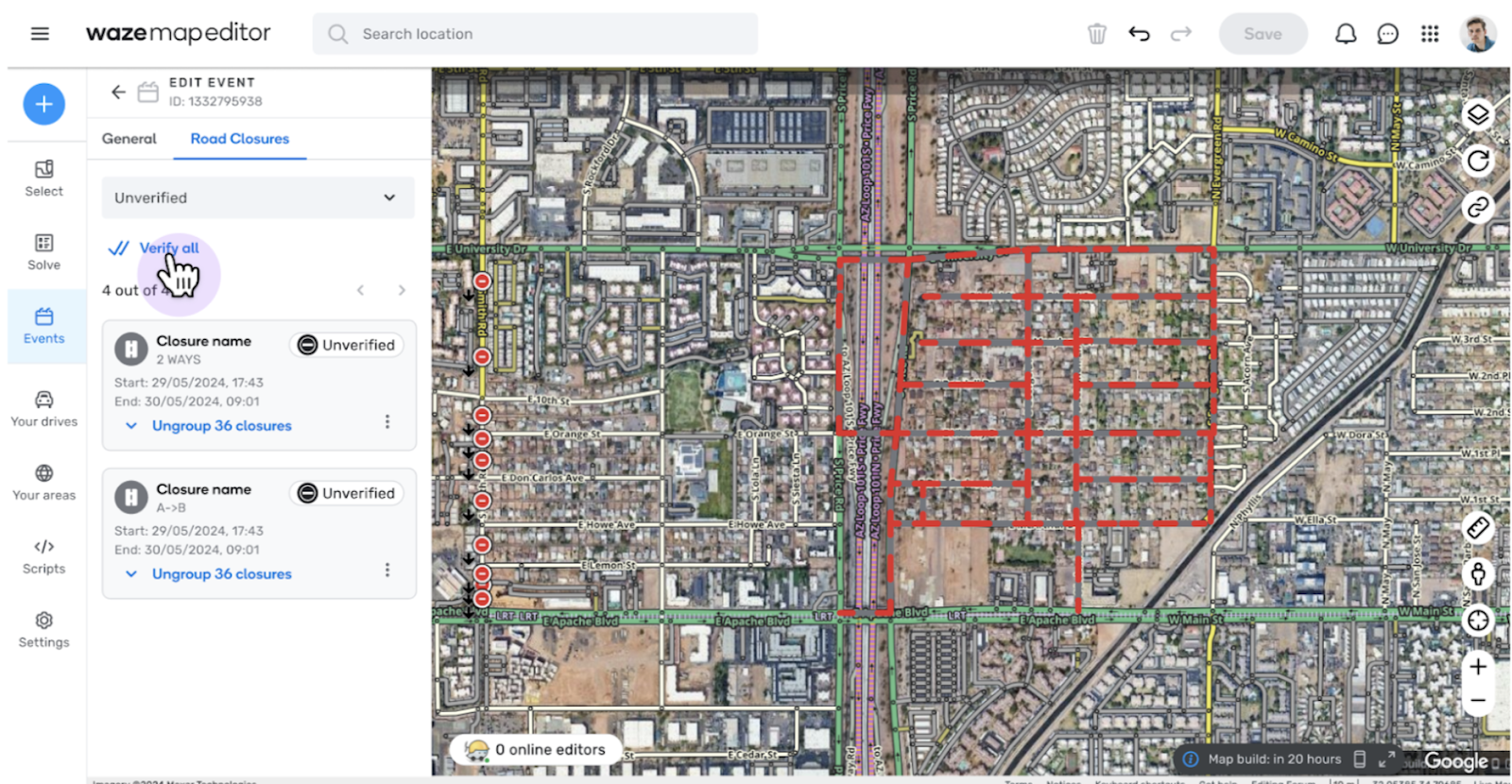
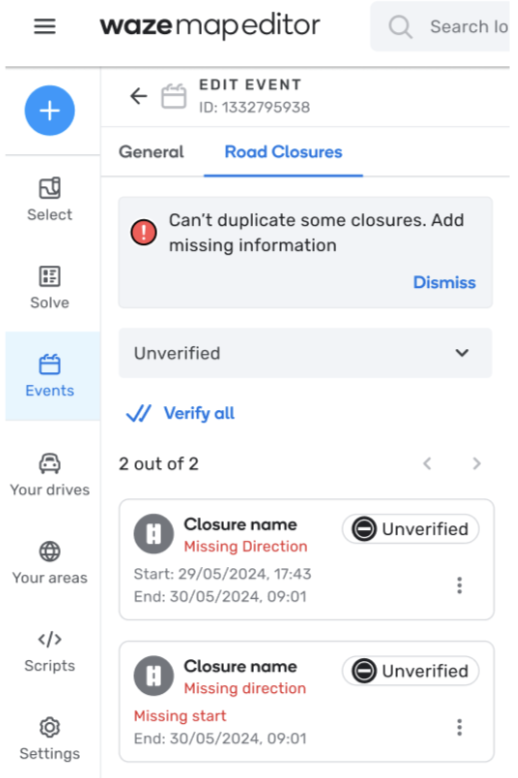
In case any info will be missing, an error message will appear on the closure card:
What happens if segments were changed (deleted/ merged/ split)?
the copy would fail for these closures, creating an alert for X failed closures copies:
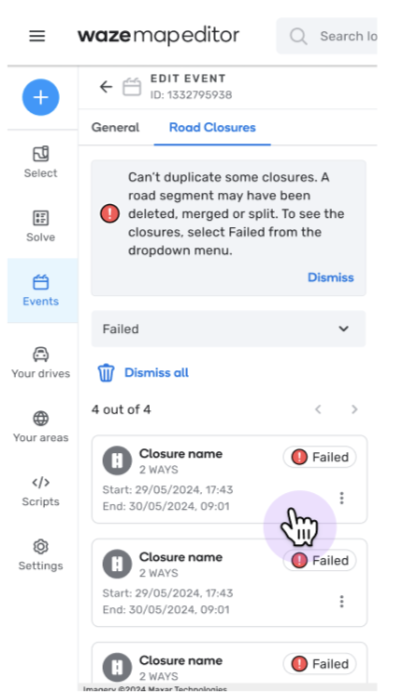
In this case, the segment needs to be updated, you can locate it and update it accordingly.
Handling Non-Existent Segments: If a closure cannot be copied due to a segment that no longer exists, a proposal with an invalid state will be shown. The closure card will display a message: “This segment does not exist anymore” and will include a crosshair link to the segment’s original area on the map.
Search and Filter past events
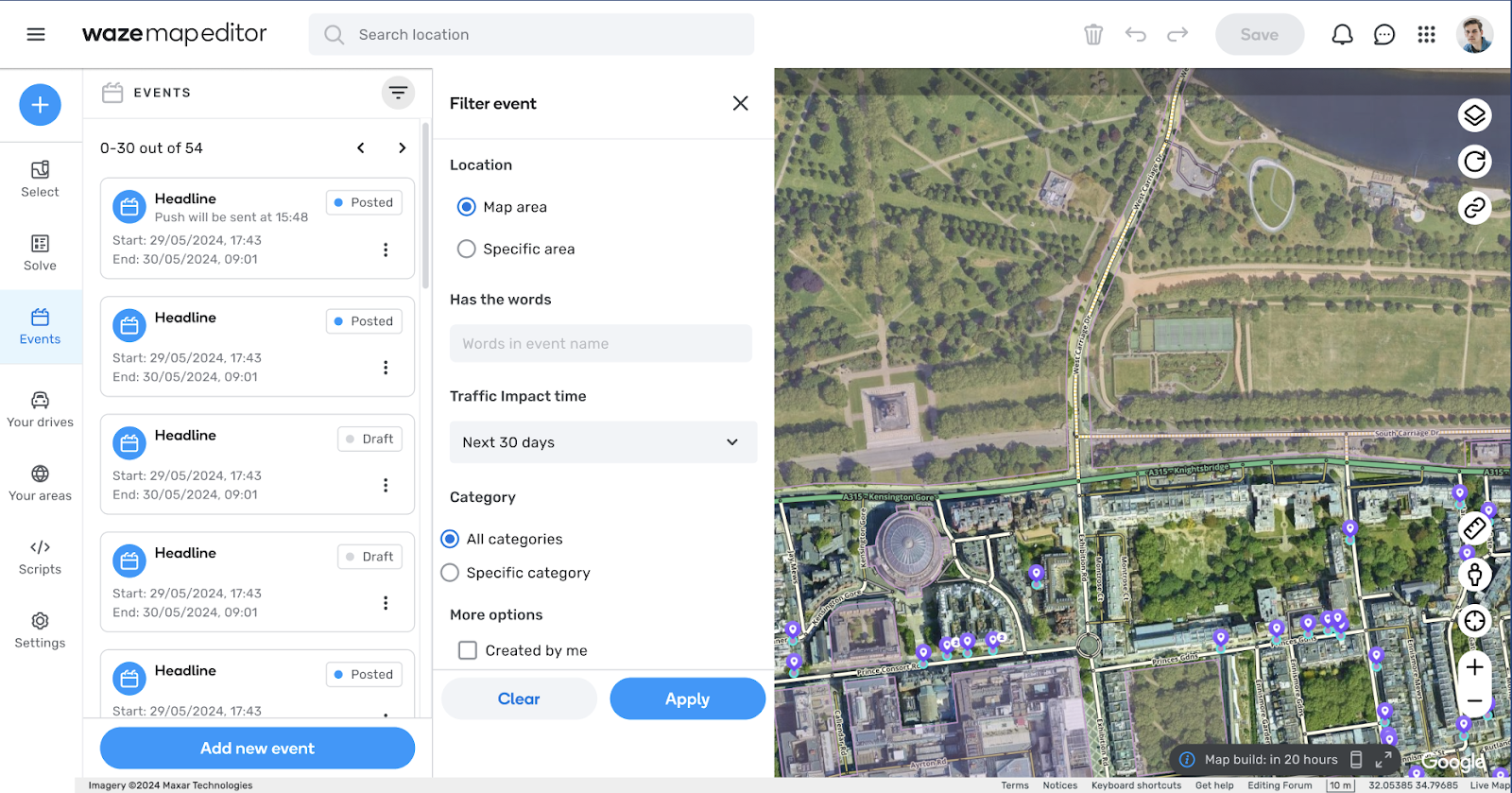
- Click the new “Search” button at the top of the events tab
- A new screen will appear, enabling you to search for events
- By the different search parameters, you can filter past, current and future events.
The Search Parameters are:
- Event category
- Event name
- Status (all expect draft events)
- Time range
- Location
- “Created by me” events
- The search result will present up to 30 search results
Time frame of past events: 2 years back
Search result sorting: The result list will be sorted by start time of the event (newest events at the top of the result list)
#Known issues:
- Right now Suggested closures are not highlighted on the map after hovering them.