Traffic Events, or TEs, (formerly Major Traffic Event or MTEs) are events that have impact to the roads associated within them. Regularly, they can include Real time closures but it is not a requirement. TEs can be sporting events (marathons, triathlons, etc), festivals, parades, significant construction works, VIP visits or even (natural) disasters like flooding. Reporting TEs ensures that your local community is informed about closures and congestion due to relevant events nearby. This page will provide further details on how to create events and add associated road closures within WME.
Before you start
- To submit a TE you need to have permission to add road closures or to work together with an editor that has this permission. In this phase of the tool, you will be able to create events and upload closures through WME. A web page is automatically created at the Waze events website upon event submission. This page includes the name, dates, description, planned road closures, overview map, and other related information.
- A push message will be sent to Wazers affected by the TE. This means anyone that lives in the area selected or regularly travels to, or through, that area.
- If the event you are creating is a crisis or emergency with a widespread impact, use the crisis category and inform your Regional Coordinator. This allows for coordination among editors and staff for assistance in mapping shelters, adding closures, removing closures, monitoring hazards, etc.
Creation
- Open WME.
- Mouse over to the tab on the left pane labelled Events.
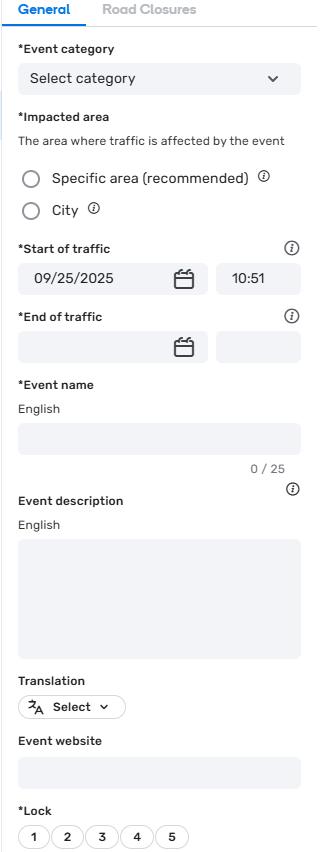
- Create a new event by clicking Create Event. You will be presented with the displayed event editor panel (pictured above).
- Select the category of the event.
- Select the Impacted area. You can choose Specific Area, to draw a polygon on the map (this is preferred), or choose the city.
- If you select city the notification will be sent to anyone related to that city name, and will most likely be sent to too many people that may not be affected by the event.
- Reminder, when drawing the polygon, it will show up on the app so please make it neat. Also, cover all areas impacted by the event, even detour routes.
- Add start and end times for the event. Note: Allow for preparation and teardown after the event’s scheduled ending.
- If event locations vary from day to day, such as during the Tour de France, create separate events by region/location. This allows us to send timely push/inbox notifications to users.
- Add the event name in English (mandatory) - the event name should be as short as possible while accurately representing the event. There is a 25-character limit.
- Add an event description if available. This will be visible to Wazers.
- Add a website for further information about the event, if available.
- Select a lock level for the event
- Make sure to save! (Note: This is our regular save button top right. There is not a save button on the event panel)
Closure addition
- If you don’t have any closures to add, skip to Submission.
- Create closures as you normally would, but instead of leaving the event as “none”, choose your event in the drop down menu.
- Save your closures. They will now be visible on the closures tab of the event in the event editor.
Submission
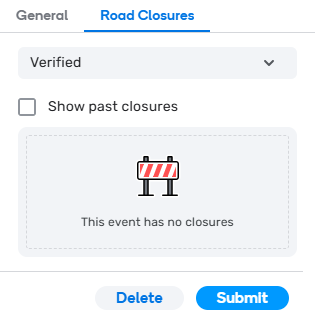
Once the closures are attached to the event, return to the events tab, select your event, click the submit button and confirm the submission. This will cause a web page to be created for the event and will also start the process to generate a push message for nearby Wazers. You will be able to view your event via the URL provided, or via the Events Page.
As an alternative to submitting in WME, a traffic event can be submitted to waze-closures@google.com with the following details:
- The event name in English and in the Local Language
- All street names closed during the event
- Intersecting street where each closure begins and ends
- Start and end time for each closed road
- Start and end date for each closed road
- Indicate if the whole road is closed or just one direction is closed
Some pointers when submitting events directly to Waze Closure staff:
- Check your email; find out who will be working with you on these closures, when they are available to upload closures. Make sure you have time to double-check closures before the event begins.
- Waze staff might not publish the TE to their [www.waze.com/events Events] page, until shortly before the event. Make sure to communicate with them so you can verify the details.
- Closures will go live as soon as they are uploaded (within their specified time frames).
- Closure Sheets are obsolete, and are no longer used to input Real Time Closures, or to generate an TE.
Duplicating TE’s
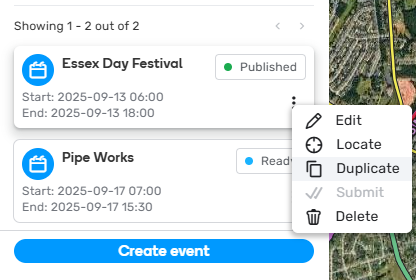
- Navigate to the events tab and filter your results to show the previous event that you want to duplicate.
- Once your Past Event is located, use the 3 vertical dots to locate the Duplicate button.
- This will pull over all of the same information from the past event.
- Checking the Include road closures box will duplicate closures from the original event into the new event. The dates and times on any of the duplicated closures will be adjusted accordingly to the dates and times of new event you are creating.
- If the start or end time of any of the closures that are duplicated were different (ex. start time an hour later) than the event start/end time. These times will be adjusted accordingly inside of the new event times you added.
-
Example of time adjustments within the event and closures
Original event start/stop 12:00 - 18:00 New event start/stop 11:00 - 20:00 Original Closure 1 start/stop 12:00 - 18:00 New closure 1 start/stop 11:00 - 20:00 Original Closure 2 start/stop 13:00 - 16:00 New closure 2 start/stop 12:00 - 18:00
- Update the details of the event then click the Save button.
- If there are no road closures in the event, you can skip down to #9 and Submit.
- Before you can click on road closures you will need to update your filter to ensure that you can see the new Event. After the save above, WME will show you the new event in the list, but when you click on road closures in the event, WME will flash and won’t show you anything, because the filter is wrong.
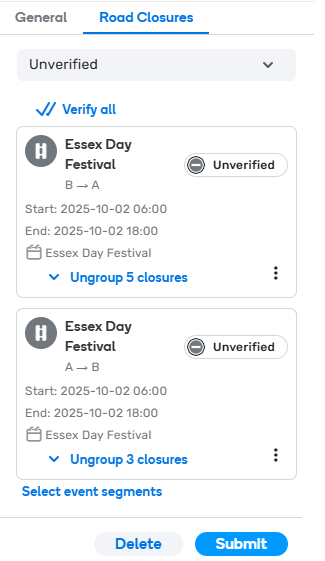
- In the Road Closures tab, it automatically defaults to Verified. Your past event closures are not yet verified. Click the drop down and select Unverified.
- You must verify these closures before they will show up in the WME or in the event.
- Use the 3 vertical dots → Locate, to help you locate the segments.
- Ungroup the closures with the link at the bottom of each box to see them individually.
- Make sure to verify the date and time are correct. Edit if needed.
- Use the 3 vertical dots → Verify, to verify each segment that should be closed.
- If a closures does not need to come over (its not closed this time) leave it unverified and the event will not add this closure.
- Yes, there is a Verify All button, please make sure all the closures are on the correct segments, and have the correct dates and times, before using this.
- Once you finish verifying all of the Unverified, change the drop down to Failed. This will show you any closures that could not be duplicated. Usually this happens because the Segment ID changed.
- Add these to the map via the regular closure process. Be sure to select the new event.
- With all of your Event details correct, closures duplicated, verified, and added, you are now able to submit the event. Back under the general tab a submit button will appear. This will publish the event and create the webpage.
- Don’t worry, if you forgot to add a Road Closure you can always add them after the event is submitted and it will update the webpage.
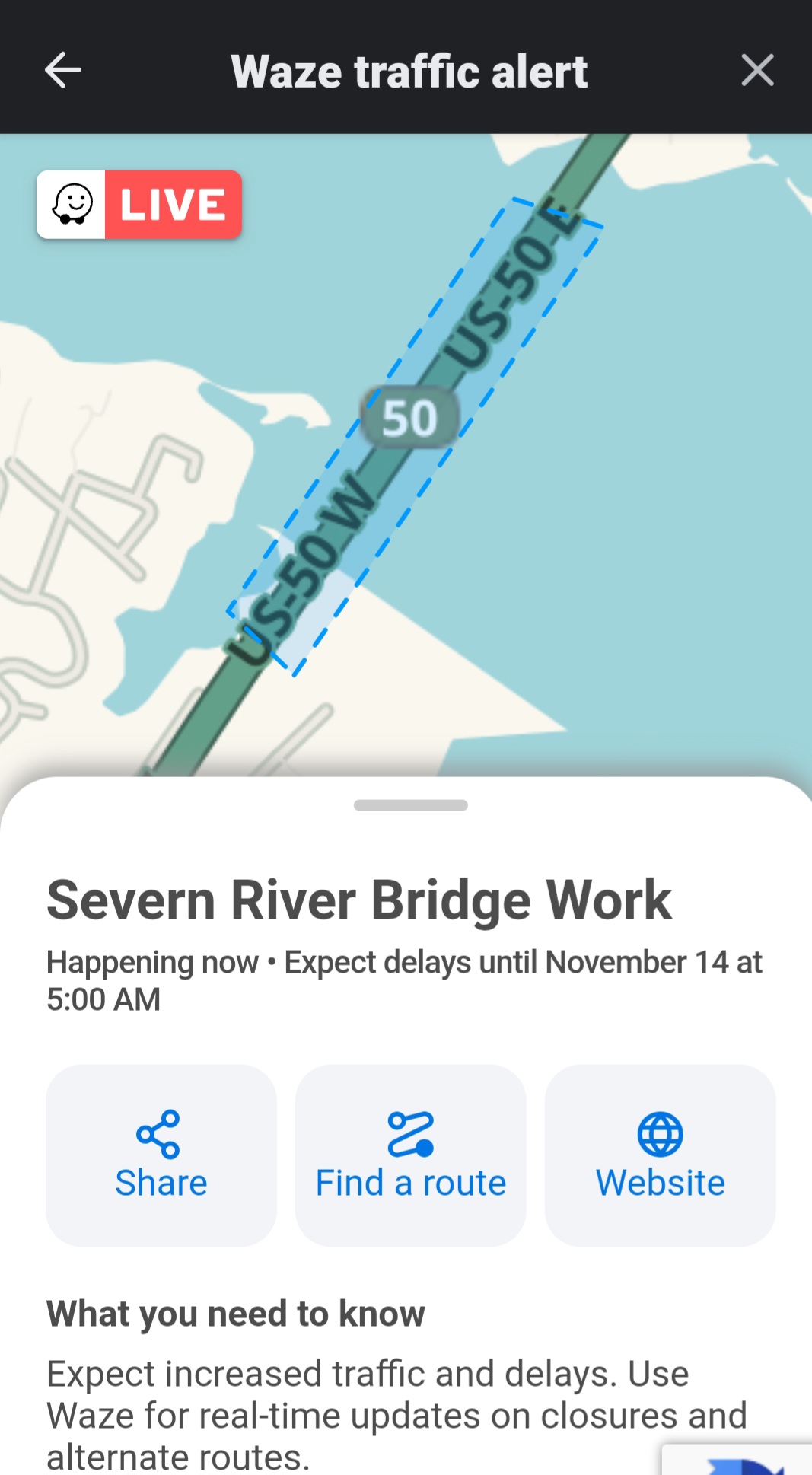
New Event Page
If the event page does not load correctly, or does not look great, it is being phased out by Waze. To view the event on the New page add /view to the end of the URL.
For example:
Current event page: https://www.waze.com/events/cross-rdhoneygo-changes--2025-10-07
New event page: https://www.waze.com/events/cross-rdhoneygo-changes--2025-10-07/view