Add & manage closures
Nobody knows your local roads better than you! When you add real-time closures, you instantly save drivers from getting stuck. While Waze uses smart detection models, your human touch is what keeps our maps perfectly accurate when unexpected things happen.
Waze combines your edits with inputs from Waze Partners, Waze Operations, user app reports, and automated detection models. Understanding how closures work, how statuses update, and when to step in to override automatic behavior helps ensure drivers get accurate routes.
View active & past closures
In the Waze Map Editor (WME), closures temporarily restrict traffic for events, construction works, and road incidents. The WME displays both active and past closure statuses so you can review closure details even after they end.
To view active and past closures (from the last 7 days):
-
Log in to the Waze Map Editor
-
Click
 , in the top-right corner of the map display
-
Turn on the Road Closures layer
Add a road closure
Step 1: Select the segment
-
Log in to the Waze Map Editor
-
Click
, in the top-right corner of the map display -
Turn on these layers:
-
Road Closures
-
Map notes
-
-
In the search bar, enter the location of the closure
-
Click the relevant segments
-
Click the Road Closures tab
-
Click Add closure
Step 2: Fill out closure details
-
Fill out the following details:
-
Description (should be the same as the event name)
-
Direction
-
Start date and time
-
End date and time
-
-
Under “Event”, select the related event (if applicable)
-
If needed, select the “**Turn off traffic detection”**option.
Note: Selecting this option will keep the segment closed even when traffic is detected. Learn more below about when to apply.
-
If needed, adjust “Closure nodes” to control intersection access
-
Click Save, in the top-right corner
Understand closure sources & WME statuses
Waze processes road closures from multiple sources and tracks their lifecycle with specific status tags.
Closure sources
-
Community editors: Closures created directly in the WME by local community map editors
-
Waze Partners: Closure Feeds from Waze Partners
-
Waze Operations Team: Direct updates from internal Waze operations team (waze-closures)
-
User-Generated Content (UGC): Real-time closure reports submitted by drivers in the app
-
Waze Autodetection: Closures picked up automatically by smart detection tools. These default to 1 hour and automatically extend if the system sees that the road is still closed. You can spot them by their tag:
WazeClosures: Created directly by Waze’s auto-detection tool
GeoClosures: Auto-detected by Geo tools and checked by Waze -
Geo Operations Team (GeoRoadClosures): Direct updates added by the Geo Operations team
**
Types of closure statuses**
Segments with closures display a status icon directly on the map segment and closure card:
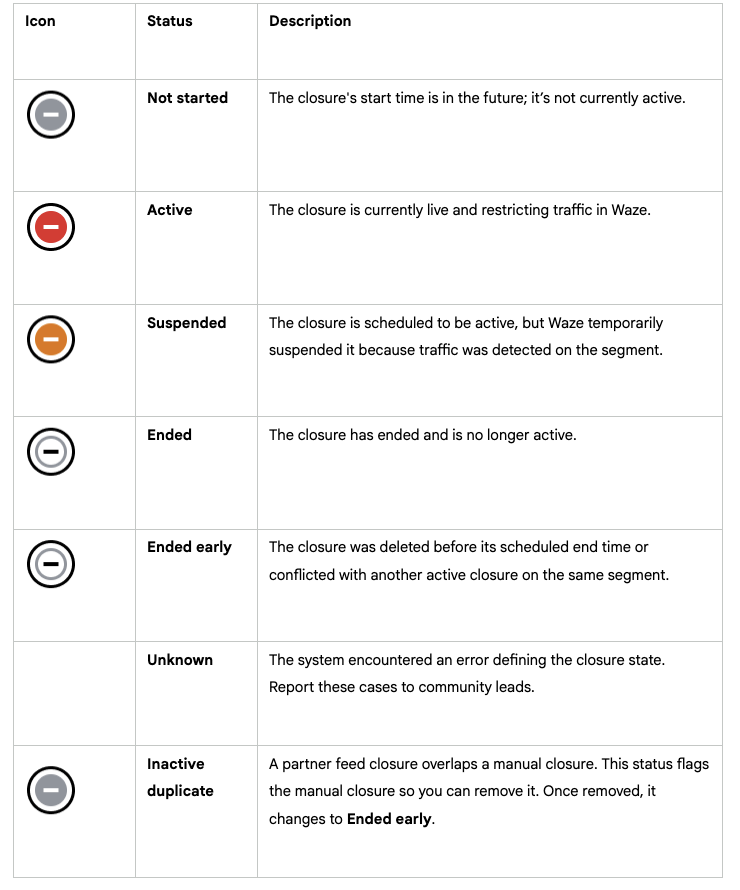
Important rules for past closures
Closures marked Ended remain visible on the map and in the Road Closures tab for 7 days after their end time:
-
You can edit or delete a segment if it only contains past closures
-
You cannot edit past closures (such as extending their end time to reactivate them) . You can however duplicate and verify past closures. Learn more below.
How Waze handles overlapping closures
When multiple closure reports overlap on the same segment, Waze uses prioritization rules to determine which closure to activate:
Priority rules
-
Official updates over user reports: Official closures (Editors, Partners, Operations) always beat user app reports. App reports are less reliable and get removed automatically if they clash with an official closure
-
Latest update wins: When different official sources report overlapping closures on the same segment, the most recently reported official closure takes over the segment, no matter what times were set earlier
Examples of overlapping closures
Imagine an Editor sets a closure on segment X from 9:00 to 10:00 (current time is 8:00). Here is how Waze handles it if a Partner feed sends an overlapping closure:
-
Scenario 1: Feed closure overlaps the first half (8:30 to 9:30)
-
8:30: The Partner closure starts
-
9:00: The Editor closure starts, ending the Partner closure early
-
10:00: The Editor closure ends
-
-
Scenario 2: Feed closure overlaps the second half (9:30 to 10:30)
-
9:00: The Editor closure starts
-
9:30: The Partner closure starts, ending the Editor closure early
-
10:30: The Partner closure ends
-
-
Scenario 3: Feed closure completely covers the Editor closure (8:30 to 10:30)
-
8:30: The Partner closure starts
-
9:00: The Editor closure starts, ending the Partner closure early
-
10:00: The Editor closure ends, and the Partner closure turns back on for its remaining time
-
10:30: The Partner closure ends
-
-
Scenario 4: Feed closure fits entirely inside the Editor time window (9:30 to 9:45)
-
9:00: The Editor closure starts
-
9:30: The Partner closure starts, ending the Editor closure early
-
9:45: The Partner closure ends, and the Editor closure turns back on
-
10:00: The Editor closure ends
-
Understand closure suspension & when to bypass it
Waze constantly checks whether closed roads are actually closed. If traffic moves onto a closed segment, Waze automatically manages the closure’s status.
Suspension and reactivation logic
-
Closure suspension: An active closure automatically suspends if a significant volume of cars enters the segment quickly, based on user behavior like wrong turns
-
Closure reactivation: A suspended closure automatically reactivates when very few or no cars enter the segment over a short time window
Example timeline of a live closure
Here is a simple example of how Waze monitors, pauses, and resumes a closure:
-
7:00 PM: Waze monitors the scheduled closure. Since traffic is moving, Waze waits for the road to clear
-
7:15 PM: After 15 minutes with no traffic detected, Waze confirms the road is empty and turns the closure live
-
8:30 PM: Waze sees unexpected traffic on the segment and automatically pauses the closure
-
8:35 PM: No traffic is seen for 5 minutes, so the closure turns back on
-
10:00 PM: The scheduled closure ends, and Waze removes it from routing
When to use (and not to use) the “Turn Off Traffic Detection” feature?
Using the “Turn Off Traffic Detection” feature the wrong way can mess up routes, cause traffic jams, and even make things unsafe. This feature can have undesired impact on the road if used in the wrong place (in some extreme cases, it can even create huge trouble on the road).
Check out below some guidelines on when to use this feature, and most importantly, when to refrain using it.
When to use
- Closely parallel segments (e.g., HOV lanes) where open traffic may cause false triggers on the closed segment.
- Cases where a closed street allows resident access without impacting system status.
- Physical barriers or construction rendering the turn impossible.
- Mandatory closures ordered by authorities or event organizers, regardless of actual vehicle attempts.
When not to use
- As a way to compensate for a lack of trust in the suspension mechanism. Indeed, the suspension mechanism needs relatively a lot of crossing traffic before it suspends a closure, and also will unsuspend in case traffic is no longer observed (see the example above in “closure timeline”).
- This is crucial for highway closures with HOV lanes. Please be super mindful for using
For any questions or problems related to this feature, please contact waze-closures@google.com
Got questions?
Can I view a closure’s status history?
Yes.
-
Select the relevant segment in WME
-
Click the Road Closures tab
-
Click the status tag on the closure card. A pop-up window will display the complete “Status history” with local timestamps.
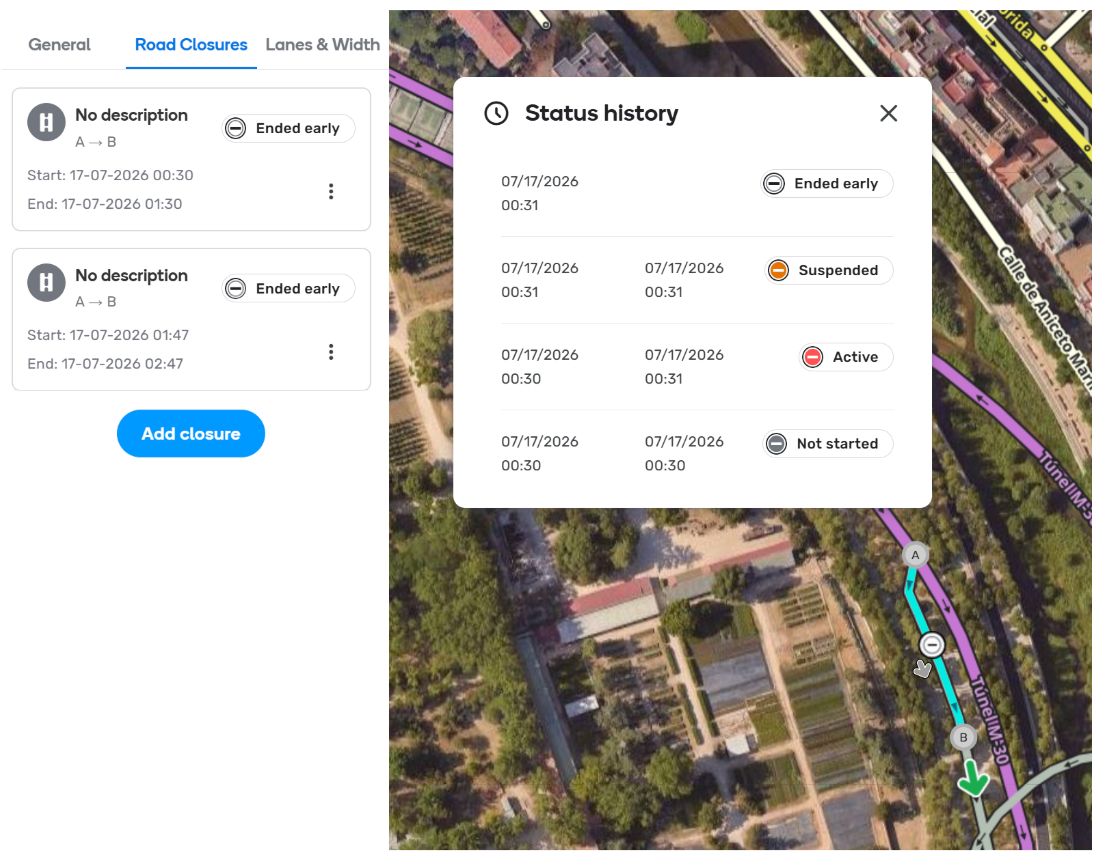
How are multiple closures on a segment displayed?
When a segment has multiple overlapping closures, Waze displays a single icon prioritizing the most urgent status in this order:
-
Active
-
Suspended
-
Not started
-
Ended
What happens when an editor deletes an auto-detected closure?
If you delete an auto-detected closure (WazeClosures or GeoClosures), Waze removes it immediately and stops routing drivers around it. However, if road signals still show zero traffic after a few minutes, the system will override your deletion and recreate the auto-detected closure. To report an incorrect auto-detected closure, reach out to your Community Manager or email waze-closures@google.com.
How are partner feed closures stored after they end?
Partner feed closures currently disappear right after they finish due to database limits.
What happens if a closure is deleted versus finished?
If a closure is manually deleted before its end time, it’s erased from the active database and will not appear in the Road Closures tab. Closures with a “Ended” status will remain visible for 7 days.