Waze uses specialized notifications to provide rapid, timely updates during an emergency. While both alerts help keep Wazers safe, they are triggered by different data sources and serve different levels of official urgency. Use the Pop-up activation request Request form.
How these alerts work
When a Wazer sets a destination that falls inside the designated polygon, the app displays an in-app alert message.
There are two primary types of emergency notifications: Evacuation Zones, which are official government mandates, and Crisis Alerts, which are community-led warnings for extended areas. Learn more about both types below.
Important: This notification is strictly destination-based. A user will only see this alert if their destination is inside the polygon. Simply driving through the area or having a route that passes through the polygon will not trigger the alert.
Mandatory Evacuation zones
An evacuation zone is a specific area where a government organization has ordered people to leave. These alerts are reserved for official mandates and usually feature a generic “Evacuation zone” header with a warning icon.
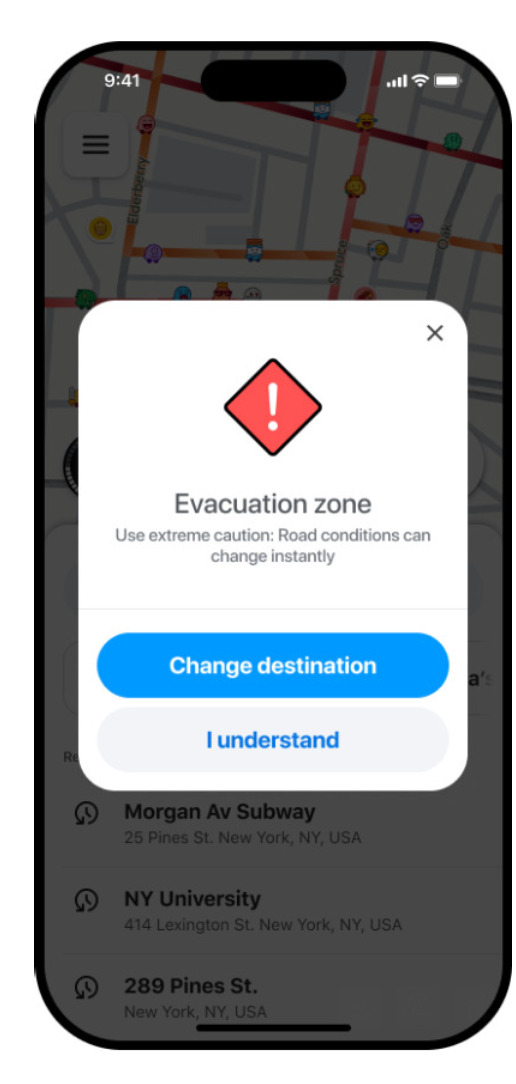
Share evacuation zone data
The Waze team manages the upload of these zones based on verified data from the community and official partners. To submit an official zone:
- Gather data: We require data from official government sources. Provide a link to the source so the Waze team can confirm the zone.
- Prepare your file: Use one polygon per file. Files must be in KML or WKT format and named using the official government name.
- Submit your data: Fill the Pop-up activation request Request form
Crisis alerts (Community-led)
Crisis alerts allow community leadership to warn Wazers in extended areas where caution is needed, such as regions affected by heavy smoke or localized flooding not under a mandatory order.
Unlike evacuation zones, Crisis alerts are specific to each crisis type. When requested, the notification will display the specific nature of the event, such as a “Flood warning” or “Hurricane warning.”
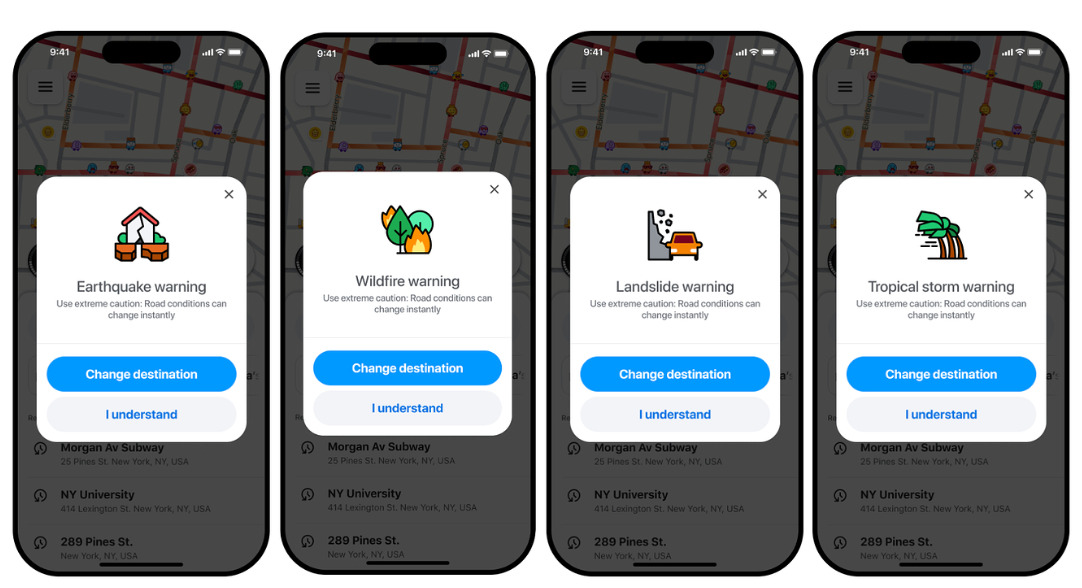
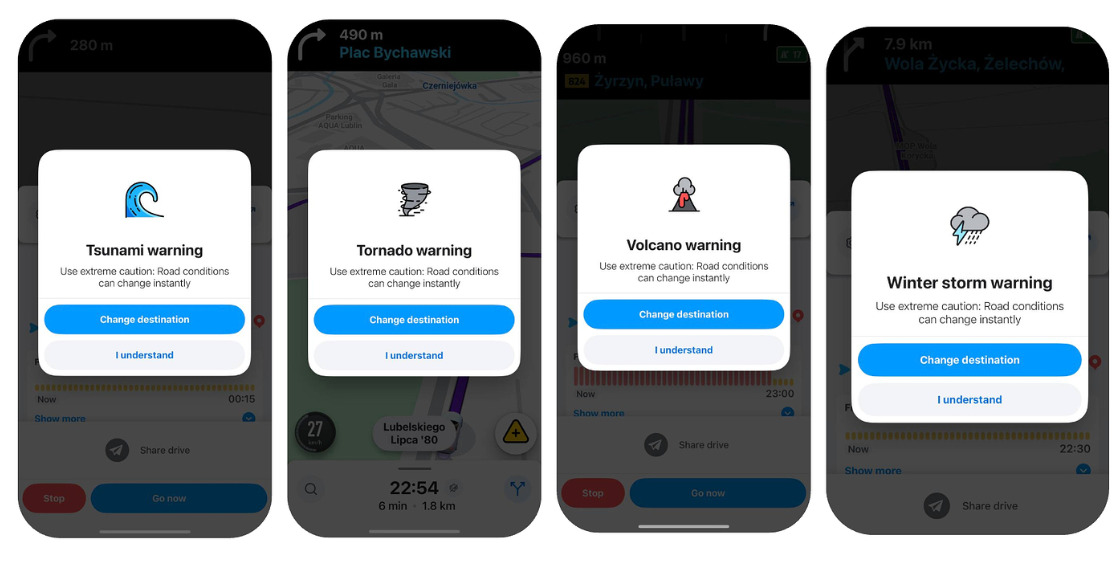
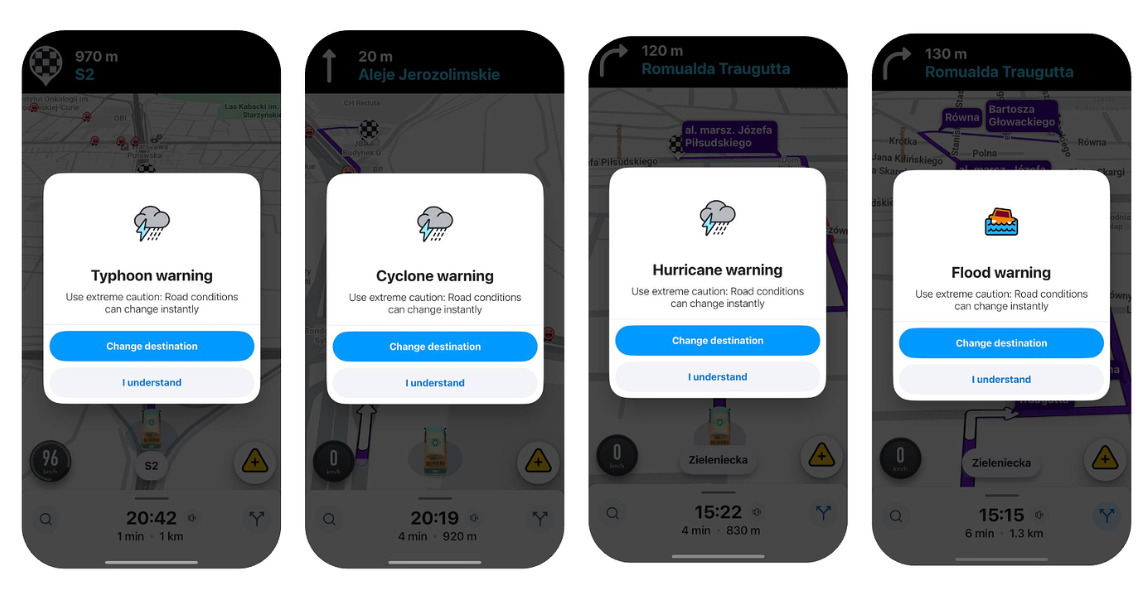
Crisis Alert Requests
Authorization for Crisis Alert requests is limited to Community First Responders, Global Champs, or Coordinators. Requests must be submitted via the Pop-up activation request Request form.
Submission Guidelines
To facilitate rapid review and deployment by the Waze Crisis Team, ensure all submissions adhere to the following requirements:
- Event Categorization: Specify the affected country and the precise nature of the event (e.g., Tornado, Volcano, or Winter Storm).
- Spatial Data: Provide a link to a KML file defining the alert area. Attaching a screenshot of the polygon is recommended to verify accuracy.
- Temporal Parameters: Define the start and end dates/times. If the conclusion of the event is undetermined, set an end date five days from the start; this can be adjusted subsequently.
- Verification Source: Include a link to an official source, such as a government feed or emergency service website, for verification purposes.
- Access Permissions: Ensure the shared KML link grants access to waze-vendor-communications-team@google.com.