In Waze, Permanent Hazards (PHs) alert drivers about potential dangers due to difficult road conditions. Waze’s PH feature includes school zones. These zones require drivers to be extra careful, follow the speed limit, and watch out for pedestrians. They also help drivers avoid potential fines in restricted areas.
How school zone alerts appear to drivers
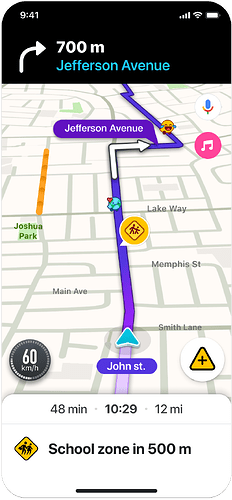
When drivers enter a mapped school zone polygon, a single point alert will appear on the map. This alert applies to the entire portion of a road segment within the school zone’s boundaries, without the road segment itself being split or changed on the map. If a segment is only partially contained within the school zone, the alert will apply only to the included portion.
Drivers won’t receive alerts when exiting a school zone or when starting a drive within one.
Grouping and familiarity capping
To avoid overwhelming drivers with alerts, Waze employs a grouping and familiarity capping mechanism:
- Grouping: PHs of the same type that occur within 500 meters of each other are grouped together. Drivers receive a single alert indicating multiple occurrences of the same type ahead, along with a single pin on the map. This grouping is done by PH type and not for different types together.
For school zones, this grouping works as follows:
- If a user exits a school zone polygon and enters the same or a different school zone within a distance of 500 meters, an alert won’t be triggered
- Only one standard school zone alert will appear for multiple school zones within 500 meters, without any indication of multiple zones nearby
- Only one pin will appear on the map the first time the alert appears
- Familiarity Capping: To understand the best approach, we are currently testing 2 variations in production, affecting different groups of users.
- No capping: A group of users will experience school zone alerts every time they enter a mapped zone, without any limitations
- Capping: An equal group of users will receive the same school zone alert twice. After the second alert, the hazard will be temporarily hidden from the map for 21 days. After this period, the alert will be reset, and the driver will receive the alert twice again before it’s hidden for another 21 days.
School zones are created and maintained by our dedicated community of map editors. To effectively map and manage these school zones, editors utilize specific guidelines and features.
A key feature that sets school zones apart from other PHs is dynamic timing. This means that school zones are typically active only during specific hours on school days. In addition, the Scheduler feature is also available, allowing editors to set custom schedules for school zone alerts for even greater precision.
Guidelines for school zones
For editors to effectively map school zones, it’s important to understand these key guidelines:
- School zones are independent of the segments they cover and remain intact even if the covered segments are deleted
- The maximum size of a school zone is 3 km x 3 km
- Polygons can overlap
Add a school zone
- Log in to the Waze Map Editor
- Click
 , in the top-right of the map display
 - Turn on the Hazards layer
- Click
 , in the left sidebar. A popup menu will appear.
 - Hover over Hazards. A popup menu will appear.
- Select School zone
- Select the relevant segment
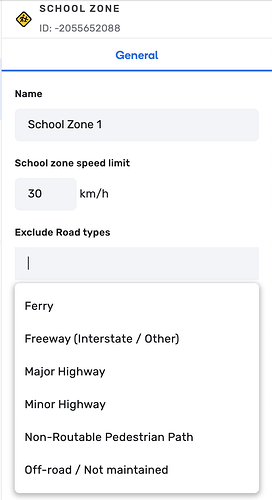
- If necessary, fill in the following fields:
- In the “Name” field, enter the school zone name
Note: Currently, this name isn’t visible on the map. You’ll be able to identify school zone polygons by their orange color. We recommend that each community establishes a naming convention for better identification and to distinguish them from school place points. - In the “School zone speed limit” field, enter the speed limit to be applied within the school zone
Note: While the speed limit is not currently displayed in the app, we recommend adding it as it’s planned to eventually override segment-level speed limits within the zone. - In the “Exclude Road types” field, select any road types that should not trigger alerts within the school zone
- Click Save
Tip: The school zone will appear in the Waze app after the next map build.
Got questions?
When will alerts be surfaced if a school zone doesn’t have a customized schedule applied to it?
In this case, drivers will get alerts for the school zone according to the pre-defined default schedule:
- ROW: Monday - Friday, 7:30 AM - 6:00 PM
- NA: Monday - Friday, 7:00 AM - 4:30 PM
- IL: Sunday - Friday, 7:30 AM - 2:00 PM
What happens if I exclude a road type?
Alerts won’t display on excluded roads, even if they intersect the zone.
What if the speed limit isn’t set?
The segment speed limit will apply.
How can I define a school zone to prevent automatic routing through it?
You can define a school zone as “no entry” to prevent automatic routing through it in one of two ways:
- Private roads: Mark the relevant road segments within the school zone as private roads. This restricts routing through them.
- Restricted areas: Alternatively, define the school zone by setting up a restricted area polygon. This method also prevents automatic routing.
How many editing points will I get for mapping school zones?
You’ll receive the following editing points for school zone contributions:
- Creating or editing a school zone polygon: 1 point
- Creating, editing, or deleting a single school zone’s schedule (including connecting a community schedule to a school zone): 3 points
- Creating or editing a saved Community Schedule: 5 points
Will school zones appear in the app in real time, once they are added to WME?
No, they need a tile build like other map entities, before they’re applied and visible in the app.
What’s the default lock level for school zones?
The default lock level for school zones is 4. This lock level can be configured per country, independently from the lock levels applied to other PH’s.
Who can modify the lock level?
The lock level can be modified by Champs and Coordinators by reaching out to their Staff Community Manager.
Does the lock level apply to both the creation and editing of school zones?
Yes. Additionally, editors can create or edit school zone polygons regardless of the lock levels of the underlying segments.